
Mac Software: What I’m Using Right Now
But of course, this is subject to change at any time…as always

I’ll be the first to admit that I’m a huge waffler when it comes to the apps I use and I bet some of you are too.
I’m always trying some new combination of applications in an attempt to find just the right workflow for my needs. I do this with my writing tools, the browser I use, and my email client. The goal with some of these is to find the right balance of privacy and security and overall function.
This sometimes leads me back to using some old favorites alongside some newcomers.
What are the apps I’m currently using on the Mac?
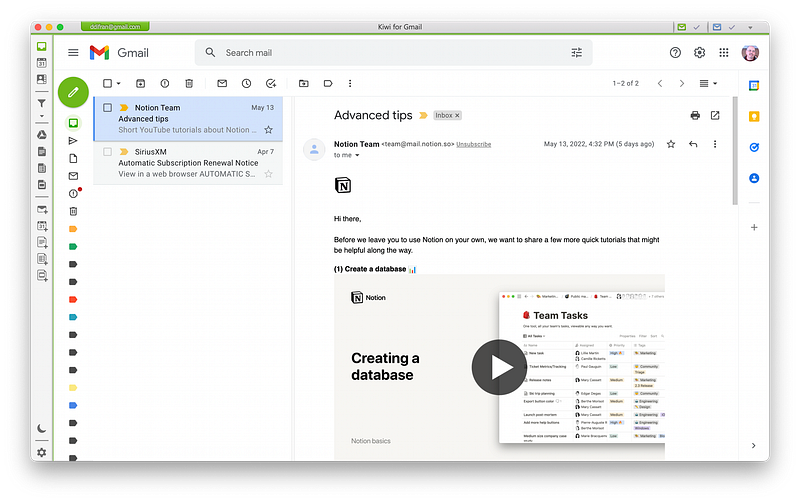
Email — I’ve gone back and forth on this one more times than I can count. I was using Apple Mail, but while a good client I find it boring.
Since both my personal email and my “writer” email are in Google Workspace, I decided on Kiwi for Gmail. It gives me the look and feel of Gmail on the web in a self-contained client.
Kiwi for Gmail is free for personal use, but it is limited to 1 account. To get the ability to monitor more than one account you’ll need to pony up $34.99 per year. This gets you the ability to monitor 6 Gmail accounts along with a number of other features.
Kiwi for Gmail is an excellent product and worth a look if Google is your email provider.
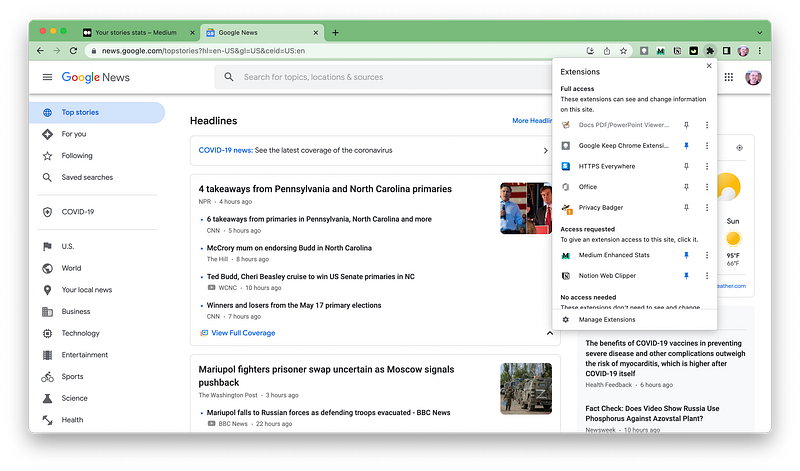
Browser — This is the app I waffle most on and I kind of hate myself for it. Okay not really — it’s only a browser after all.
For the past few months I’ve been using Brave exclusively, and although excellent and much better on security and privacy out of the box than Chrome, I decided to reintroduce Chrome back into the stable.
I like the look and feel of Chrome, and with the addition of a few extensions, it can be made much less invasive.
The extensions include HTTPS Everywhere and Privacy Badger. These along with tweaks to Chrome’s settings go a long way to ensuring that I limit the amount of data I send to Google.
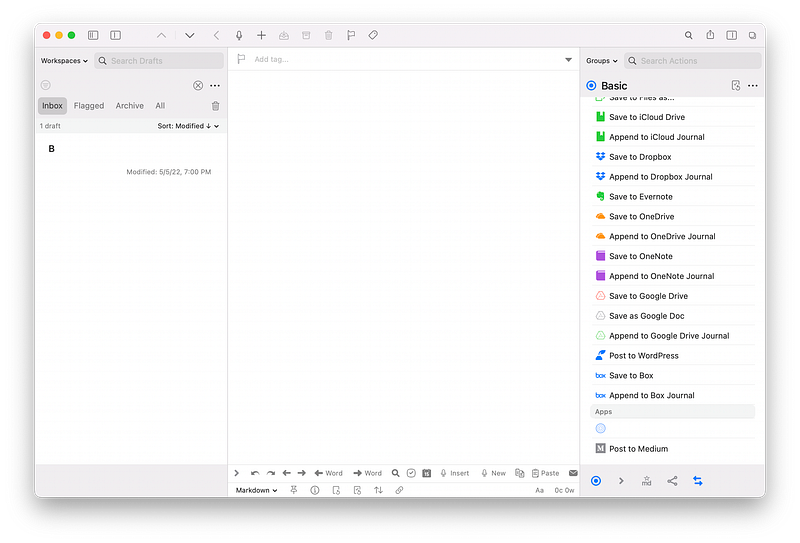
Note Taking — I really like Apple Notes and still use it, but for quick note-taking Drafts is near perfect.
When you open the app you are presented with a blank page for you to type in. When you are finished you have a bunch of places you can send your text including a file, Google Docs, OneNote, Dropbox, Apple Reminders, and even a printer. These, however, are only a few of the things you can do with this powerful app.
The free version is excellent, but I opted for the Pro version which gives you more features and is only $1.99 per month, or $19.99 per year. It’s well worth the money.
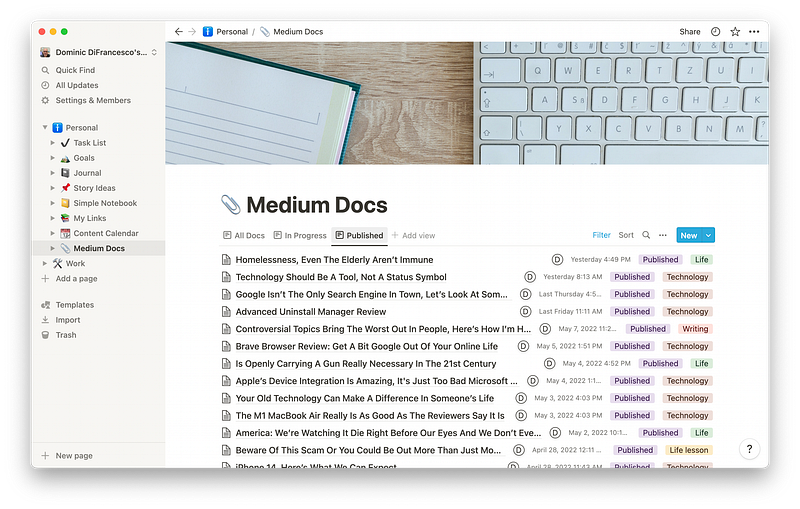
Other — Notion is an app that I’m absolutely in love with, but it’s difficult to put it into any one category.
It’s a note-taking app, it’s a database, it’s a job scheduler, it’s a writing app, it’s all of these, or it could be none of these depending on how you choose to use it. It’s extremely flexible.
I’ve been using this app for a solid month now to write every Medium post since I installed it, 20 in all, or 21 if you count this one, and while using it for writing isn’t perfect, it has helped me get infinitely more organized.
I wrote my initial review of the software in the article below and will be writing another review of Notion after having used it for 30 days.
I haven’t even scratched the surface of what this app can do, and I’m excited to work more with it. Of course, it doesn’t hurt that it’s available for Mac, Windows, iOS, Android, and on the web.
I’m using the free tier, but there are paid tiers that provide better collaboration tools. Right now I don’t need those tools, so the free tier is fine for me.
Utilities
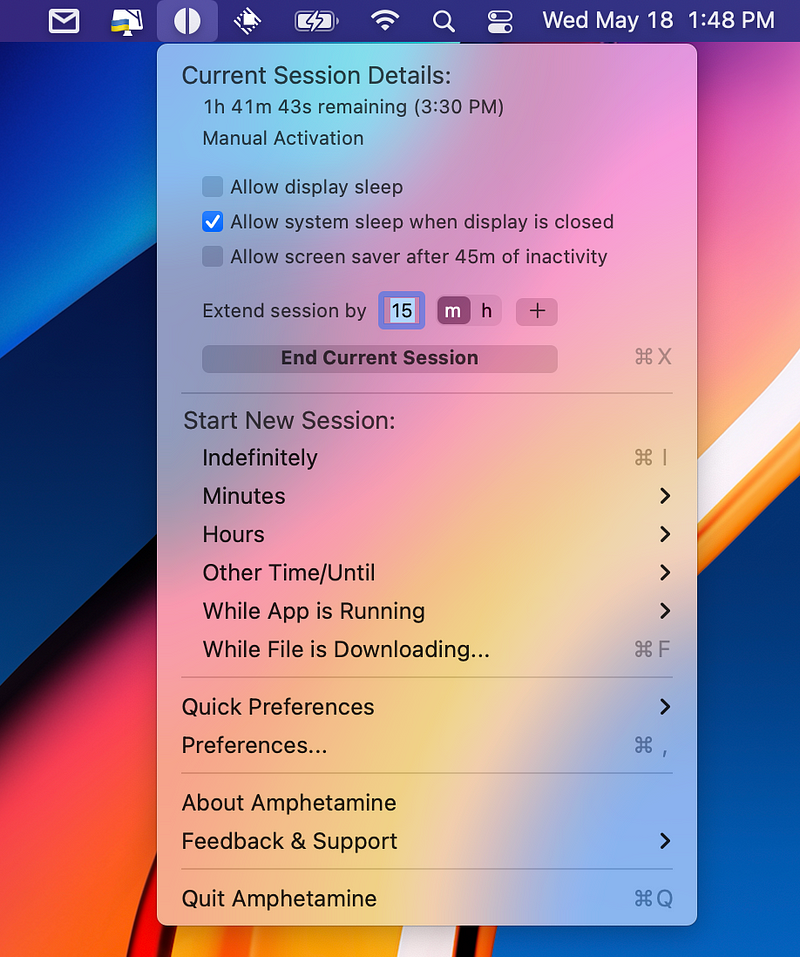
- Amphetamine — This is a small utility that has a variety of setting to keep your Mac from going to sleep. I use Amphetamine almost daily. It allows you to set stay awake times in minutes, hours, or custom amounts of time as well as based on specific activities. The app is free and works exactly as described.
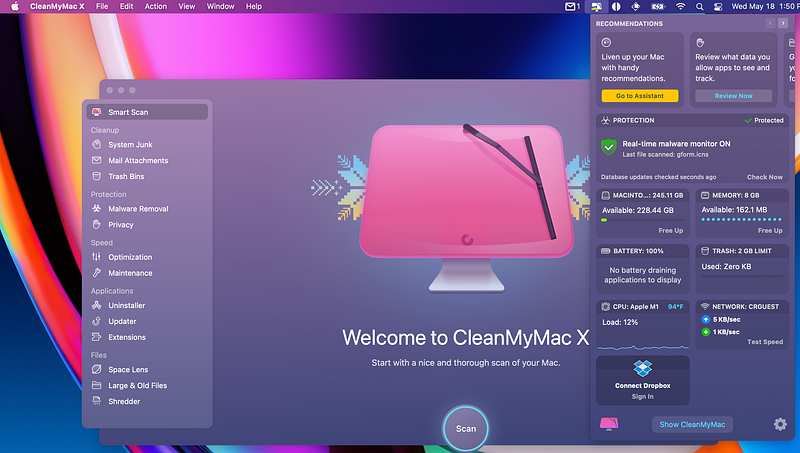
- CleanMyMac X — This app is one of my favorites. It’s kind of a Swiss Army knife in that it does so many things, and it does them well. I use its Smart Scan feature quite frequently to remove clutter from my flash drive, free up RAM, and scan for malware. It also has an uninstaller built-in, it can scan for large and old files, check for software updates, and it offers various scripts for things such as flushing the DNS Cache, speeding up email, and repairing disk permissions. The menu bar app for CleanMyMac X gives you a quick overview of your system including memory usage, flash drive usage, CPU usage, along with ways to free up resources. This is an invaluable utility and at $34.95 for an annual subscription, I think it’s a pretty good deal.
Final app thoughts
I can’t say for sure how long these apps will be used in my workflow, and I’m somewhat embarrassed that I change things so often, but that’s the way it goes I suppose.
I love trying new apps and seeing what they can do to make my digital life easier, so I guess this is to be expected.
While I’ve installed other 3rd party apps, such as Raycast (a Spotlight replacement), and TeamViewer (remote access software), apps such as Raycast are still a question for me. Does it really do enough to make me want to keep it installed? Only time will tell.
Ultimately, we all have to find the apps that work for us, be that your browser, email client, or the utilities you use.
Our apps are very personal choices, and in the end, only you can make them.
Until next time…
If you have any recommendations for software that you’ve found useful, I’d love to hear about it. I’m always up to trying new things.
**(I receive no compensation from any of the apps listed in this article.)**
If you enjoyed this article, or maybe hated it, and would still like to read everything that Medium has to offer, then I would appreciate it if you would subscribe using my referral link below.


