
M1 MacBook Air Buying Guide
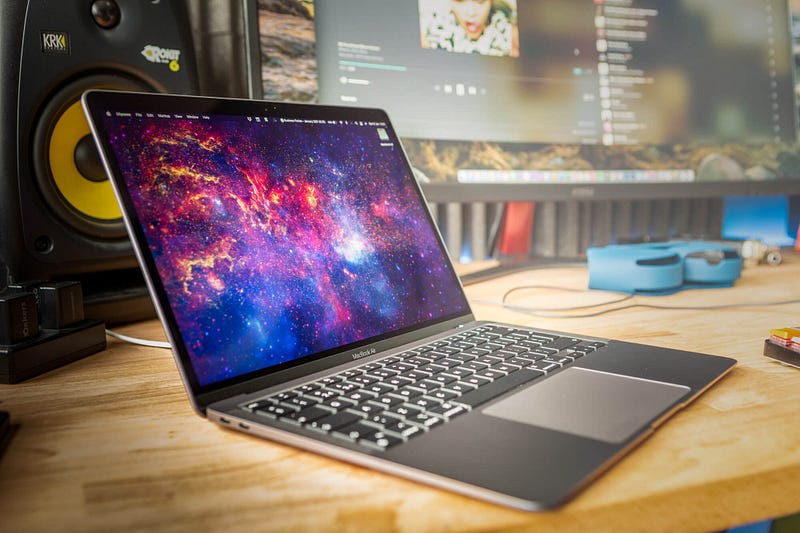
The M1 MacBook Air has transformed the way I run my business. The only other laptop which comes close to it in that regard is the 16" MacBook Pro.
And that’s a weird comparison, right? The 16" MacBook Pro cost me over £3,500. The M1 MacBook Air cost just £999.
If you’re interested to see how the M1 MacBook Air fits into my daily workflow, check out this article.
If you think you’re ready to invest some of your own hard-earned into an M1 MacBook Air, I’ve decided to put together a no-nonsense guide for normal people.
So, you won’t find a sniff of a benchmark or stress test anywhere below. I’ll simply help you pick the right configuration for you, or point you in the direction of a different M1 option if your workload demands it.
The big decision: M1 MacBook Air or M1 MacBook Pro?
It’s clear that this is the hardest decision for most people considering an M1-powered MacBook. I understand why, too, because Apple doesn’t really differentiate the two well enough, in my opinion.
To make life easier, there are five questions to ask yourself before you opt for an M1 MacBook Air:
- What’s your workload like?
- Do you need (or want) the Touch Bar?
- How mobile are you?
- Do you work outside a lot?
- Do you just want a MacBook Air?
I break these questions down in this guide. But the answers to the above will ultimately reveal whether or not the M1 MacBook Air is going to be sufficient for you.
In summary, if you have zero interest in the Touch Bar, don’t undertake particularly processor-intensive workloads (such as video rendering, software development or music production) and can do without the additional two hours of battery life offered by the Pro, the M1 Air will do you proud.
On the subject of the battery life, it really is stellar on both machines, so you won’t lose out unless you’re particularly mobile.
Several viewers of my YouTube channel have asked if the presence of the fan on the M1 MacBook Pro will offer better longevity for that laptop, versus the Air. I genuinely don’t think it will; it’s simply there to stop the processor throttling its speed and is rarely called into action, regardless. Both the Air and the Pro will last for many years and offer great resale values.
The colour
The MacBook Air comes in three colours:
- Space Grey
- Gold
- Silver
This is a completely subjective choice, but it’s worth noting in this guide, because colours matter to some MacBook owners. For instance, if you love the gold colour, you can’t get that with the M1 MacBook Pro, which means you may have to forgo the latter’s features if you want that colour.
And you know what? That’s cool! MacBooks are and forever will be very personal machines, and owners will often make an aesthetic choice over features or performance.
I opted for the Space Grey M1 MacBook Air, because it’s my default MacBook colour choice these days.
7-core or 8-core GPU?
Having used extensively both the 7-core and 8-core GPU versions of the M1, I can confidently say you won’t notice a difference between the two.
If you opt for the base spec M1 MacBook Air (as I did), you’ll pay £999/$999. If you instead go for the option with the 8-core GPU, you’ll pay £1,249/$1,249. In doing so, you’ll also get 512GB of storage, versus the 256GB in the base spec version.
However, if you simply upgrade the base spec version (i.e. the one with the 7-core GPU) to 512GB, you’ll pay £1,199/$1,199.
Is that extra GPU core worth £50/$50?
Nope.
Don’t sweat over this particular detail — particularly if you’d rather put that cash towards something else, such as additional RAM, storage, or a peripheral.
If you undertake graphics intensive tasks and are concerned about performance, the M1 MacBook Pro is the one to go for based on the presence of the CPU fan, which will prevent it from throttling the speed under heavy processing loads.
8GB or 16GB?
Apple has changed the RAM conversation with the introduction of the M1 chip. But that has only added to the confusion as to which one people should go for.
In my experience, 8GB is ample for all ‘normal’ computing tasks. But it even works admirably during video editing and music production.
A case in point: my M1 Mac mini has 16GB and rarely if ever chews up more than 50% of the available RAM — even with countless apps open, including Final Cut Pro, Photoshop and Logic Pro X. It never, ever feels RAM constrained — even when I’m really pushing it.
The decision, therefore, depends on how much headroom you really want. Some people just want as much RAM as they can afford for peace of mind, and my buying guidance remains the same for the M1 MacBook Air: spend as much as you can on RAM, just to future proof your purchase.
But if you can’t afford to upgrade to 16GB, don’t lose sleep over it. In everyday use, you simply won’t wish you had those additional gigabytes. It’s a different world.
How much storage?
This will depend almost solely on how reliant you are on the cloud. If you save your documents and photos in services like iCloud, Dropbox and Google Photos, 256GB will be just fine.
External SSD storage is pretty cost-effective these days — particularly when compared against Apple’s pricing for storage upgrades.
Your choice here will also depend largely on how mobile you are. For instance, if you’re out and about a lot with your laptop and need to work with big local files (video, for instance), the ability to store them on the laptop might be desirable. Those who don’t like to carry around additions such as external hard drives would do well in that scenario to opt for one of the larger storage options.
The M1 MacBook Air is configurable up to a massive 2TB of storage. So, if you’re feeling flush and never want to worry about available space again, there are plenty of options.
Should you buy AppleCare+?
AppleCare+ isn’t cheap. For the M1 MacBook Air, it adds £229/$229 to the overall price of the laptop.
However, if the machine is a business purchase, I think it’s a bit of a no-brainer. It adds two additional years of warranty to Apple’s standard 12 months, and covers the battery, too. Accidental damage protection is also included, as is 24/7 ‘priority’ access to Apple’s incredibly helpful tech support team.
However, in my experience, Apple’s laptops are incredibly resilient against sustained use for many years. It’s why you see so many older MacBook variants still in use in coffee shops and offices. They last, and last, and last.
So, if you can’t afford AppleCare+ and this isn’t a business-critical machine, this is another option not to lose sleep over. But if you’re the sort of person who just likes the peace of mind offered from additional warranty and don’t mind paying the price — AppleCare+ is great value in the long run.
Wrap up
At first glance, picking the right M1 MacBook Air is anything but easy, given the presence of its Pro brother and the slightly odd configuration choices Apple offers.
However, strip everything back, and my usual advice prevails: spend as much as you can comfortably afford. But whatever you do, don’t lament the absence of extra RAM, storage or AppleCare+ if you can’t afford it. Because you won’t miss those things once you get your hands on the raw power of that M1 chip — trust me.
My M1 MacBook Pro and Mac mini buying guides are coming soon — stay tuned!
Originally published at https://markellisreviews.com on January 31, 2021.


