LLM By Examples: Build Llama.cpp with customized Docker Images
Llama.cpp is an innovative library designed to facilitate the development and deployment of large language models. Its efficient architecture makes it easier for developers to leverage powerful language processing capabilities without getting bogged down by complex installation procedures or system requirements. This article focuses on executing Llama.cpp using pre-built Docker images.

By utilizing pre-built Docker images, developers can skip the arduous installation process and quickly set up a consistent environment for running Llama.cpp. Docker provides an isolated environment that includes all necessary dependencies, which significantly simplifies the deployment of language models. This is particularly beneficial for teams looking to streamline their workflows or for those who may not have extensive experience with software installation and configuration. In this guide, we will explore the step-by-step process of pulling the Docker image, running it, and executing Llama.cpp commands within this containerized environment. Additionally, we will discuss how to customize configurations for specific use cases, ensuring a smooth experience while harnessing Llama.cpp’s robust capabilities for language processing.
If you don’t familiar with core concepts of Llama.cpp, take a look below link first.
Preparation
To demonstrate the process of executing Llama.cpp from pre-built docker images, you need first have Docker environment installed.
In case if you are interested in how to setup such environment, take a look below links:
Usage
It is recommended to keep the model file outside the docker for:
- Flexible during evaluation period, especially when testing different models in local
- Fast startup time after deployed docker into production environment
Docker Images
There are three types of images recommended from Llama.cpp website, by combination of CPU only and GPU (CUDA) support, there are six images in total.
The official images provided from below link (although I cannot locate them from dockerhub … 😉):
I would recommend you to look into Dockerfile located at .devops directory, and build image yourself to fit into your environment, like CUDA_VERSION, etc.
Now, let’s build our own image together.
Build Docker Image for Llama.cpp
First step is to ensure our docker environment and Nvidia container toolkit is proper setup already.
$ sudo docker run --rm --runtime=nvidia --gpus all ubuntu nvidia-smi
Unable to find image 'ubuntu:latest' locally
latest: Pulling from library/ubuntu
ff65ddf9395b: Pull complete
Digest: sha256:99c35190e22d294cdace2783ac55effc69d32896daaa265f0bbedbcde4fbe3e5
Status: Downloaded newer image for ubuntu:latest
Mon Oct 21 22:07:36 2024
+---------------------------------------------------------------------------------------+
| NVIDIA-SMI 530.30.02              Driver Version: 531.18       CUDA Version: 12.1     |
|-----------------------------------------+----------------------+----------------------+
| GPU  Name                  Persistence-M| Bus-Id        Disp.A | Volatile Uncorr. ECC |
| Fan  Temp  Perf            Pwr:Usage/Cap|         Memory-Usage | GPU-Util  Compute M. |
|                                         |                      |               MIG M. |
|=========================================+======================+======================|
|   0  NVIDIA GeForce RTX 2070         On | 00000000:01:00.0 Off |                  N/A |
| N/A   48C    P0               34W /  N/A|      0MiB /  8192MiB |      0%      Default |
|                                         |                      |                  N/A |
+-----------------------------------------+----------------------+----------------------+

+---------------------------------------------------------------------------------------+
| Processes:                                                                            |
|  GPU   GI   CI        PID   Type   Process name                            GPU Memory |
|        ID   ID                                                             Usage      |
|=======================================================================================|
|  No running processes found                                                           |
+---------------------------------------------------------------------------------------+

$
If you cannot run docker command, it means your docker is not setup properly, not docker service is not started.
If you got error about nvidia is not found as runtime, it means your container toolkit is not installed properly.
For any of above issues, go back to Preparation section above and revisit two links.
Next, select a proper dockerfile from llama.cpp github repository:
In this article, we picked “llama-cli-cuda.Dockerfile”. The file looks like below:
ARG UBUNTU_VERSION=22.04
# This needs to generally match the container host's environment.
ARG CUDA_VERSION=12.6.0
# Target the CUDA build image
ARG BASE_CUDA_DEV_CONTAINER=nvidia/cuda:${CUDA_VERSION}-devel-ubuntu${UBUNTU_VERSION}
# Target the CUDA runtime image
ARG BASE_CUDA_RUN_CONTAINER=nvidia/cuda:${CUDA_VERSION}-runtime-ubuntu${UBUNTU_VERSION}

FROM ${BASE_CUDA_DEV_CONTAINER} AS build

# CUDA architecture to build for (defaults to all supported archs)
ARG CUDA_DOCKER_ARCH=default

RUN apt-get update && \
    apt-get install -y build-essential git cmake libcurl4-openssl-dev

WORKDIR /app

COPY . .

# Use the default CUDA archs if not specified
RUN if [ "${CUDA_DOCKER_ARCH}" != "default" ]; then \
        export CMAKE_ARGS="-DCMAKE_CUDA_ARCHITECTURES=${CUDA_DOCKER_ARCH}"; \
    fi && \
    cmake -B build -DGGML_CUDA=ON ${CMAKE_ARGS} -DCMAKE_EXE_LINKER_FLAGS=-Wl,--allow-shlib-undefined . && \
    cmake --build build --config Release --target llama-cli -j$(nproc)

FROM ${BASE_CUDA_RUN_CONTAINER} AS runtime

RUN apt-get update && \
    apt-get install -y libgomp1

COPY --from=build /app/build/ggml/src/libggml.so /libggml.so
COPY --from=build /app/build/src/libllama.so /libllama.so
COPY --from=build /app/build/bin/llama-cli /llama-cli

ENTRYPOINT [ "/llama-cli" ]
Above file builds docker image by using:
- Base build image: nvidia/cuda:12.6.0-devel-ubuntu22.04
- Base runtime image: nvidia/cuda:12.6.0-runtime-ubuntu22.04
In our example here, we use cuda 12.1 so let’s look at dockerhub for the available images from:
https://hub.docker.com/r/nvidia/cuda/tags
Then, let’s go back to above dockerfile and update the CUDA version accordingly.
ARG UBUNTU_VERSION=22.04
# This needs to generally match the container host's environment.
ARG CUDA_VERSION=12.1.0

... no changes on rest ...

RUN apt-get update && \
    apt-get install -y build-essential git cmake libcurl4-openssl-dev

... no changes on rest ...
Now, we are ready to build the image.
$ git clone https://github.com/ggerganov/llama.cpp ~/temp/build
Cloning into '/home/wsluser/temp/build'...
remote: Enumerating objects: 35873, done.
remote: Counting objects: 100% (10924/10924), done.
remote: Compressing objects: 100% (300/300), done.
remote: Total 35873 (delta 10769), reused 10625 (delta 10624), pack-reused 24949 (from 1)
Receiving objects: 100% (35873/35873), 58.54 MiB | 25.46 MiB/s, done.
Resolving deltas: 100% (26202/26202), done.

$ docker build -t mb20261/llama.cpp:llama-cli-cuda121-ubuntu2204-v1 -f ./llama-cli-cuda.Dockerfile ~/temp/build
[+] Building 1105.1s (16/16) FINISHED                                                                             docker:default
 => [internal] load build definition from llama-cli-cuda.Dockerfile                                                         0.0s
 => => transferring dockerfile: 1.80kB                                                                                      0.0s
 => [internal] load metadata for docker.io/nvidia/cuda:12.1.0-runtime-ubuntu22.04                                           0.4s
 => [internal] load metadata for docker.io/nvidia/cuda:12.1.0-devel-ubuntu22.04                                             0.4s
 => [internal] load .dockerignore                                                                                           0.0s
 => => transferring context: 279B                                                                                           0.0s
 => [build 1/5] FROM docker.io/nvidia/cuda:12.1.0-devel-ubuntu22.04@sha256:e3a8f7b933e77ecee74731198a2a5483e965b585cea2660  0.0s
 => [runtime 1/5] FROM docker.io/nvidia/cuda:12.1.0-runtime-ubuntu22.04@sha256:402700b179eb764da6d60d99fe106aa16c36874f7d7  0.0s
 => [internal] load build context                                                                                           0.5s
 => => transferring context: 78.05MB                                                                                        0.5s
 => CACHED [runtime 2/5] RUN apt-get update &&     apt-get install -y libgomp1                                              0.0s
 => CACHED [build 2/5] RUN apt-get update &&     apt-get install -y build-essential git cmake                               0.0s
 => CACHED [build 3/5] WORKDIR /app                                                                                         0.0s
 => [build 4/5] COPY . .                                                                                                    0.3s
 => [build 5/5] RUN if [ "default" != "default" ]; then         export CMAKE_ARGS="-DCMAKE_CUDA_ARCHITECTURES=default";  1100.5s
 => [runtime 3/5] COPY --from=build /app/build/ggml/src/libggml.so /libggml.so                                              0.5s
 => [runtime 4/5] COPY --from=build /app/build/src/libllama.so /libllama.so                                                 0.1s
 => [runtime 5/5] COPY --from=build /app/build/bin/llama-cli /llama-cli                                                     0.1s
 => exporting to image                                                                                                      1.5s
 => => exporting layers                                                                                                     1.5s
 => => writing image sha256:c00c2e3a2962afad5c8719d6cece7d872218763b0a22ba0fec85b83360139db8                                0.0s
 => => naming to docker.io/mb20261/llama.cpp:llama-cli-cuda121-ubuntu2204-v1                                                0.0s

$ rm -rf ~/temp/build

$
Next, we pick the CPU only image, and llama-server CPU/GPU images. Once done, we published our images to dockerhub. So, the final result looks like:
- llama-cli-cuda.Dockerfile: published in dockerhub as mb20261/llama.cpp:llama-cli-cuda121-ubuntu2204-v1
- llama-server-cuda.Dockerfile: published in dockerhub as mb20261/llama.cpp:llama-srv-cuda121-ubuntu2204-v1
- llama-cli.Dockerfile: published in dockerhub as mb20261/llama.cpp:llama-cli-cpu-ubuntu2204-v1
- llama-server.Dockerfile: published in dockerhub as mb20261/llama.cpp:llama-srv-cpu-ubuntu2204-v1
Note, no changes on CPU docker files.
After all done, we got below images from https://hub.docker.com/repository/docker/mb20261/llama.cpp/tags?ordering=-name
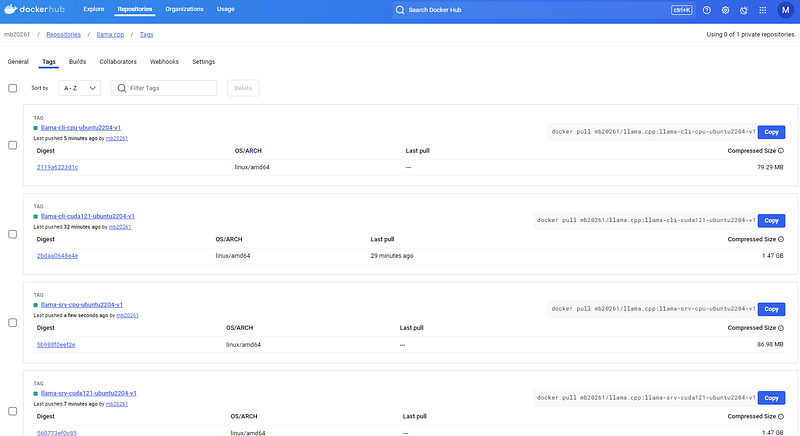
If you don’t want to build them yourself, feel free to check them out. We will use them for validations.
What’s next?
Typically the next step is to validate the installation. Below link provides you not only the hello world use case, but most of modern common use cases.
If you are interested in building and installing Llama.cpp for different environment, check out below links:


