Docker Introduction
Containerization, Container and Container Orchestration
Wikipedia gives definition that Containerization is operating system-level virtualization or application-level virtualization over multiple network resources so that software applications can run in isolated user spaces called containers in any cloud or non-cloud environment, regardless of type or vendor.

Container orchestration is the automation of much of the operational effort required to run containerized workloads and services. This includes a wide range of things software teams need to manage a container’s lifecycle, including provisioning, deployment, scaling (up and down), networking, load balancing and more. (source)
What is Docker?
In short, Docker is the most popular container solution. Lots of modern container orchestration technology are Docker based solution. For more comprehensive answer, please read official website from Docker.
How Docker works?
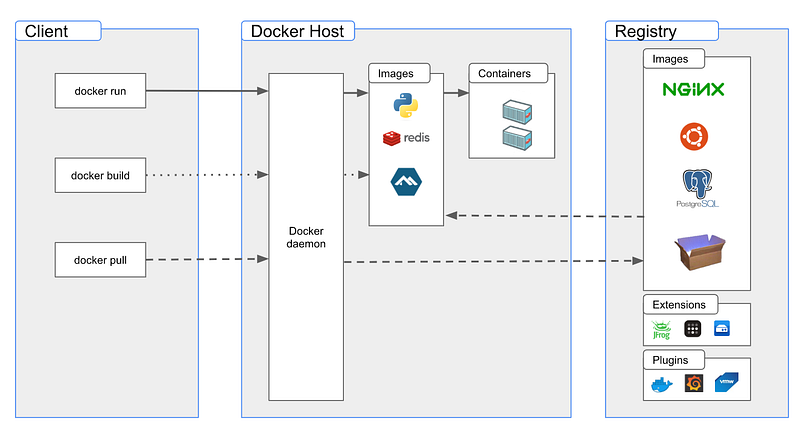
Docker claims itself as client-server architecture but we normally refers to three layers as showing above:
- Client is a software installed in local computer. It provides command lines to interactive Docker Host.
- Docker Host could be installed in remote server, or local computer when you want to setup a development/test environment.
- Registry is a repository to store images or extensions/plugins. Images could be created by yourself or shared/published by lots of communities or vendors. You could define your image as private or public for sharing with the community. There are a huge collection of public images available today. The most popular repository is called DockerHub.
Install Docker Desktop
Decker Desktop is the fastest way to play Docker technology in local computer. The installation contains both Docker client (a command line tool) and a GUI desktop application (with Docker daemon and container running at back). It supports Windows, Linux, and MacOS (both Apple chip and Intel chip). The installation package could be found at docker.com.
To install Docker Desktop on Windows, you need have Windows WSL2 installed. If you don’t familiar with WSL on Windows, please read through below webpage.
Now, let’s download the latest installation file from here.
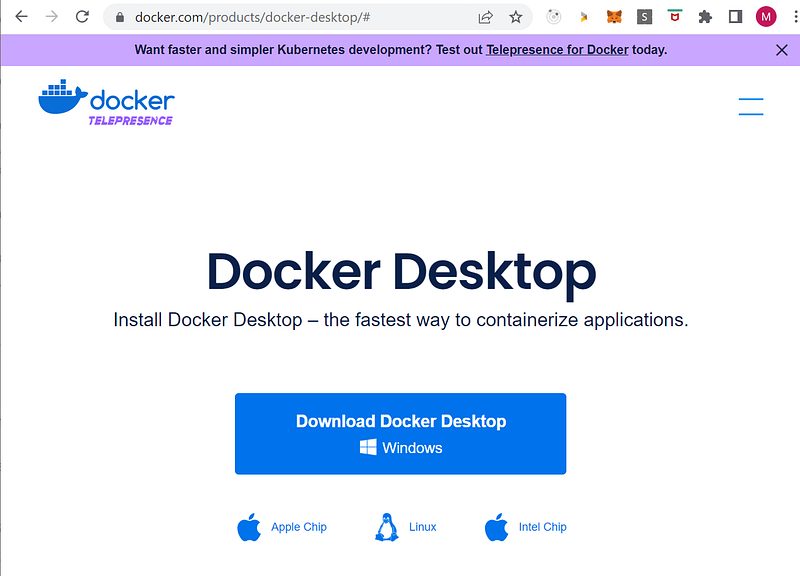
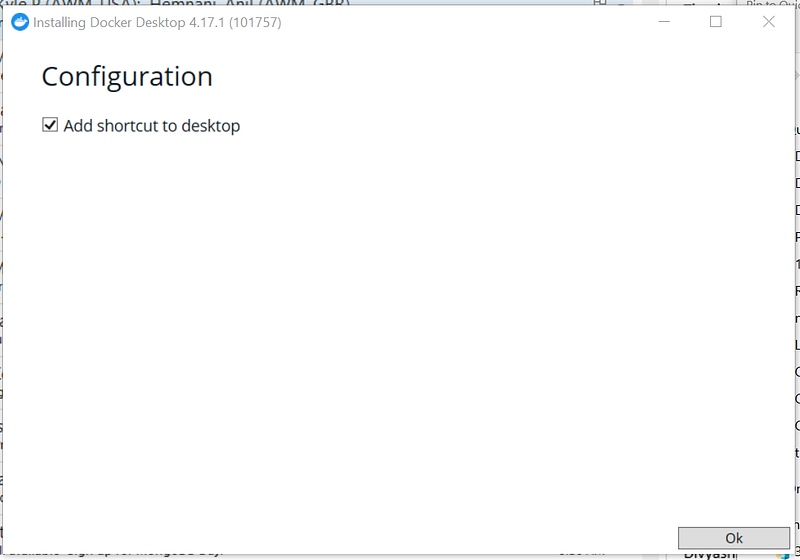
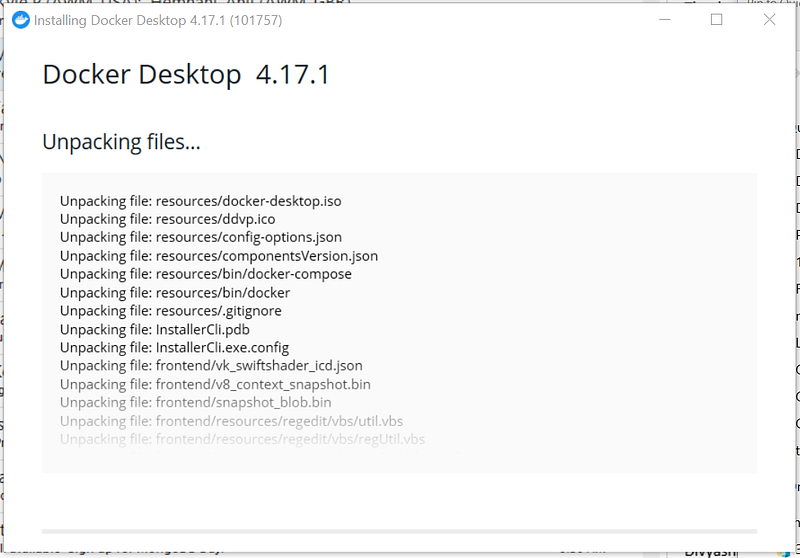
Once installation file is downloaded, just double click on the filename to launch the installation.
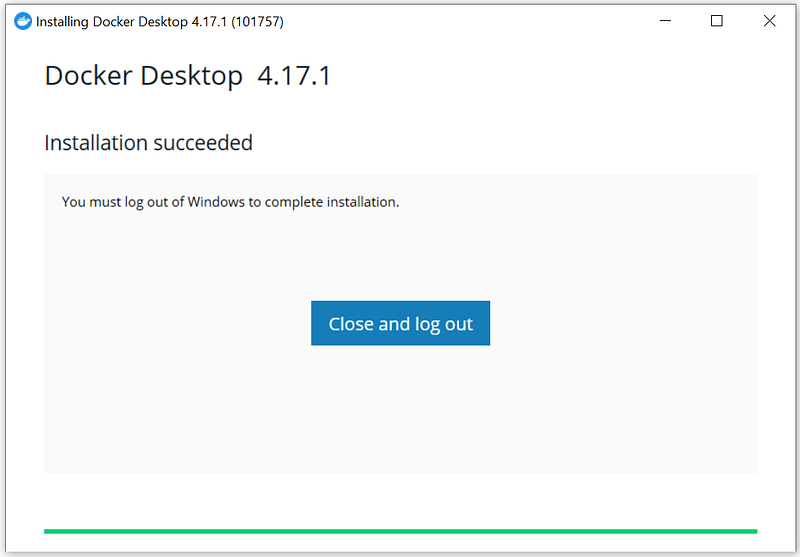
After restart your Windows at first time after Docker Desktop installed, you will be asked to agree the service agreement.

Note, if you see a popup message asking you to update WSL, please open a Window DOS command Window with “Run as administrator”, and run command wsl — update.
To install Docker Desktop on MacOS, follow below link:
On Linux environment, we would suggest you to go with Ubuntu, Fedora, or Debian (if you are looking for RaspberryPi installation, install Docker Engine instead).
Take A First Look
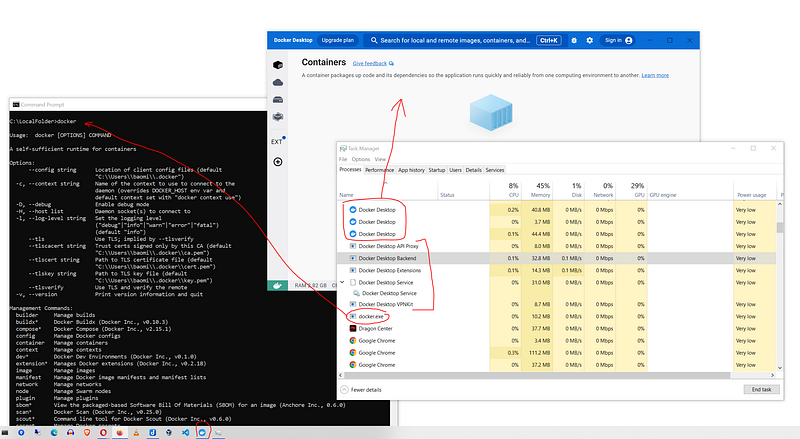
Now, let’s recap what are being installed so far. Look at below screenshot from Windows installation, you got:
- Docker command line client, called docker.exe
- A bunch of Decker backend services including Docker Engine, Docker Buildx, Docker Compose, extension services, Kubernates, etc. , and APIs to interactive with DockerHub.
- Docker Desktop application. You will use it to manage and monitor images created, running, and published.
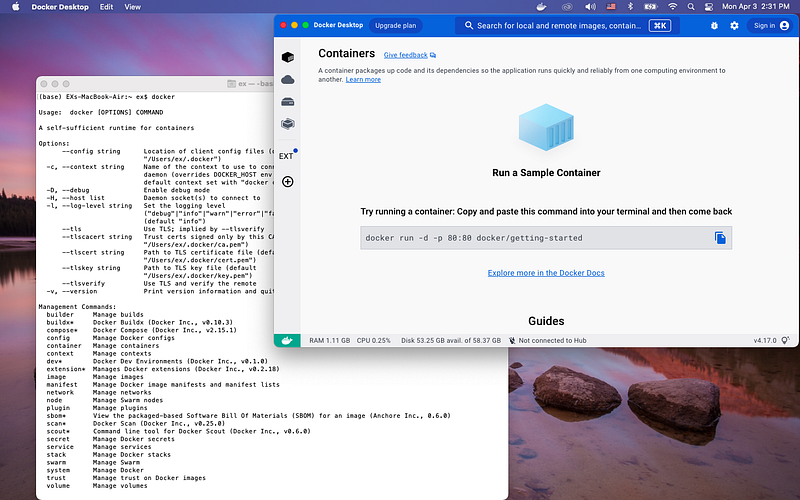
If you are using MacOS or Linux, the interface looks very similar with Windows.
Launch Docker instance(s) from public images
Next, let’s try the example from Docker Desktop welcome page.
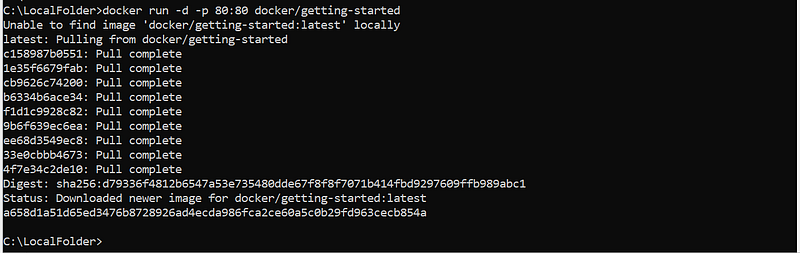
Upon completion of above command, the Docker Desktop looks like below:
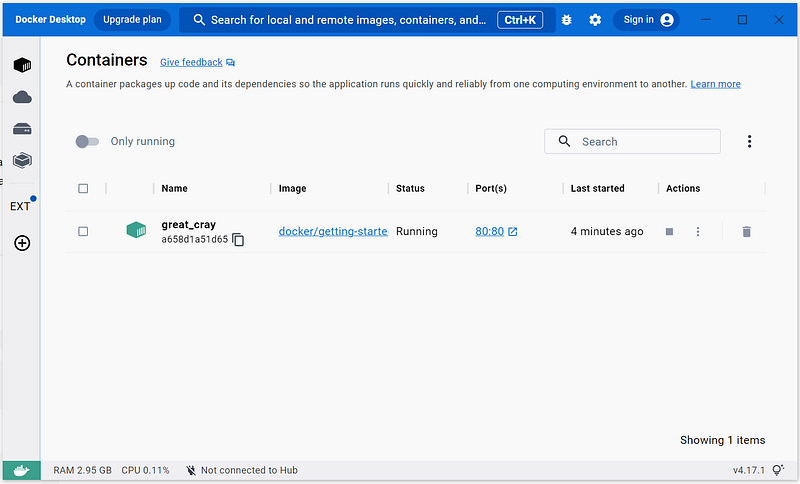
So, what happens just now? Here are the details:
- You entered docker command in a DOS Command Window
- The docker command is Docker Client. It first calls Docker service running at backend, and found the image ‘docker/getting-started:latest’ doesn’t exist at local image cache (directory).
- Then, Docker service checks with DockerHub by calling REST API
- Next, the Docker service tries to download the image from DockerHub. Once file is downloaded, the Docker service verify the downloaded image file with DockerHub by using SHA256 checksum (Digest).
- Last, Docker service launches the instance by using the image, and running in Docker Container. Then, the Docker Container maps the port 80 from the instance to port 80 in your Windows host. The docker command will show instance id when instance startup successfully.
The status of running instance is showing in Docker Desktop. You should see the first 12 characters of the same instance id in Docker Desktop. For our example here from above screenshot, the instance id is a658d1a51d65ed3476b8728926ad4ecda986fca2ce60a5c0b29fd963cecb854a .
Now, if you open a browser with http://localhost/tutorial/. Try to play the application yourself to see if you could follow the tutorial, or modify the application yourselves.
As last step in this section, let’s play around the Docker Desktop. Click on Actions menu (the 3 dots):
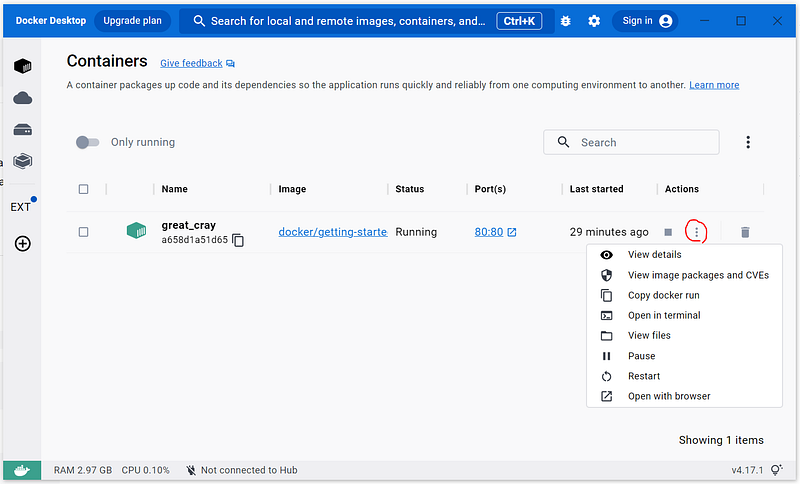
Click on each menu item to see what you got. (CVE stands for common vulnerabilities and exposures. It is the cybersecurity issues documented in here).
When completed, run below commands to clean up the instance:
C:\LocalFolder>docker stop a658d1a51d65ed3476b8728926ad4ecda986fca2ce60a5c0b29fd963cecb854a
a658d1a51d65ed3476b8728926ad4ecda986fca2ce60a5c0b29fd963cecb854a

C:\LocalFolder>docker rm a658d1a51d65ed3476b8728926ad4ecda986fca2ce60a5c0b29fd963cecb854a
a658d1a51d65ed3476b8728926ad4ecda986fca2ce60a5c0b29fd963cecb854a
You should observe the Docker Desktop reflecting each command you executed above.
Build your own image(s)
To build new image, create a file called Dockerfile looks like below. This is telling docker build to use nginx:alpine image as baseline. The nginx:alpine is a public image from DockerHub.
FROM nginx:alpineNext, let’s build the image.
C:\LocalFolder\temp\myimage1>docker images
REPOSITORY               TAG       IMAGE ID       CREATED        SIZE
httpd                    latest    192d41583429   11 days ago    145MB
docker/getting-started   latest    3e4394f6b72f   3 months ago   47MB

C:\LocalFolder\temp\myimage1>dir
 Volume in drive C is Windows
 Volume Serial Number is AC35-C317

 Directory of C:\LocalFolder\temp\myimage1

04/03/2023  09:09 PM    <DIR>          .
04/03/2023  09:09 PM    <DIR>          ..
04/03/2023  09:06 PM                19 Dockerfile
               1 File(s)             19 bytes
               2 Dir(s)  815,700,451,328 bytes free

C:\LocalFolder\temp\myimage1>docker build -t myweb .
[+] Building 1.0s (5/5) FINISHED
 => [internal] load build definition from Dockerfile                                                               0.0s
 => => transferring dockerfile: 31B                                                                                0.0s
 => [internal] load .dockerignore                                                                                  0.0s
 => => transferring context: 2B                                                                                    0.0s
 => [internal] load metadata for docker.io/library/nginx:alpine                                                    0.7s
 => CACHED [1/1] FROM docker.io/library/nginx:alpine@sha256:c94a22b036afa972426b82d5b0a49c959786005b4f6f81ac7467c  0.0s
 => exporting to image                                                                                             0.0s
 => => exporting layers                                                                                            0.0s
 => => writing image sha256:4c56012d9024bcc72792647211226268b055ba3ec4bdaa25feb20806b3457045                       0.0s
 => => naming to docker.io/library/myweb                                                                           0.0s

C:\LocalFolder\temp\myimage1>docker images
REPOSITORY               TAG       IMAGE ID       CREATED        SIZE
myweb                    latest    4c56012d9024   5 days ago     41MB
httpd                    latest    192d41583429   11 days ago    145MB
docker/getting-started   latest    3e4394f6b72f   3 months ago   47MB

C:\LocalFolder\temp\myimage1>
Now the new image, named myweb is created. Let’s launch an instance from this image. Since this is a web server listen to part 80, we need map the port 80 from inside instance to 8080 at the host (the Windows computer you are running). So, the command would look like:
C:\LocalFolder\temp\myimage1>docker run -d -p 8080:80 myweb
d67db865fcc116bc42861873bf4b5aae2423dcfed109ec473284fcfa82e30b76

C:\LocalFolder\temp\myimage1>docker ps
CONTAINER ID   IMAGE     COMMAND                  CREATED         STATUS         PORTS                  NAMES
d67db865fcc1   myweb     "/docker-entrypoint.…"   2 minutes ago   Up 2 minutes   0.0.0.0:8080->80/tcp   quirky_lovelace
70aea2a43dc2   httpd     "httpd-foreground"       4 hours ago     Up 3 hours     80/tcp                 nostalgic_galois
C:\LocalFolder\temp\myimage1>
You could open a browser with http://localhost:8080/ for the nginx homepage.
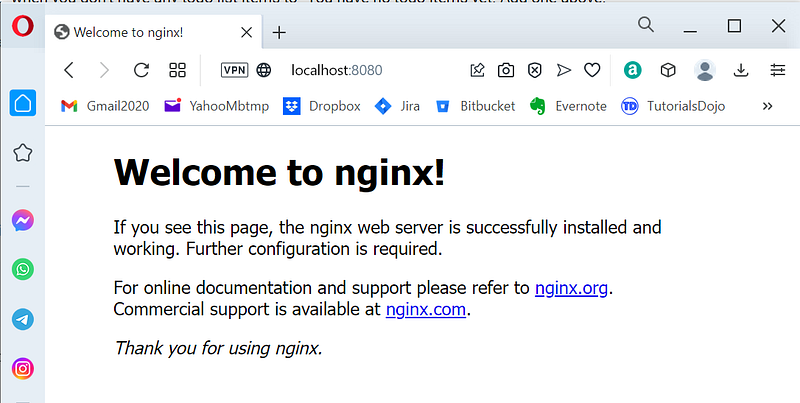
Next, we want to customize the homepage (above) and make our own brand. To do so, we will:
- Download the index.html from running container.
- Make changes (we will change “Welcome to nginx!” to “Welcome to myweb!”)
- Add one more line into Dockerfile to copy the new index.html to overwrite the default index.html while building the image.
- Rebuild the image, and relaunch the instance.
Below are commands we use:
C:\LocalFolder\temp\myimage1>docker cp d67db865fcc1:/usr/share/nginx/html/index.html .

C:\LocalFolder\temp\myimage1>type index.html
<!DOCTYPE html>
<html>
<head>
<title>Welcome to MyWeb!</title>
<style>
html { color-scheme: light dark; }
body { width: 35em; margin: 0 auto;
font-family: Tahoma, Verdana, Arial, sans-serif; }
</style>
</head>
<body>
<h1>Welcome to MyWeb!</h1>
<p>If you see this page, the nginx web server is successfully installed and
working. Further configuration is required.</p>

<p>For online documentation and support please refer to
<a href="http://nginx.org/">nginx.org</a>.<br/>
Commercial support is available at
<a href="http://nginx.com/">nginx.com</a>.</p>

<p><em>Thank you for using nginx.</em></p>
</body>
</html>

C:\LocalFolder\temp\myimage1>

C:\LocalFolder\temp\myimage1>type Dockerfile
FROM nginx:alpine

COPY index.html //usr/share/nginx/html/


C:\LocalFolder\temp\myimage1>

C:\LocalFolder\temp\myimage1>docker ps
CONTAINER ID   IMAGE     COMMAND   CREATED   STATUS    PORTS     NAMES

C:\LocalFolder\temp\myimage1>docker images
REPOSITORY               TAG       IMAGE ID       CREATED        SIZE
myweb                    latest    4c56012d9024   5 days ago     41MB
httpd                    latest    192d41583429   11 days ago    145MB
docker/getting-started   latest    3e4394f6b72f   3 months ago   47MB

C:\LocalFolder\temp\myimage1>docker build -t myweb .
[+] Building 2.0s (7/7) FINISHED
 => [internal] load build definition from Dockerfile                                                               0.1s
 => => transferring dockerfile: 101B                                                                               0.0s
 => [internal] load .dockerignore                                                                                  0.0s
 => => transferring context: 2B                                                                                    0.0s
 => [internal] load metadata for docker.io/library/nginx:alpine                                                    1.5s
 => [internal] load build context                                                                                  0.1s
 => => transferring context: 654B                                                                                  0.0s
 => CACHED [1/2] FROM docker.io/library/nginx:alpine@sha256:c94a22b036afa972426b82d5b0a49c959786005b4f6f81ac7467c  0.0s
 => [2/2] COPY index.html //usr/share/nginx/html/                                                                  0.1s
 => exporting to image                                                                                             0.1s
 => => exporting layers                                                                                            0.1s
 => => writing image sha256:70afd2e29d56c4a943b07fd0a3dd4769e4af8090f0ab2c8a7b0de897e92ed709                       0.0s
 => => naming to docker.io/library/myweb                                                                           0.0s

C:\LocalFolder\temp\myimage1>

C:\LocalFolder\temp\myimage1>docker run -d -p 8080:80 myweb
56238eab4830b423fbfdf1536e7b8d2a77948c0282bc4e9580238a35d593563c

C:\LocalFolder\temp\myimage1>docker ps
CONTAINER ID   IMAGE     COMMAND                  CREATED              STATUS              PORTS                  NAMES
56238eab4830   myweb     "/docker-entrypoint.…"   About a minute ago   Up About a minute   0.0.0.0:8080->80/tcp   suspicious_hertz
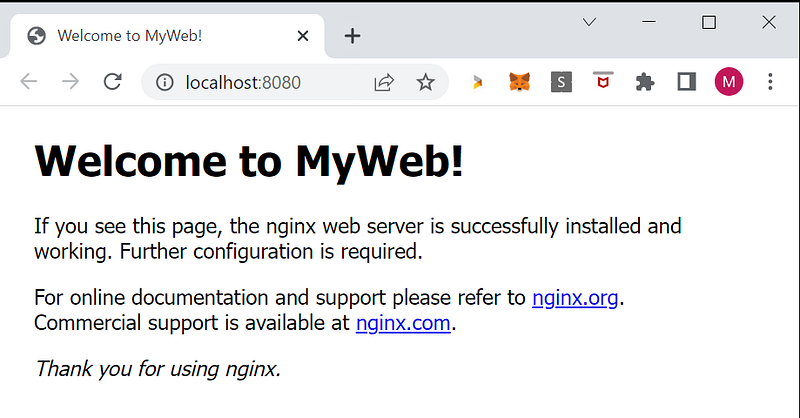
Now let’s open the browser again. Note, you need refresh the page a few times ’cause your local browser might cache the static content.
Publish image
To publish docker image, you need have access to a image repository. DockerHub is the biggest docker repository and community. Now, let’s go to signup page here to create a free account in DockerHub if you haven’t done so yet.
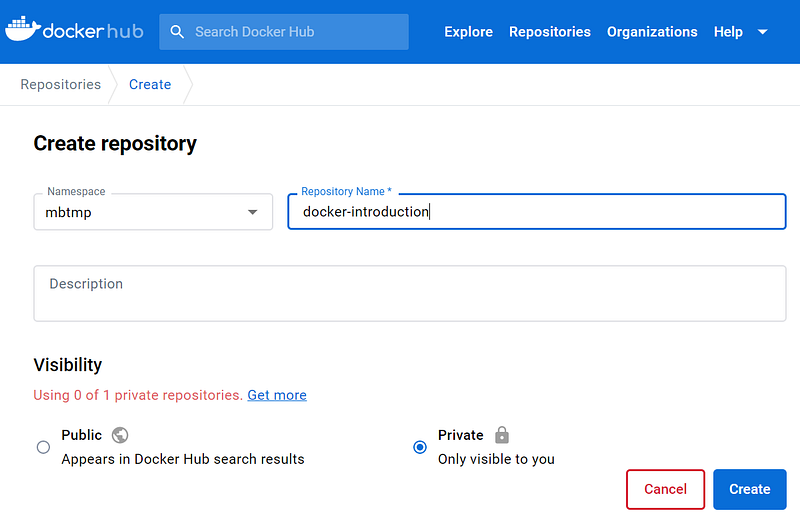
Next, login to DockerHub, and create a new private repository looks like below:
Now, let’s go back to local computer and use below command to login to DockerHub:
C:\LocalFolder\temp\myimage1>docker login -u mbtmp
Password:
Login Succeeded

Logging in with your password grants your terminal complete access to your account.
For better security, log in with a limited-privilege personal access token. Learn more at https://docs.docker.com/go/access-tokens/

C:\LocalFolder\temp\myimage1>
Then, let’s rebuild the image with new tag (to match the repository):
C:\LocalFolder\temp\myimage1>docker build -t mbtmp/docker-introduction .
[+] Building 1.1s (8/8) FINISHED
 => [internal] load build definition from Dockerfile                                                               0.0s
 => => transferring dockerfile: 31B                                                                                0.0s
 => [internal] load .dockerignore                                                                                  0.0s
 => => transferring context: 2B                                                                                    0.0s
 => [internal] load metadata for docker.io/library/nginx:alpine                                                    0.7s
 => [auth] library/nginx:pull token for registry-1.docker.io                                                       0.0s
 => [internal] load build context                                                                                  0.0s
 => => transferring context: 32B                                                                                   0.0s
 => [1/2] FROM docker.io/library/nginx:alpine@sha256:c94a22b036afa972426b82d5b0a49c959786005b4f6f81ac7467ca5538d0  0.0s
 => CACHED [2/2] COPY index.html /usr/share/nginx/html/                                                            0.0s
 => exporting to image                                                                                             0.0s
 => => exporting layers                                                                                            0.0s
 => => writing image sha256:dd205ee3afc7ae27ad1f5d669612f5a9e3f44dc6e6a825be0b6f4830871ca3be                       0.0s
 => => naming to docker.io/mbtmp/docker-introduction                                                               0.0s

C:\LocalFolder\temp\myimage1>
Let’s test the image locally. This time, we map the port to 8081.
C:\LocalFolder\temp\myimage1>docker images
REPOSITORY                  TAG       IMAGE ID       CREATED          SIZE
myweb                       latest    dd205ee3afc7   35 minutes ago   41MB
mbtmp/docker-introduction   latest    dd205ee3afc7   35 minutes ago   41MB
httpd                       latest    192d41583429   11 days ago      145MB
docker/getting-started      latest    3e4394f6b72f   3 months ago     47MB

C:\LocalFolder\temp\myimage1>docker run -d -p 8081:80 mbtmp/docker-introduction
aab1b984578b803acc5011b0219cc3b80d56e26d03a0876822725e5468d815dd

C:\LocalFolder\temp\myimage1>docker ps
CONTAINER ID   IMAGE                       COMMAND                  CREATED          STATUS          PORTS                  NAMES
aab1b984578b   mbtmp/docker-introduction   "/docker-entrypoint.…"   6 seconds ago    Up 4 seconds    0.0.0.0:8081->80/tcp   eloquent_sammet
56238eab4830   myweb                       "/docker-entrypoint.…"   32 minutes ago   Up 32 minutes   0.0.0.0:8080->80/tcp   suspicious_hertz

C:\LocalFolder\temp\myimage1>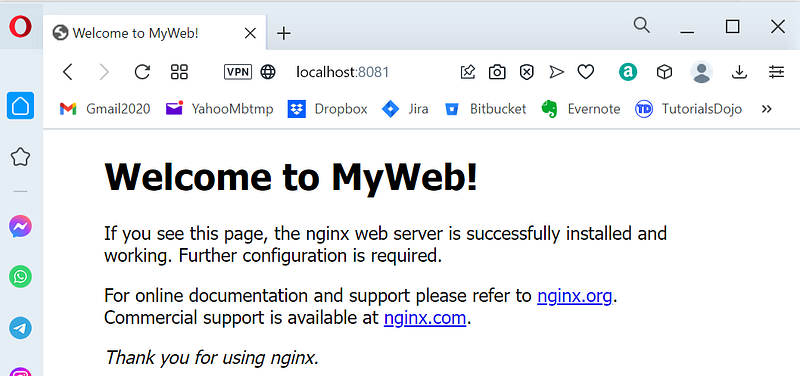
Everything looks good, let’s publish (push) to DockerHub.
C:\LocalFolder\temp\myimage1>docker push mbtmp/docker-introduction
Using default tag: latest
The push refers to repository [docker.io/mbtmp/docker-introduction]
0f239a39b256: Pushed
31531248c7cb: Mounted from library/nginx
f9cb3f1f1d3d: Mounted from library/nginx
f0fb842dea41: Mounted from library/nginx
c1cd5c8c68ef: Mounted from library/nginx
1d54586a1706: Mounted from library/nginx
1003ff723696: Mounted from library/nginx
f1417ff83b31: Mounted from library/nginx
latest: digest: sha256:c421138f606127bee3dd817aa958f86f0e71f1bfff0847737397d5346cd3ffcc size: 1988

C:\LocalFolder\temp\myimage1>
Now, go to DockerHub to check the image just published.
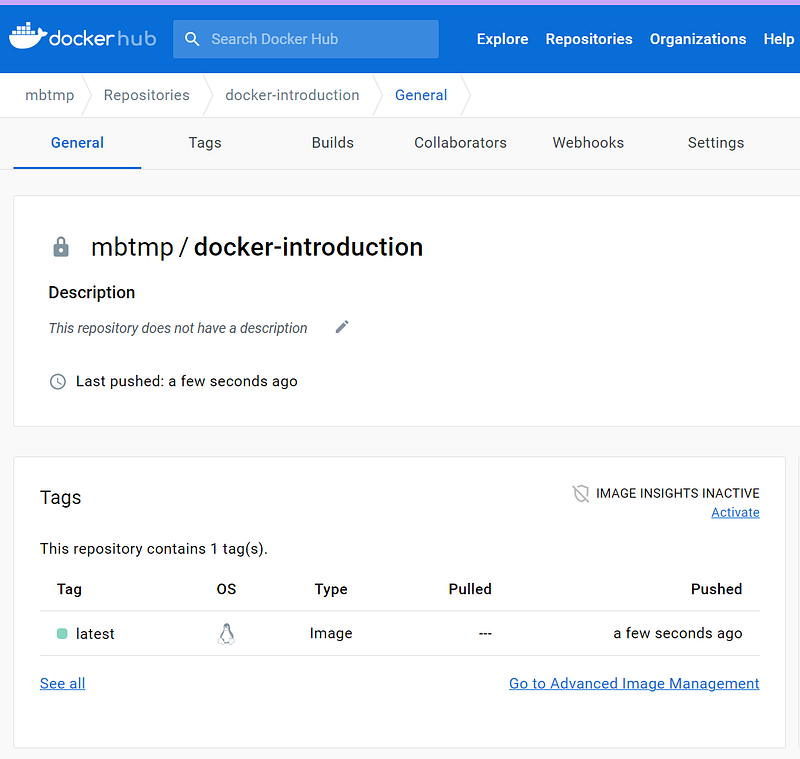
Last, let’s clean up all local images and containers, and pull your image from DockerHub then execute it.
C:\LocalFolder\temp\myimage1>docker run -d -p 8082:80 mbtmp/docker-introduction
Unable to find image 'mbtmp/docker-introduction:latest' locally
latest: Pulling from mbtmp/docker-introduction
f56be85fc22e: Already exists
2ce963c369bc: Already exists
59b9d2200e63: Already exists
3e1e579c95fe: Already exists
547a97583f72: Already exists
1f21f983520d: Already exists
c23b4f8cf279: Already exists
98ec662e4cb1: Already exists
Digest: sha256:c421138f606127bee3dd817aa958f86f0e71f1bfff0847737397d5346cd3ffcc
Status: Downloaded newer image for mbtmp/docker-introduction:latest
ffdaf619a7a135a63e733825469ecae17c4b75de573e594138beaeb3458ae8d4

C:\LocalFolder\temp\myimage1>
Common Docker Commands
Now, let’s play the most common docker commands. For full references of all docker commands, please refer to official website.
Docker version and Docker info:
C:\LocalFolder>docker version
Client:
 Cloud integration: v1.0.31
 Version:           20.10.23
 API version:       1.41
 Go version:        go1.18.10
 Git commit:        7155243
 Built:             Thu Jan 19 17:43:10 2023
 OS/Arch:           windows/amd64
 Context:           default
 Experimental:      true

Server: Docker Desktop 4.17.1 (101757)
 Engine:
  Version:          20.10.23
  API version:      1.41 (minimum version 1.12)
  Go version:       go1.18.10
  Git commit:       6051f14
  Built:            Thu Jan 19 17:32:04 2023
  OS/Arch:          linux/amd64
  Experimental:     false
 containerd:
  Version:          1.6.18
  GitCommit:        2456e983eb9e37e47538f59ea18f2043c9a73640
 runc:
  Version:          1.1.4
  GitCommit:        v1.1.4-0-g5fd4c4d
 docker-init:
  Version:          0.19.0
  GitCommit:        de40ad0

C:\LocalFolder>docker info
Client:
 Context:    default
 Debug Mode: false
 Plugins:
  buildx: Docker Buildx (Docker Inc., v0.10.3)
  compose: Docker Compose (Docker Inc., v2.15.1)
  dev: Docker Dev Environments (Docker Inc., v0.1.0)
  extension: Manages Docker extensions (Docker Inc., v0.2.18)
  sbom: View the packaged-based Software Bill Of Materials (SBOM) for an image (Anchore Inc., 0.6.0)
  scan: Docker Scan (Docker Inc., v0.25.0)
  scout: Command line tool for Docker Scout (Docker Inc., v0.6.0)

Server:
 Containers: 1
  Running: 0
  Paused: 0
  Stopped: 1
 Images: 2
 Server Version: 20.10.23
 Storage Driver: overlay2
  Backing Filesystem: extfs
  Supports d_type: true
  Native Overlay Diff: true
  userxattr: false
 Logging Driver: json-file
 Cgroup Driver: cgroupfs
 Cgroup Version: 2
 Plugins:
  Volume: local
  Network: bridge host ipvlan macvlan null overlay
  Log: awslogs fluentd gcplogs gelf journald json-file local logentries splunk syslog
 Swarm: inactive
 Runtimes: io.containerd.runtime.v1.linux runc io.containerd.runc.v2
 Default Runtime: runc
 Init Binary: docker-init
 containerd version: 2456e983eb9e37e47538f59ea18f2043c9a73640
 runc version: v1.1.4-0-g5fd4c4d
 init version: de40ad0
 Security Options:
  seccomp
   Profile: default
  cgroupns
 Kernel Version: 5.15.90.1-microsoft-standard-WSL2
 Operating System: Docker Desktop
 OSType: linux
 Architecture: x86_64
 CPUs: 12
 Total Memory: 15.54GiB
 Name: docker-desktop
 ID: GFFK:5WLD:YAFM:ZL2V:EJI7:RPWI:RWVM:ANBA:X7HY:YK3N:RTVV:FLLT
 Docker Root Dir: /var/lib/docker
 Debug Mode: false
 HTTP Proxy: http.docker.internal:3128
 HTTPS Proxy: http.docker.internal:3128
 No Proxy: hubproxy.docker.internal
 Registry: https://index.docker.io/v1/
 Labels:
 Experimental: false
 Insecure Registries:
  hubproxy.docker.internal:5555
  127.0.0.0/8
 Live Restore Enabled: false


C:\LocalFolder>C:\LocalFolder>
Download images (pull, from DockerHub by default), list downloaded images, and delete downloaded images:
C:\LocalFolder>docker pull httpd
Using default tag: latest
latest: Pulling from library/httpd
f1f26f570256: Pull complete
a6b093ae1967: Pull complete
6b400bbb27df: Pull complete
d9833ead928a: Pull complete
ace056404ed3: Pull complete
Digest: sha256:f3e9eb9acace5bbc13c924293d2247a65bb59b8f062bcd98cd87ee4e18f86733
Status: Downloaded newer image for httpd:latest
docker.io/library/httpd:latest

C:\LocalFolder>docker images
REPOSITORY               TAG       IMAGE ID       CREATED        SIZE
httpd                    latest    192d41583429   11 days ago    145MB
docker/getting-started   latest    3e4394f6b72f   3 months ago   47MB

C:\LocalFolder>docker image rm httpd
Untagged: httpd:latest
Untagged: httpd@sha256:f3e9eb9acace5bbc13c924293d2247a65bb59b8f062bcd98cd87ee4e18f86733
Deleted: sha256:192d41583429c96af40eb3af02d4baaf6398c178e832c114abe030ff986ee826
Deleted: sha256:02cfaead37b294d643f4d491e109405b87c6771dab37869e2df8c69f9be45b99
Deleted: sha256:6f8156ee44091069a7feb88bf3dfe12e9e2c7a161ecd34d11a50af1336359eff
Deleted: sha256:19ebb8bacf71ef69d0b854e3640aff8f7e36698837eca9d17b3c84787a369b1f
Deleted: sha256:af68c6e8ab5b3e93e58afcc42569ef9fa784b28d017689fd086a03a54ad21ebd
Deleted: sha256:3af14c9a24c941c626553628cf1942dcd94d40729777f2fcfbcd3b8a3dfccdd6

C:\LocalFolder>docker images
REPOSITORY               TAG       IMAGE ID       CREATED        SIZE
docker/getting-started   latest    3e4394f6b72f   3 months ago   47MB

C:\LocalFolder>
Start a docker instance from image (if not in local, will pull from DockerHub), find running instances, stop running instances. Note, you could run multiple instances from the same image.
C:\LocalFolder>docker pull httpd
Using default tag: latest
latest: Pulling from library/httpd
f1f26f570256: Pull complete
a6b093ae1967: Pull complete
6b400bbb27df: Pull complete
d9833ead928a: Pull complete
ace056404ed3: Pull complete
Digest: sha256:f3e9eb9acace5bbc13c924293d2247a65bb59b8f062bcd98cd87ee4e18f86733
Status: Downloaded newer image for httpd:latest
docker.io/library/httpd:latest

C:\LocalFolder>docker run -it -d httpd
70aea2a43dc25f2aae5870b36b3040c2da753a8f7c79024a0ff686d5359c7802

C:\LocalFolder>docker ps
CONTAINER ID   IMAGE     COMMAND              CREATED         STATUS         PORTS     NAMES
70aea2a43dc2   httpd     "httpd-foreground"   7 seconds ago   Up 5 seconds   80/tcp    nostalgic_galois

C:\LocalFolder>docker run -it -d httpd
fc9062a5141170f24daea8ad967d75da7655f49ae6b03005784768de6b7c2b0a

C:\LocalFolder>docker ps
CONTAINER ID   IMAGE     COMMAND              CREATED          STATUS          PORTS     NAMES
fc9062a51411   httpd     "httpd-foreground"   5 seconds ago    Up 3 seconds    80/tcp    kind_kilby
70aea2a43dc2   httpd     "httpd-foreground"   27 seconds ago   Up 25 seconds   80/tcp    nostalgic_galois

C:\LocalFolder>docker stop fc9062a51411
fc9062a51411

C:\LocalFolder>docker rm fc9062a51411
fc9062a51411

C:\LocalFolder>
Execute a command inside a running instance without login to the instance.
C:\LocalFolder>docker ps
CONTAINER ID   IMAGE     COMMAND              CREATED          STATUS          PORTS     NAMES
fc9062a51411   httpd     "httpd-foreground"   13 minutes ago   Up 13 minutes   80/tcp    kind_kilby
70aea2a43dc2   httpd     "httpd-foreground"   13 minutes ago   Up 13 minutes   80/tcp    nostalgic_galois

C:\LocalFolder>docker exec -it 70aea2a43dc2 bash
root@70aea2a43dc2:/usr/local/apache2# ls
bin  build  cgi-bin  conf  error  htdocs  icons  include  logs  modules
root@70aea2a43dc2:/usr/local/apache2# exit
exit

C:\LocalFolder>
Restart docker (Pay attention on STATUS between two docker ps commands)
C:\LocalFolder>docker ps
CONTAINER ID   IMAGE     COMMAND              CREATED          STATUS          PORTS     NAMES
70aea2a43dc2   httpd     "httpd-foreground"   18 minutes ago   Up 18 minutes   80/tcp    nostalgic_galois

C:\LocalFolder>docker restart 70aea2a43dc2
70aea2a43dc2

C:\LocalFolder>docker ps
CONTAINER ID   IMAGE     COMMAND              CREATED          STATUS        PORTS     NAMES
70aea2a43dc2   httpd     "httpd-foreground"   18 minutes ago   Up 1 second   80/tcp    nostalgic_galois

C:\LocalFolder>
Start, Stop, and Kill a docker
C:\LocalFolder>docker ps
CONTAINER ID   IMAGE     COMMAND              CREATED          STATUS          PORTS     NAMES
70aea2a43dc2   httpd     "httpd-foreground"   18 minutes ago   Up 18 minutes   80/tcp    nostalgic_galois

C:\LocalFolder>docker restart 70aea2a43dc2
70aea2a43dc2

C:\LocalFolder>docker ps
CONTAINER ID   IMAGE     COMMAND              CREATED          STATUS        PORTS     NAMES
70aea2a43dc2   httpd     "httpd-foreground"   18 minutes ago   Up 1 second   80/tcp    nostalgic_galois

C:\LocalFolder>docker stop 70aea2a43dc2
70aea2a43dc2

C:\LocalFolder>docker ps
CONTAINER ID   IMAGE     COMMAND   CREATED   STATUS    PORTS     NAMES

C:\LocalFolder>docker start 70aea2a43dc2
70aea2a43dc2

C:\LocalFolder>docker ps
CONTAINER ID   IMAGE     COMMAND              CREATED          STATUS         PORTS     NAMES
70aea2a43dc2   httpd     "httpd-foreground"   20 minutes ago   Up 4 seconds   80/tcp    nostalgic_galois

C:\LocalFolder>docker kill 70aea2a43dc2
70aea2a43dc2

C:\LocalFolder>docker ps
CONTAINER ID   IMAGE     COMMAND   CREATED   STATUS    PORTS     NAMES

C:\LocalFolder>
Docker network commands
C:\LocalFolder>docker network ls
NETWORK ID     NAME      DRIVER    SCOPE
e5021fa3078c   bridge    bridge    local
4a584b1ca8e2   host      host      local
341aff89d5cc   none      null      local

C:\LocalFolder>docker network

Usage:  docker network COMMAND

Manage networks

Commands:
  connect     Connect a container to a network
  create      Create a network
  disconnect  Disconnect a container from a network
  inspect     Display detailed information on one or more networks
  ls          List networks
  prune       Remove all unused networks
  rm          Remove one or more networks

Run 'docker network COMMAND --help' for more information on a command.

C:\LocalFolder>
Copy file(s) from running instance to local/host environment
C:\LocalFolder>cd temp

C:\LocalFolder\temp>dir
 Volume in drive C is Windows
 Volume Serial Number is AC35-C317

 Directory of C:\LocalFolder\temp

04/03/2023  06:29 PM    <DIR>          .
04/03/2023  06:29 PM    <DIR>          ..
               0 File(s)              0 bytes
               2 Dir(s)  816,605,978,624 bytes free

C:\LocalFolder\temp>docker ps
CONTAINER ID   IMAGE     COMMAND              CREATED          STATUS              PORTS     NAMES
70aea2a43dc2   httpd     "httpd-foreground"   50 minutes ago   Up About a minute   80/tcp    nostalgic_galois

C:\LocalFolder\temp>docker cp 70aea2a43dc2:/usr/local/apache2/logs/httpd.pid .

C:\LocalFolder\temp>dir
 Volume in drive C is Windows
 Volume Serial Number is AC35-C317

 Directory of C:\LocalFolder\temp

04/03/2023  06:29 PM    <DIR>          .
04/03/2023  06:29 PM    <DIR>          ..
04/03/2023  06:28 PM                 2 httpd.pid
               1 File(s)              2 bytes
               2 Dir(s)  816,605,519,872 bytes free

C:\LocalFolder\temp>
Check instance logs and image history
C:\LocalFolder>docker ps
CONTAINER ID   IMAGE     COMMAND              CREATED          STATUS         PORTS     NAMES
70aea2a43dc2   httpd     "httpd-foreground"   53 minutes ago   Up 3 minutes   80/tcp    nostalgic_galois

C:\LocalFolder>docker history httpd
IMAGE          CREATED       CREATED BY                                      SIZE      COMMENT
192d41583429   11 days ago   /bin/sh -c #(nop)  CMD ["httpd-foreground"]     0B
<missing>      11 days ago   /bin/sh -c #(nop)  EXPOSE 80                    0B
<missing>      11 days ago   /bin/sh -c #(nop) COPY file:c432ff61c4993ecd…   138B
<missing>      11 days ago   /bin/sh -c #(nop)  STOPSIGNAL SIGWINCH          0B
<missing>      11 days ago   /bin/sh -c set -eux;   savedAptMark="$(apt-m…   59.9MB
<missing>      11 days ago   /bin/sh -c #(nop)  ENV HTTPD_PATCHES=           0B
<missing>      11 days ago   /bin/sh -c #(nop)  ENV HTTPD_SHA256=d8d45f13…   0B
<missing>      11 days ago   /bin/sh -c #(nop)  ENV HTTPD_VERSION=2.4.56     0B
<missing>      11 days ago   /bin/sh -c set -eux;  apt-get update;  apt-g…   4.76MB
<missing>      11 days ago   /bin/sh -c #(nop) WORKDIR /usr/local/apache2    0B
<missing>      11 days ago   /bin/sh -c mkdir -p "$HTTPD_PREFIX"  && chow…   0B
<missing>      11 days ago   /bin/sh -c #(nop)  ENV PATH=/usr/local/apach…   0B
<missing>      11 days ago   /bin/sh -c #(nop)  ENV HTTPD_PREFIX=/usr/loc…   0B
<missing>      11 days ago   /bin/sh -c #(nop)  CMD ["bash"]                 0B
<missing>      11 days ago   /bin/sh -c #(nop) ADD file:60911afdacfdc216e…   80.5MB

C:\LocalFolder>docker logs 70aea2a43dc2
AH00558: httpd: Could not reliably determine the server's fully qualified domain name, using 172.17.0.2. Set the 'ServerName' directive globally to suppress this message
AH00558: httpd: Could not reliably determine the server's fully qualified domain name, using 172.17.0.2. Set the 'ServerName' directive globally to suppress this message
[Mon Apr 03 21:38:53.887065 2023] [mpm_event:notice] [pid 1:tid 139837831376192] AH00489: Apache/2.4.56 (Unix) configured -- resuming normal operations
[Mon Apr 03 21:38:53.887807 2023] [core:notice] [pid 1:tid 139837831376192] AH00094: Command line: 'httpd -D FOREGROUND'
[Mon Apr 03 21:57:45.758232 2023] [mpm_event:notice] [pid 1:tid 139837831376192] AH00492: caught SIGWINCH, shutting down gracefully
AH00558: httpd: Could not reliably determine the server's fully qualified domain name, using 172.17.0.2. Set the 'ServerName' directive globally to suppress this message
AH00558: httpd: Could not reliably determine the server's fully qualified domain name, using 172.17.0.2. Set the 'ServerName' directive globally to suppress this message
[Mon Apr 03 21:57:48.077050 2023] [mpm_event:notice] [pid 1:tid 140185407348032] AH00489: Apache/2.4.56 (Unix) configured -- resuming normal operations
[Mon Apr 03 21:57:48.077522 2023] [core:notice] [pid 1:tid 140185407348032] AH00094: Command line: 'httpd -D FOREGROUND'
[Mon Apr 03 21:59:22.846920 2023] [mpm_event:notice] [pid 1:tid 140185407348032] AH00492: caught SIGWINCH, shutting down gracefully
AH00558: httpd: Could not reliably determine the server's fully qualified domain name, using 172.17.0.2. Set the 'ServerName' directive globally to suppress this message
AH00558: httpd: Could not reliably determine the server's fully qualified domain name, using 172.17.0.2. Set the 'ServerName' directive globally to suppress this message
[Mon Apr 03 21:59:33.556136 2023] [mpm_event:notice] [pid 1:tid 139695684791616] AH00489: Apache/2.4.56 (Unix) configured -- resuming normal operations
[Mon Apr 03 21:59:33.556957 2023] [core:notice] [pid 1:tid 139695684791616] AH00094: Command line: 'httpd -D FOREGROUND'
AH00558: httpd: Could not reliably determine the server's fully qualified domain name, using 172.17.0.2. Set the 'ServerName' directive globally to suppress this message
AH00558: httpd: Could not reliably determine the server's fully qualified domain name, using 172.17.0.2. Set the 'ServerName' directive globally to suppress this message
[Mon Apr 03 22:28:38.462915 2023] [mpm_event:notice] [pid 1:tid 140301774556480] AH00489: Apache/2.4.56 (Unix) configured -- resuming normal operations
[Mon Apr 03 22:28:38.463976 2023] [core:notice] [pid 1:tid 140301774556480] AH00094: Command line: 'httpd -D FOREGROUND'

C:\LocalFolder>