avatarsaurs saurav

Free AI web copilot to create summaries, insights and extended knowledge, download it at here

4176

Abstract

and client and install JupyterHub using Helm and finally run JupyterHub.</p><h2 id="7da9">Install Helm</h2><p id="50f6">Rum below Helm’s installer script in a terminal:</p><div id="db1c"><pre>curl https:<span class="hljs-regexp">//</span>raw.githubusercontent.com<span class="hljs-regexp">/kubernetes/</span>helm<span class="hljs-regexp">/master/</span>scripts/get | bash</pre></div><h2 id="8562">Setup Helm</h2><ol><li>After installing helm on your machine, initialize Helm on your Kubernetes cluster:</li></ol><div id="a9d3"><pre>kubectl <span class="hljs-keyword">create</span> clusterrolebinding tiller --clusterrole <span class="hljs-keyword">cluster</span>-admin --serviceaccount=kube-<span class="hljs-keyword">system</span>:tiller</pre></div><p id="85e9">2. Initialize <code>helm</code> and <code>tiller</code>.</p><div id="b60b"><pre><span class="hljs-comment">helm init</span> <span class="hljs-literal">--</span><span class="hljs-comment">service</span><span class="hljs-literal">-</span><span class="hljs-comment">account tiller</span> <span class="hljs-literal">--</span><span class="hljs-comment">wait</span></pre></div><p id="0556">3. Ensure that tiller is secure from access inside the cluster:</p><div id="f630"><pre>kubectl <span class="hljs-keyword">patch</span> deployment tiller-deploy <span class="hljs-params">--namespace=kube-system</span> <span class="hljs-params">--type=json</span> <span class="hljs-params">--patch=</span>'[{<span class="hljs-string">"op"</span>: <span class="hljs-string">"add"</span>, <span class="hljs-string">"path"</span>: <span class="hljs-string">"/spec/template/spec/containers/0/command"</span>, <span class="hljs-string">"value"</span>: [<span class="hljs-string">"/tiller"</span>, <span class="hljs-string">"--listen=localhost:44134"</span>]}]'</pre></div><p id="2155">4. You can verify that you have the correct version and that it installed properly by running:</p><div id="4577"><pre>helm <span class="hljs-built_in">version</span></pre></div><p id="fe29">And output should be something like below :</p><div id="8ccc"><pre>Client: &<span class="hljs-keyword">version</span>.<span class="hljs-keyword">Version</span>{SemVer:"v2.11.0", GitCommit:"2e55dbe1fdb5fdb96b75ff144a339489417b146b", GitTreeState:"clean"} <span class="hljs-keyword">Server</span>: &<span class="hljs-keyword">version</span>.<span class="hljs-keyword">Version</span>{SemVer:"v2.11.0", GitCommit:"2e55dbe1fdb5fdb96b75ff144a339489417b146b", GitTreeState:"clean"}</pre></div><p id="c46f" type="7">Congratulations, Helm is now set up!</p><h2 id="416e">Prepare configuration file</h2><p id="646b">Now that we have set Kubernetes cluster and Helm up, we can proceed by using Helm to install JupyterHub and related Kubernetes resources using a Helm chart. We have to make a <code>config.yaml</code> file consisting of all the configuration inorder to run jupyterhub. So, lets prepare <code>config.yaml</code> file.</p><ol><li>Generate a random hex string representing 32 bytes to use as a security token. Run this command in a terminal and copy the output:</li></ol><div id="63f5"><pre>openssl <span class="hljs-keyword">rand</span> -<span class="hljs-keyword">hex</span> <span class="hljs-number">32</span></pre></div><p id="f6d9">2. Create and start editing a file called <code>config.yaml</code>.</p><div id="f948"><pre>nano config.yaml</pre></div><p id="7e65">3. Write the following into the <code>config.yaml</code> file but instead of writing <code><RANDOM-HEX></code> paste the generated hex string you copied in step 1.</p><div id="ba5b"><pre><span class="hljs-symbol">proxy:</span> <span class="hljs-symbol"> secretToken:</span> <span class="hljs-string">"<RANDOM_HEX>"</span></pre></div><p id="f8a8">4. Save the <code>config.yaml</code> file.</p><h2 id="d61a">Install JupyterHub</h2><ol><li>Run to Install JupyterHub chart</li></ol><div id="e011"><pre><span class="hljs-symbol">helm</span> repo <span class="hljs-keyword">add</span> jupyterhub https:<span class="hljs-comment">//jupyterhub.github.io/helm-chart/</span> <span class="hljs-symbol">helm</span> repo update</pre></div><p id="c40d">This should show output like:<

Options

/p><div id="b353"><pre>Hang tight <span class="hljs-keyword">while</span> we grab <span class="hljs-keyword">the</span> latest <span class="hljs-built_in">from</span> your chart repositories... ...Skip <span class="hljs-built_in">local</span> chart repository ...Successfully got <span class="hljs-keyword">an</span> update <span class="hljs-built_in">from</span> <span class="hljs-keyword">the</span> <span class="hljs-string">"stable"</span> chart repository ...Successfully got <span class="hljs-keyword">an</span> update <span class="hljs-built_in">from</span> <span class="hljs-keyword">the</span> <span class="hljs-string">"jupyterhub"</span> chart repository Update Complete. ⎈ Happy Helming!⎈</pre></div><p id="6db8">2. Run this command from directory that contains your <code>config.yaml</code>:</p><div id="b371"><pre><span class="hljs-comment"># Suggested values: advanced users of Kubernetes and Helm should feel</span> <span class="hljs-comment"># free to use different values.</span> <span class="hljs-attr">RELEASE</span>=jhub <span class="hljs-attr">NAMESPACE</span>=jhub</pre></div><div id="92bc"><pre>helm upgrade <span class="hljs-attr">--install</span> <span class="hljs-variable">RELEASE</span> jupyterhub/jupyterhub \ <span class="hljs-attr">--namespace</span> <span class="hljs-variable">NAMESPACE</span>
<span class="hljs-attr">--version</span> <span class="hljs-number">0.7</span>.<span class="hljs-number">0</span>
<span class="hljs-attr">--values</span> config.yaml</pre></div><p id="ceee">It will take a while to create pods.</p><p id="8923">3. Find the IP we can use to access the JupyterHub. Run the following command until the <code>EXTERNAL-IP</code> of the <code>proxy-public</code> service is available like in the example output.</p><div id="a1a5"><pre>kubectl <span class="hljs-built_in">get</span><span class="hljs-built_in"> service </span>--namespace jhub</pre></div><div id="7832"><pre><span class="hljs-attribute">NAME</span> TYPE CLUSTER-IP EXTERNAL-IP PORT(S) AGE <span class="hljs-attribute">hub</span> ClusterIP <span class="hljs-number">10.51.243.14</span> <none> <span class="hljs-number">8081</span>/TCP <span class="hljs-number">1</span>m <span class="hljs-attribute">proxy</span>-api ClusterIP <span class="hljs-number">10.51.247.198</span> <none> <span class="hljs-number">8001</span>/TCP <span class="hljs-number">1</span>m <span class="hljs-attribute">proxy</span>-public LoadBalancer <span class="hljs-number">10.51.248.230</span> <span class="hljs-number">104.196.41.97</span> <span class="hljs-number">80</span>:<span class="hljs-number">31916</span>/TCP <span class="hljs-number">1</span>m</pre></div><p id="90f0">4. To use JupyterHub, enter the external IP for the <code>proxy-public</code> service in to a browser. JupyterHub is running with a default <i>dummy</i> authenticator so entering any username and password combination will let you enter the hub.</p><p id="b997" type="7">Congratulations! Now that you have basic JupyterHub running</p><h1 id="01f2">The End Of Part I</h1><p id="7438">All the above steps can be found in <a href="https://z2jh.jupyter.org/">here</a> with more details. I just outlined a main things. In Part II, we will setup a GitHub Authentication into our JupyterHub.</p><p id="fdee">Any queries?, mail me at <i>[email protected]</i></p><div id="28df" class="link-block"> <a href="https://readmedium.com/jupyterhub-in-googles-cloud-platform-with-github-oauth-and-https-using-helm-part-ii-118769caf29b"> <div> <div> <h2>JupyterHub in Google’s Cloud Platform with Github OAuth and HTTPS using Helm. Part II</h2> <div><h3>Simple guide to setup a JupyterHub using Helm.</h3></div> <div><p>medium.com</p></div> </div> <div> <div style="background-image: url(https://miro.readmedium.com/v2/resize:fit:320/1*cS2sU5GyjYS-QLV3ihlpRg.png)"></div> </div> </div> </a> </div></article></body>

JupyterHub in Google’s Cloud Platform with Github OAuth and HTTPS using Helm. Part I

Simple guide to setup a JupyterHub using Helm.
JupyterHub(Jupyter Notebook) is fantastic platform but as much as it is awesome/fantastic it is also difficult to setup remotely and get going into a actual coding part.

No worries, Google’s Cloud platform and Helm are here to save you and your time!

Before diving into a guide, I will assume you know little or more about GCP, OAuth and Helm.

I have divided this guide into four sections. Sections are as given below:

  1. Create a cluster in GCP and connect to that cluster locally.
  2. Setup Helm and Install JupyterHub using Helm.
  3. Setup Github OAuth for Authentication.
  4. Setup HTTPS.

In Part I, we will be going through section1 & 2.

1. Create a cluster in GCP (Google Cloud Platform) and connect to that cluster locally.

In this part we will be setting up a kubernetes Cluster. Google Kubernetes Engine(GKE) give you simplest ways to set it up.

Note : You need to connect your payment method to your google cloud account to able to do all below steps.

  1. Go to console.cloud.google.com and log in.
  2. Go to and enable the Kubernetes Engine API.
  3. Download and install the gcloud command line tool at its downloads page. It will help you create and communicate with a Kubernetes cluster.
  4. Install kubectl (reads kube control), it is a tool for controlling Kubernetes clusters in general from your computer.

Go to terminal and enter :

gcloud components install kubectl

Now, lets create a project inside where we will create a kubernetes cluster. We will do these steps through GUI.

5. Go to and create a new project.

6. Go to Kuberenetes Engine Menu or simply search a term kubernetes engine.

7. Click a create cluster button as shown in picture.

Click create cluster.

8. Select a standard cluster. Change other configuration according to your needs then click a create button to create a cluster.
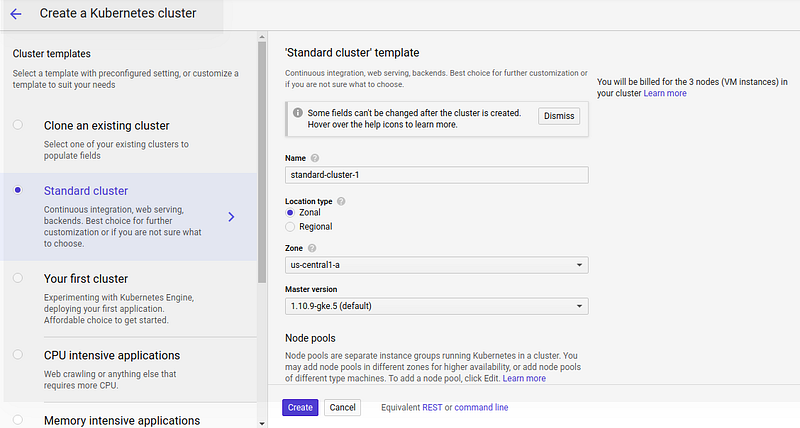
Click create button which lies at bottom

It will take minute or more to create a cluster.

9. Now to connect to a created cluster locally click connect button.

click a connect button of cluster you have created. In this example i created a cluster name test

10. Copy a statement in Command-line access block and run it to your command line.

Output :

Fetching cluster endpoint and auth data.
kubeconfig entry generated for test.

Congratulations, you have created a cluster and connected it from your computer.

2. Install and setup Helm and Install JupyterHub using Helm.

In this part we will setup helm in both server and client and install JupyterHub using Helm and finally run JupyterHub.

Install Helm

Rum below Helm’s installer script in a terminal:

curl https://raw.githubusercontent.com/kubernetes/helm/master/scripts/get | bash

Setup Helm

  1. After installing helm on your machine, initialize Helm on your Kubernetes cluster:
kubectl create clusterrolebinding tiller --clusterrole cluster-admin --serviceaccount=kube-system:tiller

2. Initialize helm and tiller.

helm init --service-account tiller --wait

3. Ensure that tiller is secure from access inside the cluster:

kubectl patch deployment tiller-deploy --namespace=kube-system --type=json --patch='[{"op": "add", "path": "/spec/template/spec/containers/0/command", "value": ["/tiller", "--listen=localhost:44134"]}]'

4. You can verify that you have the correct version and that it installed properly by running:

helm version

And output should be something like below :

Client: &version.Version{SemVer:"v2.11.0", GitCommit:"2e55dbe1fdb5fdb96b75ff144a339489417b146b", GitTreeState:"clean"}
Server: &version.Version{SemVer:"v2.11.0", GitCommit:"2e55dbe1fdb5fdb96b75ff144a339489417b146b", GitTreeState:"clean"}

Congratulations, Helm is now set up!

Prepare configuration file

Now that we have set Kubernetes cluster and Helm up, we can proceed by using Helm to install JupyterHub and related Kubernetes resources using a Helm chart. We have to make a config.yaml file consisting of all the configuration inorder to run jupyterhub. So, lets prepare config.yaml file.

  1. Generate a random hex string representing 32 bytes to use as a security token. Run this command in a terminal and copy the output:
openssl rand -hex 32

2. Create and start editing a file called config.yaml.

nano config.yaml

3. Write the following into the config.yaml file but instead of writing <RANDOM-HEX> paste the generated hex string you copied in step 1.

proxy:
  secretToken: "<RANDOM_HEX>"

4. Save the config.yaml file.

Install JupyterHub

  1. Run to Install JupyterHub chart
helm repo add jupyterhub https://jupyterhub.github.io/helm-chart/
helm repo update

This should show output like:

Hang tight while we grab the latest from your chart repositories...
...Skip local chart repository
...Successfully got an update from the "stable" chart repository
...Successfully got an update from the "jupyterhub" chart repository
Update Complete. ⎈ Happy Helming!⎈

2. Run this command from directory that contains your config.yaml:

# Suggested values: advanced users of Kubernetes and Helm should feel
# free to use different values.
RELEASE=jhub
NAMESPACE=jhub
helm upgrade --install $RELEASE jupyterhub/jupyterhub \
  --namespace $NAMESPACE  \
  --version 0.7.0 \
  --values config.yaml

It will take a while to create pods.

3. Find the IP we can use to access the JupyterHub. Run the following command until the EXTERNAL-IP of the proxy-public service is available like in the example output.

kubectl get service --namespace jhub
NAME           TYPE           CLUSTER-IP      EXTERNAL-IP     PORT(S)        AGE
hub            ClusterIP      10.51.243.14    <none>          8081/TCP       1m
proxy-api      ClusterIP      10.51.247.198   <none>          8001/TCP       1m
proxy-public   LoadBalancer   10.51.248.230   104.196.41.97   80:31916/TCP   1m

4. To use JupyterHub, enter the external IP for the proxy-public service in to a browser. JupyterHub is running with a default dummy authenticator so entering any username and password combination will let you enter the hub.

Congratulations! Now that you have basic JupyterHub running

The End Of Part I

All the above steps can be found in here with more details. I just outlined a main things. In Part II, we will setup a GitHub Authentication into our JupyterHub.

Any queries?, mail me at [email protected]

Kubernetes
Jupyterhub
Https
Helm
Recommended from ReadMedium