
JupyterHub in Google’s Cloud Platform with Github OAuth and HTTPS using Helm. Part II
Simple guide to setup a JupyterHub using Helm.

Let us recall what we have done and what is left :
- Create a cluster in GCP and connect to that cluster locally. ✔️
- Setup Helm and Install JupyterHub using Helm. ✔️
- Setup Github OAuth for Authentication.
- Setup HTTPS.
In this part II, we will allow our JupyterHub app to authenticate from Github.
Setup Github auth0 for Authentication
To setup github auth0, we have to first setup 0Auth crendentials so that users can authenticate with their Github username/password.
Login to github and follow a steps below.
Ceate OAuth credentials on GitHub
- Go to setting.
- Go to developer settings.
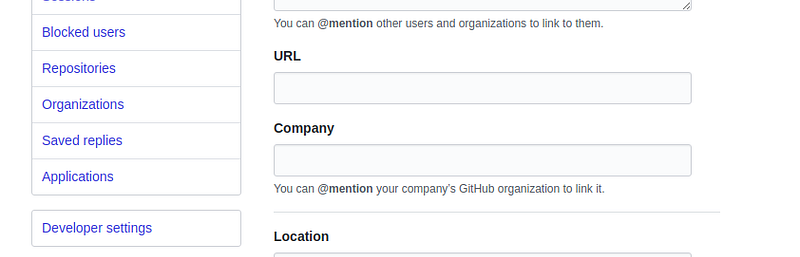
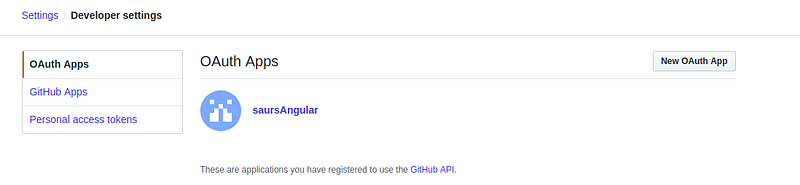
3. Select OAuth Apps and click New OAuth App button.
4. Fill out the forms and click Register application button and generate your ID/Secret.
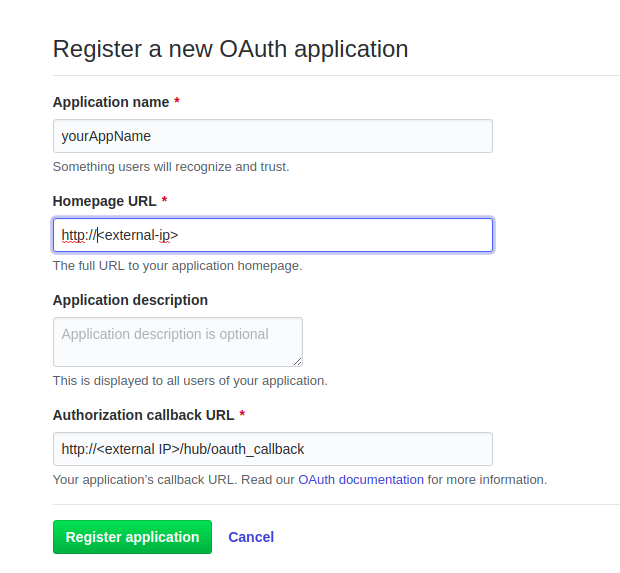
Note : External IP were generated in Part I — Install JupyterHub(steps 3)
Configure a config.yaml file
To enable GitHub authentication, add the following to your config.yaml:
auth:
  type: github
  github:
    clientId: "y0urg1thubc1ient1d"
    clientSecret: "yourClientSecret"
    callbackUrl: "http://<external-ip>/hub/oauth_callback"
Now your config.yaml file must looks something like below :
proxy:
  secretToken: "xxxxxxxxxxxxxxxxxxxxxxxxxxxxxxxxxxxxxxxxxxxxxxxxxx"
auth:
  type: github
  github:
    clientId: "xxxxxxxxxxxxxxxx"
    clientSecret: "xxxxxxxxxxxxxxxxxxxxxxxxxxxxxxxxxxx"
    callbackUrl: "http://<external-ip>/hub/oauth_callback"
Apply changes made in config.yaml file
- Run a command :
helm upgrade jhub jupyterhub/jupyterhub \
  --version=0.7.0 \
  --values config.yaml
Here jhub is RELEASE’s name
Note : helm list should display <YOUR_RELEASE_NAME> if you forgot it. And you need to helm upgrade every-time you change something in config.yaml file.
2. Verify that the hub and proxy pods entered the Running state after the upgrade completed.
kubectl get pod --namespace jhubCongratulations! you have your JupyterHub authenticate with Github OAuth.
3. Enter the external IP for the proxy-public service in to a browser to get results like below picture.

The End Of Part II
Like a Github, you can do with many other authentications. Check this link for more details. In Part III, we will add HTTPS protocol. Till then Happy JupyterHubing ! 😉
Any queries?, mail me at [email protected]