Jupyter AI: The AI Extension for Jupyter Lab
It adds a native chat UI, magic commands to send prompts to ChatGPT, and generates entire notebooks from a text prompt.

Previously we’ve seen how to add ChatGPT functionalities to Jupyter Notebook and VSCode through extensions and now it’s time for Jupyter Lab!
Why do you need it?
Well, unlike the previous extensions I showed you, this one offers a chat UI that allows us to chat with the Jupyter AI conversational assistant. Also, it supports a wide range of generative model providers such as OpenAI, Anthropic, Cohere, Hugging Face, and more.
Here’s everything you need to know about Jupyter AI.
If you don’t feel like reading, you can watch my video below.
Setting up Jupyter AI
To install jupyter_ai you need to have Python 3.8 to 3.10 and JupyterLab 3 installed. You can install jupyter_ai with both conda and pip, but if you’re an Apple Silicon-based Mac user (M1, M1 Pro, M2, etc.) like me, you should use conda.
Let’s create a new virtual environment with Python 3.10 and install jupyter_ai.
$ conda create -n jupyter-ai python=3.10
$ conda activate jupyter-ai
$ pip install jupyter_ai
Note that Apple Silicon-based Mac users need to uninstall the pip provided version of grpcio and install the version provided by conda instead.
$ pip uninstall grpcio; conda install grpcioThen we can launch Jupyter Lab
jupyter lab
If everything was installed successfully, you should see the new “chat” icon in the left side panel on Jupyter Lab.
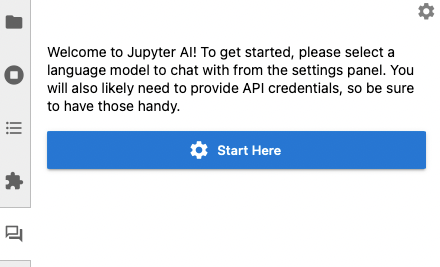
Click on “Start Here” to select the model and introduce your API key.
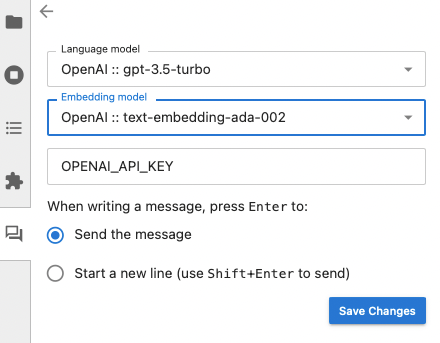
After saving changes, click the “back” button in the upper-left corner. Now you should see the chat interface below where you can start a chat.

We’ll see some cool things you can do from the chat interface later. Now let’s focus on the notebook.
Working with Jupyter AI
First, we need to load the jupyter_ai extension by running the code below in a notebook cell.
%load_ext jupyter_ai
Then we can list all the providers and models available using the code below.
%ai list
Here are the providers and models you can use.
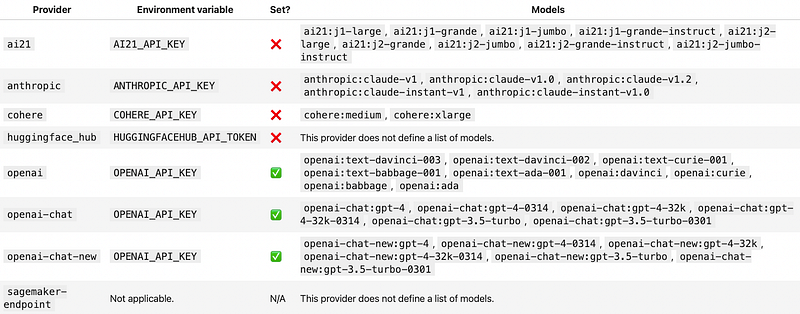
Note that to use Jupyter AI with a particular provider, you must install its Python packages and set its API key in your environment or in the chat interface.
Say I want to use OpenAI’s ChatGPT model. To do so, I have to install the openai package.
!pip install openaiAnd set the API key in my environment (to generate your OpenAI API key click here)
import os
os.environ[“OPENAI_API_KEY”]=your-api-key
Now we can start working with ChatGPT inside Jupyter Lab
Magic commands
Let’s generate code using the %%ai magic command.
%%ai chatgpt
A function that computes the lowest common multiples of two integers, and
a function that runs 5 test cases of the lowest common multiple function
If you run the command above, you’ll get the following output.
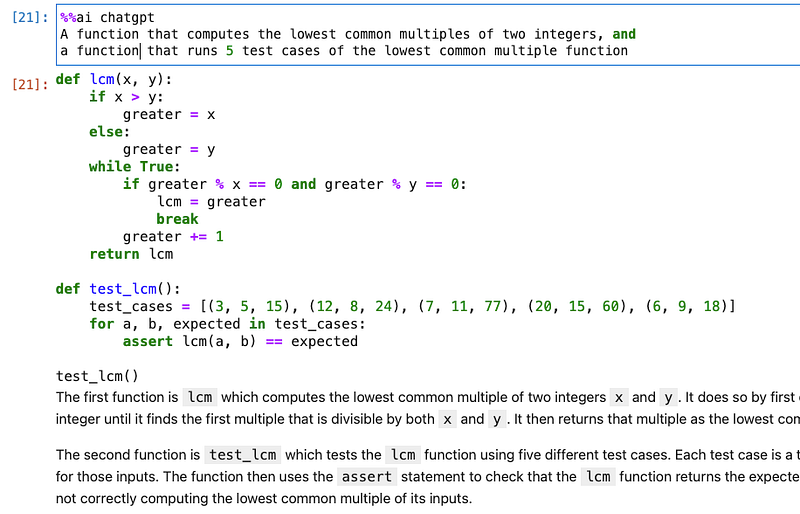
As you can see, by default, the output of an %%ai command will be formatted as markdown by default. You can change the format of the output to code, image, markdown, math, HTML, JSON, and text by using the -f argument of the magic command.
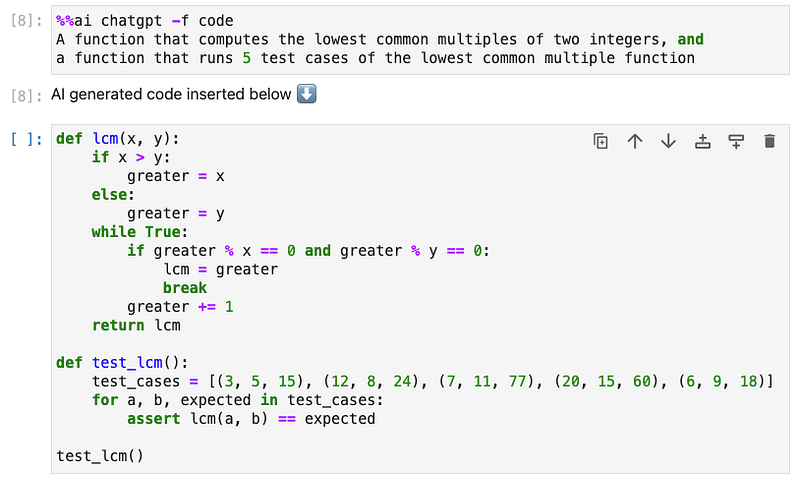
Let’s set the format to code now.
%%ai chatgpt -f code
A function that computes the lowest common multiples of two integers, and
a function that runs 5 test cases of the lowest common multiple function
Now the output is inserted in another cell.
You can also generate math formulas in markdown format.

In, Out, and Err
If you want to execute a prompt using code that the kernel knows about, but it’s not in the current cell, you can use the curly brace syntax to include variables and other Python expressions in your prompt.
This is especially useful when you want to explain code located elsewhere in a Jupyter notebook. Say I have the code below with its input located to In[12].
for i in range(1,9):
 print(i)
Now I can refer to In[12] in an %%ai magic command to get an explanation.
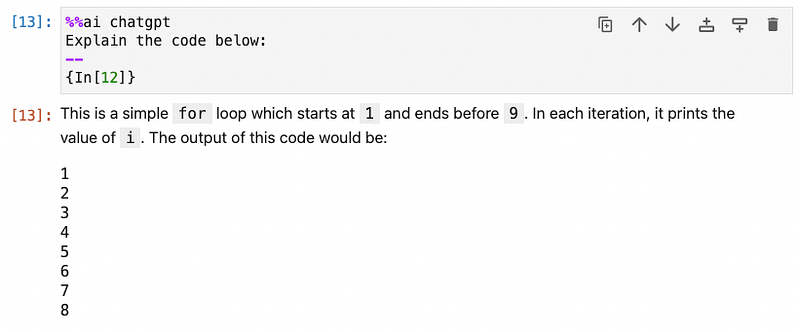
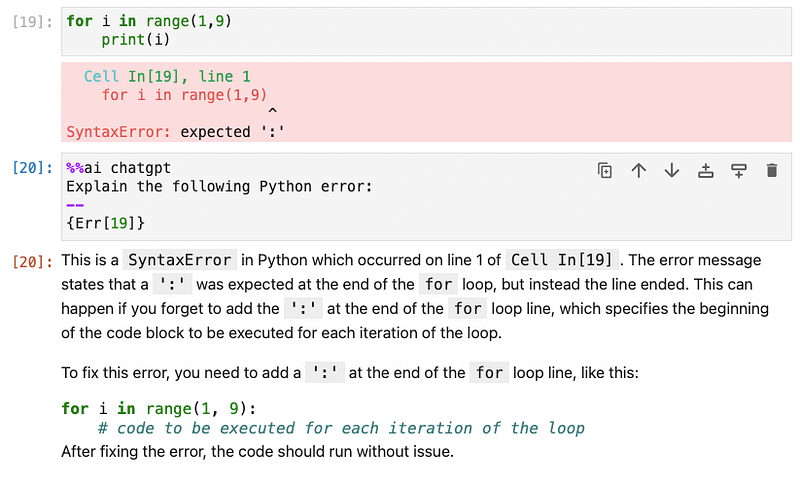
Besides In, other special lists with interpolation syntax are Out and Err that can be helpful whenever you want to work with the output or error you get.
Here’s an example of the Err.
Using the chat interface
The chat interface located on the side panel can help you do similar things that we previously have seen with the %%ai magic command.
In case you want to include a portion of your notebook in your prompt, just select the portion and then check the box “Include selection.”

In the example below, I ask for an explanation of the code in my notebook.
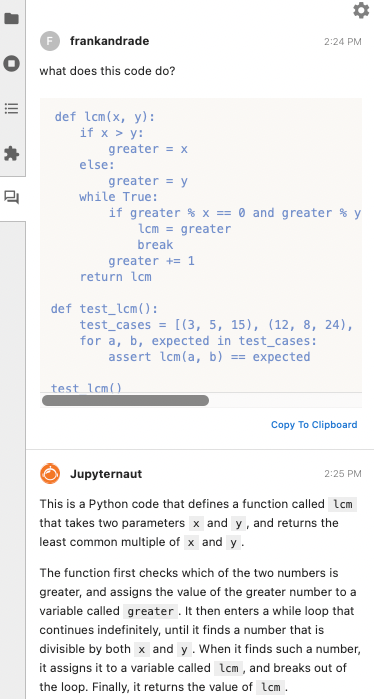
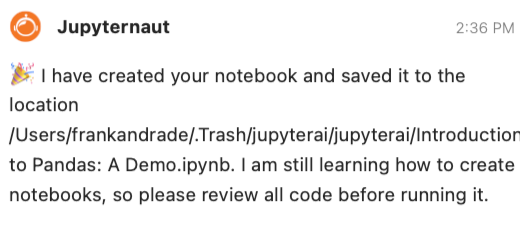
One cool feature the chat interface has is to generate an entire notebook from a text prompt. You only need to send a message starting with /generate like in the example below.
/generate a demo of how to use the pandas libraryAfter a few minutes, you should get the message below. If you go to the files section on the left panel, you’ll see a new .ipynb file generated.
That’s it! For more info about Jupyter AI, visit the official doc.
Artificial Corner’s Free ChatGPT Cheat Sheet
We’re offering a free cheat sheet to our readers. Join our newsletter with 20K+ people and get our free ChatGPT cheat sheet.
If you enjoy reading stories like these and want to support me as a writer, consider signing up to become a Medium member. It’s $5 a month, giving you unlimited access to thousands of Python guides and Data science articles. If you sign up using my link, I’ll earn a small commission with no extra cost to you.