
Jira API with Python and Pandas
Introduction
APIs are great. They separate access and control of your data from the UI that’s built around it. It’s like a UI built for a computer. This article is going to cover the basics of interacting with the Jira API to retrieve data using Python and load it into a Pandas DataFrame. From there you can clean, filter, chart, or store it.
We will also cover some basic write operations through the API: creating issues, transitioning issues, linking issues, and adding comments. The Jira API is very rich but these basic building blocks open up a lot of opportunities for automation. At the end, we’ll tie this all together by implementing a scenario.
- Token authentication
- The simplest case
- What does Jira give you back
- Filtering with JQL
- Load into a Pandas DataFrame
- Query limits
- Custom fields
- Transitioning issues
- Commenting on issues
- Linking issues
- Creating issues
- Tie it all together
Token authentication
It may be tempting to just use your normal user name and password in a script but I highly recommend, even if you’re just exploring the API, that you take a few seconds to generate a token instead.
A token acts as a temporary password that you can revoke independently of all your other tokens. This means that if a server using one of your tokens is compromised you can revoke that token without affecting other servers.
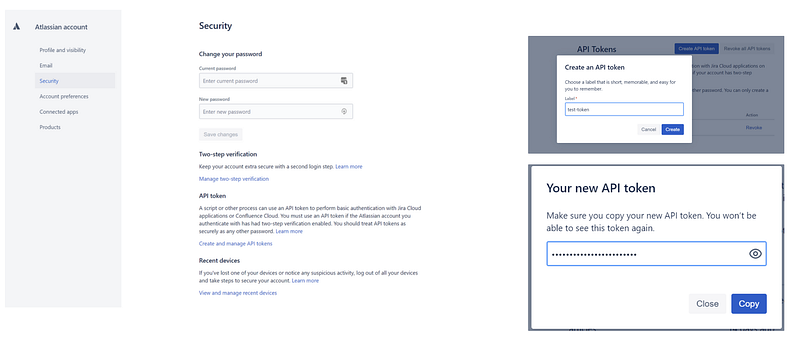
After logging in with your username + password (+ 2FA if enabled) Jira allows you to create unique tokens to use in place of your password when authenticating via the API. If your account is using Two-factor authentication you’ll need to generate a token because your script doesn’t have access to the second factor.
You’ll only have access to the token string once, when creating it.
Tokens can be independently revoked so create one for each environment where you’ll be accessing the API. That way, if that environment is compromised you can revoke access for the compromised token without affecting any other environments.
The Jira UI also displays the last time each token was used. Some APIs also let you set an expiry date for tokens or configure permissions on a per-token basis (e.g. allowing read-only access for some API tokens and read-write for others). As of this writing Jira doesn’t support these features.
To create a token go to Account Settings → Security → API Tokens. Remember to copy the string because you can only access it once! You’ll use this in place of your actual password.
The simplest case
Let’s start with the simplest case to make sure authentication is working properly. Throughout this article we’re going to use the atlassian-python-api python library.
First, we instantiate an instance of the Jira class provided by the atlassian-python-api library by passing in the url, username, and password (the token created above).
from atlassian import Jirajira_instance = Jira(
url = "https://YOUR_DOMAIN.atlassian.net/",
username = "YOUR_USERNAME",
password = "YOUR_TOKEN",
)Now we can try a simple request, requesting a single issue by it’s key. We will limit the fields to keep the response size readable.
jira_instance.issue(key = "CAE-1", fields = ["issuetype", "status", "summary"])What does Jira give you back
Jira returns a JSON object with a few top level keys
- expand: Not interested at this point
- id: The internal unique id of the issue, since sometimes the
keycan change - self: A link to the issue. This, plus the extra field parameter, is the endpoint we just accessed
- key: The Jira issue key we specified
- fields: We care about some of the sub-fields here, more on this below.
{
  "expand": "renderedFields,names,schema,operations,editmeta,changelog,versionedRepresentations",
  "id": "11702",
  "self": "https: //dmort.atlassian.net/rest/api/2/issue/11702",
  "key": "CAE-1",
  "fields": {
    "summary": "PC rebooting itself/ screen turning off.",
    "issuetype": {
      "self": "https: //dmort.atlassian.net/rest/api/2/issuetype/10000",
      "id": "10000",
      "description": "A big user story that needs to be broken down. Created by Jira Software - do not edit or delete.",
      "iconUrl": "https: //dmort.atlassian.net/images/icons/issuetypes/epic.svg",
      "name": "Epic",
      "subtask": False
    },
    "status": {
      "self": "https: //dmort.atlassian.net/rest/api/2/status/1",
      "description": "The issue is open and ready for the assignee to start work on it.",
      "iconUrl": "https: //dmort.atlassian.net/images/icons/statuses/open.png",
      "name": "Open",
      "id": "1",
      "statusCategory": {
        "self": "https: //dmort.atlassian.net/rest/api/2/statuscategory/2",
        "id": 2,
        "key": "new",
        "colorName": "blue-gray",
        "name": "To Do"
      }
    }
  }
}
Already you can see things starting to take shape, we can programmatically get back a JSON representation of any issue.
Filtering with JQL
Let’s expand our request to include a set of issues. This JQL query will get back all the issues in the ABW project.
jira_instance.jql("project = ABW", limit = 100, fields=["issuetype", "status", "summary"])This returns 68 issues in a list under the issues key of the response. Note how the structure of each issue is the same as above when we asked for a specific key.
{'expand': 'schema,names',
 'startAt': 0,
 'maxResults': 100,
 'total': 68,
 'issues': [{'expand': 'operations,versionedRepresentations,editmeta,changelog,renderedFields',
   'id': '14317',
   'self': '<https://dmort.atlassian.net/rest/api/2/issue/14317>',
   'key': 'ABW-68',
   'fields': {'summary': "Times/Hour Software problem in won't",
...
Load into a Pandas DataFrame
To load this into a DataFrame we use the pandas json_normalize function (for more info on converting the nested JSON to table format see:
Converting nested JSON structures to Pandas DataFrames
# Get results of jql query
results = jira_instance.jql("project = ABW", limit = 100, fields=["issuetype", "status", "summary"])
# Load the results into a DataFrame. The list of issues is under the "issues" key of the results object.
df = pd.json_normalize(results["issues"])# Define which fields we care about using dot notation for nested fields.
FIELDS_OF_INTEREST = ["key", "fields.summary", "fields.issuetype.name", "fields.status.name", "fields.status.statusCategory.name"]# Filter to only display the fields we care about. To actually filter them out use df = df[FIELDS_OF_INTEREST].
df[FIELDS_OF_INTEREST]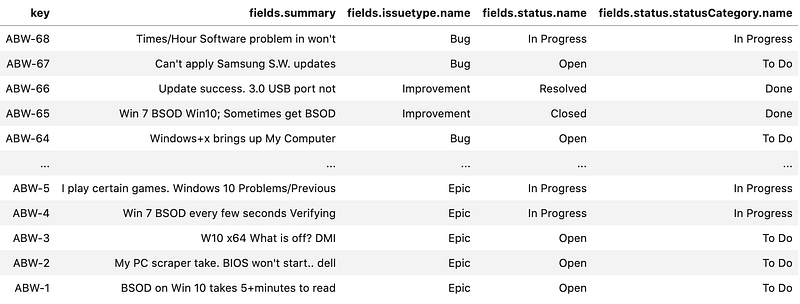
Voila, a table representation of the Jira data that can be exported, filtered, plotted, or pivoted.
Query limits
You may have noticed the limit parameter sneak into the jql function above. By default the Jira API returns the first 50 issues from a JQL query. We can set a higher limit, typically up to 1000 using the limit parameter in the request but sometimes even 1000 issues isn’t enough. To work around this we define a function to deal with the pagination.
The Jira response includes these keys
{...
 'startAt': 0,
 'maxResults': 100,
 'total': 1983,
...}
This function calls the API to find how many issues are in the query results set, then loops until all the issues have been collected into a list that is returned to the caller.
def retrieve_all_query_results(jira_instance: Jira, query_string: str) -> list:
    issues_per_query = 100
    list_of_jira_issues = []

    # Get the total issues in the results set. This is one extra request but it keeps things simple.
    num_issues_in_query_result_set = jira_instance.jql(query_string, limit = 0)["total"]
    print(f"Query `{query_string}` returns {num_issues_in_query_result_set} issues")

    # Use floor division + 1 to calculate the number of requests needed
    for query_number in range(0, (num_issues_in_query_result_set // issues_per_query) + 1):
        results = jira_instance.jql(query_string, limit = issues_per_query, start = query_number * issues_per_query)
        list_of_jira_issues.extend(results["issues"])

    return list_of_jira_issues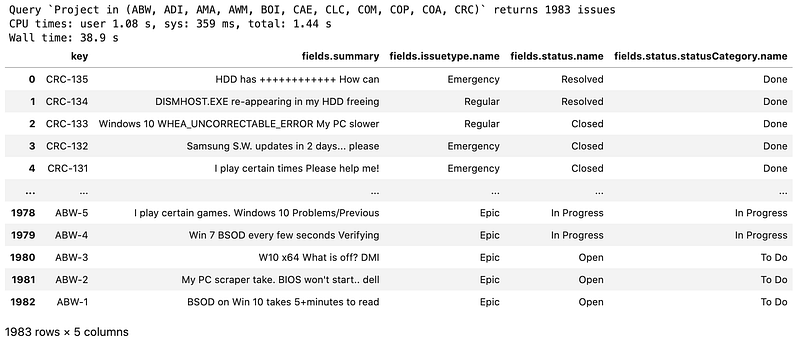
Sub queries
JQL can be really powerful but it’s no SQL and you may have found you hit a wall and can’t quite filter out the right set of issues. One solution to this is sub-queries, using the results of one query as an input to a second query. These are some scenarios where you might need a sub-query
- Given a set of issues find all the linked issues in a certain status
- Find only the child issues when the list of parents is coming from a query
- Given the results of a query find all the issues that have any of the labels assigned to any of those issues.
Because our queries are in pythn now it’s relatively straightforward to parse out the results from a query and use those values as inputs to a second request. Or, in some cases, we can do the secondary filtering directly in python without needed any more API requests. We’ll use the python approach here and the API approach in the exercise at the end as an example in case the first query doesn’t happen to return enough data for the sub-query.
first_query_results = retrieve_all_query_results(jira_instance, "Project = CAE and issueLinkType = 'is blocked by'", fields = ["issuelinks", "summary"])# Create an empty list to add issues when not all the blocking issues are closed.
blocked_by_unclosed_issues = []for issue in first_query_results:
print(issue["key"], issue["fields"]["summary"], "is blocked by", [(link["inwardIssue"]["key"], link["inwardIssue"]["fields"]["status"]["name"]) for link in issue["fields"]["issuelinks"]])
# Convert the list of links into a DataFrame
df_sub_query_example = pd.json_normalize(issue["fields"]["issuelinks"])
# This step does the filtering, we only want to count issues where the link type is "is blocked by" and the linked issue isn't closed.
if len(df_sub_query_example.loc[(df_sub_query_example["inwardIssue.fields.status.name"] != "Closed") & (df_sub_query_example["type.inward"] == "is blocked by")]) > 0:
blocked_by_unclosed_issues.append(issue)
print()
print(f"There are {len(blocked_by_unclosed_issues)} issues where at least one linked issue isn't Closed")
display(pd.json_normalize(blocked_by_unclosed_issues)[["key", "fields.summary"]])CAE-96 Unable to Win 10 Pro is blocked by [('CAE-142', 'Open'), ('CAE-159', 'Open'), ('WOM-119', 'Open'), ('CAE-167', 'In Progress'), ('CAE-133', 'In Progress'), ('CAE-167', 'In Progress'), ('CAE-169', 'In Progress')]
CAE-72 Verifying DMI pool data. Update success. 3.0 is blocked by [('CAE-145', 'Open'), ('CAE-136', 'Open'), ('CAE-158', 'Open'), ('CAE-167', 'In Progress'), ('CAE-144', 'In Progress'), ('CAE-25', 'Closed'), ('CAE-167', 'In Progress'), ('CAE-169', 'In Progress')]
CAE-43 I get the a PC slower is blocked by [('CAE-118', 'Closed'), ('CAE-25', 'Closed'), ('CAE-47', 'Closed')]
CAE-26 Win10 - Not Powering On BSOD IRQL_NOT_LESS_OR_EQUAL is blocked by [('CAE-151', 'Open'), ('CAE-167', 'In Progress'), ('CAE-167', 'In Progress'), ('CAE-169', 'In Progress')]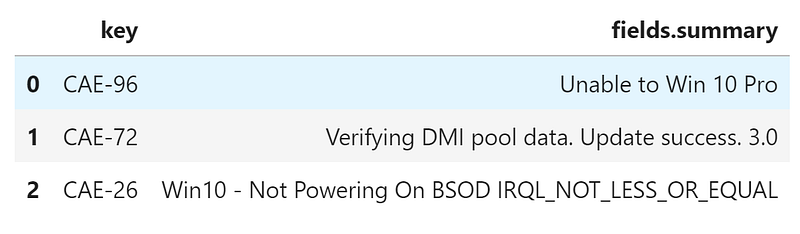
Custom fields
Above we used the fields parameter to specify a list of field names to return from the API. Custom fields need to be handled a bit differently. Jira doesn’t enforce uniqueness in Custom Field names. Instead, behind the scenes, it creates a customfield_# name and that’s the name that you need to include in the fields list.
There’s a few ways to find the name of your Custom Field.
Using the API
custom_fields_list = jira_instance.get_all_custom_fields()
df_custom_fields = pd.DataFrame.from_records(custom_fields_list, index = ["key"])
df_custom_fields[["name"]].head()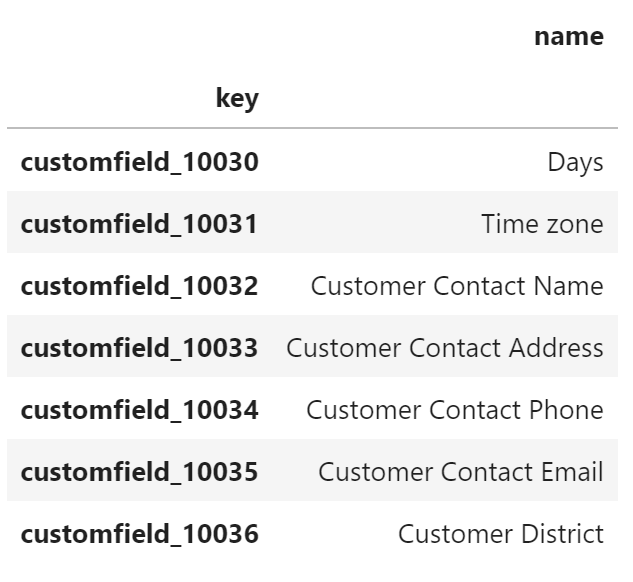
We get back a list of all the custom fields, filter out the columns of interest (key is the customfield_# string that we’re looking for and name is the given name. Then filter the list using the Pandas .loc function.
df_custom_fields.loc[df_custom_fields["name"] == "Customer Contact Phone"]
Using the Admin console (sort of)
If you’re an administrator you can go to Admin → Issues → Custom Fields → Edit Custom Field Details.
Then the id will be shown in the URL.
https://YOUR_DOMAIN.atlassian.net/secure/admin/EditCustomField!default.jspa?id=10003Use customfield_<your_custom_field_id_number> to include this in the results.
Here’s some code that includes the Source Issue Key custom field.
# Get results of jql query
results = jira_instance.jql("project = ABW", limit = 100, fields=["issuetype", "status", "summary", "customfield_10037"])
# Load the results into a DataFrame
df = pd.json_normalize(results["issues"])# Rename the custom field in our table
df = df.rename(columns = {"fields.customfield_10037": "fields.source_issue_key"})# Define which fields we care about using dot notation for nested fields
FIELDS_OF_INTEREST = ["key", "fields.summary", "fields.issuetype.name", "fields.status.name", "fields.status.statusCategory.name", "fields.source_issue_key"]# Filter to only display the fields we care about. To actually filter them out use df = df[FIELDS_OF_INTEREST].
df[FIELDS_OF_INTEREST]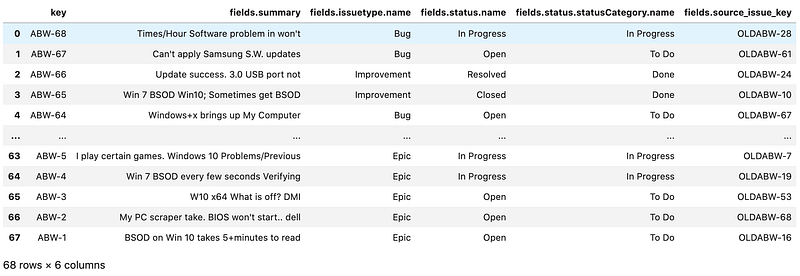
Transitioning Issues
So far we’ve only covered reading data from the API, but reading is only one part of the API features. If you always want to transition a set of issues when a certain set of conditions are met then setting up these conditions in a script can save a bunch of time. Jira is starting to build this into the application but there are still some scenarios where an external script is preferable (or required).
- Transition a set of issues from a query that isn’t supported in Jira
- Use data from other systems when deciding to transition issues
Each transition in Jira has an id, for instance transitioning from In Progress to Resolved might have id = 5, transitions can be shared between workflows so you might find the same id with multiple issue types.
The available transitions will obviously depend on the issue’s current state and workflow. Fortunately the API provides an endpoint that, given an issue key, returns a list of available transitions and transition ids.
jira_instance.get_issue_transitions("CAE-1")Returns:
[
 {'name': 'Stop Progress', 'id': 301, 'to': 'Open'},
 {'name': 'Resolve Issue', 'id': 5, 'to': 'Resolved'},
 {'name': 'Close Issue', 'id': 2, 'to': 'Closed'}
]
Since CAE-1 is currently In Progress.
jira_instance.issue("CAE-1")["fields"]["status"]["name"]
> "In Progress"
The atlassian-python-api library takes in the status name instead of the transition id (the to: field from above) if you’re using an http library instead you’ll need to use the id.
jira_instance.issue_transition("CAE-1", "Open")
jira_instance.issue("CAE-1")["fields"]["status"]["name"]
> "Open"
Commenting on issues
Jira records a detailed history but it may be helpful for others to include a comment when updating or transitioning an issue.
jira_instance.issue_add_comment("CAE-1", "Transitioned to Open by Helper Script.")
Linking issues
Linking issues is a slightly different process. We define the inwardIssue and outwardIssue This is because some links are not symmetrical:
- Symmetrical
CAE-151relates toCAE-26 - Not symmetrical
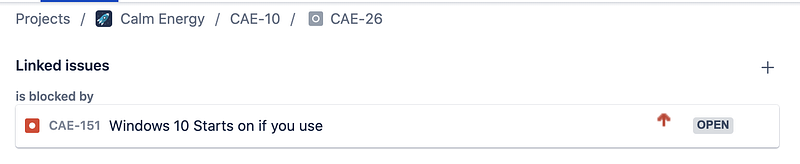
CAE-151blocksCAE-26andCAE-26is blocked byCAE-151
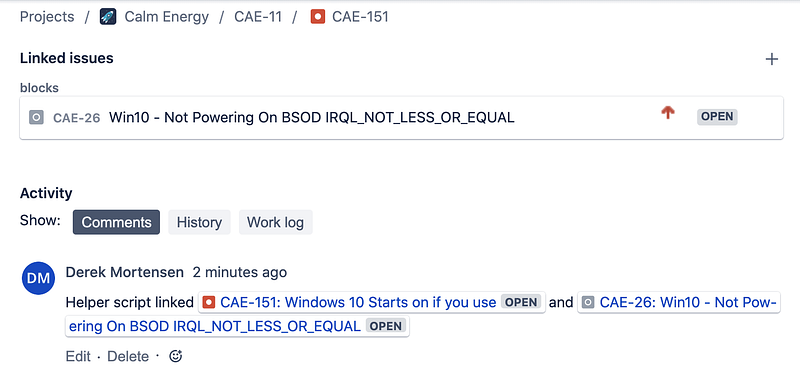
Here we create a link between CAE-151 and CAE-26
inward_issue_key = "CAE-151"
outward_issue_key = "CAE-26"
jira_instance.create_issue_link(
data = {
"type": {"name": "Blocks" }, # The type of link being created
"inwardIssue": { "key": inward_issue_key }, # We're saying that the "inward issue" is Blocking the "outward issue"
"outwardIssue": {"key": outward_issue_key }, # The "outward issue" will be a "is blocked by" link to to CAE-151
"comment": { "body": f"Helper script linked {inward_issue_key} and {outward_issue_key}" } # Include a comment that we are linking these issues by a script
}
)
Creating Issues
Similar to transitioning an issue creating an issue takes in a dictionary of fields. If there are required fields in the project you’ll need to define them all or the request will fail.
jira_instance.create_issue(
    fields =  {
       "project":
       {
          "key": "CAE"
       },
       "summary": "Investigate these blocked issues.",
       "description": "Creating of an issue using project keys and issue type names using the REST API",
       "issuetype": {
          "name": "Internal Task"
       }
   }
)
The response includes the issue key, hidden id, and a link to the JSON representation of the issue.
{
 'id': '15454',
 'key': 'CAE-161',
 'self': '<https://dmort.atlassian.net/rest/api/2/issue/15454>'
}
Tie It All Together
Let’s tie this all together with a scenario.
- Query for issues that are blocked by one or more unresolved other issues
- We need a sub query here because the state of both the blocked issue and all the blocking issues are part of the filtering
- Create a
Internal Taskthat's linked to all the blocked issues - Add a comment to the
Internal Task - Transition this
Internal TasktoIn Progress
# Get an initial list of issues
initial_issue_list = retrieve_all_query_results(jira_instance, "Project in (ABW, ADI, AMA, AWM, BOI, CAE, CLC, COM, COP, COA, CRC) and issueLinkType = 'is blocked by'", fields = ["issuelinks"])
def extract_list_of_issues_blocking(issue: dict):
# Turn the issue links from a list of dictionaries into a table
df_issue_links = pd.json_normalize(issue["fields"]["issuelinks"])
# Filter the table of links to only "is blocked by" links. Then select the key column and convert that into a list.
blocking_issue_keys = df_issue_links.loc[df_issue_links["type.inward"] == "is blocked by"]["inwardIssue.key"].to_list()
# The list of issues linked to the original e.g. ["CAE-45", "CAE-73", "CAE-88", "CAE-91"]
return blocking_issue_keys# Check the blocking issues status and filter down the list of keys to only those blocked by unresolved issues
blocked_by_open_issues = []
blocking_issues = []for issue in initial_issue_list:
# Extract a list of blocking issue keys for this specific issue
blocking_issue_keys = extract_list_of_issues_blocking(issue)
# Do a sub-query for the issues blocking a specific key. Only return linked issues that are unresolved. All we need is the key so don't include any fields.
blocking_issues_not_done = jira_instance.jql(f"key in ({', '.join(blocking_issue_keys)}) AND resolution is EMPTY", fields = "None")["issues"]
if len(blocking_issues_not_done) > 0:
# Extract just the keys from the list of unresolved blocking issues returned by the query
blocking_issues_not_done_keys = pd.DataFrame(blocking_issues_not_done)["key"].to_list()
# Add the blocked issue to our list
blocked_by_open_issues.append(issue["key"])
# Add the unresolved blocking issues to the list. Use extend because we want each item in the list not the whole list as a single new entry.
blocking_issues.extend(blocking_issues_not_done_keys)
print(issue["key"], "is blocked by these unresolved issues:", ", ".join(blocking_issues_not_done_keys))
else:
print(issue["key"], "is not blocked by any unresolved issues.")print()
print("These keys are blocked by unresolved issues", ", ".join(blocked_by_open_issues))# Create the "Internal Task" issue for someone to go clean things up.
created_issue = jira_instance.create_issue(
fields = {
"project":
{
"key": "CAE"
},
"summary": "Investigate these blocked issues.",
"description": "Creating of an issue using project keys and issue type names using the REST API",
"issuetype": {
"name": "Internal Task"
}
}
)print(created_issue)
created_issue_key = created_issue["key"]# Link the new issue to the blocking issues
for key in blocked_by_open_issues:
jira_instance.create_issue_link(
data =
{
"type": {"name": "Relates" }, # The type of link being created
"inwardIssue": { "key": created_issue_key },
"outwardIssue": {"key": key },
}
)# Transition the created task to In Progress
jira_instance.issue_transition(created_issue_key, "In Progress")# Add a comment with what we did
jira_instance.issue_add_comment(created_issue_key, f"These keys {' ,'.join(blocked_by_open_issues)} are blocked by unresolved issues. Please investigate {' ,'.join(set(blocking_issues))}")Thanks for reading. I hope this was helpful and gave you some ideas how to improve your workflows with these basic building blocks.
Sample Code is available here
https://gist.github.com/dmort-ca/a3bbeaac4729ba2c72a9a33512402ae4


