
Jetpack Compose: How to Build a Messaging App
Learn how to create a UI without any XML files
Introduction
“Jetpack Compose is a modern toolkit for building native Android UI. Jetpack Compose simplifies and accelerates UI development on Android with less code, powerful tools, and intuitive Kotlin APIs”. — Android Developers
There have been interesting developments since we discussed Jetpack Compose last time. Compose 0.1.0-dev010 and Compose UI 0.1.0-dev10 were released on April 29. As they’re still in development phase, it will be difficult to understand the errors, so make sure you’re using the latest versions for a smooth experience.
In my past two articles about Compose, I mostly focused on basics and how Compose is evolving. In this article, we’re going to build a messaging app using Kotlin and Compose through which we will learn how to use components like adapterview, image, Modifiers, and more.
Moving forward, I assume you’re familiar with the basics of Jetpack Compose. If not, refer to this article.
What Are We Trying to Build?
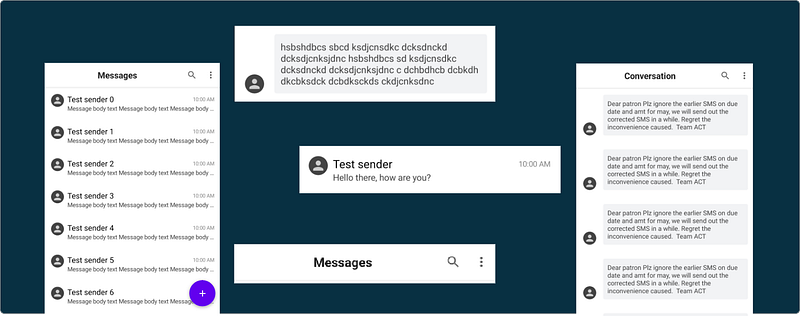
As Android users and developers, we’re very familiar with the native messages app. In this article, we’re going to explore how to build the chats list screen and conversation screen using Jetpack Compose. To be clear, have a look at following.
App Models
Before we start building UIs, let’s go through model classes for messages and a conversation list : Message and ChatMessage respectively. Both are data classes. Have a look:
Home Screen
On the home screen, we have a top bar with a title and two actionable menu items: Search and more options. Then we have the messages list and finally the FAB icon. See the below image to have a bird’s eye view of Compose UI for designing the home screen.
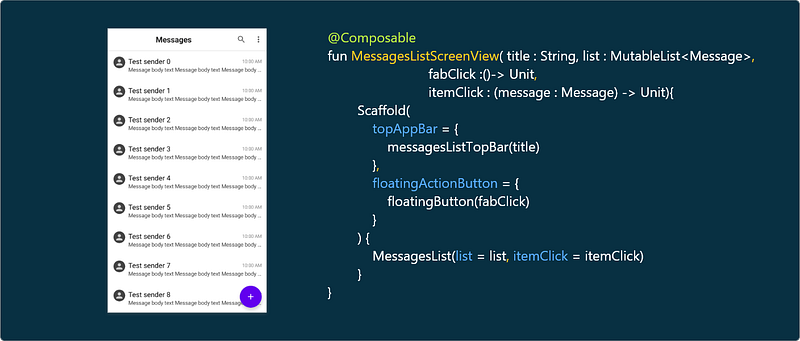
Now, let’s go through each segment.
TopBar and FAB Design
Scaffold
Scaffold implements the basic material design visual layout structure. This component provides the API that holds UI components together by ensuring proper layout strategy.
TopAppBar
topAppBar is a parameter in the scaffold to show a top bar of the screen. To this parameter, we have to pass a composable function, messagesListTopBar, with the actual topbar design.
A TopAppBar is a UI component that displays information relating to the current screen, such as title, actions, search, and more options. It’s placed at the top of the screen.
Here we’ve used the text component to show the title of the TopAppBar and then used it’s components to style it. actions is another parameter in TopAppBar to show actionable items. Finally we set the background color for TopAppBar.
Modifier
Modifier is an empty companion object by default. We can use Modifier to set animations, padding, and other styling-related stuff to the views.
FloatingActionButton
With the FloatingActionButton UI component, we can easily implement a FAB button in the UI. Using onclick and icon parameters, we can set the click listener and drawable asset for the FAB button. Have a look:
Here we’ve used higher-order functions to invoke on FAB and messages item clicks. To learn more about features like higher-order functions in Kotlin, refer this article.
Messages List Item
In the messages item, we have three texts indicating sender name, message shot description, and receive time. All these three views are designed using the Text UI component. Then we have the sender icon, which is designed using the Icon UI component. Gathering the pieces together, we will have a composable function as shown below:
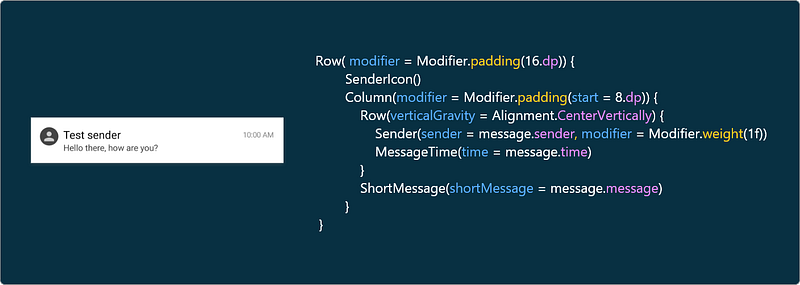
Let’s explore them one-by-one, starting with the sender icon.
The sender icon is designed using the Icon component, which draws asset using tint. It has three parameters:
asset: We can assign a vector asset to the icon using this attribute.modifier: For decoration purposes like padding, and moretint: Color code for icon
To display the sender name, we used the Text UI component. style is an attribute in text used to decorate it, similar to the style attribute in XML design. Then we have typical attributes like overflow, maxlines, and more to deal with UI stuff.
Time and a short description for the messages list item are also implemented using the Text UI component with the same attributes. Refer to the GitHub sample for more details (Master branch).
Messages List
Now, it’s time to design the list. AdapterList is the new UI component from Compose for designing lists. It has three parameters:
data: List of items to show.modifier: companion object for stylingItemCallback: To implement click on the list item.
With that, we have built the entire messages app home screen using Jetpack Compose. The next step is to design the conversation screen.
Conversation Screen
Building the conversation screen is similar to building the home screen. We can reuse the components like TopAppBar from the messages list by changing the title. Coming to the conversation list, we have to use the same adapterlist. The only change is the conversation list item design.
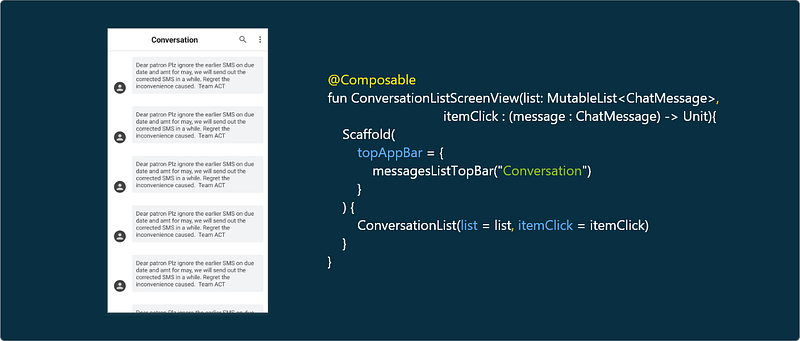
Chat Message List Item
In the chat message list item, we have a sender icon similar to the messages list item, so we can reuse the SenderIcon composable function. The new thing we can learn from the chat message item is how to create a background with a custom color and corner radius.
At the top level, we have a clickable component to invoke a click on the list item. Then we have Row to align the views horizontally. We’ve used a new attribute, verticalGravity, to align the user icon to the bottom line of the message.
Using Modifier, we created padding with 16dp and a background with a corner radius and custom color — one of the many powerful features of Modifier. Then coming to the chat message, there is nothing new to learn; it’s just a Text component with some padding and text attributes.
Conclusion
Today we’ve learned so many things related to Jetpack Compose, like modifiers, gravity, Icon, actionable items, Adapterlists, how to reuse Compose functions, and more. Feel free to play around with the sample at the GitHub link noted above. In my next article about Compose, we’ll learn how to build server-driven UI using Compose.
I hope you learn something useful, thanks for reading.
Resources
To learn more about JetPack Compose and server-driven UI, check out the following articles.


