
It’s Time to Answer the Most Asked M2 MacBook Air Question!
A lot has changed in two years…
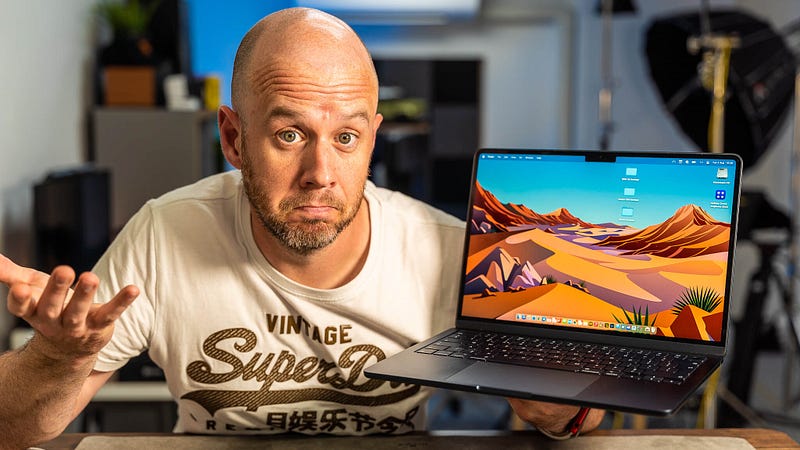
Every time Apple launches a new Mac, there’s at least one common question among buyers in my comments thread.
When the M1 chip launched in 2020, it was: “should I go for 8GB or 16GB of unified memory?”. In fact, that question is asked countless times each week, and I’ve pretty much built my business around it.
Now, we have the M2 chip, and the question I’m suddenly being asked most often is whether to upgrade the unified memory or the SSD storage. You see, for the same price, you can either go from 8GB to 16GB of unified memory or from 256GB to 512GB of SSD storage.
If you’re trying to make that decision, I’m here to help.
Why are people asking this question?
I think this is pretty simple, and it’s thanks to the furore that has developed around the M2 chip and its base model configuration.
That base model has a 256GB SSD. Unlike its predecessor, the M2 uses just one NAND chip to make up the 256GB of storage (the M1 uses two). Tests have revealed that this results in slower performance. As a result, the internet has set fire to itself in a fit of sweaty-palmed rage about how dreadfully Apple is treating its customers.
Most of the people who have contributed to those flames have never touched one of these laptops. I, on the other hand, have been hammering the base model M2 MacBook Air for the last few weeks now, and it feels identical to the M1 version, if not a little faster.
So, first things first: ignore all of this relentless crap about the M2 chip. I am utterly sick of it. Apple knows what it’s doing, and has provided a brilliant laptop if the base model is the one you want.
Despite this, the 256GB ‘controversy’ has clearly prompted many people to question whether or not they should upgrade the storage as opposed to the unified memory during their M2 MacBook Air buying journey.
For some, this could be the wrong decision.
So, let’s look at these two upgrade options and work out which one is best for you, shall we?
M2 MacBook Air: 8GB vs 16GB
Price of upgrade: £200 / $200
As noted earlier, I’ve pretty much made a living from helping people choose between 8GB or 16GB of unified memory on their Apple silicon Macs.
The good news for both those asking and yours truly is that it’s far less of a challenging decision these days. This is thanks to the incredibly efficient way in which the M1 and M2 chips work with memory. Gone are the Intel days where you’d easily chew up every available gigabyte simply by leaving a few too many browser tabs and apps open.
Don’t get me wrong — you can max out the memory on an M-powered Mac. But I’ve never encountered the ‘out of memory’ message on my 8GB M1 MacBook Air (or its successor) — even when editing 4K video.
Most people will be absolutely fine with 8GB of unified memory on their M2 MacBook. Those who know they need more — or who plan on undertaking increasingly intensive, creative workflows or complex software development — will do well to upgrade.
It’s that simple.
M2 MacBook Air: 256GB vs 512GB
Price of upgrade: £200 / $200
Once you’ve chosen the amount of unified memory for your M2 MacBook Air, you’re stuck with it — there’s no going back. Storage, on the other hand, is a different matter.
Thanks to a wealth of brilliant third-party external SSD drives, you can add a nearly endless amount of storage for your M2 MacBook Air to access. My external SSDs of choice are the brilliant SanDisk Extreme series, which are fast enough to cope with 4K video editing.
I’ve been rocking the 256GB SSD in my M1 MacBook Air for nearly two years and I’ve never come close to filling it. That’s because most of my data is held on DropBox, and I’m pretty good at removing big files once finished (usually by placing them on my NAS).
I just don’t need the space on the device itself, and I’m rather fed up with people saying that 256GB isn’t enough in 2022. For some people, it absolutely, one-hundred percent is. So, if you’ve reached this stage of my guide leaning heavily towards 16GB of unified memory, I’d put your £200/$200 there instead.
As for the single NAND chip stuff and any perceived speed deficiencies over the M1 MacBook Air — ignore the hullabaloo; you won’t notice a thing.
Benefits of upgrading unified memory
Some tasks require more memory than others. For instance, if you’re knocking out a bunch of audio and midi tracks in Logic Pro with countless plugins and software instruments attached, you’re going to quickly chew through 8GB of unified memory. The same goes for video editing; if you’re looking for a production machine that’s going to cope with YouTube-length videos, 8GB might eventually let you down.
Coders will have memory on their minds, too (pun intended). If you sit within that crowd, you’ll know far better than me as to how much memory you need, and whether or not 8GB is going to leave you wanting more.
Lastly, we have the multiple-tabbers. If you’re the sort of person who regularly leaves eleventy fourteen hundred tabs open in Chrome, you probably will run out of memory on an 8GB machine.
If everything I’ve just said means nothing to you and you just want an excellent M2 MacBook Air to use for normal stuff — I wouldn’t bother upgrading from 8GB.
Benefits of upgrading storage
If memory isn’t going to be an issue for you, and you still have that £200/$200 burning a hole in your pocket, the 512GB upgrade is probably looking mightily tempting.
Go for it! If nothing else, it’ll give you some extra headroom and full confidence that you don’t have a single NAND chip in your lovely new M2 MacBook Air. I remain firm on the point that normal users needn’t worry about the 256GB M2 MacBook Air, but I appreciate that the tech ‘press’ has caused an almighty stink about it which has raised a few nerves.
Just remember — you can upgrade your storage any time you like in the future, and there’s always cloud storage to fall back on.
What are you going for (and why)?
I’m fascinated by the choices people are making when it comes to the 16GB vs 512GB SSD upgrade on the M2 MacBook Air.
What have you decided to go with? More importantly, why? Get involved in the comments, below!
Before you go
Join my behind-the-scenes mailing list
If you enjoy my writing, it’s only a snippet of what’s on Medium. I’m a paying member myself and highly recommend joining. Click here to join (a portion of your membership fee will be sent my way and therefore directly support my work!).
This post includes affiliate links
Originally published at https://markellisreviews.com on August 2, 2022.


