avatarNikhil Vemu

Free AI web copilot to create summaries, insights and extended knowledge, download it at here

7220

Abstract

p id="782c">No need to open Settings for such petty things anymore :)</p><p id="0250">Plus, searching Spotlight for…</p><ul><li>“Files” displays recent files.</li><li>“Notes” displays recent notes.</li><li>“Photos” displays recent photos.</li><li>“Freeform” lets you create a new board or open an existing board.</li><li>“FaceTime” shows recently FaceTimed contacts.</li><li>“Reminders” lets you open Scheduled, All, or Flagged reminders.</li><li>“Shortcuts” shows recently used Shortcuts.</li></ul><p id="7d03">Thereby letting you access a few things without completely opening the app.</p><h2 id="fd82">#10. Amazing wallpaper feature</h2><p id="f7f7">Let’s say you have a photo that doesn’t fit the entire screen, like a square photo. And you set it as your wallpaper.</p><p id="c3aa">Now, instead of displaying black where the photo doesn’t cover, iOS 17 will gradually fade the colour to black on the edges.</p><figure id="b9db"><img src="https://cdn-images-1.readmedium.com/v2/resize:fit:800/1*14K9mOKSdYuHgvv2_Dy4dA.jpeg"><figcaption>Image by the author (Photo by <a href="https://unsplash.com/@ilypnytskyi?utm_source=unsplash&amp;utm_medium=referral&amp;utm_content=creditCopyText">Igor Lypnytskyi 🇺🇦</a> on <a href="https://unsplash.com/photos/m61MVp0w1p4?utm_source=unsplash&amp;utm_medium=referral&amp;utm_content=creditCopyText">Unsplash</a>)</figcaption></figure><h1 id="a78d">• Changes to Phone, Mail, and Messages</h1><h2 id="89ff">#11. Three new Memoji stickers</h2><figure id="14f6"><img src="https://cdn-images-1.readmedium.com/v2/resize:fit:800/1*gLmIl-34xnma49wJMBrQlw.jpeg"><figcaption>Image by the author</figcaption></figure><p id="9c46">You can now use three new Memoji stickers on iMessage — <b>Halo, Peekaboo, and Smirk</b>.</p><p id="3d41">Btw, how often do you use Memojis? I only use emojis.</p><h2 id="97cf">#12. Fill codes from mail (and kill them)</h2><p id="33b2">iOS 17 brings two really useful features:</p><ul><li>Autofill can now fill codes from Mail. Back then, it was only from Messages.</li><li>You can now choose to <i>delete</i> the message or mail containing the code after it’s Autofilled. (Toggle <i>Clean Up Automatically</i> in <i>Settings ⚙️ < Passwords 🗝️ < Password Options</i>)</li></ul><figure id="5842"><img src="https://cdn-images-1.readmedium.com/v2/resize:fit:800/1*u584ePbO87hOGpIoeqYY9g.jpeg"><figcaption>Image by the author</figcaption></figure><p id="caa9">Plus, if you’re setting up a new iPhone near your existing Apple device, you won’t be asked to type the code while logging in to Apple ID.</p><p id="4664">It’s auto-authenticated.</p><h2 id="8ab5">#13. Pronouns for contacts</h2><p id="d42e">iOS 17 lets you add pronouns to Contacts — like she, her, hers or he, him, his.</p><figure id="f09b"><img src="https://cdn-images-1.readmedium.com/v2/resize:fit:800/1*oacviXVTL6xSjfH3Ho4HSQ.jpeg"><figcaption>Image by the author</figcaption></figure><p id="ee55">Just a new field.</p><h2 id="1383">#14. Manage iMessage apps</h2><p id="1be2">Go to <i>Settings ⚙️ < Messages 💬 < iMessage Apps</i>, and you’ll see all the apps that exist in iMessage — like GMaps, YouTube, Zoom.</p><figure id="04e2"><img src="https://cdn-images-1.readmedium.com/v2/resize:fit:800/1*JIvFbgMDciRqSSLRquom8w.jpeg"><figcaption>Image by the author</figcaption></figure><p id="746e">If you don’t want any app on iMessage, you can remove it from there.</p><p id="5137">But note, this will completely delete the app from your iPhone. I wish Apple allows us to delete only the iMessage app.</p><h1 id="ff60">• Changes to Privacy and Security</h1><h2 id="e99f">#15. Additional options to clear Safari data</h2><p id="4fc4">Back in iOS 16 Settings, you could only clear Safari history <i>completely</i>, but not, let’s say the last hour or week.</p><p id="0cac">But in iOS 17, you could. Go to <i>Settings ⚙️ < Safari 🧭 < Clear History and Website Data</i>, and you can delete the data for the last hour, current day, current and previous day, or everything.</p><figure id="7a75"><img src="https://cdn-images-1.readmedium.com/v2/resize:fit:800/1*6aKDUekBMTyTfk6V_B0cng.jpeg"><figcaption>Image by the author</figcaption></figure><p id="2fe6">Additionally, you can choose to close all tabs if you don’t want them to be included in history again.</p><h2 id="ffbd">#16. Use previous passcode for next 3 days</h2><p id="b851">iOS 17 allows you to use your previous passcode for the next 3 days if you change it now. Coz there are chances you’d forget the new passcode while still remembering the old one.</p><p id="b854">But if you’re damn sure you’d remember the new one, hit <i>‘Expire Previous Passcode Now’</i> in <i>Settings ⚙️ < Face ID & Passcode</i>.</p><figure id="cc1c"><img src="https://cdn-images-1.readmedium.com/v2/resize:fit:800/1*mkIlJ_XxmtYR5IzqJ2Dc6g.jpeg"><figcaption>Image by the author</figcaption></figure><h2 id="9a65">#17. Use different search engine for private windows</h2><p id="7e9c">iOS 17 Safari lets you use different search engines for Default and Private windows.</p><figure id="54ba"><img src="https://cdn-images-1.readmedium.com/v2/resize:fit:800/1*DjETf1GsPCVZcFKZ0aoFWg.jpeg"><figcaption>Image by the author</figcaption></figure><p id="75fa">Maybe some people will find this useful. Not me.</p><p id="2e19">Change it in <i>Settings ⚙️ < Safari 🧭 < Private Search Engine</i>.</p><h1 id="102a">• Changes to Notes</h1><h2 id="2e16">#18. New block quote and monostyled text in Notes</h2><p id="d264">iOS 17 Notes gains the new “Block Quote” option. Here →</p><figure id="81a8"><img src="https://cdn-images-1.readmedium.com/v2/resize:fit:800/1*V04AHGv6nagWp0pa5ul2lw.jpeg"><figcaption>Image by the author</figcaption></figure><p id="c901">Also, the <code>monostyled</code> font now gets a new look. It’s now on grey background.</p><figure id="9856"><img src="https://cdn-images-1.readmedium.com/v2/resize:fit:800/1*zvGGWfNV-EpsOfsQKz4YQw.jpeg"><figcaption>Image by the author</figcaption></figure><h2 id="f2cf">#19. Interlink Notes</h2><p id="9d12">Notes inspired by Obsidian. You can now interlink Notes together for better organisation. Steps:</p><ul><li>Select some text,</li><li>Click ‘Add Link’,</li><li>Type a note title.</li></ul><p id="49ed">Now when you click on the link, you’ll be taken to the Note whose title you’ve typed.</p><figure id="d2b5"><img src="https://cdn-images-1.readmedium.com/v2/resize:fit:800/1*1WLZzAYmgentf8Obz3Ub5A.jpeg"><figcaption>Image by the author</figcaption></figure><h1 id="4df9">• Changes to Photos and Camera</h1><h2 id="5a67">#20. Level Camera to horizontal</h2><p id="35f7">The Grid view in Camera now displays a <i>line</i> in the middle. Align that to horizontal, and your Camera is perfectly horizontal.</p><figure id="6fc2"><img src="https://cdn-images-1.readmedium.com/v2/resize:fit:800/1*yeoMpNe2Hu4t6X-waYLaOQ.jpeg"><figcaption>Image by the author</figcaption></figure><h2 id="2049">#21. Zoom to crop</h2><p id="6209">This is a new way to crop photos.</p><p id="0085">Simply zoom a photo to the portion you wanna crop to, and click ‘Crop’ at the top-right corner to do it.</p><figure id="70a3"><img src="https://cdn-images-1.readmedium.com/v2/resize:fit:800/1*5Z5TO3AK2X4-Gg-Ut29B

Options

Xw.jpeg"><figcaption>Image by the author</figcaption></figure><h1 id="8182">• Miscellaneous Changes</h1><h2 id="6fba">#22. Set multiple timers</h2><p id="47bf">You can finally set multiple concurrent timers on iOS.</p><figure id="39a2"><img src="https://cdn-images-1.readmedium.com/v2/resize:fit:800/1*R1Zmdw2fgzWLNdWd5kMvrg.jpeg"><figcaption>Image by the author</figcaption></figure><p id="120e">Every timer can have its own label and alert tone. Best part, all the timers are included in Live Activity.</p><h2 id="90f0">#23. Ping my watch</h2><p id="17c6">The Control Centre gains a new control — <b>Ping My Watch</b> — that plays a tone on your Apple Watch.</p><figure id="dd8a"><img src="https://cdn-images-1.readmedium.com/v2/resize:fit:800/1*gdpvmKwsWX6ncybK5mdtcg.jpeg"><figcaption>Image by the author</figcaption></figure><p id="1d7e">Same as this sound →</p> <figure id="a25e"> <div> <div> <img class="ratio" src="http://placehold.it/16x9"> <iframe class="" src="https://cdn.embedly.com/widgets/media.html?src=https%3A%2F%2Fw.soundcloud.com%2Fplayer%2F%3Furl%3Dhttps%253A%252F%252Fapi.soundcloud.com%252Ftracks%252F1320522334%26show_artwork%3Dtrue%26secret_token%3Ds-r3R9dJLjoy2&amp;display_name=SoundCloud&amp;url=https%3A%2F%2Fsoundcloud.com%2Fnikhil-vemu%2Fios-16-find-my-sound%2Fs-r3R9dJLjoy2%3Fsi%3D16d509b09f004a8d80d98139e1dcddfc%26utm_source%3Dclipboard%26utm_medium%3Dtext%26utm_campaign%3Dsocial_sharing&amp;image=https%3A%2F%2Fi1.sndcdn.com%2Fartworks-X0xWVwGfUZeaVAto-Rs7wbg-t500x500.jpg&amp;key=a19fcc184b9711e1b4764040d3dc5c07&amp;type=text%2Fhtml&amp;schema=soundcloud" allowfullscreen="" frameborder="0" height="166" width="800"> </div> </div> </figure></iframe></div></div></figure><p id="b37f">Back in iOS 16, when you wanted to do this, you’ve got to do in Find My or ask Siri. Now it’s really quick.</p><p id="2cf5">But hey, we had Ping My iPhone for so long on Apple Watch, right? Why didn’t we have Ping My Watch on iPhone before?</p><h2 id="708f">#24. Moon info in Weather</h2><figure id="5518"><img src="https://cdn-images-1.readmedium.com/v2/resize:fit:800/1*NuurelhzP5u2nUX3zePSQQ.jpeg"><figcaption>Image by the author</figcaption></figure><p id="9698">Weather’d now display Moon info like illumination percentage (with current moon image), Moonset, and next full Moon.</p><h2 id="6674">#25. Follow up reminders for Medications</h2><p id="d755">Often forget to take your medications? Don’t worry.</p><p id="df4e">Medications can now send follow up reminders if you haven’t logged a medication 30 min after the initial notification.</p><figure id="892e"><img src="https://cdn-images-1.readmedium.com/v2/resize:fit:800/1*GQqqJtrTLYttijeyCO_96g.jpeg"><figcaption>Image by the author</figcaption></figure><p id="212d">(Toggle ‘<i>Follow Up Reminders’</i> in <i>Health ❤️ < Browse < Medications 💊 < Options</i>)</p><h2 id="7208">#26. More pens for Markup</h2><p id="9728">iOS 17 gives you more annotation/markup tools to work with. I don’t know their names, so I can’t help you with that. <i>Siri Voice</i></p><figure id="4d5e"><img src="https://cdn-images-1.readmedium.com/v2/resize:fit:800/1*IAGiu5KhIPrJdNXaKzWjfg.jpeg"><figcaption>Image by the author</figcaption></figure><h2 id="76ff">#27. AirPods splash screen responds to native appearance</h2><p id="453d">The AirPods splash screen (that pops up when you connect) now responds to the native appearance.</p><p id="93b3">Back then it always showed light irrespective of the mode. But now it’ll show dark when it’s dark mode.</p><figure id="4241"><img src="https://cdn-images-1.readmedium.com/v2/resize:fit:800/1*H-dFNso3Egui3Mdwg-oh_g.jpeg"><figcaption>Image by the author</figcaption></figure><div id="9286" class="link-block"> <a href="https://nikhilvemu.medium.com/list/e0dc853bd964"> <div> <div> <h2>Everything AirPods</h2> <div><h3>Save this list to get notified everytime a new story is added!</h3></div> <div><p>nikhilvemu.medium.com</p></div> </div> <div> <div style="background-image: url(https://miro.readmedium.com/v2/resize:fit:320/0*08367fdf7da4eff5594ea9ea5cd006295bc847d4.jpeg)"></div> </div> </div> </a> </div><h2 id="bede">#28. Silence Notifications for Focus</h2><p id="121a">You’ll now see a new Notification option for Focus — Silence Notifications. You can choose to silence incoming calls and notifications <b><i>always</i></b> or <b><i>only when iPhone is locked</i></b>.</p><figure id="4b53"><img src="https://cdn-images-1.readmedium.com/v2/resize:fit:800/1*AqONwRYBOXy9TeyMRXIexA.jpeg"><figcaption>Image by the author</figcaption></figure><p id="8ac9">Toggle it in <i>Settings ⚙️ < Focus 🌙 < any_focus < Options</i>.</p><h2 id="b773">#29. Shazam is now a live activity</h2><p id="1719">Tap to Shazam in the Control Centre, and it’ll be shown up as Live Activity. It also lets you retry if it couldn’t find a match.</p><figure id="fb29"><img src="https://cdn-images-1.readmedium.com/v2/resize:fit:800/1*s7Y5shV9vRAByLeV9nryGg.jpeg"><figcaption>Image by the author</figcaption></figure><p id="33e9">However, the original <a href="https://apps.apple.com/in/app/shazam-music-discovery/id284993459">Shazam app</a> doesn’t have Live Activity yet.</p><h2 id="9aff">Isn’t iOS 17 awesome?</h2><h2 id="e1f9">60+ new features of iOS 17: A Compilation (Always Updated):</h2><div id="3fd8" class="link-block"> <a href="https://nikhilvemu.medium.com/list/288d8f9c47a1"> <div> <div> <h2>All iOS 17 Features</h2> <div><h3>Save this list to get notified everytime a new story is added!</h3></div> <div><p>nikhilvemu.medium.com</p></div> </div> <div> <div style="background-image: url(https://miro.readmedium.com/v2/resize:fit:320/0*1275dcee312b845f487cfa571697179a6d8a53c4.jpeg)"></div> </div> </div> </a> </div><p id="b690"><i>If you’d like to get a bundle of <b>240+ amazing apps for just $9.99</b>, get <b>Setapp</b> using my <a href="https://linktr.ee/macaffiliate"><b>affiliate link</b></a>. (It’s <b>free for 30 days!</b>)</i></p><p id="557c"><i>Join <b>385+</b> others to <a href="https://nikhilvemu.medium.com/subscribe"><b>get notified</b></a> whenever I publish a new story.</i></p><div id="c839" class="link-block"> <a href="https://nikhilvemu.medium.com/membership"> <div> <div> <h2>Join Medium with my referral link — Nikhil Vemu</h2> <div><h3>Read every story from Nikhil Vemu (and thousands of other writers on Medium). Your membership fee directly supports…</h3></div> <div><p>nikhilvemu.medium.com</p></div> </div> <div> <div style="background-image: url(https://miro.readmedium.com/v2/resize:fit:320/0*mBIp7BmNza2bZ74G)"></div> </div> </div> </a> </div></article></body>

iOS 17 Has More Hidden Features Than We’ve Expected — 25+ Changes!

It’s seriously a mysteeeerious update
Photo by Alexander Andrews on Unsplash

The iOS 17 Developer Beta is already out for a while now. I’ve installed it on my primary iPhone 14 Pro Max and got awed by its coolest new features.

While exploring what’s new, I’ve discovered a handful of hidden features Apple didn’t reveal.

Here are 25+ other hidden features that will probably change the way you’ll use your iPhone.

• Changes to Lock and Home Screens

#1. The Astronomy wallpaper’s got all planets

Back in iOS 16, we only had Earth, Moon, and Solar System in Astronomy wallpapers. But now, you’d find all the planets — Mercury to Neptune — all in high-detail in the section.
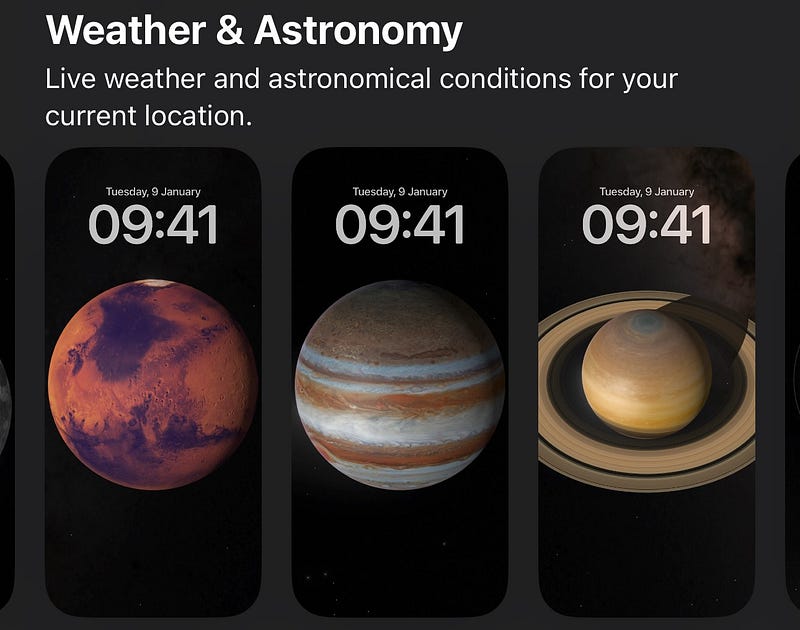
Image by the author

#2. New kaleidoscope wallpapers

You’ll also find the all-new Kaleidoscope wallpapers.
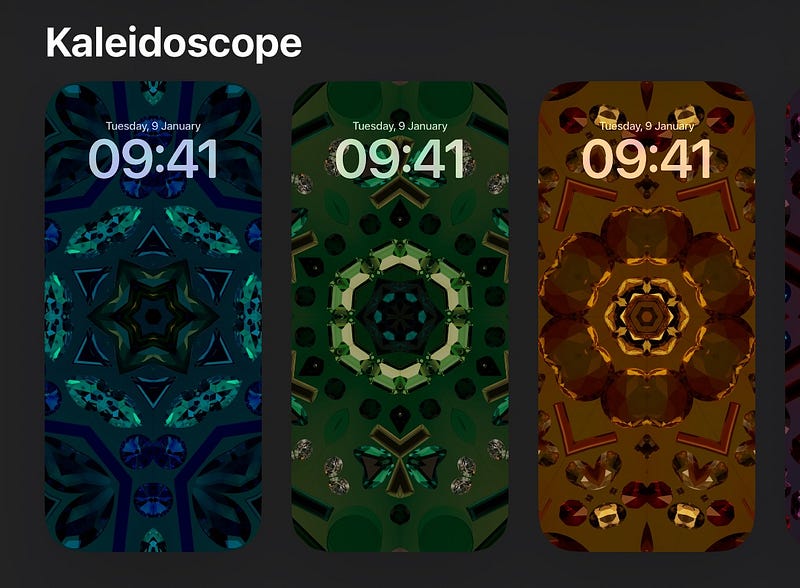
Image by the author

(Styles: Jewels Blue, Green, Orange, Red, Purple, Gray and Flower I-VII)

#3. New iOS 17 wallpaper

And how can I forget iOS 17’s official Wallpaper?
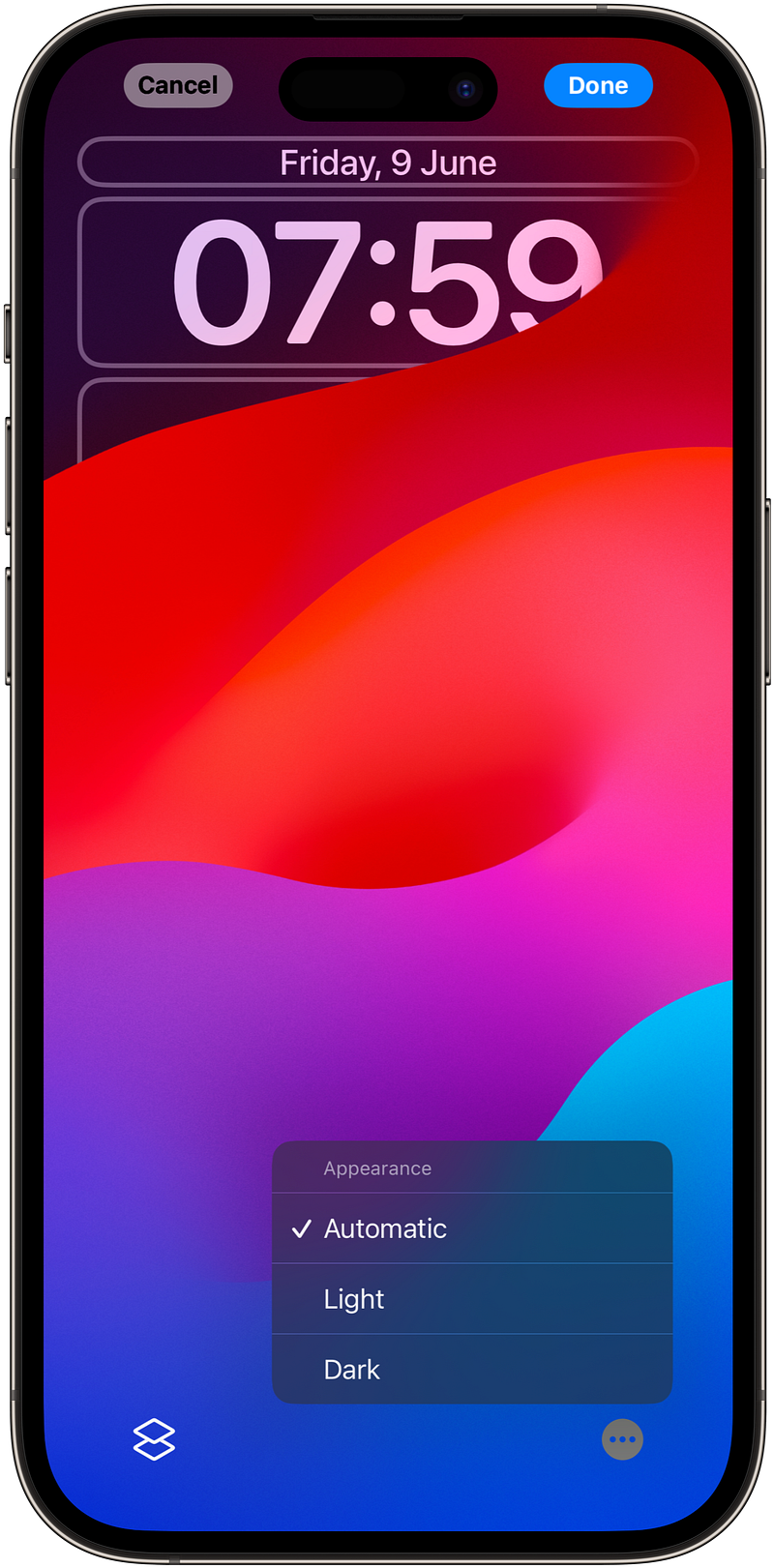
Image by the author

This is the only wallpaper currently that responds to light and dark modes. Oh Apple, please bring more!

#4. Ability to adjust time font size
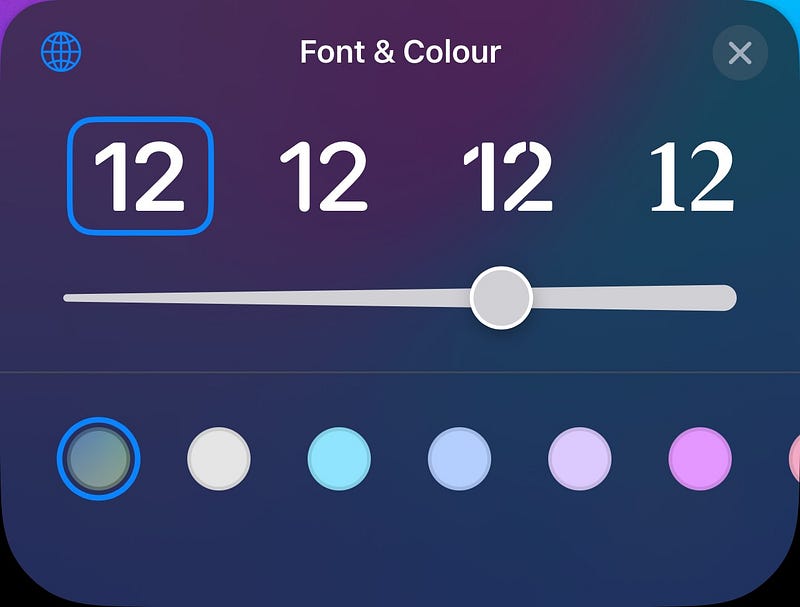
Image by the author

You can now adjust the font size of time on the Lock Screen.

#5. Interactive widgets

iOS widgets are finally interactive. This means you can turn now on the lights, play music, check reminders directly from the widget, without opening the respective app.

(It was long awaited. I’ve written it as a rumour for iOS 16 in #4 of this article →)

Currently, I see Music, Home, and Reminders widgets being interactive.

Hope Apple allows us to type a note or mail, set a timer, and allow third-party apps to use their creativity in the next betas.

#6. First-ever Safari widgets

Safari gets its first-ever widgets — exclusively for Reading List 👓. Best part, the little widget even shows a picture of the website on it.
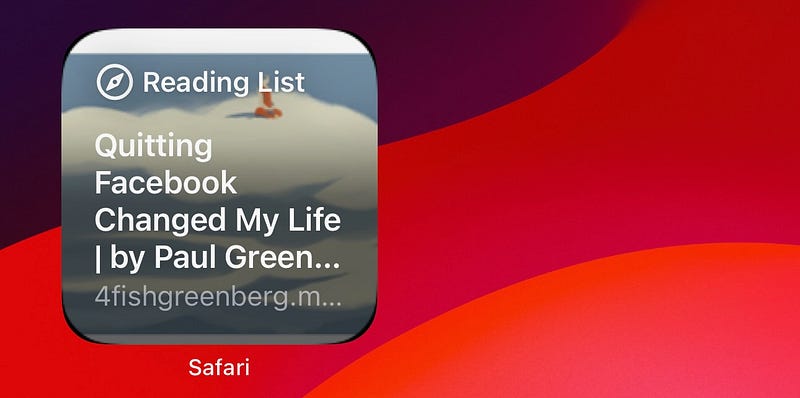
Image by the author

Btw, have you ever wondered what the spectacles glyph on Reading List means? Check out #7 of this article →

#7. Change to where new apps appear

Till iOS 16, new apps got installed on the first blank space of the last app page on the Home Screen.

Now, they will be installed on the very first blank space, wherever available, on the Home Screen. This will help keep new apps easily accessible.

#8. Undo move apps or widgets

Accidentally moved a widget or an app on the Home Screen? Don’t worry. Just shake your iPhone to see a prompt like this →
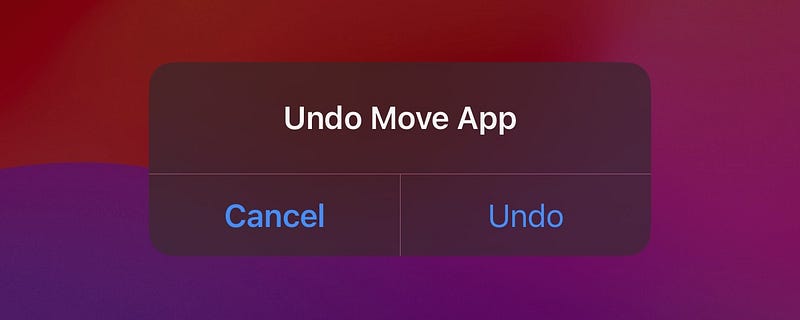
Image by the author

#9. Access settings from Spotlight

You can now access toggles to settings like Wi-Fi, Bluetooth, and Mobile Data directly from Spotlight.
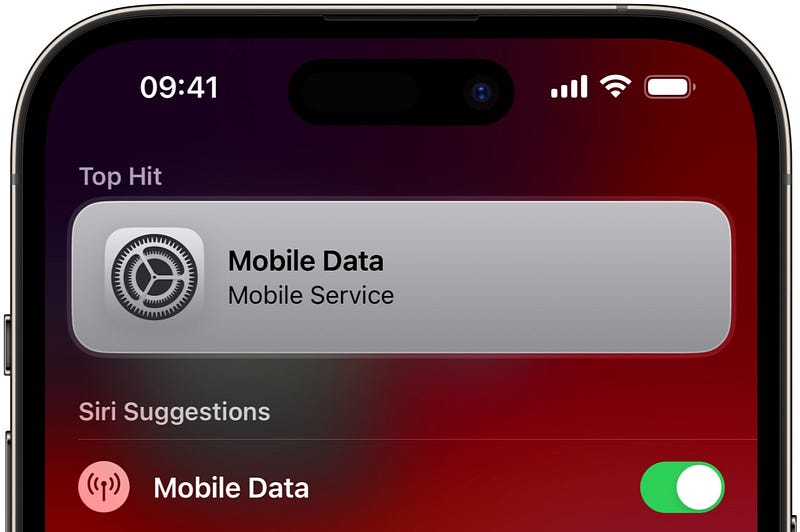
Image by the author

No need to open Settings for such petty things anymore :)

Plus, searching Spotlight for…

  • “Files” displays recent files.
  • “Notes” displays recent notes.
  • “Photos” displays recent photos.
  • “Freeform” lets you create a new board or open an existing board.
  • “FaceTime” shows recently FaceTimed contacts.
  • “Reminders” lets you open Scheduled, All, or Flagged reminders.
  • “Shortcuts” shows recently used Shortcuts.

Thereby letting you access a few things without completely opening the app.

#10. Amazing wallpaper feature

Let’s say you have a photo that doesn’t fit the entire screen, like a square photo. And you set it as your wallpaper.

Now, instead of displaying black where the photo doesn’t cover, iOS 17 will gradually fade the colour to black on the edges.
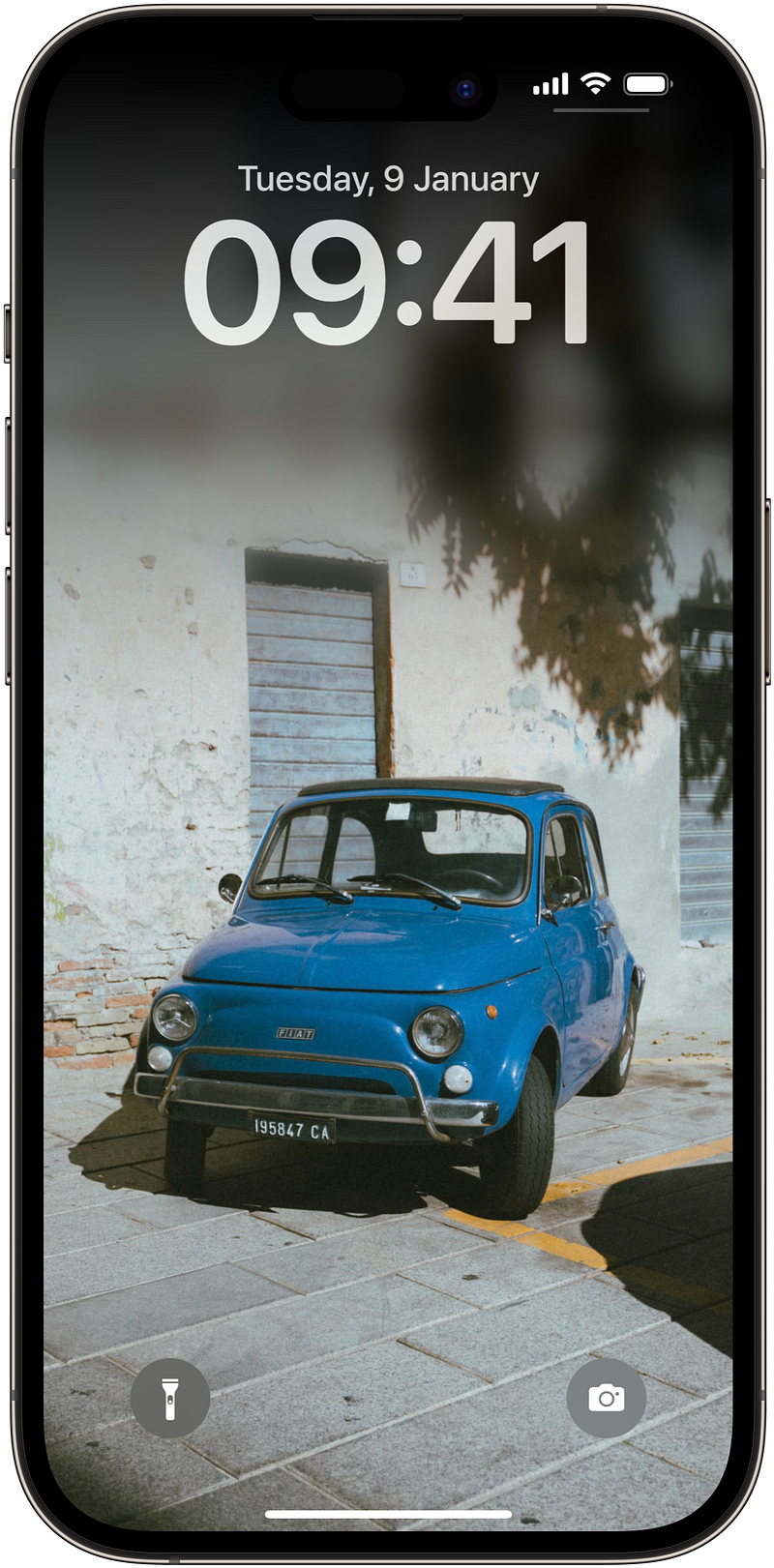
Image by the author (Photo by Igor Lypnytskyi 🇺🇦 on Unsplash)

• Changes to Phone, Mail, and Messages

#11. Three new Memoji stickers
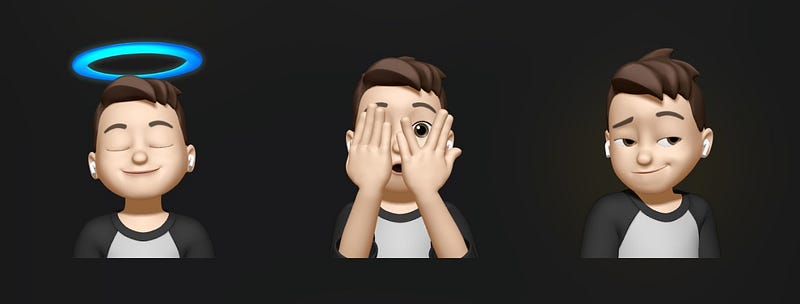
Image by the author

You can now use three new Memoji stickers on iMessage — Halo, Peekaboo, and Smirk.

Btw, how often do you use Memojis? I only use emojis.

#12. Fill codes from mail (and kill them)

iOS 17 brings two really useful features:

  • Autofill can now fill codes from Mail. Back then, it was only from Messages.
  • You can now choose to delete the message or mail containing the code after it’s Autofilled. (Toggle Clean Up Automatically in Settings ⚙️ < Passwords 🗝️ < Password Options)
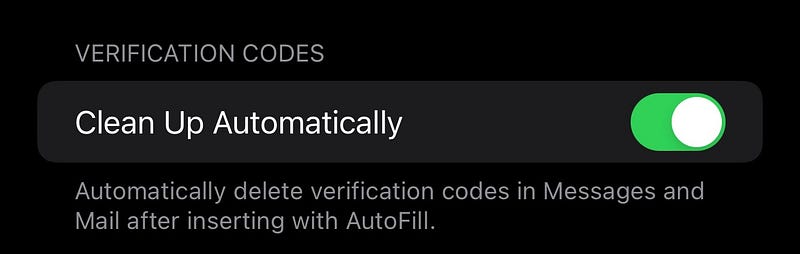
Image by the author

Plus, if you’re setting up a new iPhone near your existing Apple device, you won’t be asked to type the code while logging in to Apple ID.

It’s auto-authenticated.

#13. Pronouns for contacts

iOS 17 lets you add pronouns to Contacts — like she, her, hers or he, him, his.
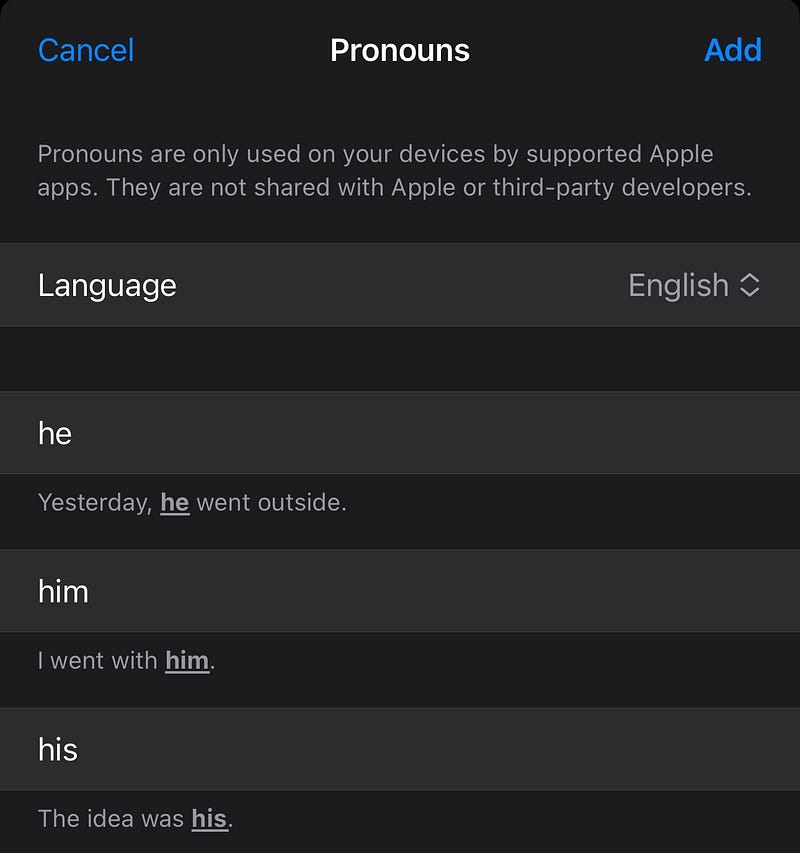
Image by the author

Just a new field.

#14. Manage iMessage apps

Go to Settings ⚙️ < Messages 💬 < iMessage Apps, and you’ll see all the apps that exist in iMessage — like GMaps, YouTube, Zoom.
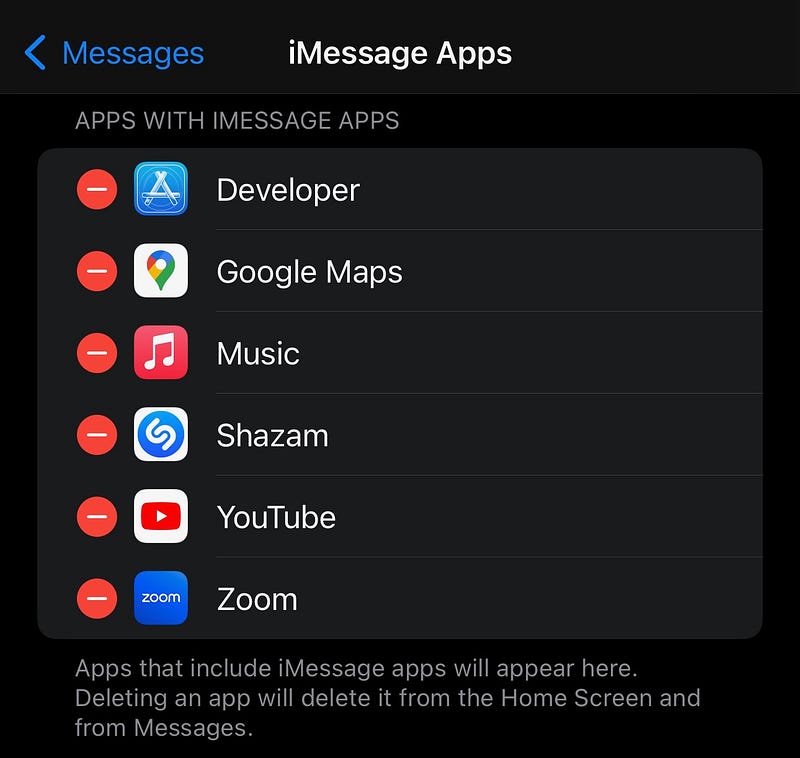
Image by the author

If you don’t want any app on iMessage, you can remove it from there.

But note, this will completely delete the app from your iPhone. I wish Apple allows us to delete only the iMessage app.

• Changes to Privacy and Security

#15. Additional options to clear Safari data

Back in iOS 16 Settings, you could only clear Safari history completely, but not, let’s say the last hour or week.

But in iOS 17, you could. Go to Settings ⚙️ < Safari 🧭 < Clear History and Website Data, and you can delete the data for the last hour, current day, current and previous day, or everything.
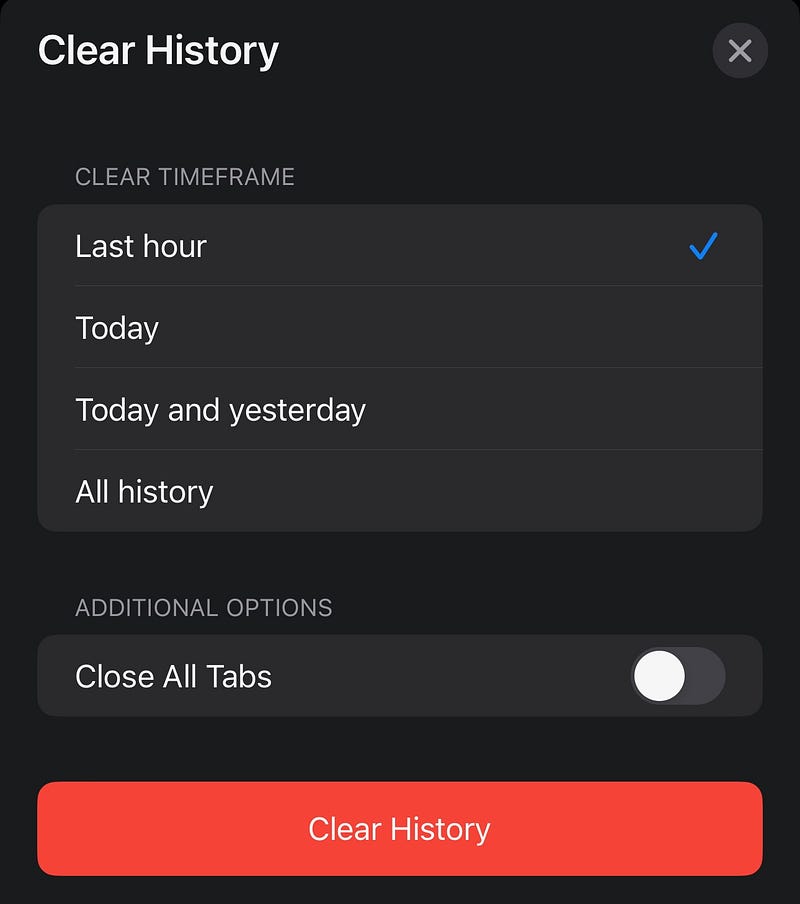
Image by the author

Additionally, you can choose to close all tabs if you don’t want them to be included in history again.

#16. Use previous passcode for next 3 days

iOS 17 allows you to use your previous passcode for the next 3 days if you change it now. Coz there are chances you’d forget the new passcode while still remembering the old one.

But if you’re damn sure you’d remember the new one, hit ‘Expire Previous Passcode Now’ in Settings ⚙️ < Face ID & Passcode.
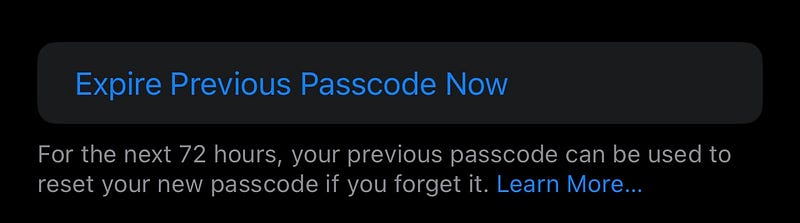
Image by the author

#17. Use different search engine for private windows

iOS 17 Safari lets you use different search engines for Default and Private windows.

Image by the author

Maybe some people will find this useful. Not me.

Change it in Settings ⚙️ < Safari 🧭 < Private Search Engine.

• Changes to Notes

#18. New block quote and monostyled text in Notes

iOS 17 Notes gains the new “Block Quote” option. Here →
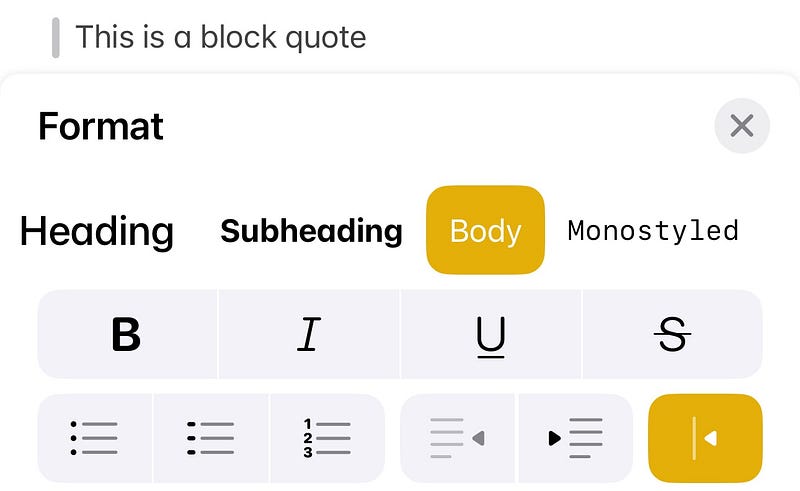
Image by the author

Also, the monostyled font now gets a new look. It’s now on grey background.

Image by the author

#19. Interlink Notes

Notes inspired by Obsidian. You can now interlink Notes together for better organisation. Steps:

  • Select some text,
  • Click ‘Add Link’,
  • Type a note title.

Now when you click on the link, you’ll be taken to the Note whose title you’ve typed.

Image by the author

• Changes to Photos and Camera

#20. Level Camera to horizontal

The Grid view in Camera now displays a line in the middle. Align that to horizontal, and your Camera is perfectly horizontal.
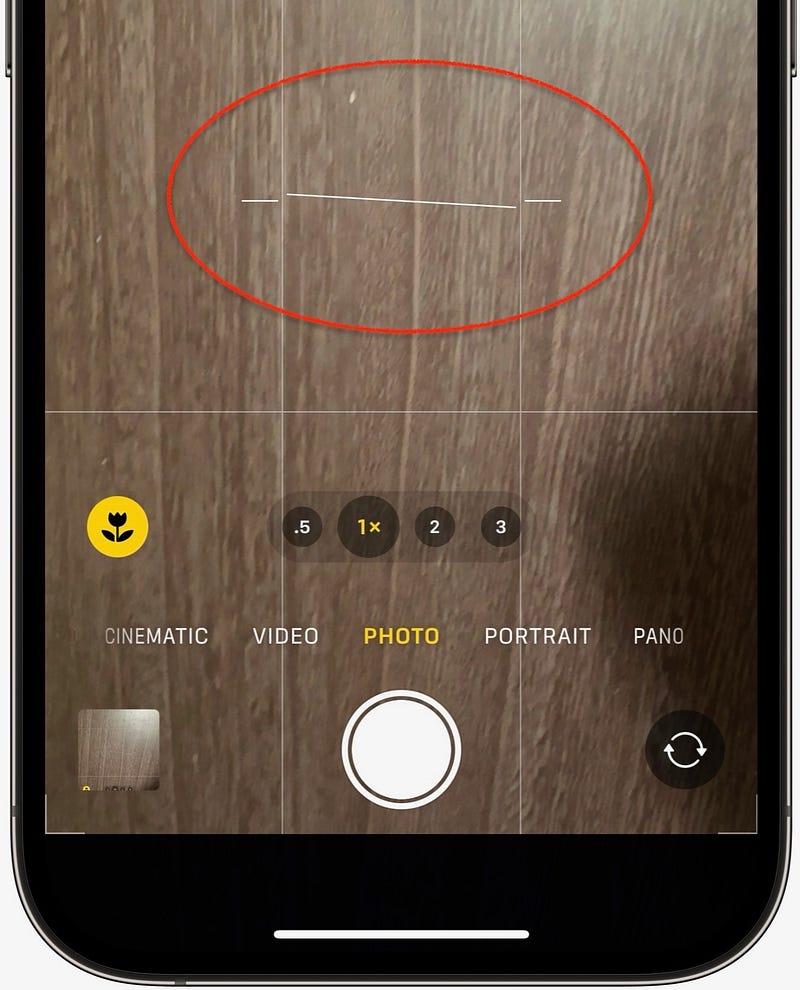
Image by the author

#21. Zoom to crop

This is a new way to crop photos.

Simply zoom a photo to the portion you wanna crop to, and click ‘Crop’ at the top-right corner to do it.

Image by the author

• Miscellaneous Changes

#22. Set multiple timers

You can finally set multiple concurrent timers on iOS.
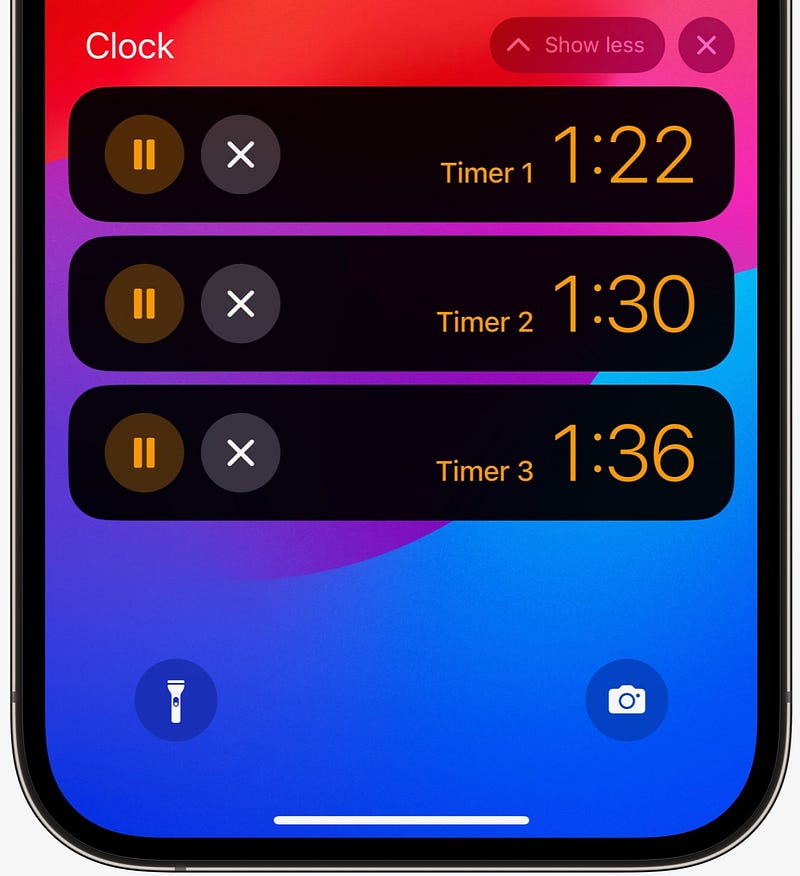
Image by the author

Every timer can have its own label and alert tone. Best part, all the timers are included in Live Activity.

#23. Ping my watch

The Control Centre gains a new control — Ping My Watch — that plays a tone on your Apple Watch.
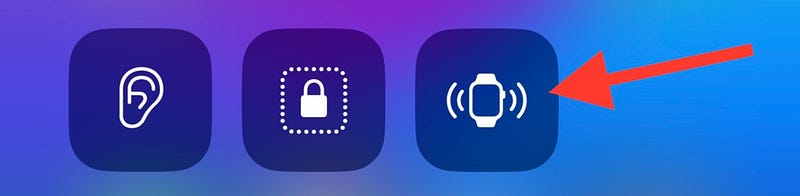
Image by the author

Same as this sound →

Back in iOS 16, when you wanted to do this, you’ve got to do in Find My or ask Siri. Now it’s really quick.

But hey, we had Ping My iPhone for so long on Apple Watch, right? Why didn’t we have Ping My Watch on iPhone before?

#24. Moon info in Weather
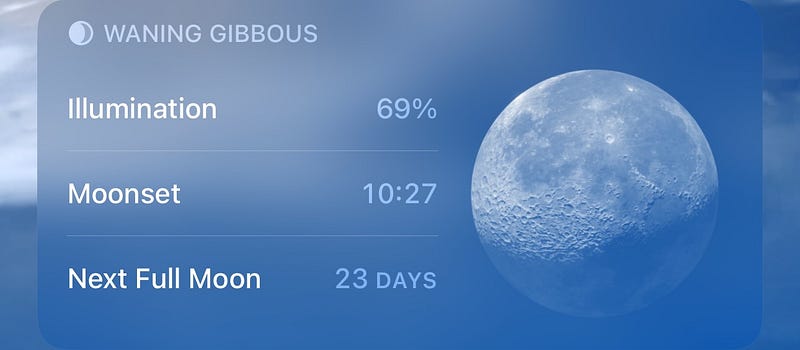
Image by the author

Weather’d now display Moon info like illumination percentage (with current moon image), Moonset, and next full Moon.

#25. Follow up reminders for Medications

Often forget to take your medications? Don’t worry.

Medications can now send follow up reminders if you haven’t logged a medication 30 min after the initial notification.
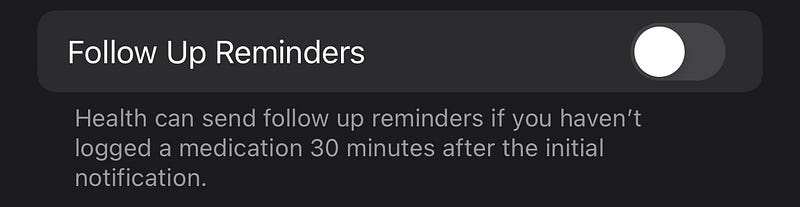
Image by the author

(Toggle ‘Follow Up Reminders’ in Health ❤️ < Browse < Medications 💊 < Options)

#26. More pens for Markup

iOS 17 gives you more annotation/markup tools to work with. I don’t know their names, so I can’t help you with that. *Siri Voice*

Image by the author

#27. AirPods splash screen responds to native appearance

The AirPods splash screen (that pops up when you connect) now responds to the native appearance.

Back then it always showed light irrespective of the mode. But now it’ll show dark when it’s dark mode.
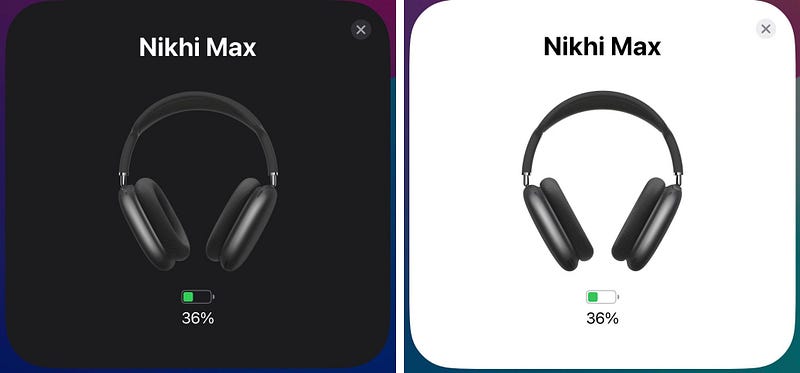
Image by the author

#28. Silence Notifications for Focus

You’ll now see a new Notification option for Focus — Silence Notifications. You can choose to silence incoming calls and notifications always or only when iPhone is locked.
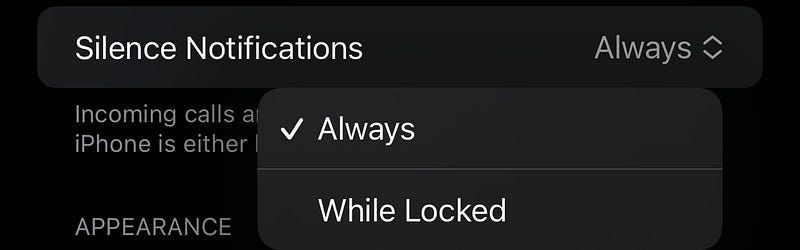
Image by the author

Toggle it in Settings ⚙️ < Focus 🌙 < any_focus < Options.

#29. Shazam is now a live activity

Tap to Shazam in the Control Centre, and it’ll be shown up as Live Activity. It also lets you retry if it couldn’t find a match.
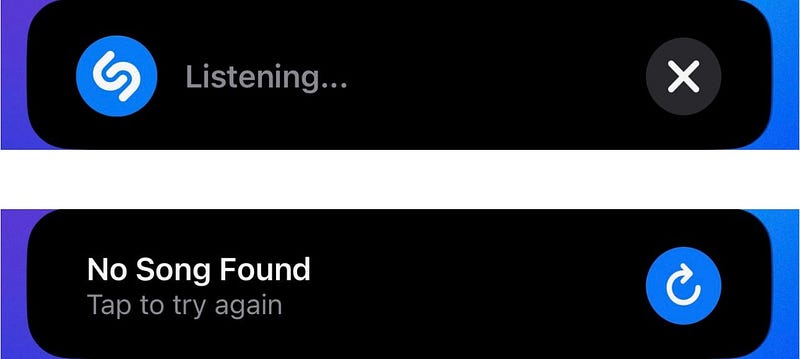
Image by the author

However, the original Shazam app doesn’t have Live Activity yet.

Isn’t iOS 17 awesome?

60+ new features of iOS 17: A Compilation (Always Updated):

If you’d like to get a bundle of 240+ amazing apps for just $9.99, get Setapp using my affiliate link. (It’s free for 30 days!)

Join 385+ others to get notified whenever I publish a new story.

Technology
Apple
iOS
Mobile
Innovation
Recommended from ReadMedium