
10 amazing things of macOS hardly 0.1% of people know
Once you see them, you can’t unsee

Apple UI designers are so clever they hide surprise easter eggs randomly inside Apple software, which are fun to discover and know about.
No, not those eggs you gift on Easter. In tech world, an ‘Easter egg’ means an undocumented hidden feature, often included as a joke.
Example: Ask google to ‘do a barrel roll’ and see what happens.
Now, I’ll tell you 10+ of such easter eggs hidden in macOS, and I’m sure they’ll surprise you.
#1. The date of an incomplete download — Jan 24, 1984
Let’s look at the info of a file I just started downloading on Safari. The download’s not complete yet. Lemme go to Downloads, select the file, and hit ⌘ + I (Get Info).
Now I see its Created date as 24 January 1984.
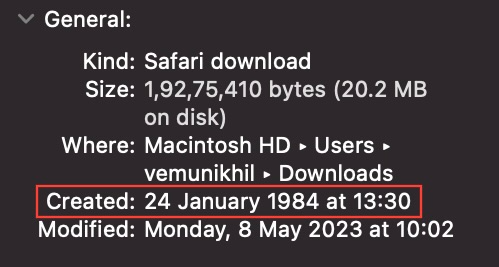
Bu… but why? It’s created just a few moments ago, right? Why the old date? And why so specific? 1984.
Well, that’s the exact date (& probably time) when Steve Jobs announced the first Macintosh. Perhaps Apple doesn’t want you to forget it.
Try it for yourself with a sample file — Of course, considering your data plan.
#2. The secret behind the Voice Memos icon
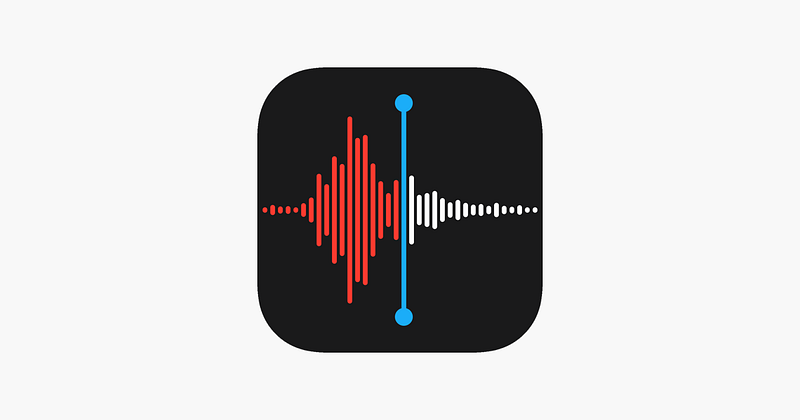
You’ve been using the classic Voice Memos app for a while now. But have you ever thought of knowing what the icon depicts?
It’s the waveform that comes when you record the word “Apple”.
Don’t believe? Try it for yourself!
#3. Steve Jobs’s most used words listed as deep-secrets
Do this.
- Open System Settings ⚙️ < Users & Groups 👬.
- Click on your profile pic to edit it.
- Click on ‘Suggestions’, scroll down, and you’ll see this deceptively simple image (2nd from right).

It’s a vinyl record disk that has something written on it. Must be the music tracks it’s holding. Let’s see their names by zooming in.
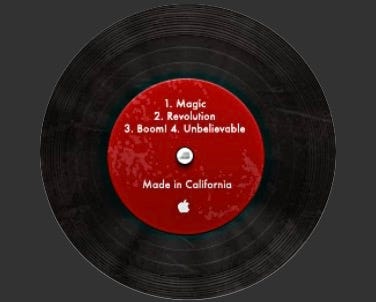
Oh, I could see words:
- Magic
- Revolution
- Boom!
- Unbelievable
And finally “Made in California ”.
Well, those aren’t any music tracks tho. Those are actually the words Steve Jobs often used in his talks while describing Apple products.
(To view the full-resolution picture, go to /Library/User Pictures/Instruments/Turntable.heic .)
#4. What’s written on the open book 📖 emoji?
Know the open book emoji 📖? I thought — just like the vinyl record — this too should have something written on it.
So I copied it to TextEdit, increased the font size to 288, and thought “Oh yes, there is something written. Must be an easter egg.”

After some research, I came to know the emoji features text from “The Crazy Ones”, a part of Apple’s “Think Different” ad campaign between 1997–2002. It says:
“Here’s to the crazy ones. The misfits. The rebels. The troublemakers. The round pegs in the square holes.The ones who see things differently. They’re not fond of rules. And they have no respect for the status quo. You can quote them, disagree with them, glorify or vilify them. About the only thing you can’t do is…”
Amazing, but what’s “the only thing you can’t do?”
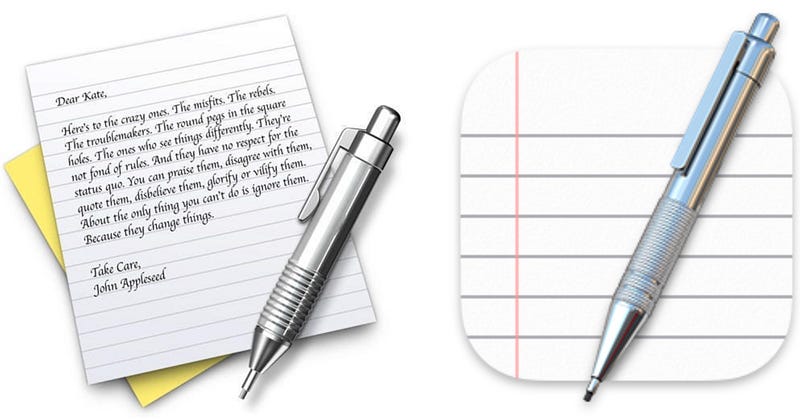
If you’re left hanging, let me extend: “About the only thing you can’t do is ignore them. Because they change things. Take care, John Appleseed.”
The old TextEdit icon had the complete text written very clearly (zoom in). I’m disappointed such a beautiful icon’s changed now.
Even the coin emoji has “The Crazy Ones” written on it.
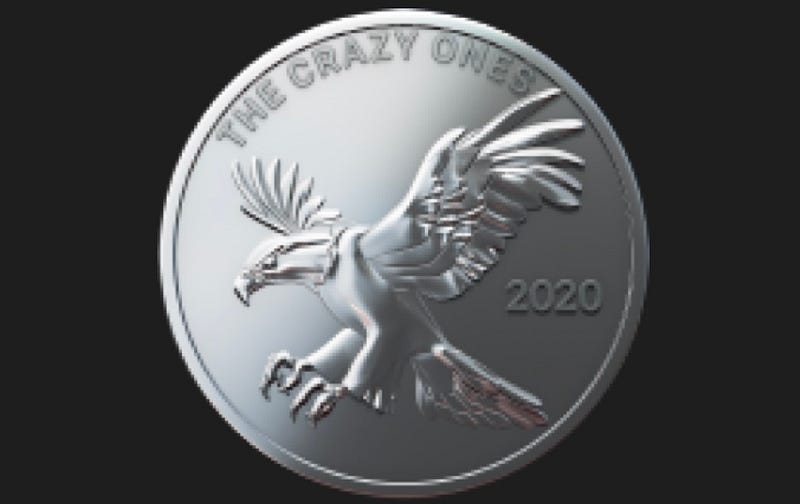
But why 2020? It’s the year when the emoji’s created.
#5. macOS turned History teacher
History exam tomorrow?
Random syllabus?
Don’t know where to start?
Have a Mac?
Great, then open Terminal and use cat /usr/share/calendar/calendar.history .
This will list some of the most important dates in the history (approx 450).
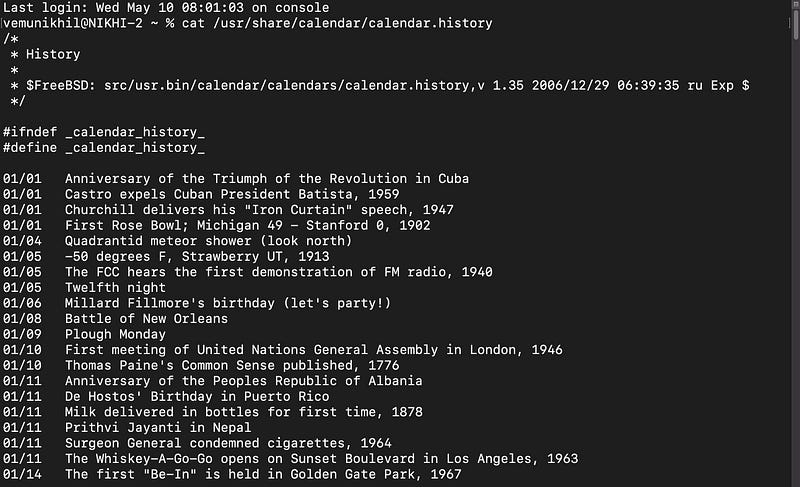
Now go impress your history teacher with your newly acquired knowledge. Don’t forget to thank your Mac later.
Bonus
- Famous birthdays:
cat /usr/share/calendar/calendar.birthday - Events related to computer:
cat /usr/share/calendar/calendar.computer - Lord of Rings timeline:
cat /usr/share/calendar/calendar.lotr - Events related to music:
cat /usr/share/calendar/calendar.music
My old history articles here, if you wanna read :)
#6. The secret behind the Maps icon
Here’s the Maps icon for your reference →
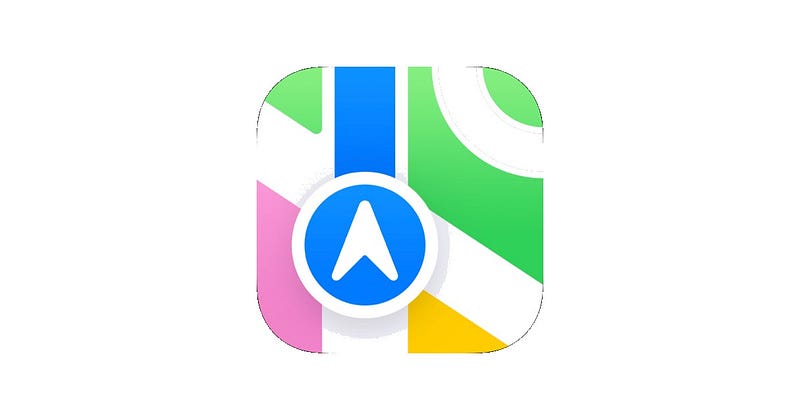
This isn’t like any regular icon tho. It’s actually depicting someone driving to the Apple Park in Cupertino, California.
Here’s the actual map.
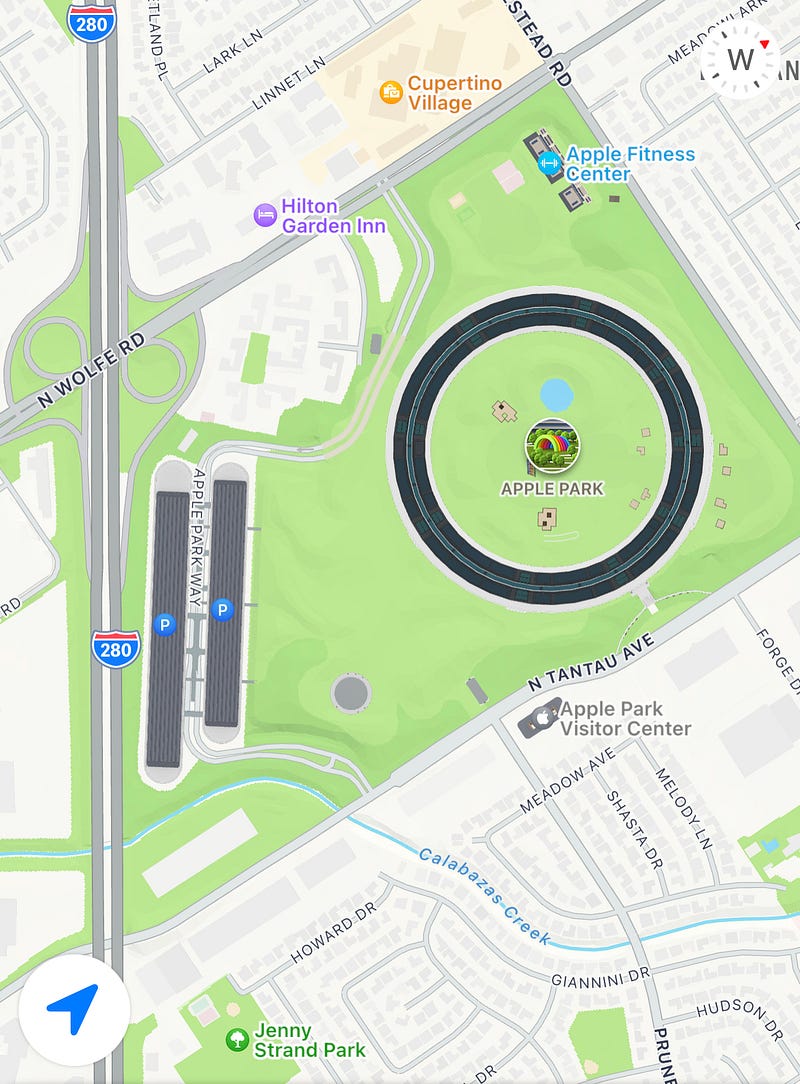
If you can take time to compare, in the icon,
- The arrow represents the vehicle.
- The blue line represents the path.
- And the quarter circle represents a quarter of the (round) Apple Headquarters.
Oh, quarter & headquarter. Coincidence.
#7. A tribute to Steve Jobs
If you’re reading an insightful self-help article on Safari, and your spouse calls you, you’ll likely save it to your reading list to read later.
When you do this, you’ll see a little icon of a pair of glasses.
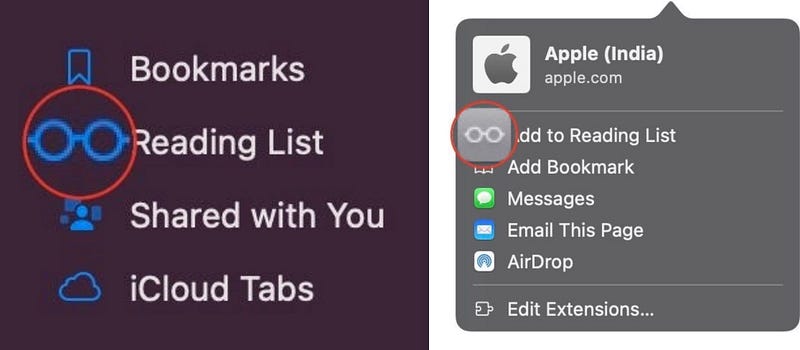
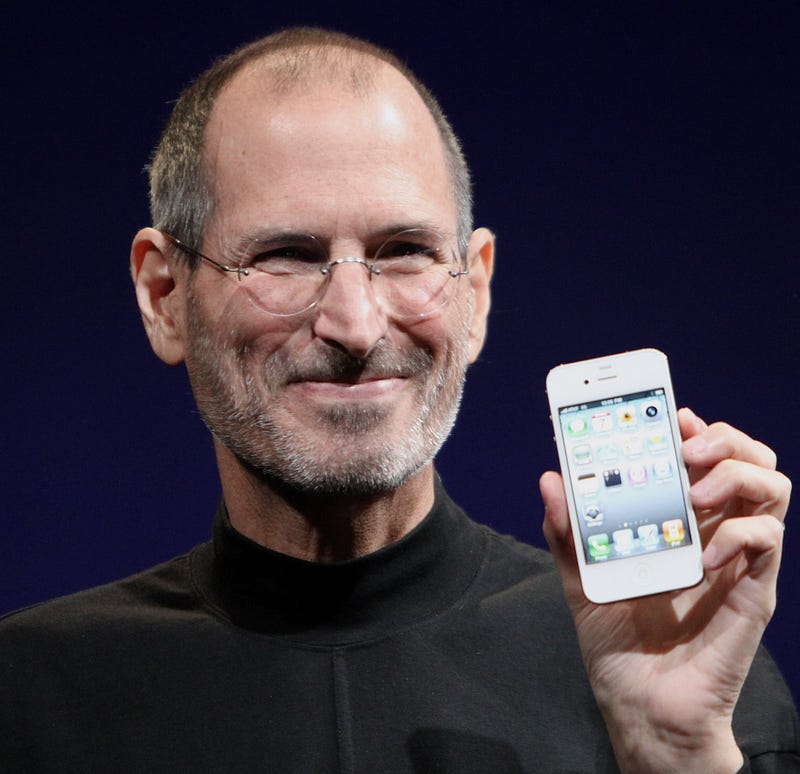
These aren’t any regular glasses tho. They’re actually the depiction of Steve Jobs’s iconic round pair.
#8. Apple belittling Windows
Know what? Apple hates Windows. Really.
Proof:
If there’s a Windows PC on the same network your Mac is, your Mac represents it as an old CRT monitor showing Windows’s infamous Blue Screen of Death (BSoD) — that actually comes up when the PC crashes.
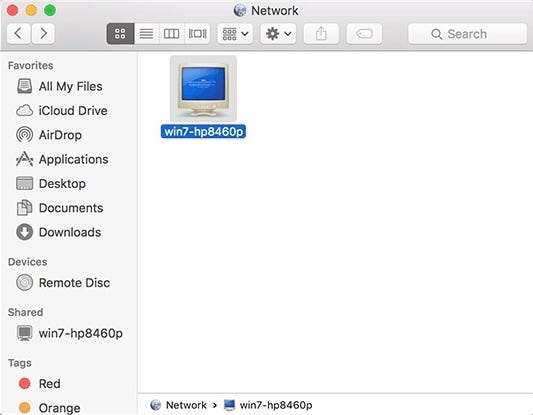
The image says:
WindowsA fatal exception 0E has occurred at 0028:C0011E36 in UXD UMM(01) + 00010E36. The current application will be terminated.* Press any key to terminate the current application.
* Press CTRL+ALT+DEL again to restart your computer. You will lose any unsaved information in all applications.Press any key to continue _Now, had it really loved Windows, it would’ve at least put a decent glyph depicting a PC running Win XP with Bliss wallpaper, right?
Why display such an infamous thing?
That’s okay.. Anyways, they’re two rivals trying their edge over each other. Acceptable.
(To view the full-resolution BSoD picture, go to /System/Library/CoreServices/CoreTypes.bundle/Contents/Resources/public.generic-pc.icns .)
#9. Dogcow
Try this. Open a fresh TextEdit page, and use ⇧+⌘+P (Page Setup).
Now you’d be seeing a weird animal on the sample page that looks both like a dog and a cow.

It’s called dogcow (or clarus). Created in 1983, it was initially used to represent the character ‘Z’ for the font ‘Cairo’ in the original Macintosh.
Ever since Steve Jobs returned to Apple in 1997, dogcow became harder and harder to spot in macOS — reason unknown. Maybe he didn’t like it.
However, with macOS 13 Ventura, to disappointed nostalgics’ surprise, it’s back with a smoothened look (I’ve shown you it’s in Page Setup).

Also,
A dog and a cow appear when you search for “Clarus” or “moof” (moo + woof) on Mac’s emoji palette (⌃+⌘+space).
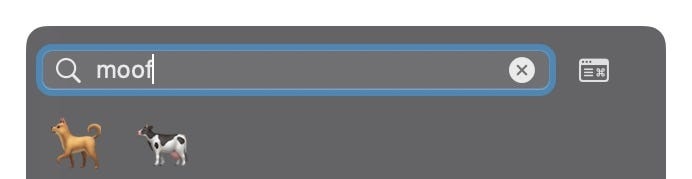
Try.
#10. The Clock app icon is a real clock
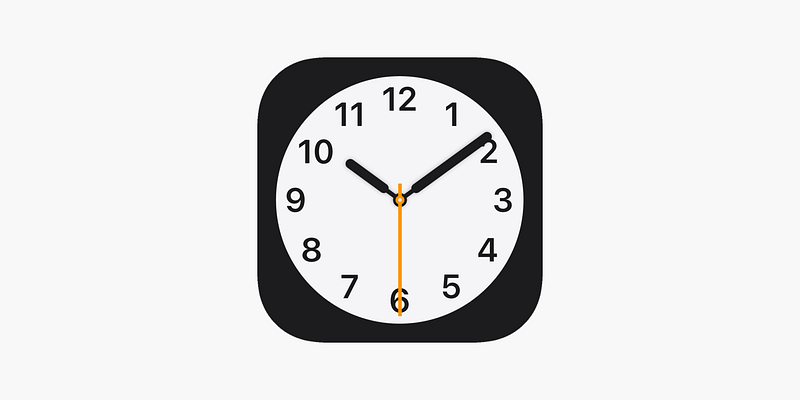
It’s only from macOS 13 Ventura, Macs first got the Clock app.
We could now see World Time, set Alarms and Timers, and use Stopwatch directly on Mac.
I’ve always thought icons are supposed to be static. But my belief’s been dispelled by the classic Clock app’s icon.
I’ve been so busy I never noticed the hands moving, but the icon’s actually a working clock that shows the right time — hours and minutes.
On iOS, it even shows seconds.
#+1. The Calendar app icon is a real calendar

Similar to Clock, the Calendar app icon too is a real calendar that shows the current month & date.
On iOS, it shows day of the week & date.
I wonder if they aren’t app icons on iOS, but disguised widgets. What do you think?
#Bonus easter egg for iPhone users:
Have Apple Store on your iPhone? No? Download it.
Search for “10 years” on Apple Store and witness the magic.
Surprise! Two blue balloons reading 10 will float up from the bottom and bounce around. Tap on any ballon to pop it with some haptic feedback or drag them around, hit them against each other and have fun.
Why this?
This was introduced by Apple celebrating the Apple Store’s 10th anniversary in June 2020.
10th. Hence the number 10.
Wanna know some Google easter eggs? Read this →
For some a’macOS’zing hidden tricks, read these →
Join 375+ others to get notified whenever I publish a new story.


.jpg)

.svg#/media/File:Dogcow_from_macOS_(current).svg)
