avatarAnima App's medium blog

Free AI web copilot to create summaries, insights and extended knowledge, download it at here

3633

Abstract

figcaption>Create High-Fidelity Prototypes in Sketch or XD or Figma and Export HTML</figcaption></figure><h1 id="da34">🙋‍♀️ How to Build a High-Fidelity Prototype Using Sketch & Anima 3.0 ?</h1><h2 id="3469">Step 1 - Build</h2><p id="7e9b">The first step for building a great design is to make it <b>consistent and predictable</b> by using our <b>Layout</b> features i.e Stacks, Padding and Pins.</p><figure id="812b"><img src="https://cdn-images-1.readmedium.com/v2/resize:fit:800/1*2vFg7Q4NNrDwpm5RSIHexA.gif"><figcaption>Creating a Responsive Layout</figcaption></figure><p id="0cc2">Now that everything is responsive and adapts itself to every possible screen out there, we can continue to set up the <b>Flow</b> of our prototype. Use <b>Links</b>, <b>Breakpoints</b>, and <b>Overlays</b> to enable users to navigate throughout the prototype.</p><figure id="5bf0"><img src="https://cdn-images-1.readmedium.com/v2/resize:fit:800/1*nGfB5mfpBhwBMK1SHvvF_w.png"><figcaption>Anima works seamlessly inside Sketch. Native prototype links also work in Anima.</figcaption></figure><p id="d68f">Next thing to do is to make your layers smarter. What does that mean? good question.</p><p id="25bd">Ever designed a form and wished people can actually type into it? Well, look no further. Using Smart Layers you can set a Text Layer to become a real <b>input</b> field, and a button to become a real <b>Submit</b> button. Do that and you got yourself a real, live <b>form</b>.</p><p id="31c8">If your design contains a video then up until now you might have placed a thumbnail of that video and told people to “imagine this is a real video playing”. Those days are gone. Simply set that layer as a <b>Video</b> and assign a video link to it. The High-Fidelity Prototype will present a <b>real video player </b>right there.</p><figure id="f234"><img src="https://cdn-images-1.readmedium.com/v2/resize:fit:800/1*waVVGZdMLrZ9SQVLWtqrSw.gif"><figcaption>Add Videos, GIFs, forms, or even embed HTML code in seconds, using Anima Smart-Layers</figcaption></figure><p id="f299">There are more types of <b>Smart Layers</b>, you can even embed your own custom HTML/Javascript/CSS.</p><h2 id="7fda">Step 2: Previewing</h2><p id="9796">When performing the steps above, at any time you can quickly preview your prototype in your browser to make sure everything is working smoothly.</p><p id="bb28">The “<b>Preview in Browser</b>” button is always visible for fast access.</p><figure id="229e"><img src="https://cdn-images-1.readmedium.com/v2/resize:fit:800/1*NukTqSCDM6nqAwcu3-hzXQ.gif"><figcaption></figcaption></figure><p id="ddd3">When you click it, a <b>Draft</b> version of your prototype is created. Only you can view this Draft version. Even if you’ve already shared your prototype with others, you can still create as many drafts as needed before syncing your changes to the prototype you have shared.</p><h2 id="5f9e">Step 3: Sharing</h2><p id="fedc">After several iterations of building and previewing your High-Fidelity Prototype, it’s time to share it with your stakeholders*.</p><p id="f44f">In your Draft link, click “Sync” to sync your changes to the live version of your prototype. Click “Share” for a share dialog and invite others to visit, or share using a public link.</p><figure id="eb84"><img src="https://cdn-images-1.readmedium.com/v2/resize:fit:800/1*o5kgNVf4PygNq6LAugBEDg.gif"><figcaption><b>Sync</b> your private <i>Draft into the Project when it’s ready to share</i></figcaption></figure><p id="0f07"><i>Important note: You can create as many Drafts as you want. The live prototype link will not change until you sync you

Options

r changes to it. This makes it easy for you to both be able to iterate quickly in your own playground while having others experience your Prototype without the fear of breaking it.</i></p><blockquote id="f92f"><p>Stakeholders: Can be Team members, Higher-ups, Boss, Client, Beta Testers</p></blockquote><h2 id="43b2">Step 4: Collaborating</h2><p id="0df4">With Anima v3 you can set up a team, invite guests, or share a public link.</p><p id="8b5a">People that have access to your prototype can play with it, and very importantly can also comment on it.</p><p id="24fc">This lets you gather feedback quickly and conveniently. Use this feature to build consensus within your team, or get a sign-off from your clients.</p><figure id="ff8f"><img src="https://cdn-images-1.readmedium.com/v2/resize:fit:800/1*ZhRhPkdowThH7gle0792JQ.png"><figcaption>anima in Latin: breath, vital force, soul, spirit</figcaption></figure><p id="8ce9"><a href="http://www.animaapp.com/about"><i>We</i></a><i> believe that designers should own their design all the way to production. While today’s tools help you communicate with developers, we aim to put you in charge. No coding, but a new generation of stronger visual tools. Imagine having coding skills, without the need to code. That’s what Anima is all about.</i></p><h1 id="a612">What is Anima?</h1><p id="3016"><a href="https://www.animaapp.com/?utm_medium=blog&amp;utm_source=anima&amp;utm_content=anima3"><b>Anima</b></a><b> </b>allows designers to create high-fidelity prototypes right inside <a href="https://readmedium.com/introducing-anima-3-0-high-fidelity-prototyping-in-sketch-df8537b23508"><b>Sketch</b></a>, <a href="https://blog.animaapp.com/announcing-anima-for-adobe-xd-6db773468f4f"><b>Adobe XD</b></a>, and <a href="https://blog.animaapp.com/announcing-anima-for-figma-71e6fa834007"><b>Figma</b></a><b> </b>and export HTML & CSS in a single click.</p><figure id="776f"><img src="https://cdn-images-1.readmedium.com/v2/resize:fit:800/1*Lvteu5o24tiQDl-tjsMejg.png"><figcaption>Create High-Fidelity Prototypes in Sketch or XD or Figma and Export HTML</figcaption></figure><h2 id="c4b4">Want to Learn More?</h2><ul><li><a href="https://support.animaapp.com/en/articles/2886459-say-hello-to-nola">Get Help! Say Hi to Nola, Your Personal Anima Assistant</a></li><li><a href="https://www.animaapp.com/blog/design/how-to-create-a-spotify-inspired-prototype-using-sketch-anima-2/">Creating a High-Fidelity Prototyping in Sketch</a></li><li><a href="http://support.animaapp.com/designer-s-guide-to-anima/how-to-publish-a-website-and-host-it-with-anima">How to Publish a Website and Host it With Anima</a></li><li><a href="http://support.animaapp.com/designer-s-guide-to-anima/how-to-handoff-design-specs-to-developers">How to Handoff Design Specs to Developers</a></li><li><a href="https://support.animaapp.com/designer-s-guide-to-anima/how-to-export-sketch-to-html">How to Export Sketch to HTML</a></li><li><a href="http://support.animaapp.com/designer-s-guide-to-anima/introducing-team-collaboration">Team Collaboration</a></li></ul><h2 id="d137">As always, we’re excited to hear your feedback!</h2><p id="bc8e">Join the discussion or show off your designs on <a href="https://www.facebook.com/groups/animaapp"><b>Facebook</b></a>, <a href="https://twitter.com/AnimaApp"><b>Twitter</b></a>, <a href="https://anima-slack-invite.herokuapp.com/"><b>Slack</b></a>, <a href="http://instagram.com/animaapp/"><b>Instagram</b></a><b>, </b>and vote for new features at <a href="https://uservoice.animaapp.com/"><b>UserVoice</b></a>.</p><p id="24c9">Stay creative! ❤️ Anima team</p></article></body>

Introducing Anima 3.0 — High-Fidelity Prototyping in Sketch

What is Anima v3 and what’s in it for you

Create High-Fidelity Prototypes in Sketch or XD, and Export HTML

🤔 It’s Hard to Communicate User Experience

Even with so many design tools out there, there is still no easy way for Sketch designers to create, share and collaborate on a real, functioning version of their design.

Product Design is more than screenshots or mockups. In today’s world company success or failure lies heavily on the user experience of their product.

“The responsibility to deliver amazing user experiences lies at the hands of designers”

The responsibility to deliver amazing user experiences lies at the hands of designers, and yet it is still very hard to create High-Fidelity user experiences without jumping through hoops (i.e using multiple design tools) or depending on developers availability.

💁‍♀️ Create Amazing Prototypes, Right Inside Sketch

Whether you’re designing a mobile app, a web dashboard, or a website, with Anima v3 you can finally have your team members, stakeholders, or clients, experience a real version of your design.
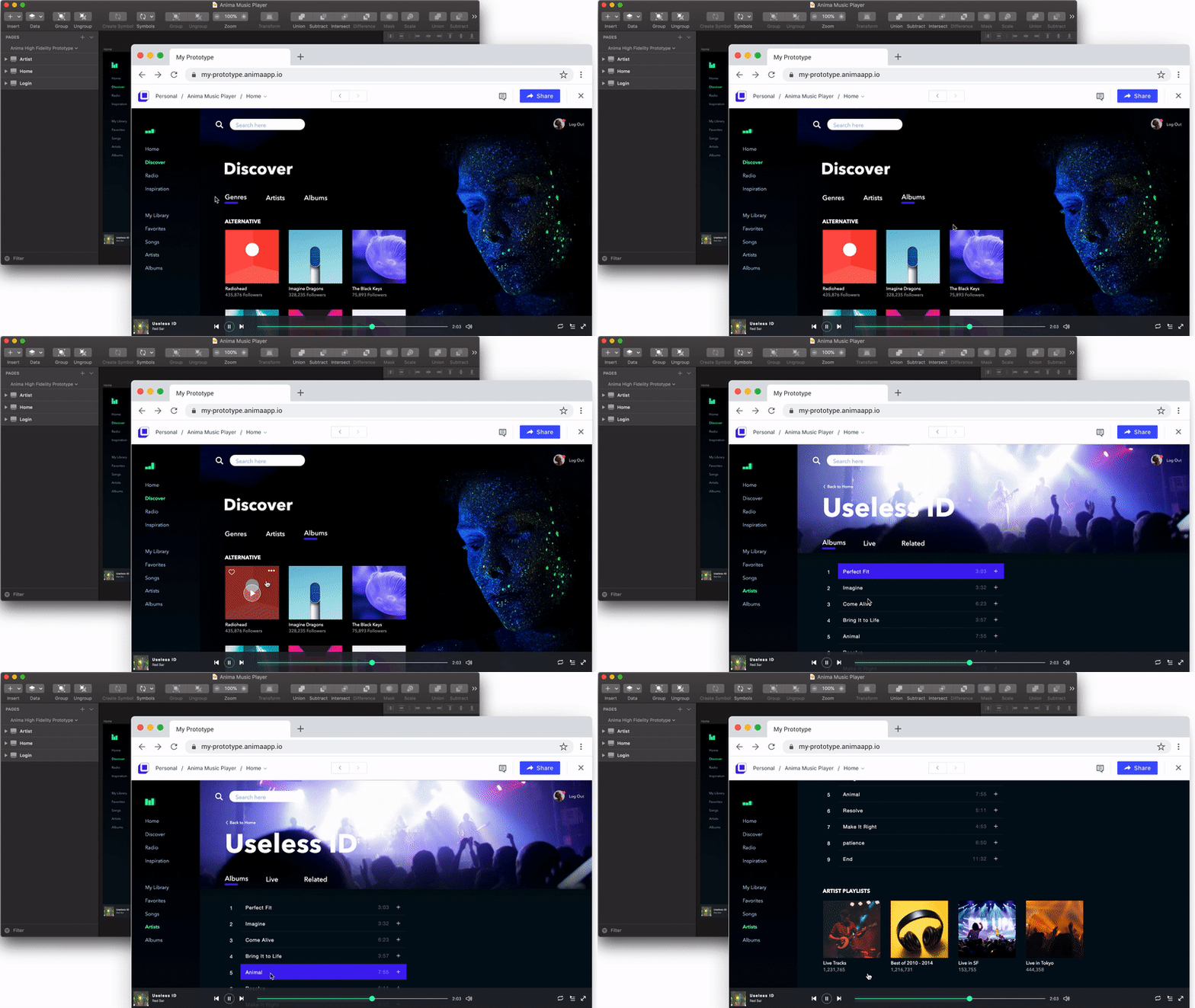
High-Fidelity Prototype — Created in Sketch Using Anima 3.0

Why do you need High-Fidelity Prototypes?

High-Fidelity Prototypes are best for:

  • Delivering experiences rather than screenshots.
  • Building consensus within your team.
  • Conveying innovative design ideas to stakeholders.
  • Saving precious time and frustration with your developers.

What makes a Prototype High-Fidelity?

According to the Cambridge dictionary, Fidelity means “the degree to which a copy of something shows the true character of the original”. A High-Fidelity Prototype is responsive and interactive. It looks, feels and behaves like the real product.

What is the difference between a High-Fidelity Prototype and other Prototypes?

Most of the prototypes today focus on the visual aspect of the design and the flow of screens (Tappable Screenshots). While good for some use-cases, they do not convey the real experience of using the actual product.

Create High-Fidelity Prototypes in Sketch or XD or Figma and Export HTML

🙋‍♀️ How to Build a High-Fidelity Prototype Using Sketch & Anima 3.0 ?

Step 1 - Build

The first step for building a great design is to make it consistent and predictable by using our Layout features i.e Stacks, Padding and Pins.
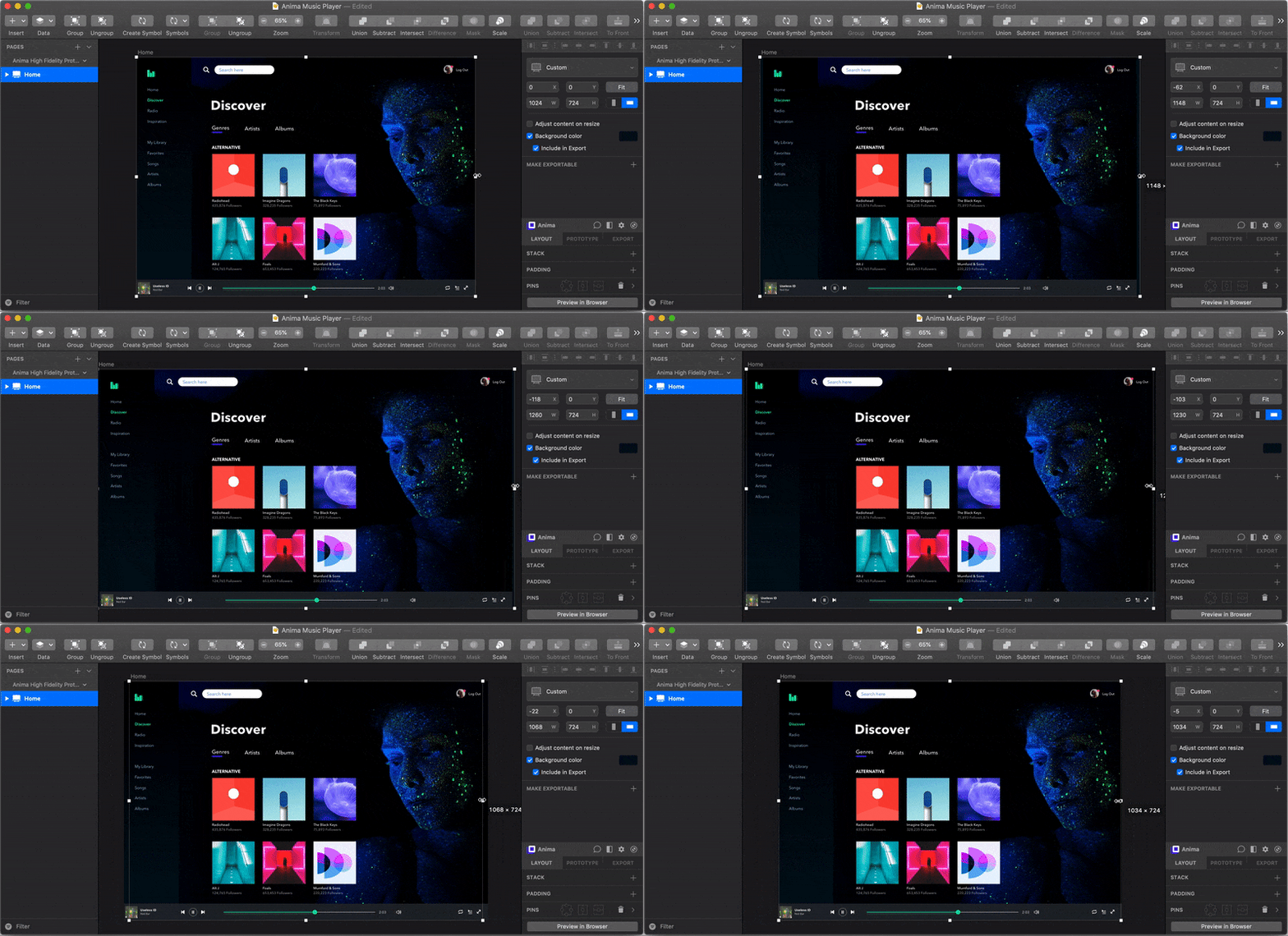
Creating a Responsive Layout

Now that everything is responsive and adapts itself to every possible screen out there, we can continue to set up the Flow of our prototype. Use Links, Breakpoints, and Overlays to enable users to navigate throughout the prototype.
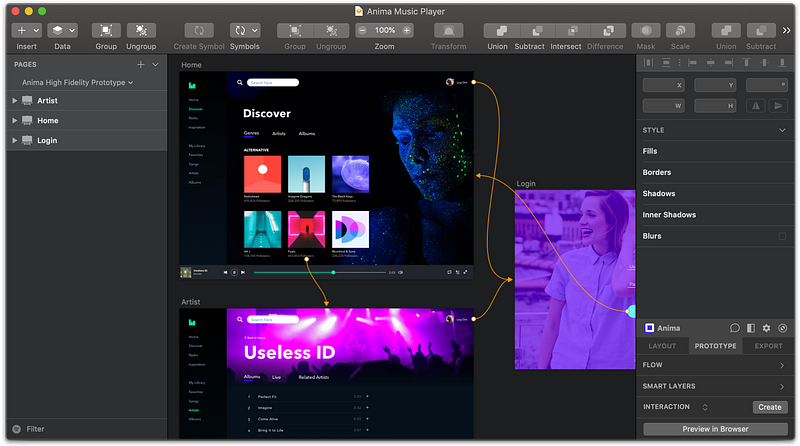
Anima works seamlessly inside Sketch. Native prototype links also work in Anima.

Next thing to do is to make your layers smarter. What does that mean? good question.

Ever designed a form and wished people can actually type into it? Well, look no further. Using Smart Layers you can set a Text Layer to become a real input field, and a button to become a real Submit button. Do that and you got yourself a real, live form.

If your design contains a video then up until now you might have placed a thumbnail of that video and told people to “imagine this is a real video playing”. Those days are gone. Simply set that layer as a Video and assign a video link to it. The High-Fidelity Prototype will present a real video player right there.
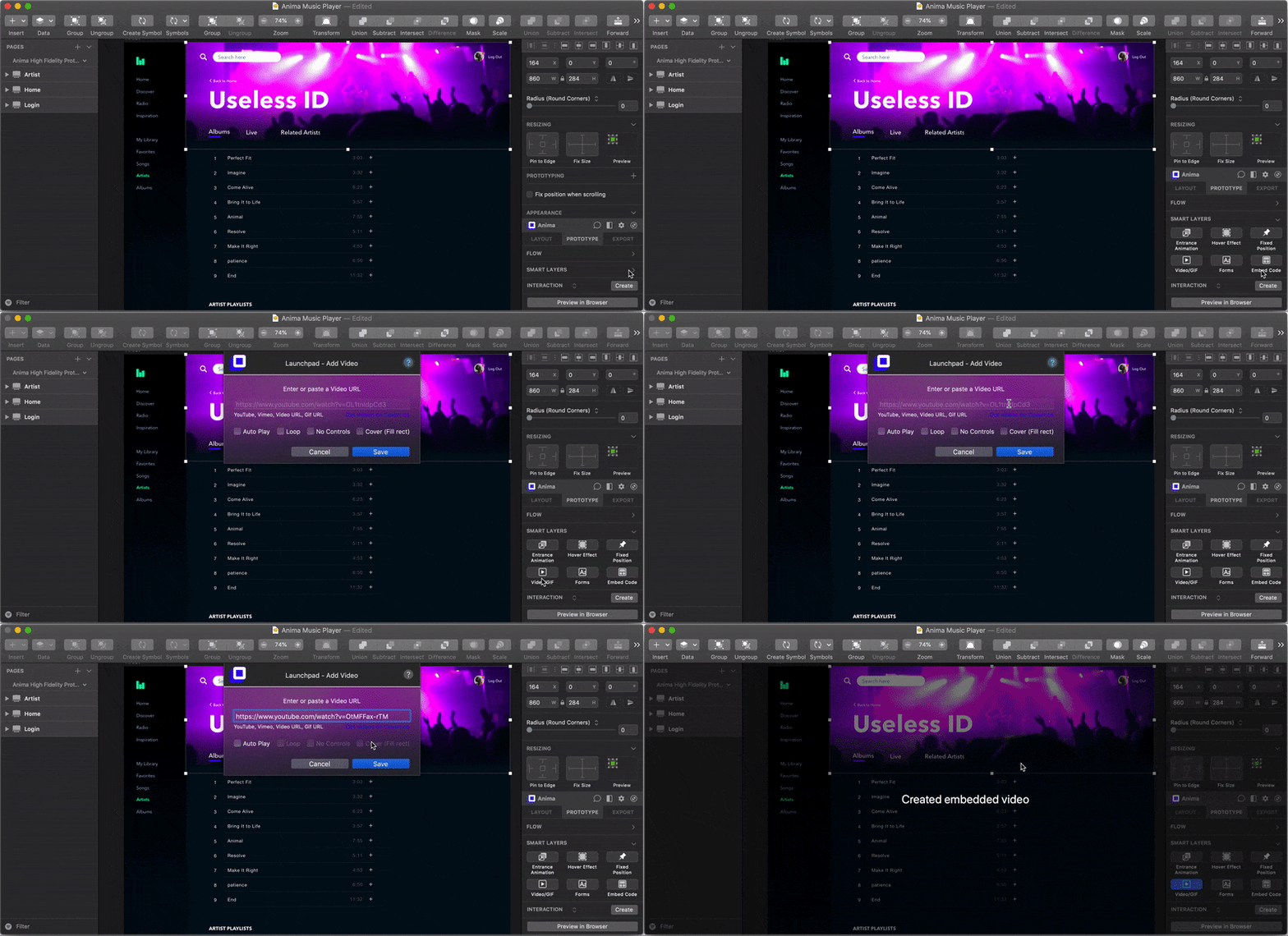
Add Videos, GIFs, forms, or even embed HTML code in seconds, using Anima Smart-Layers

There are more types of Smart Layers, you can even embed your own custom HTML/Javascript/CSS.

Step 2: Previewing

When performing the steps above, at any time you can quickly preview your prototype in your browser to make sure everything is working smoothly.

The “Preview in Browser” button is always visible for fast access.
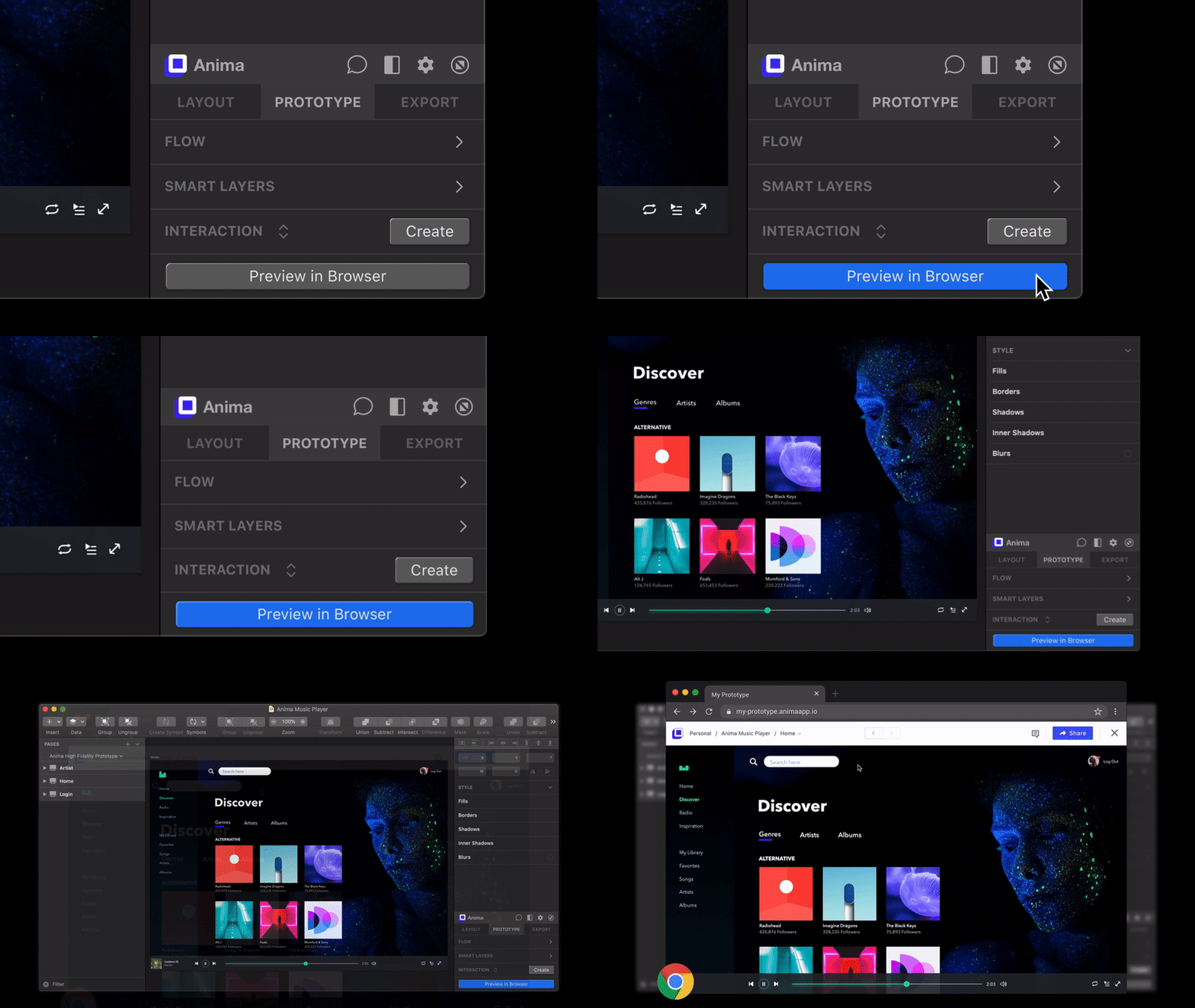
When you click it, a Draft version of your prototype is created. Only you can view this Draft version. Even if you’ve already shared your prototype with others, you can still create as many drafts as needed before syncing your changes to the prototype you have shared.

Step 3: Sharing

After several iterations of building and previewing your High-Fidelity Prototype, it’s time to share it with your stakeholders*.

In your Draft link, click “Sync” to sync your changes to the live version of your prototype. Click “Share” for a share dialog and invite others to visit, or share using a public link.
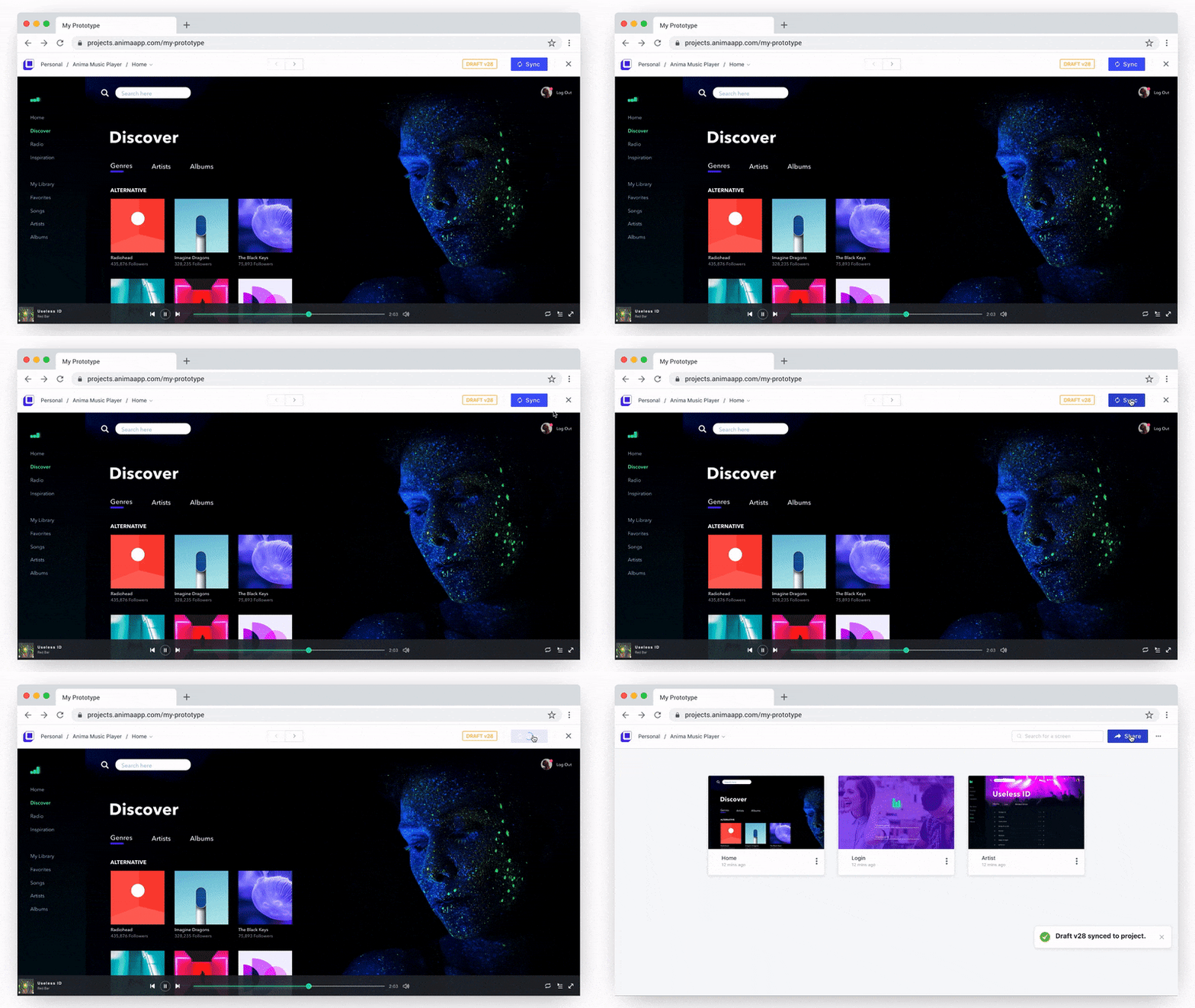
Sync your private Draft into the Project when it’s ready to share

Important note: You can create as many Drafts as you want. The live prototype link will not change until you sync your changes to it. This makes it easy for you to both be able to iterate quickly in your own playground while having others experience your Prototype without the fear of breaking it.

Stakeholders: Can be Team members, Higher-ups, Boss, Client, Beta Testers

Step 4: Collaborating

With Anima v3 you can set up a team, invite guests, or share a public link.

People that have access to your prototype can play with it, and very importantly can also comment on it.

This lets you gather feedback quickly and conveniently. Use this feature to build consensus within your team, or get a sign-off from your clients.

anima in Latin: breath, vital force, soul, spirit

We believe that designers should own their design all the way to production. While today’s tools help you communicate with developers, we aim to put you in charge. No coding, but a new generation of stronger visual tools. Imagine having coding skills, without the need to code. That’s what Anima is all about.

What is Anima?

Anima allows designers to create high-fidelity prototypes right inside Sketch, Adobe XD, and Figma and export HTML & CSS in a single click.

Create High-Fidelity Prototypes in Sketch or XD or Figma and Export HTML

Want to Learn More?

As always, we’re excited to hear your feedback!

Join the discussion or show off your designs on Facebook, Twitter, Slack, Instagram, and vote for new features at UserVoice.

Stay creative! ❤️ Anima team

Prototyping
Sketch
Product Management
UX
UX Design
Recommended from ReadMedium