Free AI web copilot to create summaries, insights and extended knowledge, download it at here
1461
Abstract
2/resize:fit:320/1*Vu7_k4QJC6TIqPyPU_Lf-Q.png)"></div>
</div>
</div>
</a>
</div><p id="8aa4">Here are some instructions for those who might need help with the downloading.</p><div id="03b1" class="link-block">
<a href="https://www.blender.org/">
<div>
<div>
<h2>blender.org - Home of the Blender project - Free and Open 3D Creation Software</h2>
<div><h3>The Freedom to Create</h3></div>
<div><p>www.blender.org</p></div>
</div>
<div>
<div style="background-image: url(https://miro.readmedium.com/v2/resize:fit:320/0*O-4YhM4zltI4g76H)"></div>
</div>
</div>
</a>
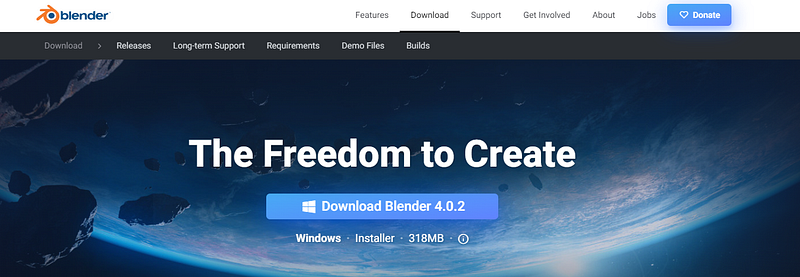
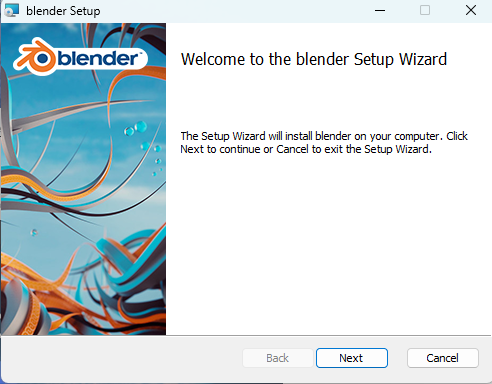
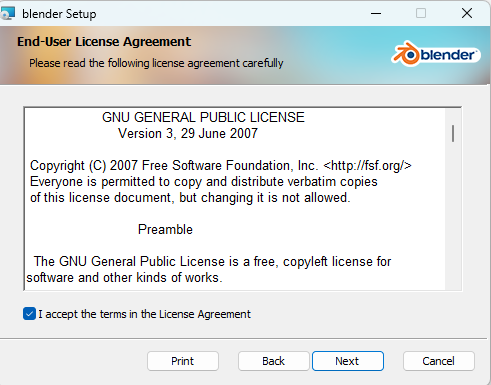
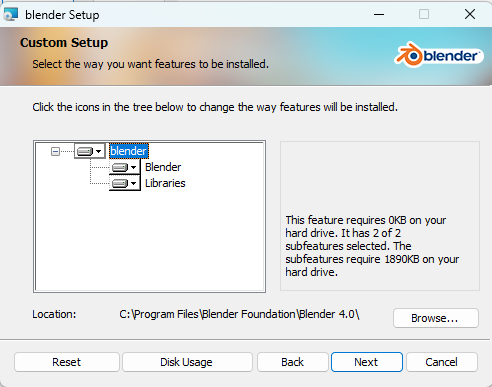
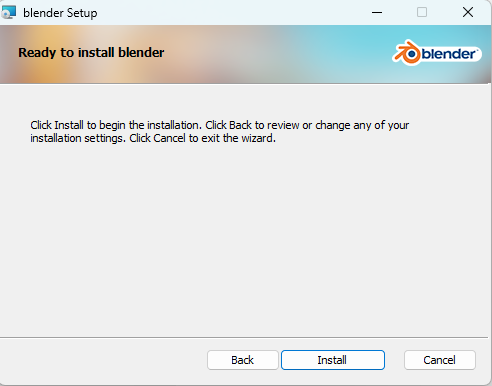
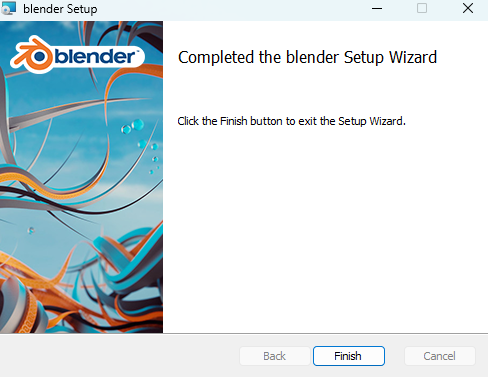
</div><p id="1ad4">Navigate to this page and click on the download button.</p><figure id="be66"><img src="https://cdn-images-1.readmedium.com/v2/resize:fit:800/1*1AoHAVixebfljVS864so3Q.png"><figcaption><a href="https://www.blender.org/download/">Screenshot from page</a></figcaption></figure><figure id="74a0"><img src="https://cdn-images-1.readmedium.com/v2/resize:fit:800/1*MXdtMtA8f6NJILvTB1NyOw.png"><figcaption><a href="https://www.blender.org/download/">Screenshot from page</a></figcaption></figure><p id="4d5e">Download Blender 4.0.2.</p><p id="623f">Here, you will always find the latest stable versions, which I always download.</p><p id="c3c8">After you download it, and op
Options
en the file, you will see this window.</p><figure id="dbbf"><img src="https://cdn-images-1.readmedium.com/v2/resize:fit:800/1*OI5DGtwWZY_7h9ZfM79DAg.png"><figcaption></figcaption></figure><p id="28b3">Here, click “Next,“ and the following page will appear.</p><figure id="1953"><img src="https://cdn-images-1.readmedium.com/v2/resize:fit:800/1*jcqmExaVYImlQiX-WbV1CA.png"><figcaption></figcaption></figure><p id="34b0">Check the “I accept the terms…“ box and click “Next.</p><figure id="9ab2"><img src="https://cdn-images-1.readmedium.com/v2/resize:fit:800/1*xxjSR9wrfBGR4M0GiYApZA.png"><figcaption></figcaption></figure><p id="f4b8">Click “Next” if you want to install Blender in the location where it is written, or browse to choose another location.</p><p id="681d">After that, click “Next.”</p><figure id="7247"><img src="https://cdn-images-1.readmedium.com/v2/resize:fit:800/1*l0cwWZ2LtWBny8xCTIwX9w.png"><figcaption></figcaption></figure><p id="ca05">Click Install.</p><figure id="dd6d"><img src="https://cdn-images-1.readmedium.com/v2/resize:fit:800/1*lKRJIt_qQAiNALdbfmwYtA.png"><figcaption></figcaption></figure><p id="f33f">Click Finish.</p><p id="6e93">That is it! Now you have Blender installed, and we can start your 3D modeling journey! Let’s go!</p><p id="843d">In the next article, I will teach you how to create your first model.</p><p id="faff">Can you guess what it will be?</p><p id="7ce8">Let me know in the comments! :D</p></article></body>