

Instagram post image from GDrive or local storage
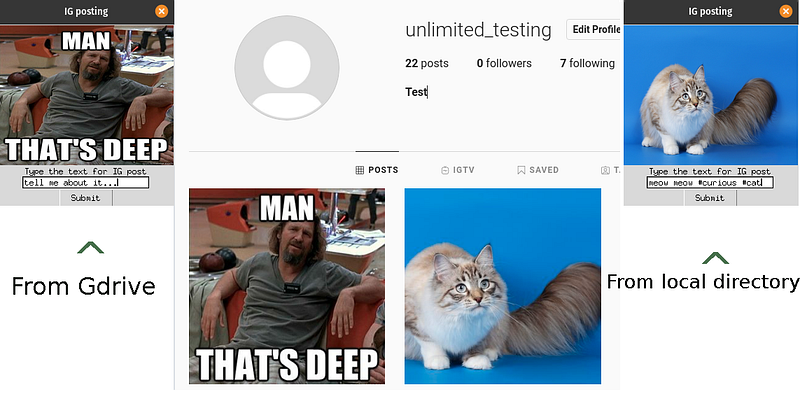
This project is divided in three sections:
1st getting image from your PC directory which you can find here:
2nd downloading files from you Gdrive which you can find here:
3rd the main app script that combines the two above adding to the mix comes:
Tkinter is de-facto standard GUI (Graphical User Interface) package.
Instabot a free Instagram python bot for promoting and API python wrapper.
NOTE:
For this to work all parts have to be included the most attention should be drawn into setting up your GDrive API as it has most steps involved with verification and so forth.
Imports/packages and image
As stated we start off with importing few tkinter imports like tk, Label, Button, PIL as for image Library. Instabot to login to our account and post. Appart from that time module and checkIMG and drive_list scripts to get the desired image.
We initialize the instabot Bot() method in bot variable to get it running.
Continue on by kick starting the CheckIMG scripts function choose_option() to either choose image from local drive or from Gdrive files.
After its done set time.sleep to 3 seconds so that file could get downloaded and accessed for posting!
If image variables is Null then make a variable picture and ‘’.join(image_input) name from the drive_list script so it could be accessed and used for posting. Otherwise obviously from local directory the image has been chosen and picture inherited the string name of image from CheckIMG script!

Be aware that pixel dimension ration of the image plays a huge role for the post to be successful(Own mistake by selecting different type of pictures some get a pass some throw me an error)!
Tkinter GUI setup
We continue on by creating a application class IGGUI. The constructor for this class calls the base class (tk.Frame) constructor and passes the master object, so that important stuff can be initialized.
Continue on with standard protocol for classes making an __init__ method.
The using of super will actually modify the master object, so we’ll update our own copy to the most recent one since we’ll need it for other calls.
We create self.image that can open the picture with Image method.
It has to be resized and thenafter a new self.img variable has to be created so it can be stored in Tkinter GUI application for display.
self.create_widgets() function is being called thereafter and it should be quite self explanatory. We just create a Label and assign it to the corresponding grid position. Additionally use Entry method from Tkinter as well StringVar() for textarea regarding the post.
The self.button when submitted run the last function for the post to be processed further…
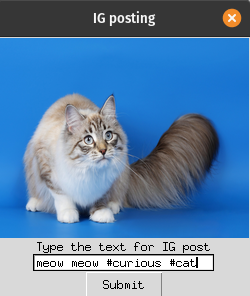
The callback has the value that stored the self.content text.Afterwards we DESTROY our GUI app and make a golbal variable by the name of entry_text that has the contents text we inputted in this case its meow meow #curios #cat ❤ ❤ ❤

Then we create a root that will start the tkinter.Tk() interpreter under the covers.
Assign title and create app instance that uses the root as its master instance.
app.mainloop() tells Python to run the Tkinter event loop.
Executing Post!
Now this is the easiest part just two lines of code left lol.
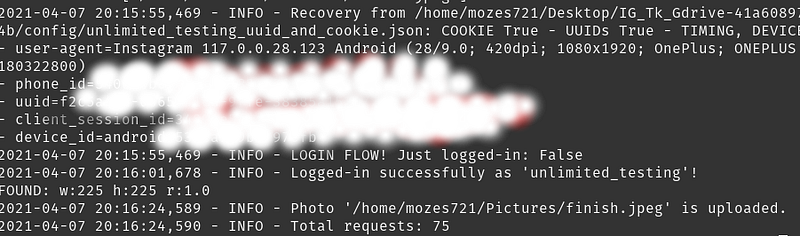
We call the bot.login by passing your ‘username’ and ‘password’ to log in.
Then the bot.upload_photo with the picture we choose as well in caption we pass in the text we wrote in Tkinter.
Conclusion
This project was such a headache but a lot can be learned from it. Starting off with searching files from own directory continuing on to gain access to your GDrive files and finishing off implementing Tkinter and Instabot. There are endless possibilities the only think that stops you is your imagination!
Happy coding you can find the full project bellow:


