
Idea Overload? How To Search ChatGPT’s Chat History
A simple solution to uncover hidden chat messages, prompts, and undiscovered insights
Without a built-in search function, it can be slightly frustrating to find that precious gem of information in your ChatGPT chat history. Fortunately, there is a workaround that not only allows you to delve into your chat history but also to export your conversations into versatile formats like HTML and JSON. Ready to explore? Let’s get started!
Step 1: Download your chat history
To begin, navigate to chat.openai.com and click on the menu in the left corner …
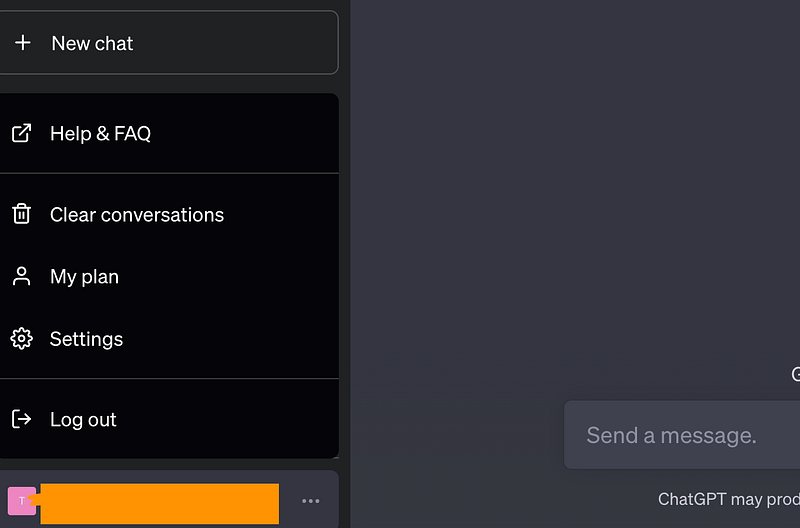
… then, choose “Settings” and “Data controls” …
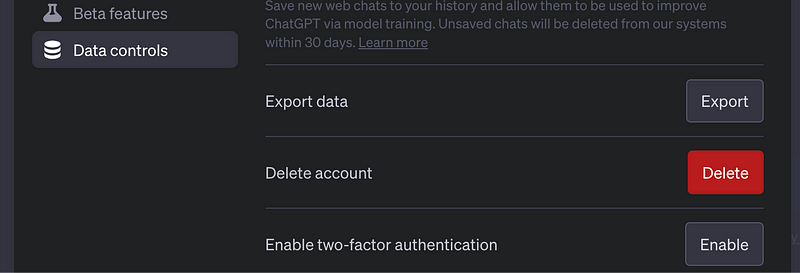
…, click on “Export data” and confirm …
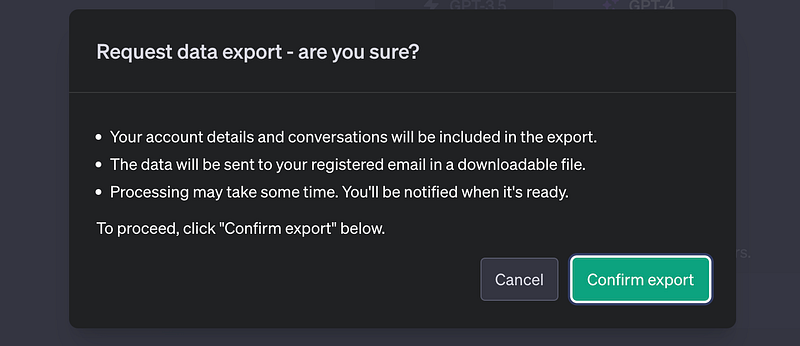
Within a few minutes, a download link to your chat history will arrive in your email.
Step 2: Searching your chat history
The ZIP file you downloaded contains five files, but for our purpose, we are only interested in two of them:
chat.html
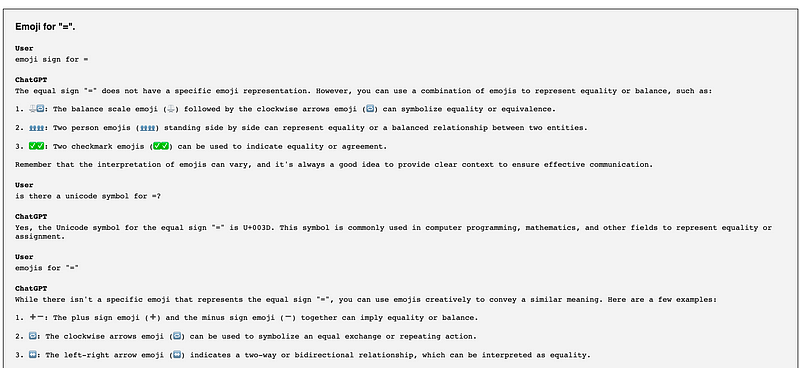
A comprehensive HTML file containing all your conversations. Load it with a browser (be patient, it might take a while) and voilà, you can search it like a regular webpage:
conversations.json
This file contains all your conversations in a machine-readable JSON format, which allows us to use our own search algorithms to explore our chat history.
Say, for instance, that you want to uncover all of your prompts that use the phrase “image caption”. A few lines of Python code can do the job, and I’ve prepared a basic Colab notebook to guide you through it: Colab Notebook Link
Here’s a sneak peek into how it works:
- Run the “Load JSON file” code block to make an upload button appear.
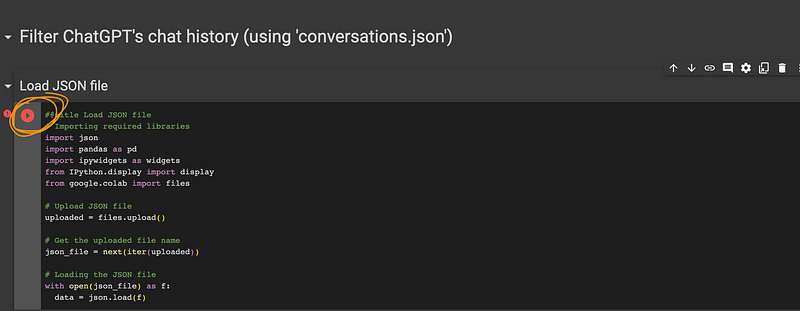
2. Choose “conversations.json” from the ZIP file OpenAI sent you and upload it. This may take a moment.

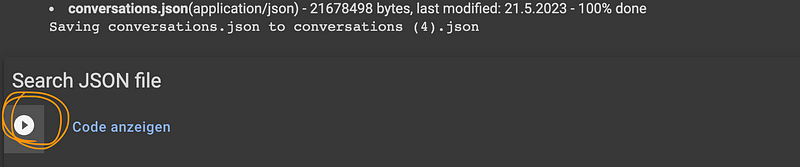
3. Once the upload finishes, run the “Search JSON file” code block.
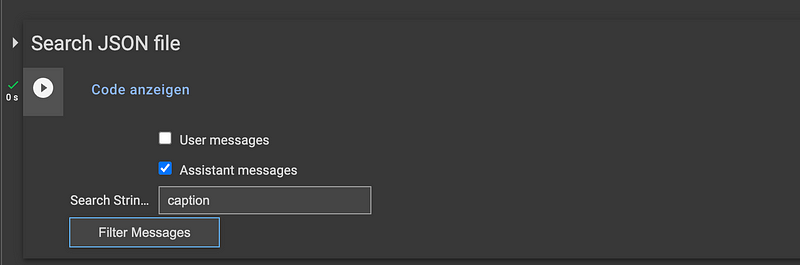
4. Specify whether you want to filter “user” or “assistant” messages (or both) and enter a search string. Click “Filter Messages” to execute the search.
5. The filtered messages will be saved to your virtual drive as “filtered_messages.csv”. You can access the file by clicking on the folder icon.
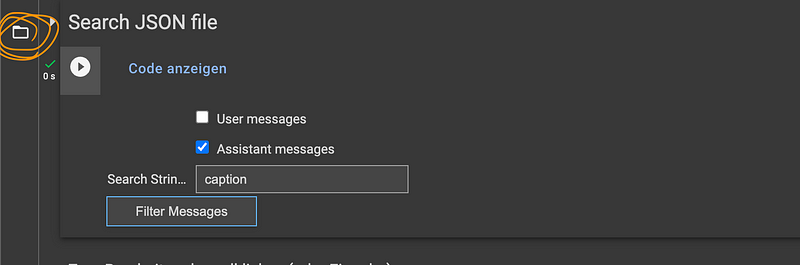
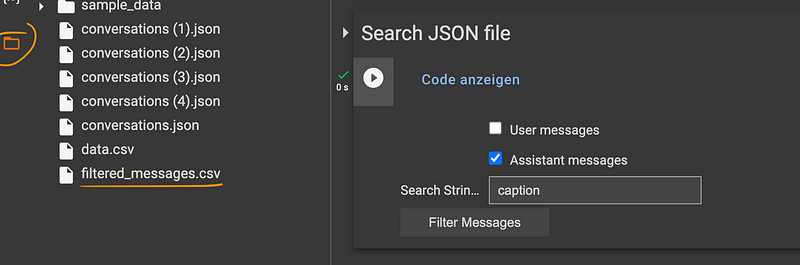
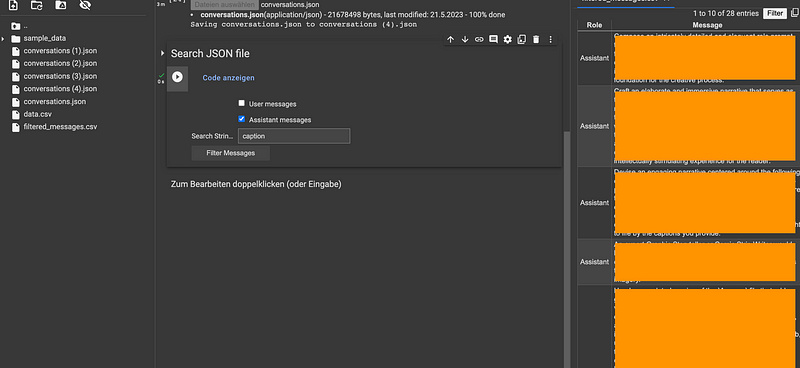
From there, you can download the file or double-click to have the results displayed within the Colab session:
A word on privacy
While this method is effective and accessible, be mindful that uploading your chat history to a public platform like Google Colab might pose privacy concerns. Always ensure you understand the code in a shared notebook. If you’re unsure, copy and paste the code into ChatGPT and ask for any privacy concerns or security risks.
Let the exploration begin!
Having your ChatGPT history searchable opens up quite a few interesting possibilities for evaluating AI conversations. You can review your creative processes, revisit thought-provoking discussions, or just enjoy a trip down memory lane.
Have fun exploring! 🚀
➡️ For more information about AI & Creativity, follow me on Twitter or use my referral link to get full access to all my articles on Medium and those of thousands of other writers.
➡️ Did you find this guide helpful? Show your appreciation with a ‘clap’ and share it so more people can benefit.
Stay updated with the latest news and updates in the creative AI space — follow the Generative AI publication.


