
How Your Followers can Subscribe by Email to Your Self-published Stories
Medium’s New Email Subscriber / Subscription Function
UPDATE: 31 July 2021, it seems that anyone can subscribe now to your emails, if you have the Email Subscription function turned on.
Did you know that your FOLLOWERS can receive Emails from you (via Medium) when you publish a Medium story to your Timeline or Profile page (i.e. when your story is not in a Publication)?
If you enable this function on Medium, whenever you self-publish a story, YOU will see a message similar to below at the end or bottom of the story.
This message also appears on your “About” page.
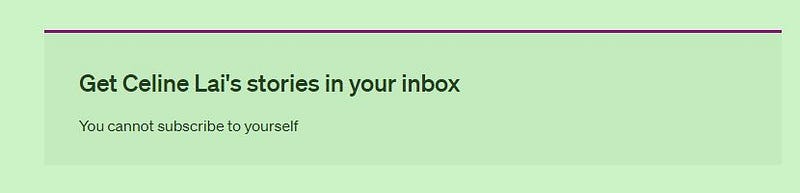
The screenshot above shows how this “Promotion” message, as it is called, appears on YOUR own “About” page, and at the bottom of self-published stories.
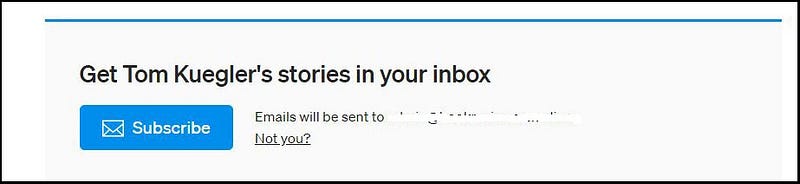
Your Followers will see similar to the following, i.e. WITHOUT “You cannot subscribe to yourself.” 😃 The email that you use for your Medium account will appear after “Emails will be sent to ….” but in the example below I have whitened out my email address, for privacy.
12 FEBRUARY 2021 UPDATE:
This email subscriber function should work for ALL of your Stories! It is just that the “Promotion message” will not appear at the bottom of your stories in Publications that opt to manually send out Publication Newsletter Emails. This makes sense, as instead, the promotion or sign-up message for the Publication letter will appear!
After reading the guide below (on how to set up this function and how it works), please go to the link below, to find out how sending Emails to ALL OF YOUR Stories works.
The Benefit of Sending Email for Self-published Stories
If you “self-publish” all of your stories on Medium and don’t use an external email list function to subscribe followers / readers to your stories (which you have showing at the bottom of your stories, using Mail Chimp or Google or another programme), then this new Email function could help you.
You may like me, publish the bulk of your Medium stories in Publications, for the greater exposure (hopefully or theoretically).
But lately I have been doing more “self-publishing”.
As I write this, I have one Email Subscriber to my self-published stories.
Email Subscribers is a fairly new addition by Medium, which as mentioned, lets your Followers receive email advices of your self-published stories.
This feature or function is a way for your followers (not non-Followers at this point of time, and I don’t know if later, non-Followers will be included) to receive real-time or immediate emails of all of your self-published stories!
This could bring benefits to you, e.g. remind your Followers that you are writing on Medium, or prompt them to spend reading time on your self-published stories and from there to perhaps go to your Profile & find more of your stories to read.
Your Followers may rarely go to their personal list of who they are following, and because of this and the timing of things, may not see many of your Story Titles (in their list of who they are Following).
I view this Email Subscription or “Promotion” function as an additional way to potentially draw readers to your Medium stories.
Subscribe Yourself to a Medium Writer’s Self-published Stories
Try saying the above quickly when you’ve had a few drinks!
You may see a similar message to the one in the screenshot above, which may appear on a writer’s self-published story and on their About page after they have enabled the Email Subscription function.
You can sign up or subscribe to their self-published stories. This means that you will receive email messages about new self-published stories of the writer you are signing up with if she/he allows it.
Medium has made the Email Subscriber function such that a writer has the ability to choose story by story if she/he will actually send out an email to her/his subscriber(s).
In other words, a writer can pick and choose which self-published stories that she will have Medium send out emails about.
I actually like this because I may have self-published a story which I don’t want some or all of my subscribers to read.
This may seem strange, but not really, say if once in a blue moon, you want this effect. Say, you’re happy if someone randomly searching upon “Green eggs and ham” finds your Story about green eggs & ham. But you really don’t want to email all your subscribers about the story, knowing that one of them had a bad experience with green eggs & ham, and will NOT be happy about receiving an Email Notification that you have written about it.
You can, as shown below, opt to NOT send an Email out saying that you’ve self-published a story about awful hammy eggs.
When you publish a Medium story to your own “timeline” or Profile page, if you have enabled Email Subscriptions (also called Promotions) you will see the option to send an email to your subscribers or not.
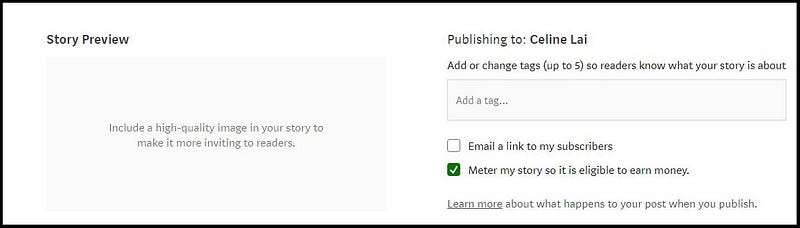
If you tick “Email a link to my subscribers” your subscriber(s) will receive an email from [ your name ]. Medium will carbon copy (cc) an email to you also!
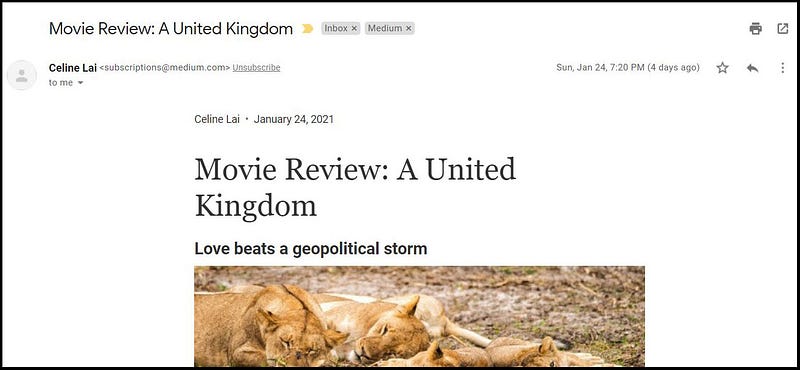
The screenshot below shows an example. It is a snapshot of an entry in my own In Box. My story “Movie Review: A United Kingdom” was self-published and I opted to send an email about this to my sole subscriber!
Note: the sample below has “Medium” in gray, which is a Label that I set up to be attached to emails in my In Box which are from the Medium company.
Your email about your story may just have the Title of your story, followed by your name and the date the story was published. The example shows the name of the sender of the email (which is me, but via Medium), the label that I assigned, and the Title and Date Published of the story. Howzat!

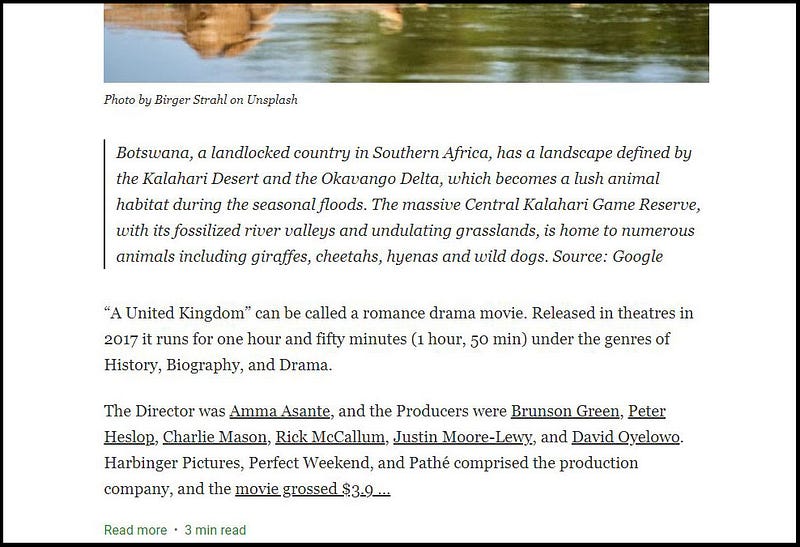
When you or a subscriber clicks on the Email title, email text similar to below appears. A preview of the story appears in the email.
You will see “Read More” if the whole story can’t be contained within the email (which it may do, say if it’s a short poem) along with the total estimated reading time, as shown in the two screenshots below. 😆
How To Set up the Email Subscribers Function
Update: August 2021 —
The below instructions are redundant. You now go to your Settings, then under “Audience Development” click on “Promote subscriptions.”
Please click on your Avatar (small round picture at top right) then on Settings then on Followers.
Then tick next to “Display a Message to promote email subscriptions on your profile and story pages”, as shown in the screenshot below.
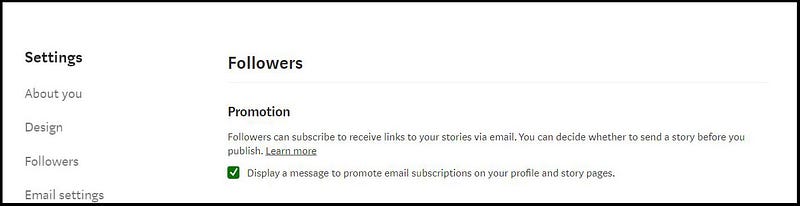
There’s no need to save the settings, as when you change something, they are automatically saved.
The “Promotion” message (i.e. the message similar to that shown above for Tom Kuegler) will appear on the “About” area or page of your Medium Profile AND at the end or bottom of your self-published stories!
Warning: you may want to check that this function/option is ticked, whenever you go to Medium, as I found that sometimes it becomes un-ticked, for who knows what reason. I think the system can be a bit glitchy. It is a wise person who checks up on Medium if she/he wants to meet a goal, in this case, wants the “Promotion” message to appear on her/his “About” page and self-published stories.
Underneath the section shown above, there’s a function where you can export a list of email addresses of your subscribers, PLUS see how many subscribers you have!
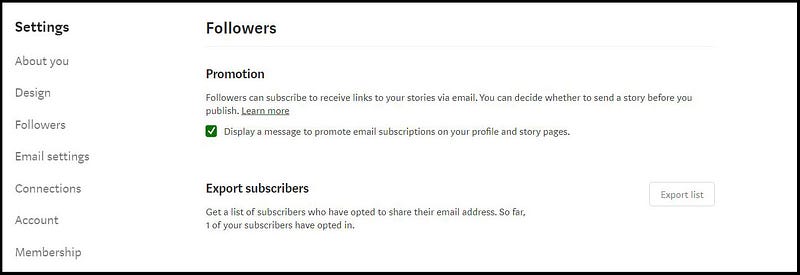
At the time of writing this article, I have one subscriber. I am very happy that I have at least 1 subscriber. 😄 After clicking on “Export list” on the right, you get the following screen.
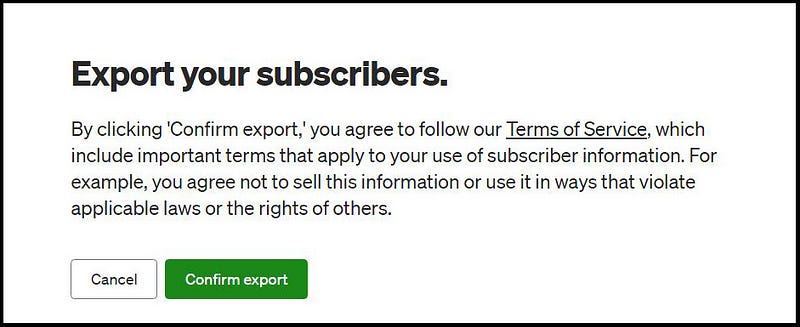
Click on the green “Confirm export” and then you will see the following.
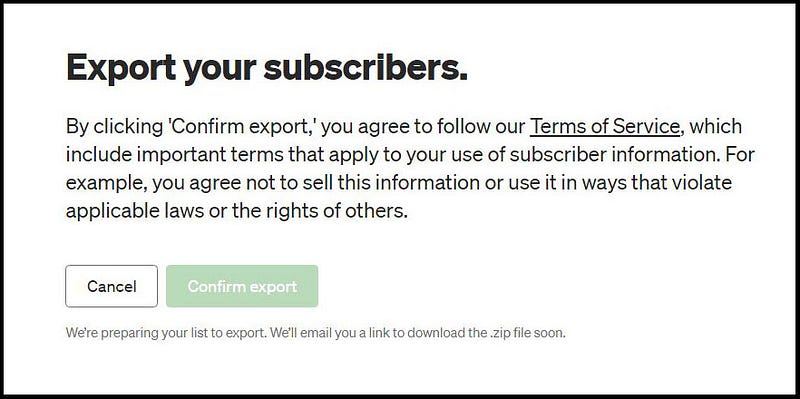
Not long after (perhaps within 10 to 20 minutes) you can check your email, for an Email like the following.

Click on the email title to find the content similar to below. 😆
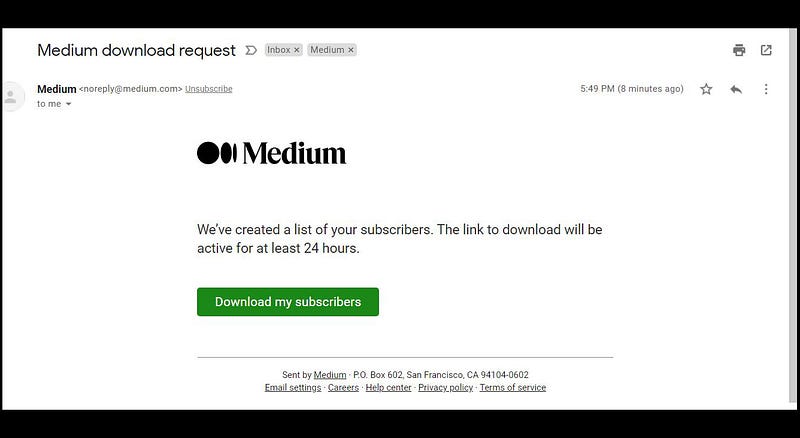
Click on the green “Download my subscribers” button and you will be able to save a file to your computer, with a default title similar to below.
medium-subscriber-export-db35280227c5.zip
When saving the File, I amend the title by adding the date the file was downloaded at the beginning of the Title. 😛
Go to the Folder where you saved the file and look for the “zip file icon” because the data will be in a Zip file.
The icon for this file type looks like a stack of nice colourful books. I amended the default zip file title, of which part of the final title is shown below.

You may see something similar to below after clicking on the file downloaded or saved to your computer. Sorry it’s small, but that’s as good as it gets for this article. I also whitened out part of the file title, because I wanted to.
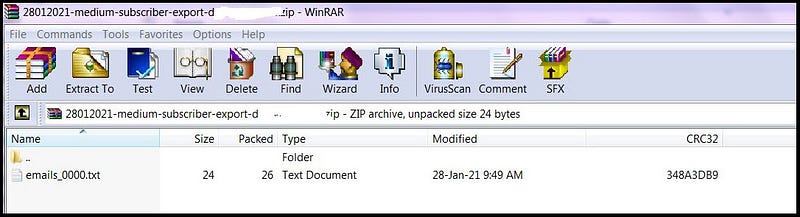
For me, I right-clicked on “email_0000.txt” and extracted the contents to a folder on my computer (the same folder as the zipped file was saved to). Don’t be frightened. It’s easy to extract from a zipped file. Just right-click on the file title, and an option to make the extraction easily enough will appear. It’s not as hurtful as a tooth extraction.
Once you’ve extracted the text file from the Zipped File, it will just list all the email addresses.
That is, there won’t be any names for who the email addresses are for, so you won’t know whose email belongs to who.
The extraction is just purely & simply a list of email addresses. That is, there will be one Email Address for your one subscriber; or more email addresses if you have more than 1 Subscriber. 😄
Why would you want the email addresses saved to your computer? Perhaps for “good luck” or for posterity, as they say.
You do have to be aware to not abuse the information, i.e. not to misuse the email addresses that you have exported. This is a condition of downloading or saving the email addresses (as shown in the “Export your subscribers” screenshot above).
Maybe the emails could be used to send a monthly update of all your self-published stories, via a self-publsihed story.
For the record, here is a link to the Terms of Service that you have to agree with, in order to download your list of email addresses of your subscribers.
Important Information For Email Subscribers
I like cats! 😸

If you want to see an example of the “Promotion” message or Email Subscription Message, as I call it, FOLLOW me if you aren’t already following me. Then check out the message at the end of the following story:
You should see a message asking if you want to subscribe to “get my stories in your in box”.
If YOU have thought about signing up for emails advising you of someone else’s self-published stories, the following may help you, as well as helping someone setting this up for subscribers to their own self-published stories.
The following information shows what people see when thinking about subscribing to your self-published stories, if you have the function/option enabled.
Remember it’s only for your Followers and only for your self-published stories. UPDATE: July 2021, a person doesn’t have to be a Follower any longer to subscribe to your stories, plus subscribing means they subscribe to emails with links to both your self-published stories, and your stories in Publications!
The Subscription (or Promotion) message appears on your About page and at the bottom of your self-published stories.
You may see a notice / message at the bottom of someone’s self-published story, as shown in the example below for the famous Tom Kuegler.
This will only be there if the person has enabled this function and will only appear on stories which are published to the person’s “timeline” or profile. It doesn’t appear (at this point of time) for stories in Publications!
The background appearance will be different, dependent upon the colours the writer has used for her or his Medium stories.
I was baffled & intrigued by the option to click on “Not you?”
I worked out that there are 2 reasons for this.
One, if you have been signed into Medium and haven’t signed out, then another person comes along to use your computer, to access Medium. If that person is not you, which they certainly are not, she/he can log you out and sign herself/himself in.
The other reason is if you’re sharing a computer to use Medium, and you see the default email address after “Emails will be sent to … “ is not your email address, you can click on “Not you?” to sign into Medium under your own Medium “account”.
In this case, your email address will then appear for subscribing.
After clicking on “Subscribe” you’ll see something similar to below.
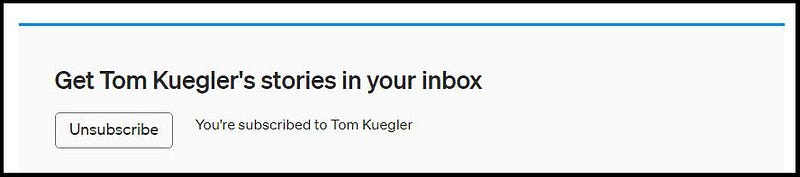
If you change your mind (or clicked for the wrong person), click straightaway on “Unsubscribe”.
Warning: once you have subscribed, there really isn’t an easy way to unsubscribe! So really be careful, and make sure you are subscribing to a person you want to subscribe to, OR if you don’t want to subscribe after all, CLICK IMMEDIATELY ON “Unsubscribe”.
If you don’t, and then go on your merry way, then return to the writer’s About page or to one of their self-published stories, you won’t find any option to Unsubscribe.
You will then have to un-subscribe via an email that you receive from the person.
A funny thing is that when my friend clicked on the “Subscribe” button in the Promotion message at the bottom of one of my stories, the following information appeared. However, when I click on the Subscribe button for anyone who has it enabled, I don’t get a similar message! 😲
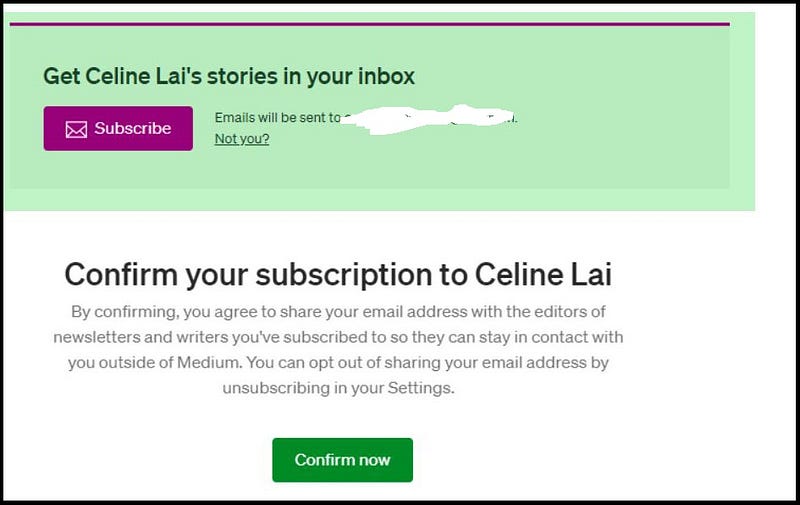
UPDATE: July 2021, the above is out-of-date as now you can just click on the little envelope icon for “subscribing” on a person’s Medium profile page, to un-subscribe! Note the envelope will be solid coloured if you haven’t subscribed, but if you have, you will see an outline of the envelope icon!
How To Unsubscribe Yourself From a Personal Email List
.
After you have subscribed, you won’t find a message relating to the email subscription on the Medium Profile page or on any story page of the writer that you have subscribed to. Neither will you find a tidy list of names of people that you have subscribed to, under your Settings.
Jinkies, as Thelma in “Scooby Doo” would say!
See for yourself. If after subscribing to someone’s self-published stories, you navigate to the person’s “About” area/page or to any one of their self-published Stories, well, you will see no message at all about Emails.
Go to your Stats page and click on Audience stats and you will see “Email Subscribers”. Click on “View details” to see the usernames and emails of people who have subscribed to your emails!
Here are some orthodox and wacky methods for unsubscribing!
It may be of use to make a note of the people who you subscribe to, for your information or management purposes.
Method One — unsubscribe via Email
Wait until you receive an email from the writer, relating to one of their self-published stories. (See the screenshots above, showing what the emails will look like.)
The screenshot below shows the end of the sample email (the one for my self-published story, being a film review of “A United Kingdom”). You can see it has a bit of an obscure wording, “Unsubscribe from this type of email.”
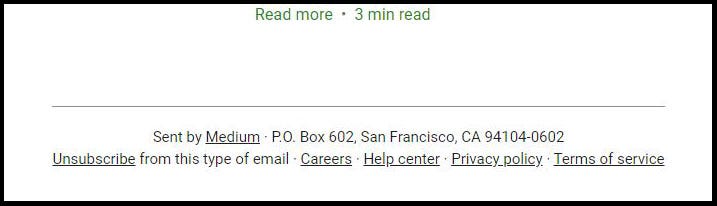
Click on the word “Unsubscribe” and you will be removed from the Email list of that person.
Happy Days, there is also the word “Unsubscribe” at the TOP of the email body, next to the sender’s name.
Scroll up, up this page until you see the first screenshot for the Sample Email (being for my story “Movie Review: A United Kingdom”) to see what I mean. 😆
I had a friend try this out with my subscription service, and the resultant message or advice below popped up on Medium on my profile page after clicking on “Unsubscribe” in the email.
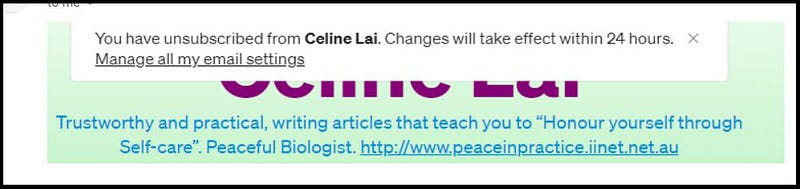
Woop, woop, my friend was now un-subscribed. But of course this method is dependent upon receiving an email from the writer you’ve subscribed to!
Method Two — Stop following the writer ← OUT OF DATE no longer valid
Remember that only your Followers can subscribe to your self-published stories (for who knows why). I found that if you want to unsubscribe (say you accidentally subscribed to someone’s email list) and don’t want to wait until you receive an Email from them, if ever; that you can un-follow the person.
My friend and I tried this out, with her subscribing and then un-following me.
Note: it may take 12 to 24 hours for changes to take effect. Anyhow 12 hours after I was un-followed, I had a look at my “Export Subscribers” to find one less subscriber. I downloaded my subscription list to find her email wasn’t there.
She then went to my About page on my Medium Profile to find the standard message asking if I wanted to subscribe was there.
This is further proof that if she was now being asked to subscribe, that meant she had been un-subscribed. So you can stop following someone which will turn off subscriptions.
Please note: the above does not apply now at July 2021 because Medium have changed how this email function works. See above earlier in this article, for how to un-subscribe.
Method Three — the Deep Dive !
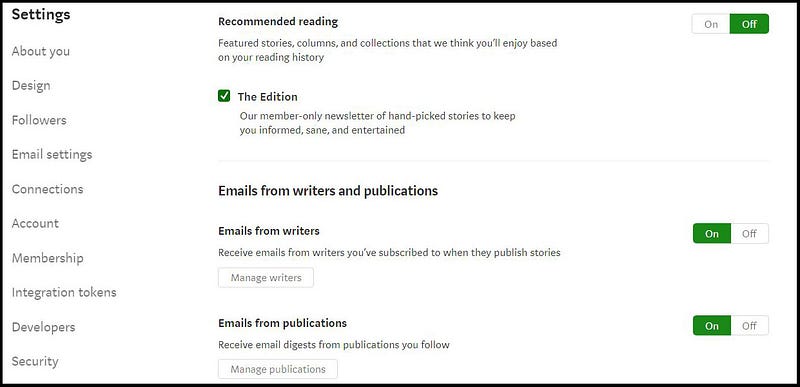
If you go to your Settings under your Avatar (icon at the top right) on Medium and scroll down, you will see under “Emails from writers and publications” some obscure information.
If you click on the Off square next to the On square next to “Emails from writers — Receive emails from writers you’ve subscribed to when they publish stories” I assume this means that lock, stock & barrel, you won’t receive any emails from ANYONE that you have subscribed to.
Oh boy! I wish Medium put an explanation of what this On / Off switch does.
Maybe this is like a “holiday mode or setting.” Say you’re being deluged with emails or won’t be checking them often, you could temporarily switch of receiving these types of emails !
I guess that this turning off receiving all emails from Medium writers you have subscribed to, does have merit for those who would use it.
Anyhow if you don’t want emails any longer from just one person you subscribed to, you could try turning off this option.
BUT you would have to be happy to not receive emails from anyone you have subscribed to, if this is the way this option works.
Mikhail L. Skoptsov has written about this Email Subscription feature in “Feedium” and I share some of his thoughts below.
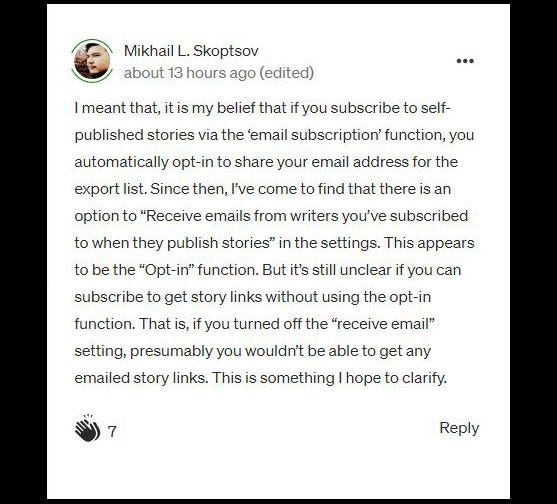
Below is a link to Mikhail’s thoughtful and helpful article.
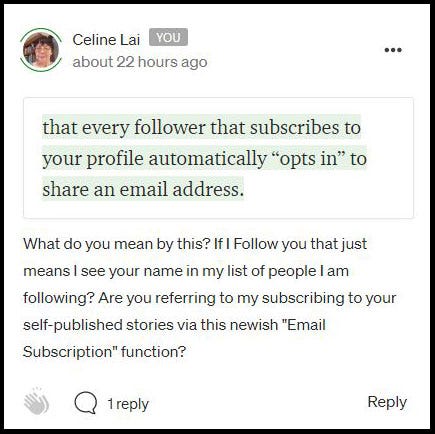
You can click on the “speech balloon” under the Claps icon on Mikhail’s story, to go to the Responses, if you want. Then you will find my response/comment which Mikhail is replying to above. For convenience, you can read my Comment on Mikhail’s article. duplicated below. 😆
How Writers Can Remove A Subscriber From their Email List under Settings ( 😢 they can’t )
Underneath “Emails from writers” in your ”Settings is a small “box” or label with “Manage writers”, and when you click on this, it will simply take you to an un-ordered list of the Medium writers whom you are following. 😲
An example is shown below. A while ago you could find “Customize your interests” under your Avatar in the drop-down menu list, but not any longer.
Anyway nobody knows how on earth the order of who one is Following is worked out. As you start following people, they are not added alphabetically in order of surname or first name, or by date followed!
The point is that clicking on “Mange writers” does NOT take you to a list of your email subscribers! So there’s no point happily navigating to “Manage writers” thinking that YOU can un-subscribe email subscribers from there, on behalf of a subscriber who asks you to remove them from your Email List !!
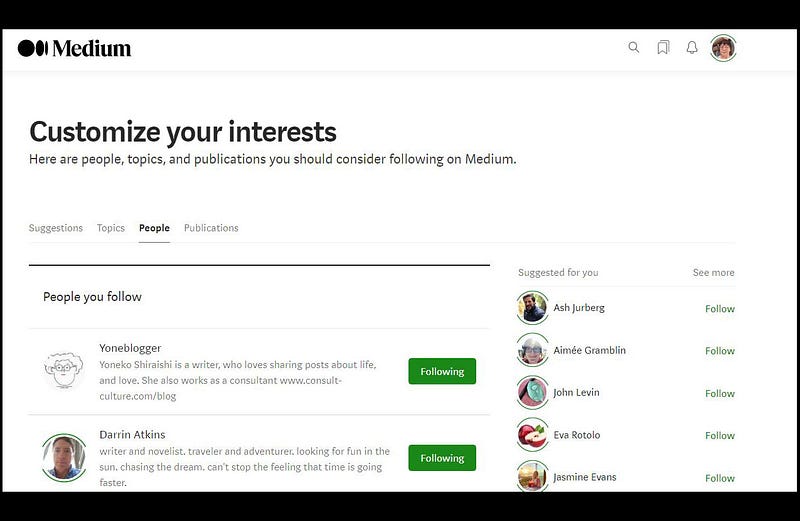
If you wondered if there’s a replacement for “Customize your interests” under your Avatar, yes there is. It is available now under “Control your recommendations.” Medium changes things a lot but doesn’t tell us about all of their changes.
Sadly, but true, there is, at the time of writing this, NO way of managing your subscribers on your Medium Settings.
In other words, you CAN’T remove a subscriber from your Email Subscriber List under Settings. Sorry! It would be nice, I think, for a writer to be able to remove subscribers, on behalf of the subscribers.
But you can tell your subscriber who wishes to unsubscribe (if she/he can get in touch with you) HOW to un-subscribe (which is to wait for an Email to them, related to one of your self-published stories, and to click on “Unsubscribe” at the top or bottom of the email body).
UPDATE: July 2021, you can unsubscribe by clicking on the Envelope icon!
In Summary
The Email Subscriber function may seem like a lot of “hot air” but I think that it has merit and is fairly harmless. If you subscribe, you could use one of your “spare” email addresses, i.e. one that you just use for Newsletter emails or for sign-ups or competitions.
If the writer pesters you once they have got your email address, just pester them back. I’m sure that they won’t, and speaking for myself, if you subscribe to my self-published stories, you probably won’t get many emails from me.
You won’t get their direct email address though, as the “Subscriber” emails will be from Medium on behalf of the person you are subscribed to. So, to get in touch with someone you have subscribed to:
- Look at their About page to see if they have a contact email address or a connected Twitter account.
- Highlight some words on one of their stories. In the formatting tool-bar that pops up, click on the picture that looks like a speech balloon. Look to the right where you can find a space to type in a private note. Please note that a writer can opt to have private notes enabled or not.
- Write a Comment on one of their stories.
If you receive strange emails after subscribing with someone, you can block the senders of the strange emails (whether the strange emails are linked to an unsavoury Medium writer who has your email address, or not). This is usual protocol, and you can try to investigate “who” sent the emails and why the emails were sent, if you like.
I think that it is great to enable this Email Subscriber function IF you publish to your own timeline at all.
Even if you mainly publish in Publications like I do, if you push out notifications of stories only on your “timeline” or Profile page, which may be read by your subscribers, good for you and for your subscribers.
Don’t you think?
So there you have it. Try or try not, as Yoda would say!


