
How to Use Medium Lists Effectively
Lists are the best way to organize your Medium stories

This story is behind Medium’s membership paywall, which means the writer earns through our Partner Program. To become a Medium member, click here.
One of the most common pieces of advice I see from other creators on Medium is to stick to writing one thing. Keeping your content consistent will help build an audience for that topic or genre. Are you a travel blogger? Don’t post that experimental poem you’ve been working on. Serious journalist? Don’t bother writing fiction, your audience won’t care.
However, this advice doesn’t take into account how varied and multifaceted most Medium writers can be! Why limit yourself to one genre or topic when you have so many important stories in you?
If you’re a Medium writer who writes in many different genres like me, it can be hard to keep track of your own stories once you start posting frequently. How, for example, can I recommend my journalism to one reader, and my poetry to another? Tags of course were designed to help direct readers to specific topics, but the system isn’t perfect.
I like lists, an easy and functional way to organize your stories. Launched in beta during July 2021, lists are particularly useful for readers wanting to curate articles for research, locate relevant titles quickly, and save articles they want to return to. This function also helps authors to organize their work and make them easier to discover by readers.
The lists feature is deceptively simple. Want to keep all parts of a series together? Easy, create a list for that series, add each one, and put them in the right order. Want to organize your articles by genre or topic? Easy, create a list for each genre or topic. Want to save articles by other writers to read later? Easy, make a “private” list for your eyes only, or a “public” one to share with others. Want to share all your posts on a certain topic on social media, or send it to a specific reader? Easy, there’s a share button!
No matter how easy this feature is, like many Medium features, it seems like no one knows how to use it effectively.
Here’s how I’ve been using lists, and how you might best integrate the list feature into your Medium experiment.
Effective ways of using lists
- Use private lists to bookmark stories
Save stories for later by making a list private, for your eyes only. I have a list to collect writing tips, a list to save of my favorite stories to read again later, a list to store articles I haven’t read yet but plan to, and another to keep track of articles that share submission deadlines and paying writing markets. You can even add metadata to articles in a list to keep them straight. You decide what information you need, and save it in one handy location.
This is the way that most people on Medium seem to be using lists — while seemingly pretty basic, it is useful and more effective than bookmarking tabs in your internet browser. But what else can you do with lists?
2. Organize your own stories in public lists
Every time I publish a story, I add it to a list. I write many different types of articles on Medium — fiction, nonfiction, poetry — and having a way to collect similar stories together is a great way to organize my page.
Your public lists are available on your Medium profile between your follower count and about page.
Anyone can see your public lists, so someone viewing your profile can easily see how you’ve grouped your stories. If they’re on your profile because they liked some of your content, using lists is an easy way for them to find more of that kind of content quickly and easily.
Here are my public lists, and the number of Medium articles that are currently in each one:
- Nonfiction Journalism: Researched articles, news, activism, and calls to action (4)
- Nonfiction, Personal: Stories involving me, the author, Casey Lawrence (4)
- Flash Fiction: Fiction of less than 1,000 words (5)
- Fiction and Long-Form: Full stories, excerpts, and other prose works (2)
- Poetry (nonmonetized): Poems (8)
- Writing 101: Educational Content: Lessons on writing, publishing, and the English language (1)
- Literary Analysis: Book reviews, articles, and other posts about literature (2)
- Medium Meta: Stories about Medium, because I just can’t help myself (4)
So far, all of my writing on Medium falls into one of these eight categories, but if I ever write something that doesn’t, all I have to do is make a new list. Organizing my writing this way also helps me to see exactly how much of what kind of content I am posting. Since I’ve been writing for Promptly Written, I’ve been writing a lot more poetry and flash fiction recently. In the future, I hope to increase my output of nonfiction journalism, educational content, and literary analysis.
The last-updated list will also pop to the top of your list page, so both you and your readers know in what categories you’ve most recently written. (For example, once I post this article and add it to Medium Meta, that list will be the first list on my page.)
3. Promote your older content by linking to lists
The title says it all, but for clarification: use your lists to promote older Medium content by linking your lists at the end of your current posts. I recommend including a short “call to action” at the bottom of your posts— be that with your referral link or social media profiles — and adding lists to your sign-off can help draw readers to your older content.
Here is an example of what I mean:
Want to see more of this content? Check out more of my other nonfiction articles or my more personal stories.
This call to action is simple, and directs your readers to two lists of your older content. If you’re writing something in a series, you can also make that clear by including a link to the other parts:
New to “The Other Side” series? Start from the beginning, here [link to list].
Like the Medium recommendations at the end of articles, these short statements help readers find more of what they’re looking for — but keep them on your page, reading your work, rather than directing them toward another author. (Unless you want to direct them to another author!)
4. Promote other writers
You can use public lists to promote writers you love and support. The easiest way to promote others using lists are to link to their lists in your posts (as in tip number three) or to make a list of content you want to share that includes articles from other writes. For example:
For more on the rise communism, check out my friend John’s list of articles about communism [link to John’s list]!
Or
For more information about Weimar Berlin, check out this list [link to list which includes articles from other writers].
Promoting others is always a valuable and worthwhile pursuit on Medium. We’re a community, and it never hurts to be generous with our time, claps, highlights, and yes, lists.
5. Add notes and respond to lists
Adding notes to your lists, whether public or private, can help to maintain order on a sometimes chaotic platform.
- Add a note to an entire list by clicking “add a note” under the title and description on a list’s page.
- Add a note to a list item by clicking “add a note” under a specific item in a list on that list’s page. For example, a note might add detail to remind you of an article’s content: “Great info on the Civil War” or just be a short description, “A poem about my life.”
Like articles and comments on Medium, readers can clap for and write responses to lists.
- Click the response button 💬 at the bottom of the list page to open the response panel on the right side.
- Like on any story, place your cursor in the “What are your thoughts?” box to begin typing a response.
- If you are the creator of a list, you have the ability to hide unwanted responses or close the response section so no further responses can be posted by readers.
- Clap for other author’s lists when you enjoy them. Like clapping for individual stories, giving applause for a list shows your support for the articles in that list.
How to use lists: The practical guide
Now that you know why and how you should be using Medium Lists, here is a short rundown of how they work:
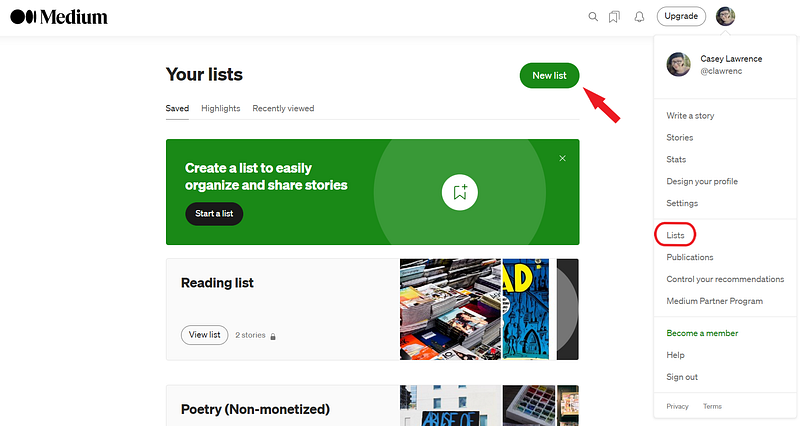
Create a list
On desktop:
- Select “lists” from the dropdown menu, circled in the screenshot above, to see and edit your lists.
- To create a list, use the green “new list” button, indicated with an arrow in the screenshot above.
- Give your list a title and add a short description of the list (the description is optional). Giving your list an accurate title and description will help you and others use it effectively!
- Set your list to “public” or “private” by toggling the button labeled “make it private.” The bubble will be filled in when “private” is selected.
- Hit “create” to finish creating your list to “cancel” to cancel.
On mobile:
- Hit the “bookmark” tab on the bottom of the Medium app. It is located between your profile picture (bottom right) and the “search” tab (🔎).
- Like on desktop, there is a green “new list” button.
- Give your list a title and add an optional description of the list. Giving your list an accurate title and description will help you and others use it effectively!
- Set your list to “public” or “private” by toggling the switch labeled “Private: Only you can see the list.” The switch will turn green when “private” is enabled; “public” is the default.
- Hit “create” to finish creating your list to “cancel” to cancel.
Add stories to a list
When adding a story to a list, it will default add to your private reading list at first. Select which list you want to add it to, and deselect any lists you want to remove it from.
- On a story’s page, click the bookmark button to add it to a list. The button appears next to the line of social media links just below the title (next to the author’s profile link) and at the bottom of the story.
- On your profile, click the bookmark button below any post to add it to a List.
- When a story has been added to a list, the bookmark icon appears filled in (solid black). When it is not added to a list, the icon appears as an outline only.
Manage your lists
From the lists page on mobile or desktop, you can manage your lists.
- Select the list you want to edit.
- Using the three-dot menu (…) next to the list title, you can edit the list’s info (title/description), make a public list private (or a private list public), reorder items, or hide responses.
- If you select “hide responses,” readers will still be able to respond to your list, but the link to see responses will not be displayed. Hit “confirm” to make this selection.
- When you select “reorder items,” a simplified list of the titles in the list will be displayed. Click and drag the items to reorder them. By default, items are ordered by the time they were added to the list (most recent first). Hit “done” to finish reordering.
Share your lists
The share button appears next to the three-dot menu when on a list’s page.
- Clicking the “share” button will give you the option to share your list via Twitter, Facebook, LinkedIn, or “copy link.”
- Select “copy link” to share your list anywhere, including in other Medium posts, in private message, or on other social media sites.

Now that you know everything there is to know about using the list feature on Medium… how will you be using lists?
Support the author
Follow me on social media: Twitter: @ MyExplodingPen Facebook: caseylawrenceauthor YouTube: Casey Lawrence Instagram: @ kcntv TikTok: @ kctnv
If you enjoy my content, consider showing your support by buying me a coffee or joining Medium via my referral link to get unlimited access to all of Medium. I will not be monetizing any of my poetry or short-form writing.