s://cdn-images-1.readmedium.com/v2/resize:fit:800/1*KmjAPBf-mpuJKrdlXVwbqw.png"><figcaption></figcaption></figure><p id="d304">5. Next, click on Trigger under the HTML container, and choose All Pages.</p><figure id="a1b3"><img src="https://cdn-images-1.readmedium.com/v2/resize:fit:800/1*u9krjCDrolX5Ws1HqKFU_A.png"><figcaption></figcaption></figure><p id="bf81">Until now, all we did was to install the Hubspot tracking code on the website, so you can track all actions related to Hubspot forms.</p><p id="fc2f">Next, we need to set up the <b>event listener</b>.</p><h2 id="79b4">Set up the HS event listener</h2><p id="528a">We’ll follow the same approach.</p><ol><li>First, click on Tag > New, and name this tag ‘HS Event — Form submission listener’.</li><li>Click on Configuration and select Custom HTML.</li><li>Then, paste this code into the HTML field:</li></ol><div id="b326"><pre><script type=<span class="hljs-string">"text/javascript"</span>> <span class="hljs-variable language_">window</span>.<span class="hljs-title function_">addEventListener</span>(<span class="hljs-string">"message"</span>, <span class="hljs-keyword">function</span>(<span class="hljs-params">event</span>) { <span class="hljs-keyword">if</span>(event.<span class="hljs-property">data</span>.<span class="hljs-property">type</span> === <span class="hljs-string">'hsFormCallback'</span> && event.<span class="hljs-property">data</span>.<span class="hljs-property">eventName</span> === <span class="hljs-string">'onFormSubmitted'</span>) { <span class="hljs-variable language_">window</span>.<span class="hljs-property">dataLayer</span>.<span class="hljs-title function_">push</span>({ <span class="hljs-string">'event'</span>: <span class="hljs-string">'hubspot-form-success'</span>, <span class="hljs-string">'hs-form-guid'</span>: event.<span class="hljs-property">data</span>.<span class="hljs-property">id</span> }); } }); </script></pre></div><p id="3d8c">4. This listener will also be present on all pages. So under the HTML container, click on Trigger and select All Pages.</p><figure id="ee68"><img src="https://cdn-images-1.readmedium.com/v2/resize:fit:800/1*4LCtvBweIH4y4D_hgEKnIQ.png"><figcaption></figcaption></figure><p id="9ad0">We’re almost done. Until now we’ve set up the HS tracking code and the event listener. Now we need to set up the Trigger that will notify the event listener, to let GTM know that a form was submitted.</p><h2 id="b678">Set up the Form success trigger</h2><ol><li>In GTM, go to Triggers and click New.</li></ol><p id="b6d6">2. Name the trigger ‘Trigger — HS form success’.</p><p id="3bb2">3. Then, click Configuration and choose Custom event. The event name will be ‘hubspot-form-success’.</p><figure id="82fc"><img src="https://cdn-images-1.readmedium.com/v2/resize:fit:800/1*72BIVlTlU2LR1eIaqzsypA.png"><figcaption></figcaption></figure><p id="ec3d">Why are we using ‘hubspot-form-success’ here as the event name? Where did this come from?</p><p id="ee2a">When we’ve created the event listener, we’ve added the code below. As you can see, the event name is ‘hubspot-form-success’:</p><figure id="917f"><img src="https://cdn-images-1.readmedium.com/v2/resize:fit:800/1*f1P9vjAmjDfKDH3eJ2HFnQ.png"><figcaption></figcaption></figure><p id="9195">Now, if you have multiple HS forms, you also want to know which form was submitted. In GA4, we can distinguish the forms submitted using the Form ID.</p><p id="e4b2">This data is found in the ‘hs-form-guid’ variable which you can see above.</p><p id="5297">However, to see it in GA4, we need to set up a custom variable in GTM that will store the form ID, and then to trigger a GA4 event tag that will send this form ID to GA4. So let’s do that now.</p><h2 id="7c30">Set up the form ID custom variable</h2><ol><li>Go to GTM > Variables, and scroll down to User-Defined Variables. Click New.</li><li>Name thi
Options
s variable ‘Data Layer Variable — HS Form ID’, and then click Configuration.</li><li>Select ‘Data layer variable’, and in the Data Layer Variable Name field, add ‘hs-form-guid’. This is the event name that will be registered in GA4.</li></ol><figure id="452b"><img src="https://cdn-images-1.readmedium.com/v2/resize:fit:800/1*krkhD8SO46Wk6t6IhTlsSA.png"><figcaption></figcaption></figure><p id="b370">Finally, let’s create the event tag that will send this DL variable to GA4.</p><ol><li>Go to Tags > New, and create a new tag. Name it ‘GA4 Event — HS form success’.</li><li>Click on Configuration and select Google Analytics, then GA4 Event.</li></ol><figure id="36c9"><img src="https://cdn-images-1.readmedium.com/v2/resize:fit:800/1*-i9KyCSb8ySLRPoNJh-7Bg.png"><figcaption></figcaption></figure><p id="f626">3. Add your Measurement ID from GA4. You can find this by going to Admin > Property settings > Data collection > Data streams, and clicking on your website name.</p><p id="e579">4. In the Event name field, add ‘generate_lead’. This is the event name that will be stored in GA4.</p><figure id="d3d5"><img src="https://cdn-images-1.readmedium.com/v2/resize:fit:800/1*vDfpYEuUg4W2MI95WvETAQ.png"><figcaption></figcaption></figure><p id="73f6">5. Next, in Event parameters, click on Add parameter. Name this parameter ‘form_id’, and choose as value the variable you’ve created earlier.</p><figure id="1dc1"><img src="https://cdn-images-1.readmedium.com/v2/resize:fit:800/1*HugKb4hH4-8L7e12kgjS-A.png"><figcaption></figcaption></figure><p id="32c8">6. Finally, click on Trigger and select the ‘Trigger — HS form success’ trigger that we’ve created earlier.</p><figure id="57ab"><img src="https://cdn-images-1.readmedium.com/v2/resize:fit:800/1*NOkP_cESOlaqCJssyLyxGw.png"><figcaption></figcaption></figure><p id="2dd7">Click Save, and don’t forget to Submit the GTM changes.</p><figure id="98e5"><img src="https://cdn-images-1.readmedium.com/v2/resize:fit:800/1*YpO6Te27ibljgxtV_FLQGQ.png"><figcaption></figcaption></figure><p id="ae25">When this event (the successful HS form submission) is triggered on the website, it appears in GA4 reports as ‘generate_lead’, and by clicking on it, you can see the ‘form_id’, to know which HS form was submitted.</p><p id="92cb">This helps us track form submissions correctly and see them in GA4, not only in HS.</p><p id="2518">Hope this was useful! :)</p><p id="05ff">And if you’re using HS forms in your LinkedIn paid campaigns too, you might find the article below helpful:</p><div id="92bc" class="link-block">
<a href="https://readmedium.com/how-to-send-leads-from-linkedin-lead-gen-forms-to-hubspot-4635b259cc98">
<div>
<div>
<h2>How to send leads from LinkedIn lead gen forms to Hubspot</h2>
<div><h3>Quick LinkedIn — Hubspot integration guide</h3></div>
<div><p>medium.com</p></div>
</div>
<div>
<div style="background-image: url(https://miro.readmedium.com/v2/resize:fit:320/1*OnDKAQ2b809kpbmz6HTvsA.png)"></div>
</div>
</div>
</a>
</div><p id="1aec">— -</p><h1 id="7842">Install GA4 on your website using GTM</h1><ol><li>In GTM, go to Tags > New, and name the tag ‘GA4 Config’.</li><li>Click Configuration, and select ‘Google tag’.</li><li>Then, in the Tag ID field, add your Measurement ID from GA4. You can find this value by going to Admin > Property settings > Data collection > Data streams. Click on your website name, and you should see the Measurement ID.</li></ol><figure id="ae6a"><img src="https://cdn-images-1.readmedium.com/v2/resize:fit:800/1*epK-jHkHw0eEa4Ly47XHPA.png"><figcaption></figcaption></figure><p id="fda5">4. Finally, click on Trigger and select ‘Initialization — All Pages’.</p><p id="3388">That’s it. :)</p></article></body>
How to track Hubspot form submissions in GA4 with Google Tag Manager
Learn how to set up the GTM triggers to correctly track conversions

If you’re using Hubspot forms on your website and want to track conversions that come from both organic and paid traffic using GTM, this article is for you.
For those of you who are just learning, I’ll explain the context first, then go through the step-by-step setup.
Let’s start.
Note: If you haven’t installed GA4 on your website yet, I’ll show you how to do this via GTM at the end of this article. Do that first, then come back here and follow the tutorial.
Here’s a video walkthrough of the full process:
Hubspot form tracking in GA4
Although some CMSs have built-in integrations with Hubspot and allow you to track form submissions with no additional implementations, if you’re using Webflow, for example, you won’t be able to automatically track conversions.
Even if you’re using a /thank-you page after the form submission, the conversion won’t be correctly tracked. That is because the out-of-the-box GA4 form submission event doesn’t track Hubspot form submissions correctly.
So the only option is to set up the tracking for these forms through Google Tag Manager.
GTM setup
In GTM, form submissions are tracked as events, and are found under Tags.
An event is an action that a user takes on your website — for example, a button click or a form submission.
To track Hubspot form submissions (the event), we need 2 things:
An event listener — A piece of code that ‘listens’ or watches all website pages, and notifies GTM when a Form submission event is triggered
A trigger — The actual action that triggers the Form submission event
So when a HS form is submitted by a user, the trigger notifies GTM that this action happened. In response, GTM registers the successful form submission event.
We’ll set up the event listener first, but before doing so, we need to make sure that the HS tracking code is installed on our website.
Install the Hubspot Tracking Code
For this, we need to add the Hubspot Tracking Code to our website, through GTM.
Steps:
In GTM, go to Tags > New, and create a new tag with the name ‘Hubspot Tracking Code’.
Click on Tag Configuration and choose Custom HTML.
Go to your Hubspot account, and in Settings > Account Setup > Tracking Code, find your tracking code. Copy this and go back to GTM.
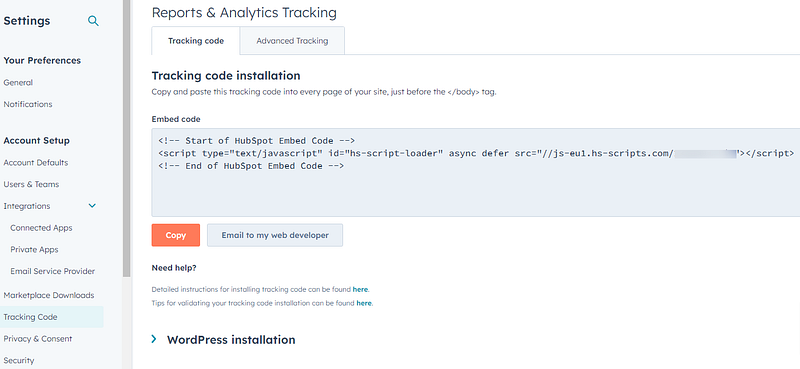
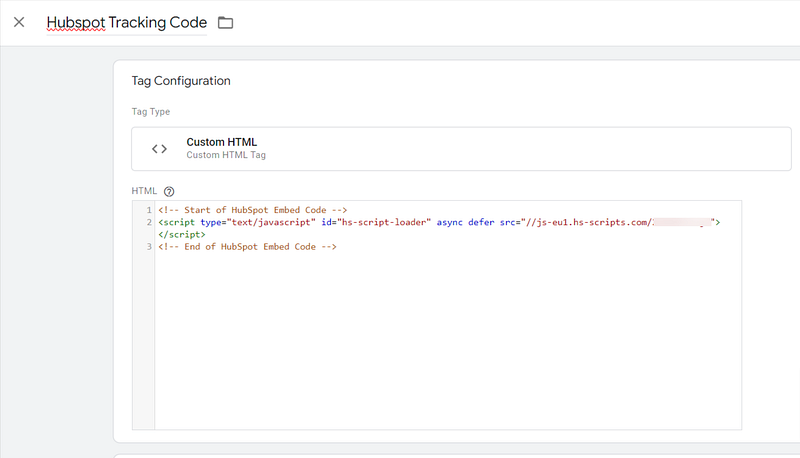
4. Next, in GTM, paste this code into your Custom HTML container.
5. Next, click on Trigger under the HTML container, and choose All Pages.
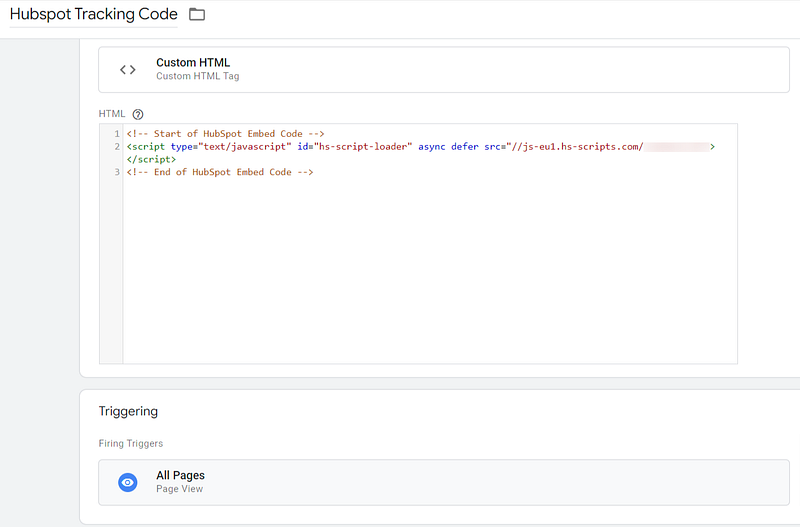
Until now, all we did was to install the Hubspot tracking code on the website, so you can track all actions related to Hubspot forms.
Next, we need to set up the event listener.
Set up the HS event listener
We’ll follow the same approach.
First, click on Tag > New, and name this tag ‘HS Event — Form submission listener’.
4. This listener will also be present on all pages. So under the HTML container, click on Trigger and select All Pages.
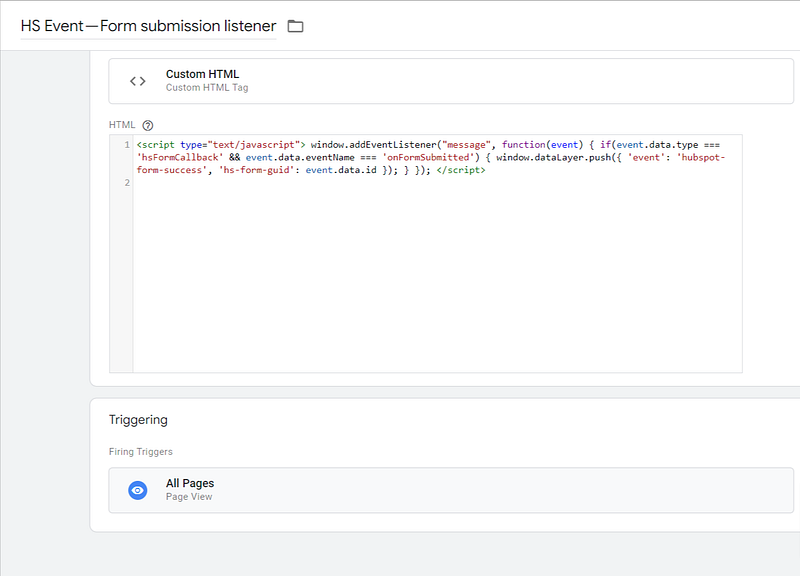
We’re almost done. Until now we’ve set up the HS tracking code and the event listener. Now we need to set up the Trigger that will notify the event listener, to let GTM know that a form was submitted.
Set up the Form success trigger
In GTM, go to Triggers and click New.
2. Name the trigger ‘Trigger — HS form success’.
3. Then, click Configuration and choose Custom event. The event name will be ‘hubspot-form-success’.
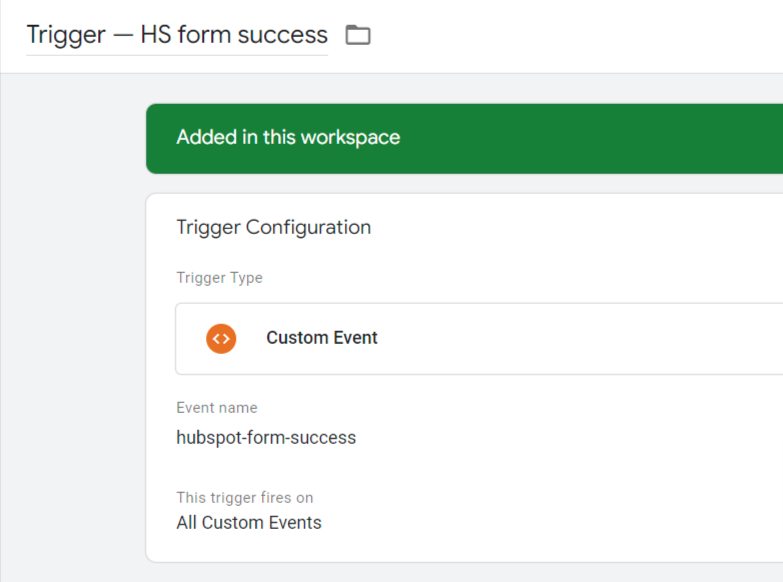
Why are we using ‘hubspot-form-success’ here as the event name? Where did this come from?
When we’ve created the event listener, we’ve added the code below. As you can see, the event name is ‘hubspot-form-success’:
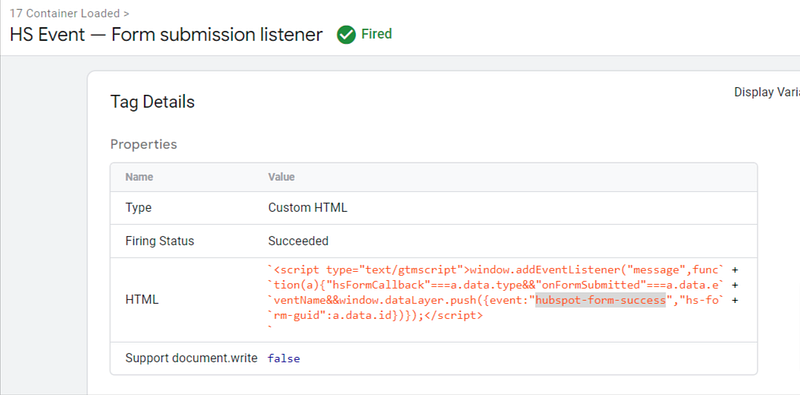
Now, if you have multiple HS forms, you also want to know which form was submitted. In GA4, we can distinguish the forms submitted using the Form ID.
This data is found in the ‘hs-form-guid’ variable which you can see above.
However, to see it in GA4, we need to set up a custom variable in GTM that will store the form ID, and then to trigger a GA4 event tag that will send this form ID to GA4. So let’s do that now.
Set up the form ID custom variable
Go to GTM > Variables, and scroll down to User-Defined Variables. Click New.
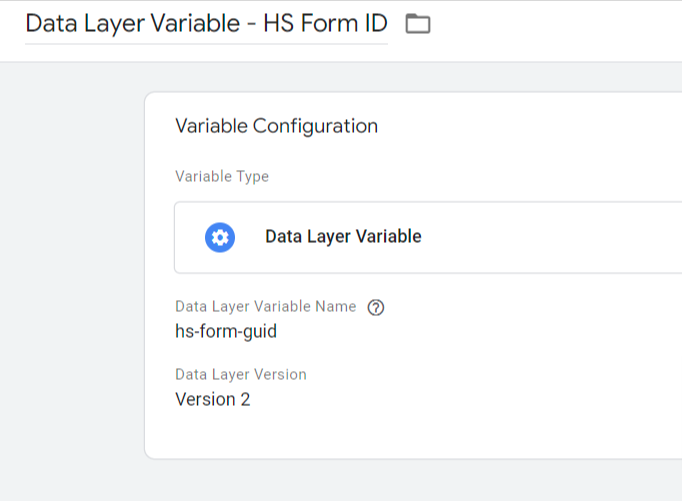
Name this variable ‘Data Layer Variable — HS Form ID’, and then click Configuration.
Select ‘Data layer variable’, and in the Data Layer Variable Name field, add ‘hs-form-guid’. This is the event name that will be registered in GA4.
Finally, let’s create the event tag that will send this DL variable to GA4.
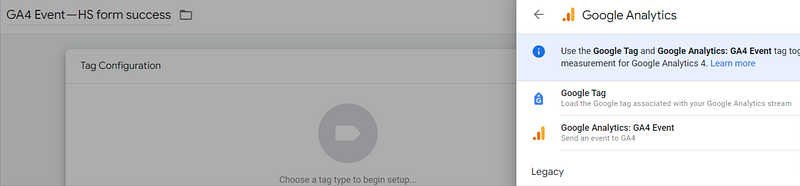
Go to Tags > New, and create a new tag. Name it ‘GA4 Event — HS form success’.
Click on Configuration and select Google Analytics, then GA4 Event.
3. Add your Measurement ID from GA4. You can find this by going to Admin > Property settings > Data collection > Data streams, and clicking on your website name.
4. In the Event name field, add ‘generate_lead’. This is the event name that will be stored in GA4.
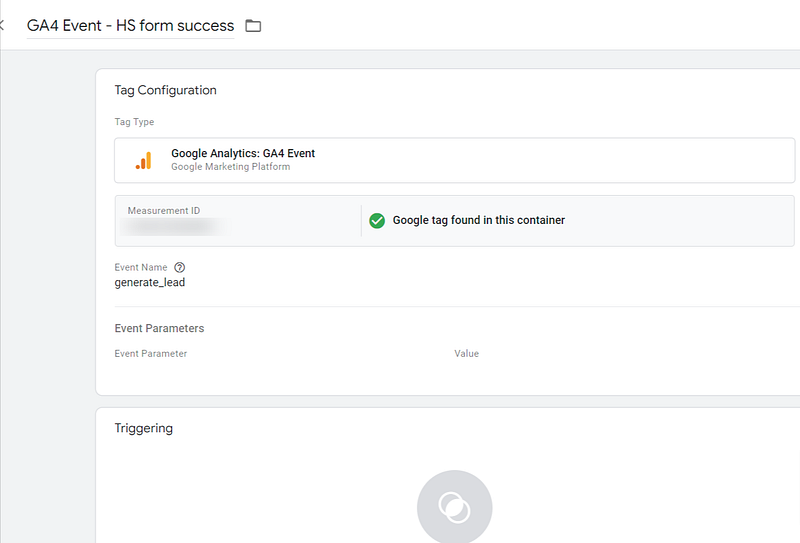
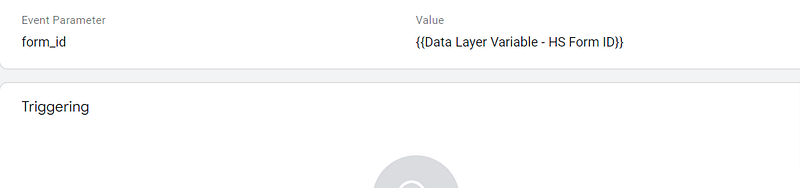
5. Next, in Event parameters, click on Add parameter. Name this parameter ‘form_id’, and choose as value the variable you’ve created earlier.
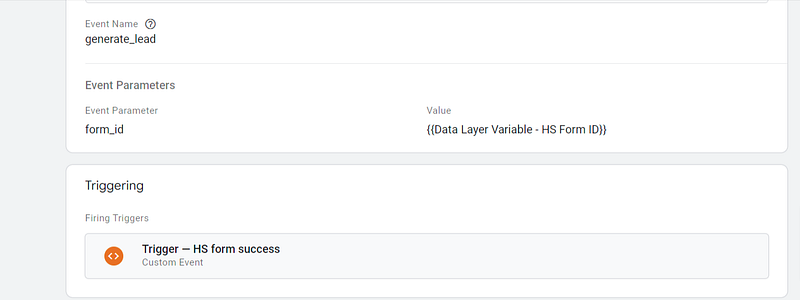
6. Finally, click on Trigger and select the ‘Trigger — HS form success’ trigger that we’ve created earlier.
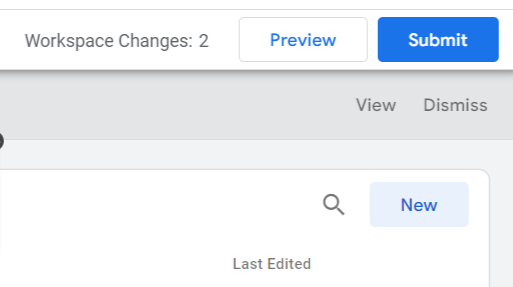
Click Save, and don’t forget to Submit the GTM changes.
When this event (the successful HS form submission) is triggered on the website, it appears in GA4 reports as ‘generate_lead’, and by clicking on it, you can see the ‘form_id’, to know which HS form was submitted.
This helps us track form submissions correctly and see them in GA4, not only in HS.
Hope this was useful! :)
And if you’re using HS forms in your LinkedIn paid campaigns too, you might find the article below helpful:
In GTM, go to Tags > New, and name the tag ‘GA4 Config’.
Click Configuration, and select ‘Google tag’.
Then, in the Tag ID field, add your Measurement ID from GA4. You can find this value by going to Admin > Property settings > Data collection > Data streams. Click on your website name, and you should see the Measurement ID.

4. Finally, click on Trigger and select ‘Initialization — All Pages’.