How to track HS form submissions that come from LinkedIn ads with GTM

With GTM / GA4 tracking, you can see which form conversions happen on a website.
However, if you’re are also running paid ad campaigns on LinkedIn, you want to know when a conversion happened as a result of a LinkedIn campaign.
You can do this by setting up Conversion events in LinkedIn. These can be found in LinkedIn — Campaign manager, under Analyze > Conversion tracking.
The flow of events is as follows:
- When a user sees a paid ad on LinkedIn, and clicks to go to your website, the LinkedIn tracking code that is installed on the website tracks that activity.
- Once the user submits a form on the website, a Form success event is triggered.
This setup helps us correctly track and attribute conversions that come from LinkedIn ads.
Here’s a video walkthrough of the full process:
Track conversions in LinkedIn
To create the tracking events in LinkedIn, go to Conversion tracking > Create conversion, and select Insight tag conversion.
Give your conversion a name — For example, ‘Thank you page — Contact form’ or so.
Then, choose Tag manager for implementation.
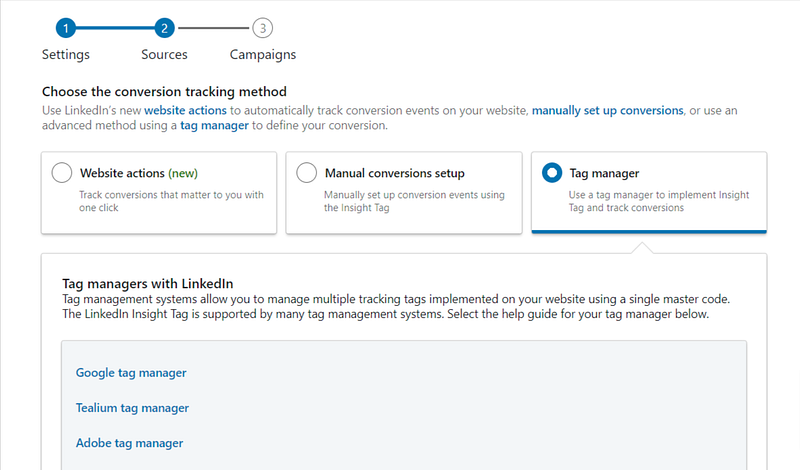
You will get a partner ID that will be used in GTM, as well as an event ID when you select ‘Event-specific’:
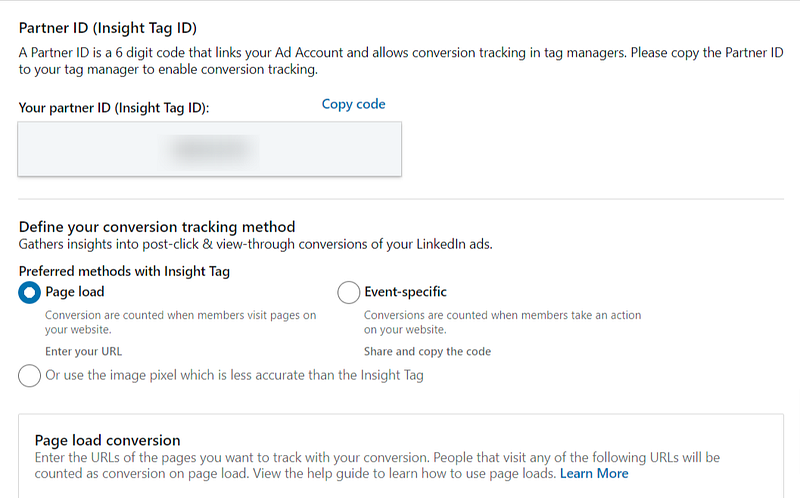
Please note that the Event ID (Conversion ID) will be different for each event, so if you want to track different forms as separate events in LinkedIn, you need one tracking code for each form.
Setup the tracking in GTM
To track these events in GTM, we will use the Partner ID and Conversion ID codes from above.
We’ll create a new Tag and call it ‘LinkedIn Event — HS Contact form success’.
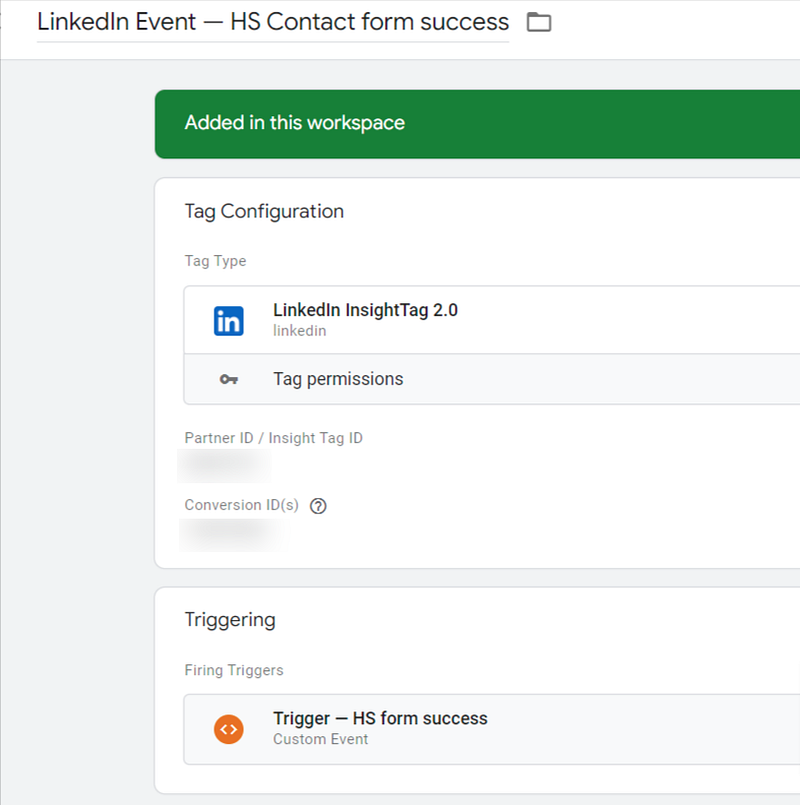
The trigger will be the HS form success. I’ve explained how to do the setup for it in the article here:
This implementation helps you track form submissions that originate from LinkedIn ads, in the same way that we track the website form submissions from organic / other sources.
Please note that the LinkedIn Event submission has the type ‘LinkedIn InsightTag 2.0’.
This is because although the trigger (Trigger — HS form success) is coming from Hubspot, we want to send the information (that theform was submitted) to the LinkedIn Tag.
That’s it. Hope this was useful, and let me know if anything is unclear.