🎨 How To Style Angular Application Loading With Angular CLI Like a Boss 😎

Coming from a developed country it can be easy to take high speed internet for granted. Any site, video or song can be consumed on demand with ubiquitous 4G and WiFi networks.
Guess what, it’s not like that everywhere…
Last couple of months I have been traveling around remote northern parts of Australia and beautiful Bali. Finding a good internet connection in these places can be very challenging and sometimes even impossible. Connection is flaky and most of the time downright slow. Sharing a single WiFi access point with dozens of lovely hostel guests also doesn’t make the situation any better.
If we realize that in many places slow and unreliable internet is an inescapable fact of life we can start thinking about how we can enhance our apps to provide best user experience possible.
Psst! I just wrote a new article about Angular CLI budgets that help you keep your app lean and fast so that it loads fast on slow networks… Check it out!
Default Angular CLI solution
Angular CLI used to display black “Loading…” text on the white background but as of version 1.5.0 we only get <app-root></app-root> in our index.html file. This means that our users will see only blank white screen until our app and all vendor libraries are fully loaded and Angular successfully bootstrapped. This can easily take anything from three to tens of seconds on slower networks.
Better Solution
Lets provide our user with visual cues that our app is not broken and is in fact loading. This will increase probability that user will wait and use our app instead of leaving and searching for some alternatives.
In the following example animation loading takes only around 1.5 seconds but remember that in practice it could easily be more than 10 seconds on slow networks…

ADVANCED: Some of you are surely already thinking about PWAs and their support for better offline / flaky internet scenarios but even with PWA we still need some visual loading cue during the initial visit until everything was loaded and cached in the service worker.
Anatomy of Angular application startup
During the development of our app we’re used to working with raw source files, be it Typescript or Sass styles. However this is not the form in which our app is consumed by the browser.
Building our app means that Angular CLI uses Webpack and a multitude of loaders to transpile and process all source files and assets to provide us with bundles which we then deploy to a server. Our app becomes available and can be requested by any user possessing correct URL.
What happens when user navigates browser to our app?
One picture is worth thousands of words so lets get right to it…
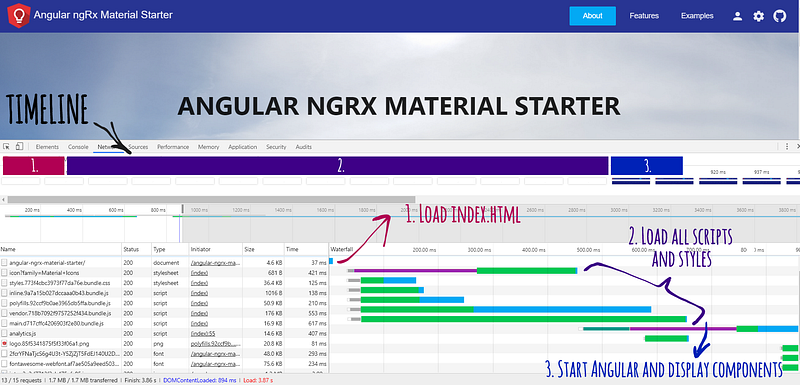
… or if we want to get more verbose…
- Browser requests index.html file and displays its content
- Browser requests all scripts referenced at the end of index.html (styles, inline, polyfills, vendor, main, …)
- Scripts are loaded, parsed and executed
- Angular starts with execution of
platformBrowserDynamic().bootstrapModule(AppModule);statement for Just in Time (JIT) compiler orplatformBrowser().bootstrapModuleFactory(AppModuleNgFactory);statement for Ahead of Time (AoT) compiler - Angular displays app components
This means that there can be considerable amount of time between displaying of index.html content and displaying Angular components after successful Angular app bootstrap.
Browser parses index.html file in top to bottom fashion and Angular CLI injects script tags with bundle references at the end of the body just before the closing </body> tag.
This enables us to provide layout and inline styles in our index.html which will be parsed and rendered straight away even before initiating requests to load our bundle files.
Lets look into how we could implement such styles and layout look in practice…
Follow me on Twitter because I want to be able to let you know about the newest blog posts and interesting frontend stuff
How to style loading before application startup
Our loading animation consist of animated SVG spinner and logo in the middle. It’s implemented using inline style tag in the<head> and loading layout inside of the <app-root> component.
Angular removes content inside of
<app-root></app-root>after successful Angular bootstrap so we don’t have to take care of hiding of the loading layout manually
Cool, we have a spinner but logo is still just a class name on a div tag (<div class=”logo”></div> ) and won’t display anything useful just yet.
Adding Additional styles entry point
The easiest and most “Angular” way to display logo before app bootstrap when using Angular CLI is to add additional styles entry in our angular-cli.json file.
That way we can create new styles-app-loading.scss file in our src folder and set our logo as a background.
🤫 Psst! Do you think that NgRx or Redux are overkill for your needs? Looking for something simpler? Check out @angular-extensions/model library!

Reference or inline assets
We are using additional file for app loading style so that we can reference our logo image as css background. This works very well with Angular CLI which restricts our access to the underlying Webpack configuration.
Referenced logo will get processed by Webpack loader as an asset. This means it will get copied to the dist folder with properly hashed file name for cache busting during the prod build.
In case of very small logo it is better to convert it into base64 string and inline it directly in index.html like this `<img src="data:image/png;base64,...the actual data..." alt="My App Logo">.
This solution displays logo immediately but is not well suited for larger logos because they will bloat size of index.html significantly.
I did that without checking original logo file size and ended up with GitHub project with HTML as the most used language with around 70% share. That’s right it was the inlined logo in my index.html.
Example repository
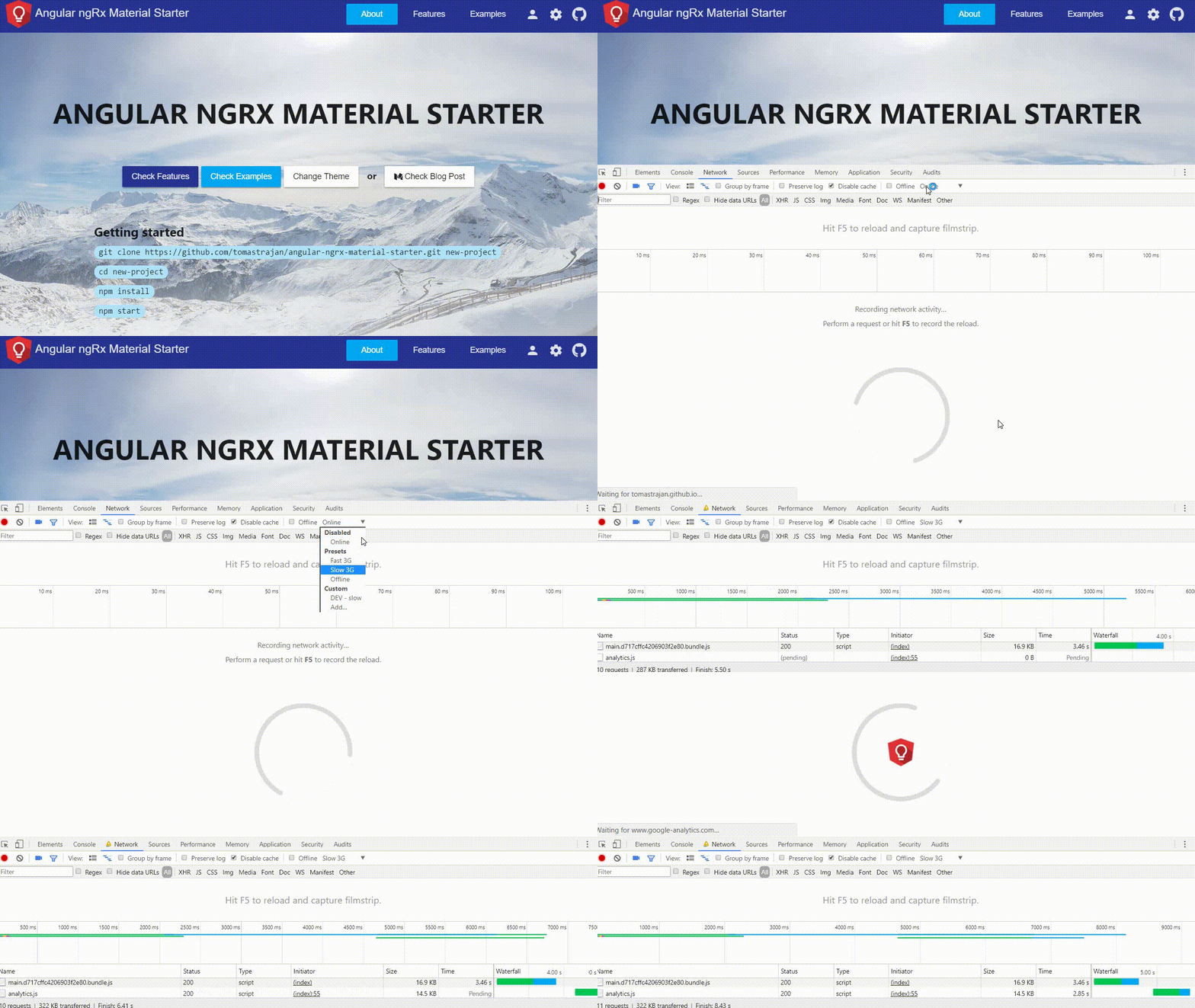
Check out how all of this works in practice in angular-ngrx-material-starter app and repository. To see the loading itself try using Chrome Dev Tools and throttle your network speed to Slow 3G 🐢.
Hooray! We made it!
I hope you found this tutorial helpful and consider implementing it in your app. Please support this article with your 👏 👏 👏 to spread these tips to a wider audience!
Also, feel free to check some other interesting Angular posts…

And never forget, future is bright