
How to Sort Imports in TypeScript Automatically in VS Code
Clean up that mess of imports every time you save in 3 easy steps using the free “TypeScript Import Sorter” extension.

Have you ever thought about how there is no correct or fixed order to use for the import statements in your JavaScript files?
Should you stick the CSS-in-JS module import at the top, or is that where your React imports go? What about internal dependencies?
I’ve been using the great Headwind extension for VS Code to sort my Tailwind CSS class names for a while already, so I was glad to find something similar to handle my import statements in sprawling TypeScript projects.
It’s called the (wait for it) TypeScript Import Sorter and is developed by the great Michael, who I think goes by the one name. Thanks, Mike.
“Extension sorts TypeScript imports according to the configuration provided. The configuration defaults follow ESLint sort-imports rule” — Michael
Honestly, that’s poetry to me, and I immediately sorted everything in a large TypeScript project I was developing.
My favorite part about it is how easy it is to add a new component that I’ve refactored into a new file. I start typing import and immediately get the VS Code TypeScript hint for my component, @/components/Button.
But thanks to the TS Import Sorter extension, there’s an easier way, and all you have to do to use it is save your files in VS Code.
Good to know: the sort order is opinionated
Be warned that this VS Code extension is opinionated, like the amazing Prettier code formatter that hopefully you already use.
Opinionated means that the rules of the sort order have been decided for you, with minimal or no custom configuration options.
I see that as an advantage because there’s no world in which I want to be responsible for choosing the “correct” and “optimal” order of imports.
Let’s let Michael do that for us. Thanks, Mike!
Anyway, it’s easy to get started in less than 2 minutes. Here’s how.
How to sort TypeScript imports in 3 easy steps
Step 1- Install Extension
You can install the extension either from the VS Code Marketplace website or using the VS Code shortcut Ctrl+Shift+X or ⌘+Shift+X.
Step 2- Create import-sorter.json
Assuming you’re already using Prettier, you’ll want to create a file in the root directory of your project called import-sorter.json.
I’d recommend you skip reading the detailed configuration notes, but they’re available if you need them.
Here are the Prettier defaults for the import-sorter.json file:
One other line I’d recommend you’d add would be removing semicolons, because who needs them?
My opinion about semicolons is, “If they’re optional, please turn them off.” If you agree, you’ll want to add one more line to import-sorter.json:
If you prefer semicolons and are about to write a response for me about JavaScript’s Automatic Semicolon Insertion… please, don’t. Thanks. 😄
Step 3- …
Step 4- Profit! (Hit the save button)
Ok, I’m joking, there is one thing left to do. You’ll want to edit your VS Code settings to set importSorter.generalConfiguration.sortOnBeforeSave to true, which will trigger sorting before each save operation.
Then you can sort your imports automatically by just hitting Save (Ctrl+S or ⌘+S), which is what I do. It’s great, and I recommend it.
To sort manually, you will need to open the Command Palette (Ctrl+Shift+P or ⌘+Shift+P) and find the Sort Imports command.
That command can also be used with any custom keybinding (Ctrl+Shift+O or ⌘+Shift+O are the default). But why not just format on save?
But wait, there’s more — directory deep import sorting via the Explorer inside VS Code
There is one more cool feature to mention — you can sort using the Explorer within VS Code (Ctrl+Shift+E or ⌘+Shift+E) by right-clicking on a directory to sort all files within it, recursively.
Just be aware that this “deep operation” (meaning recursive) will sort and rewrite your source files without any prompting, so make sure to back up beforehand with a quick Git commit.
This feature comes in super handy for quickly sorting all of your files, without needing to manually open each one. Then you can do a single Git commit with all of the changes at once.
Sorted TS Import: Before and after code examples
So what happens when you actually run this import sorter on a TypeScript file in VS Code? Take a look.
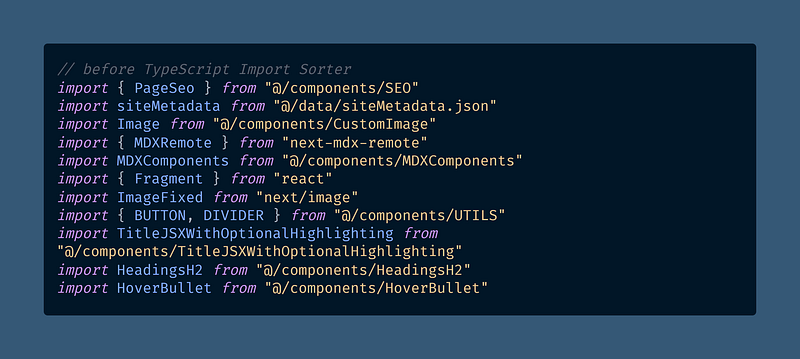
I wasn’t sorting the file before. Inevitably, my newly-developed local components were ending up at the bottom in no particular order.
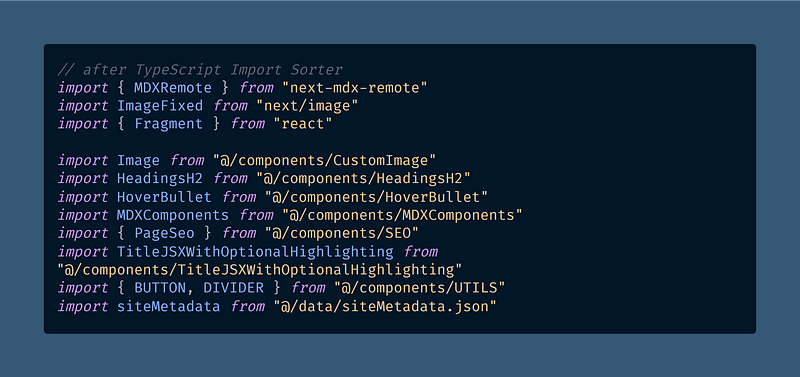
After hitting save, my imports are alphabetized, with a nice empty line between my npm dependencies and my local component library.
Conclusion: You Should Be Sorting Your Imports
The best part about this change is if you’re working on a team — everyone is adding imports in the same order, so your PRs will be easier than ever.
Even if you’re not, though, I’d still recommend you give this (and Headwind, which is the same idea for Tailwind CSS) a try.
This extension cured me of a compulsive need to alphabetize and merge the import statements at the top of my .tsx files.
As a final note, this is an extension only works with TypeScript, which may be a deal-breaker for you. Hey, I get it.
Of course, you could always create a TypeScript project and use all JavaScript files as long as you turn on the allowJS flag, but that won’t give you the same Intellisense benefits as actually switching to TypeScript.
An alternative for JavaScript projects that you don’t want to convert to TypeScript would be the ESLint sort-imports rule.
You can run that with npx eslint --fix . and get similar sorting benefits, but it’s not as convenient as the VS Code extension.
You could also try this alternative import sorter extension, JS/TS Import/Export Sorter, by a man with two names: Zhao DAI.
Thanks Zhao. And thank you for reading.
Happy coding! 👩💻🔤💻🌀📈

Dr. Derek Austin is the author of Career Programming: How You Can Become a Successful 6-Figure Programmer in 6 Months, now available on Amazon.


