
How To Show Your Responses to Medium Stories & Add Images to Responses
Do you pine over not being able to read other writer’s Medium responses to stories?
Like me, do you miss not seeing what stories others clapped for and responded to? I have a theory that taking these away from the desktop PC has put a harpoon in Medium’s bid to be “more relational”, and has dragged away a good source of being relational!
I have been writing and reading on Medium for 2 years now, and like many other people, I would find new writers and I would look at what stories they clapped for, and what they highlighted and responded to.
People are multi-faceted and viewing a writer’s story titles on their Medium homepage doesn’t tell everything about them. How do you know if they have been clapping or responding to or highlighting weird things that you don’t like? Or if they have been responding to stories that you would read if you could?
Responses don’t count as stories which are paid for under the Medium Partner Program, but some responses AKA comments provide really useful or significant information.
Did you know that you can submit a Response you have made, to a Medium Publication that accepts responses to publish?
If you’re a writer for “Curation Matters” and you feel you would like an important response/comment that you’ve made, to be public, please try submitting your Response to “Curation Matters.”
Why would you do this? You would do this for the following reasons.
(1) To give exposure to your Responses, and let others use this source to get to know you better i.e. to be more “relational.”
(2) To give exposure to stories that you respond to, because you support them or you have something valuable or corrective to say in response.
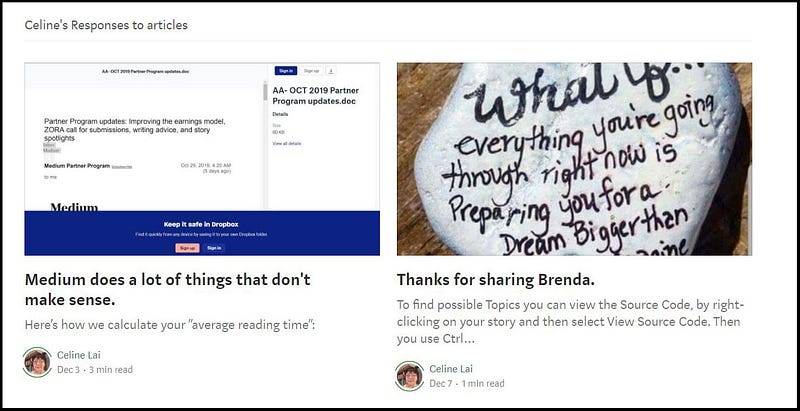
At the time of publishing this article, the following 2 responses above show on “Curation Matters”. It helps to have an image with your responses if you want to publish them. Otherwise your Responses can look un-appealing or weird with just text, sometimes text that doesn’t really make sense on its own.
As you know, a Response is linked to a story or article that it is a response to. With the first example above titled “Medium does a lot of things that don’t make sense”, go to the Curation Matters homepage and scroll down to the bottom and click on the title. Alternatively, just use the link I am providing below.
Here is the direct link to this published Response.
If you click on the link above or on the bold part on the homepage you will be taken to the full Response that I wrote.
You will also see that the phrase “Medium does a lot of things that don’t make sense” is the first sentence in my Response.
My Response shows the title of what I am responding to.
The screenshot below shows that I am responding to a Comment (response) made by J.J. Pryor, which is “Have you see any sources that they use the median and not the mean average?”
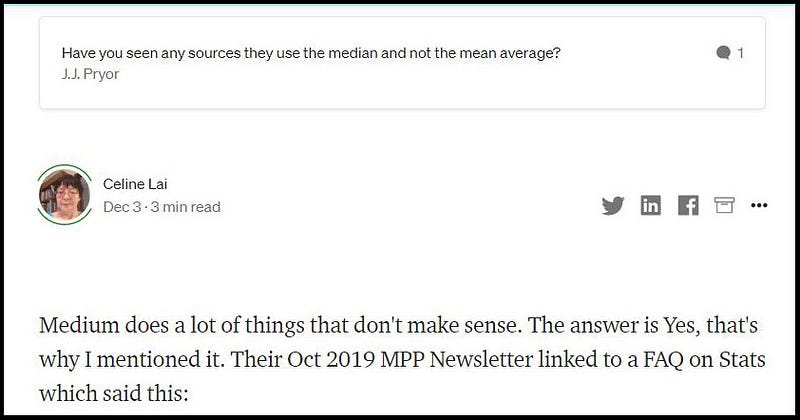
You can track backwards to get to the actual Story that my response relates to. You may have to click a few times via a few published Responses to get to the article, because there may be a chain of several responses.
I am showing the chain of Responses in this thread, one at a time.
If you click on the comment by J.J ( Have you seen any sources …. ) you will see the following. It is a full response by J.J. that I responded to. 😃
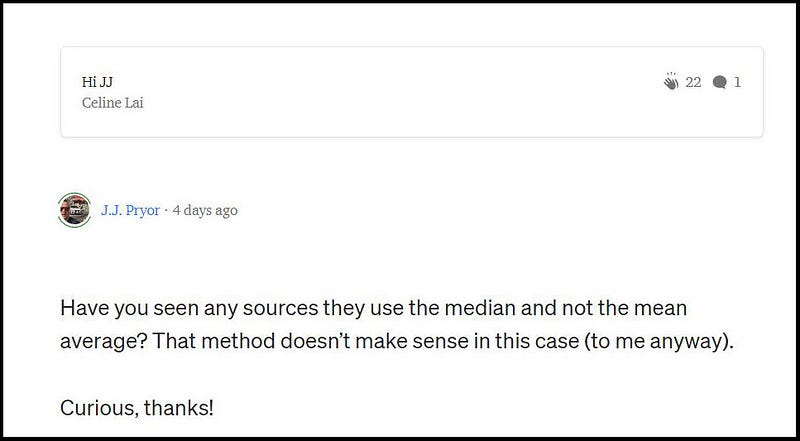
Note that this comment by JJ is a response to a Response that I made to one of his stories.
My Response starts with “Hi JJ”.
Click on Hi JJ and finally, you will see the story title of the initial story being responded to, which is “Your Medium Reads Might Be Down, But Your Reading Time isn’t (Sort of). Clicking on Hi JJ will bring up my full response. It is a clarification of the Medium stat “Average Reading Time.”
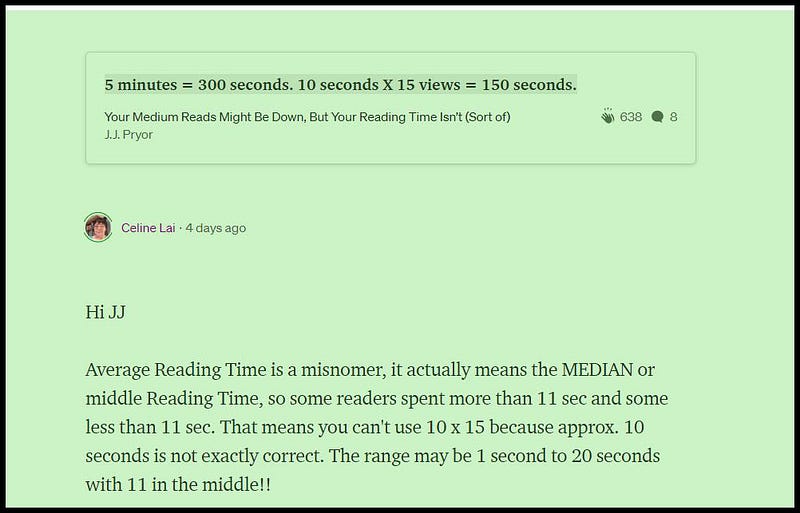
In this case, I highlighted and responded to a statement that J.J. wrote in his story (as he tried to figure out how average reading time figures into MPP calculations).
Clicking on the title of his story, Your Medium Reads Might Be Down, But Your Reading Time isn’t (Sort of) will take you to the story.
Best Practice for Publishing a Response
I’ll walk you through how best to submit a Response to a Publication.
- Find a Response-friendly Publication on Medium, like “Curation Matters” or publish your responses on your OWN Medium Publication if you have one.
- When writing a response which you think would help others if published, format your Response as you would format a Story. Do this by clicking on the little balloon icon to bring up the Response box. Then click on the 3 little dots before you write your response. Click on “Make this response a story.”
- You will see a full-sized blank screen which looks like the template for when you write an actual story.
- Click on the plus next to “Write a response” and the formatting “buttons” or functions will appear.
- Find an image to use for your Response and add it via the Camera icon. You can press the Return key and a + sign appears on the left, which when you click on, gives an option for inserting an image.
- Type in your Response, trying to summarise the content you are responding to, or at least incorporate that content, so that your Response doesn’t look too weird or out-of-place (as a stand-alone post).
- You can add Tags too! This means your Response can be found by someone searching upon the associated Tag name(s). MPP earnings aren’t paid on Responses, but if your Responses/Comments are found, such may lead to the reader going to your Profile page to read your Medium stories.
- Click Publish.
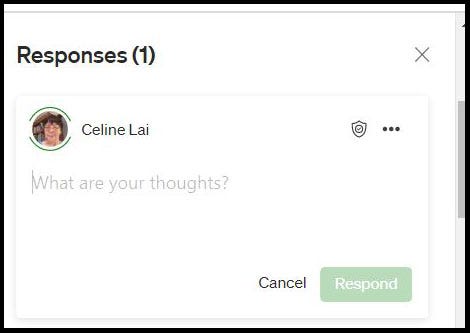
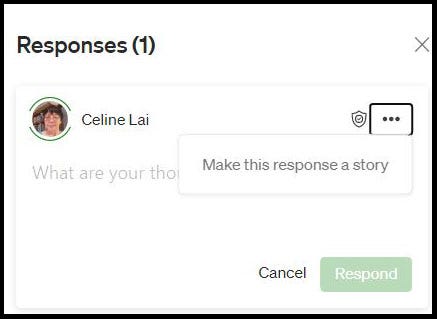


UPDATE: the above no longer works (August 2021) so you have to go to your Stories under your Avatar at top-right of your Medium homepage, then click on Responses. Find your Response and click on the 3 little dots, to EDIT and FORMAT your story. Start a new paragraph to get the formatting options, shown above.
How To Submit Your Published Response to A Publication
Method One
After creating and publishing your Response, go to your Response by looking for it by clicking on Stories under your Avatar, then on Published.
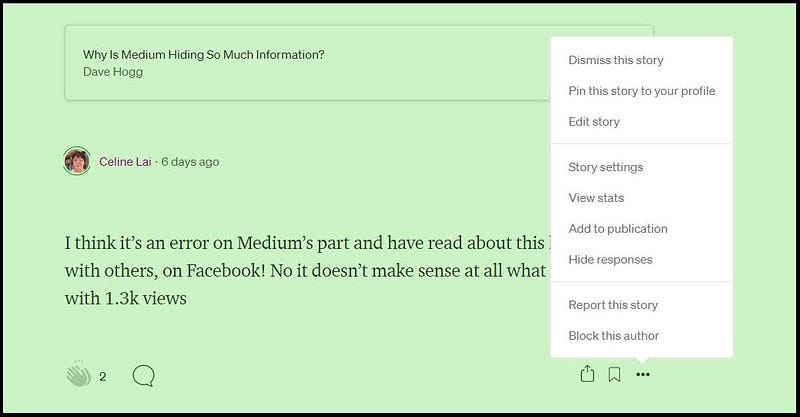
Click on the 3 little dots then on “Add to publication.”
Select the radio button next to the Medium Publication that you want to submit your Response to and click Submit.
Method Two — Note: this no longer works but you can go to your Response/Comment by clicking on Stories under your Avatar and then on “Responses”. Find the Response you want to work with, and click on it.
Another way to submit a Response to a Publication is to go to a Story that you have commented on i.e. responded to.
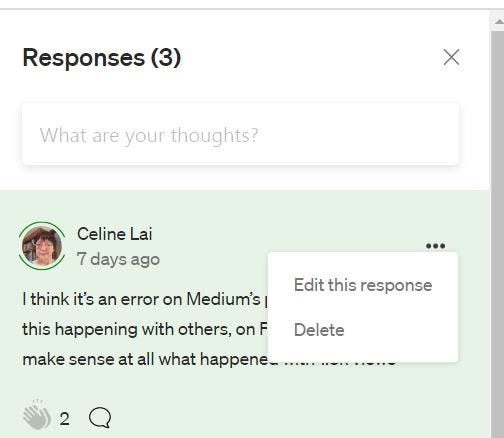
Find your Response by clicking on the little balloon in the left margin.
Click on the 3 little dots.
Click on “Edit this response.”
On the resultant screen, click on the 3 little dots and then on “Make this response a story.”
Edit as necessary, e.g. to add an image or to write a suitable first line.
Click on the 3 little dots and select “Add to publication.”
Click on Submit.
How To Add Responses To Your Own Medium Publication
If you have you own Medium Publication and want to add Responses to a Section on the homepage (as I did for my Publication, Curation Matters), the how-to in my series on how to create a Medium Publication, guides you on how to do this. 😃
You create a Section for “Featured stories” then in your Section, click in the “Choose a story” field under “Next Featured Story”, and type in the Response “title” i.e. type in the first few words of the Response into the “Choose a story” field. When your Response pops up, click on it to add it. Then click SAVE at the bottom. See Part 3 of my series below!
NOTE:
All Responses (as well as actual stories) are called “Stories” in Medium-land currently, and thus both responses and stories appear in the Stories — Published area of a person’s Medium account.
When you click on “Make Response a story” well, guess what? It already is a story! This function should really say “Format your response as a story.”