
How to Set up Game Streaming on your Home Server (Free)

Continuing with our home server setup, today’s focus revolves around transforming your home server into a game-streaming machine. However, it’s important to note that utilizing your home server for game streaming can significantly strain its resources. We must carefully consider the hardware requirements for each game while prioritizing a robust (wired) internet connection to ensure smooth game performance and seamless streaming.
1. Steam Link
Steam Link is an official streaming service by Steam that allows users to play their Steam games on other devices, such as a smartphone, tablet, or smart TV. The service connects a Steam Link app device to a computer running the Steam client. Once connected, the Steam client streams the game’s video and audio to the Steam Link device, and the device’s controls are used to play the game.
The Steam Link app is available for various platforms, including Windows, MacOS, iOS, and Android. You can also use it to play games on a local network or over the internet. To use Steam Link, you’ll need to have the Steam client installed on your computer, and you’ll need to be logged into the same Steam account on both the computer and the Steam Link device.
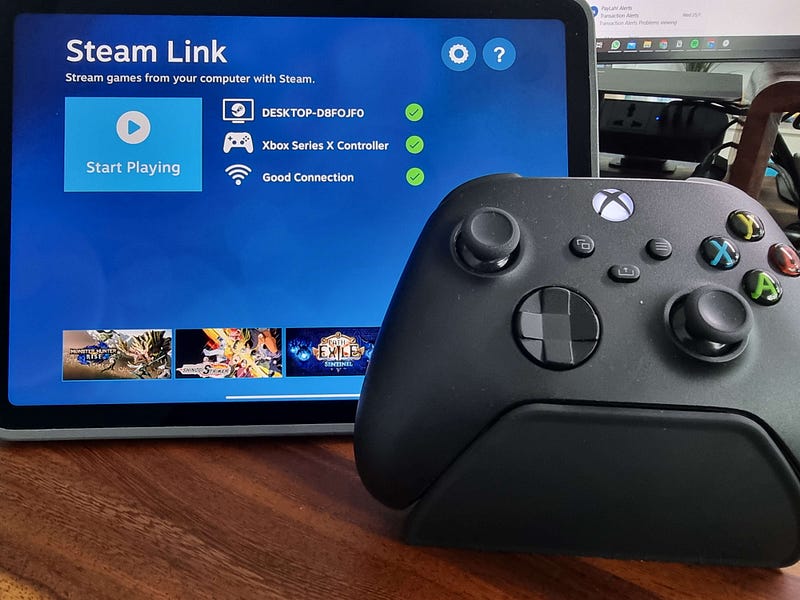
Setting up
Setting up your home server for Steam Link is very straightforward.
- Download the Steam client on your home server
- Download the Steam Link app on your device’s app store.
- Launch Steam on your home server
- Launch the Steam Link on the device
- Connect to the home server in Steam Link (Note, You will have to connect using the same network for the initial setup)
- Connect to a controller
- Start playing

2. Moonlight
Moonlight Game Streaming is a free, open-source implementation of NVIDIA’s GameStream protocol that allows users to stream games from their GameStream-compatible PC to another device over the internet. Similarly to Steam Link, you can stream games over various platforms on a local network or over the internet.
However, since Moonlight utilizes NVIDIA’s GameStream protocol, there is an additional requirement of needing an NVIDIA graphic card. Hosting PC requirements are as follows:
- NVIDIA GeForce GTX/RTX 600+ series GPU, or NVIDIA Quadro GPU (Kepler series or later)
- NVIDIA GeForce Experience (GFE) 2.1.1 or higher, or NVIDIA Quadro Experience
- 720p or higher display (or headless display dongle) connected to the NVIDIA GPU*
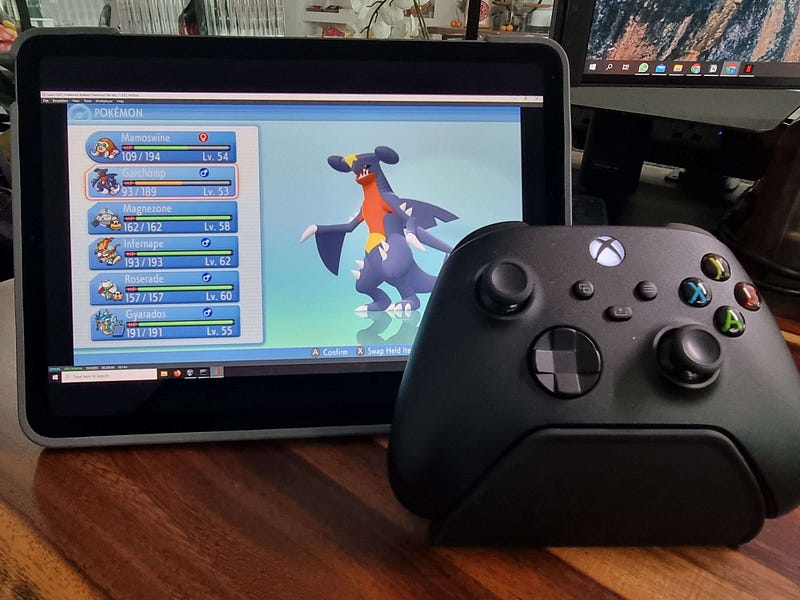
Setting up
Setting up Moonlight requires a bit more work.
- Install GeForce Experience software on your server
- Launch GeForce Experience and turn on Gamestream (setting can be found by clicking the Gear Icon -> Shield)
- Download Moonlight on your device’s app store
- Launch Moonlight. Your server will show up automatically in the list if your device is connected to the same network as the server
- You can now start streaming your game through local network
Stream over the internet
Streaming over the internet requires more configuration as compared to Steam Link. Depending on your network setting, you can choose Option 1 or 2.
Option 1 (Moonlight Hosting)
This is the recommended and the easiest setup process for internet streaming.
- Install the Moonlight Internet Hosting Tool on your server
- Run “Moonlight Internet Streaming Tester” to test if it is working (if not, proceed to Option 2)
Option 2 (ZeroTier)
If your network does not allow port forwarding or you are having difficulties with Option 1, it’s worth trying out ZeroTier to stream your games. You can refer to my ZeroTier setup guide before coming back to configure for Moonlight.
- Enable ZeroTier on your server
- Launch ZeroTier on your device and connect to your home network
- Open Moonlight and click on Add PC
- Enter the ‘Managed IP’ of the server as shown on ZeroTier network page
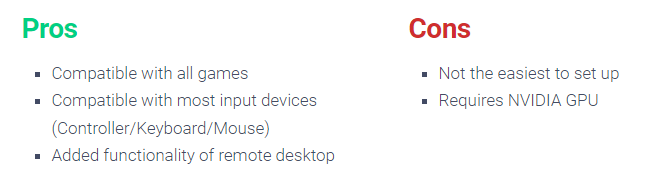
Bonus Functionality (Add Games /Remote Desktop)
If your game does not appear in the Moonlight game list, you can manually add the game exe file in Geforce Experience.
Launch GeForce Experience and navigate to the Shield settings. You should be able to see a ‘ADD’ button below the list of games. Click on the ADD button and navigate to the game exe file to add the game to your list. Similarly, if you want to launch a remote desktop instead of any games, use the path C:\windows\system32\mstsc.exe when adding the program.
Congratulations on leveling up your home server!