
Zsh shell
How to migrate the bash to the zsh shell?
Move your bash PATH and aliases into the zsh shell.
Those who recently moved, switched, or changed their default bash shell to the zsh shell.
The big problem they face, some commands stop working with the z shell.
In this article, I guide you on how to migrate successful bash to zsh shell. If you face a problem with installation, check out my details article on zsh shell installation.
Content
- Back up
- Check out the available PATH in the Bash command
- Oh my zsh framework
- Move all Paths to the zsh shell. ∘ First (Easiest) way ∘ Second way (Recommended)
- Move all aliases to the zsh shell.
- Conclusion
Firstly, find out if your system has .bashrc,.bash_profile and .zshrcfile. Then create a backup of those files.
If you learn more about the zsh startup file, you can follow this article.
Back up
We create a backup because if something is wrong with our system, we can easily switch back to the old configuration.
You can take backup with the cp command, mv command, etc.
# create backup of .bashrc file

cp .bashrc  .bashrc.backup

# create backup of .bash_profile

cp .bash_profile  .bash_profile.backup

# create backup of .zshrc

cp .zshrc  .zshrc.backup
Check out the available PATH in the Bash command.
The next step is to find all available paths in bash.
Firstly, change the zsh shell to the bash shell using thebash command, then run theecho $PATH command; it returns a list of all the available paths in the terminal.
$ bash
rajdeepsingh@officialrajdeepsingh:~$ echo $PATH
/home/rajdeepsingh/.console-ninja/.bin:/usr/local/bin:/home/rajdeepsingh/.surrealdb:/home/rajdeepsingh/.surrealdb:/home/rajdeepsingh/.deno/bin:/home/rajdeepsingh/.bun/bin:/home/rajdeepsingh/.yarn/bin:/home/rajdeepsingh/.config/yarn/global/node_modules/.bin:/home/rajdeepsingh/.deno/bin:/home/rajdeepsingh/.local/share/pnpm:/home/rajdeepsingh/.yarn/bin:/home/rajdeepsingh/.config/yarn/global/node_modules/.bin:/usr/local/sbin:/usr/local/bin:/usr/sbin:/usr/bin:/sbin:/bin:/usr/games:/usr/local/games:/snap/bin:/snap/bin:/home/rajdeepsingh/.local/bin
Select all return paths list and copy them to the clipboard.
Oh my zsh framework
If you install the oh my zsh framework in your system before going to the next section of my article.
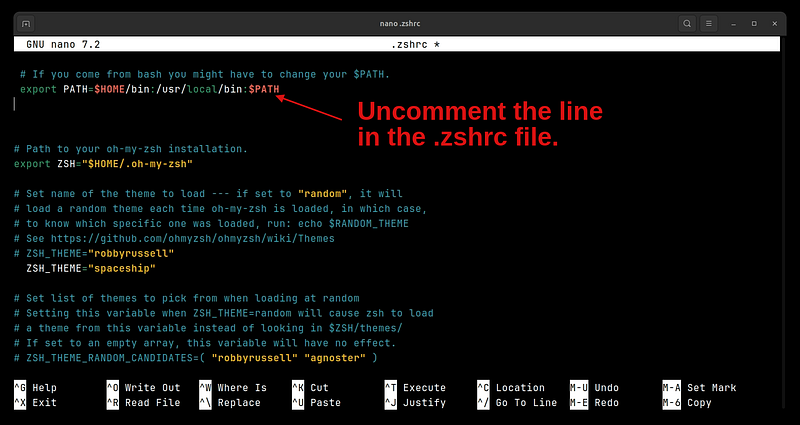
Firstly, uncomment the following configuration in your .zshrcfile.
# If you come from bash you might have to change your $PATH.
export PATH=$HOME/bin:/usr/local/bin:$PATH
Suppose you face any problem after uncommenting the line. You again comment on it.
Move all Paths to the zsh shell.
To move the Bash path in the zsh shell, there are several ways to do that. We discuss two.
- First (Easiest) way
- Second way (Recommended)
First (Easiest) way
Copy all bash PATH returns echo $PATH and then paste them into the .zshrc file.
// .zshrc

# Command Synatx
export PATH=paste-here-all-the-copy-path-without-space

# final result
export PATH =/home/rajdeepsingh/.console-ninja/.bin:/usr/local/bin:/home/rajdeepsingh/.surrealdb:/home/rajdeepsingh/.surrealdb:/home/rajdeepsingh/.deno/bin:/home/rajdeepsingh/.bun/bin:/home/rajdeepsingh/.yarn/bin:/home/rajdeepsingh/.config/yarn/global/node_modules/.bin:/home/rajdeepsingh/.deno/bin:/home/rajdeepsingh/.local/share/pnpm:/home/rajdeepsingh/.yarn/bin:/home/rajdeepsingh/.config/yarn/global/node_modules/.bin:/usr/local/sbin:/usr/local/bin:/usr/sbin:/usr/bin:/sbin:/bin:/usr/games:/usr/local/games:/snap/bin:/snap/bin:/home/rajdeepsingh/.local/bin
You can use any text editor to edit the .zshenv file. I select the nano editor for that. If the .zshenvfile is not in your folder, create it.
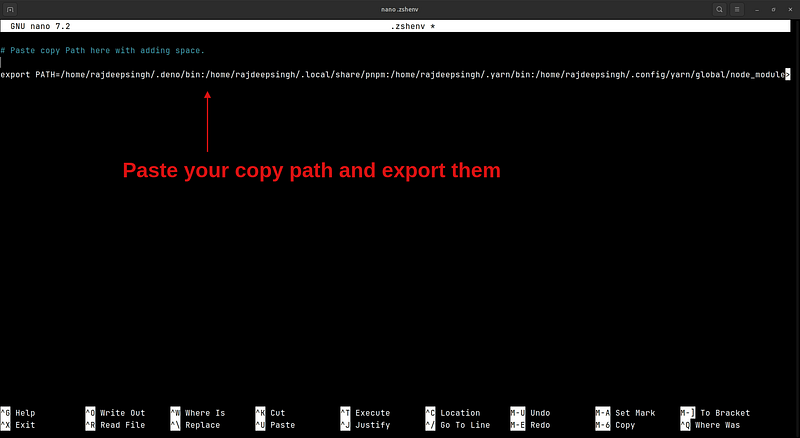
After saving the file, reopen your terminal.
Second way (Recommended)
Open .bashrc and .bash_profile file any text editor, for example, Nano, vim, VS Code, etc. I choose nano to open the file and find the Path variable.
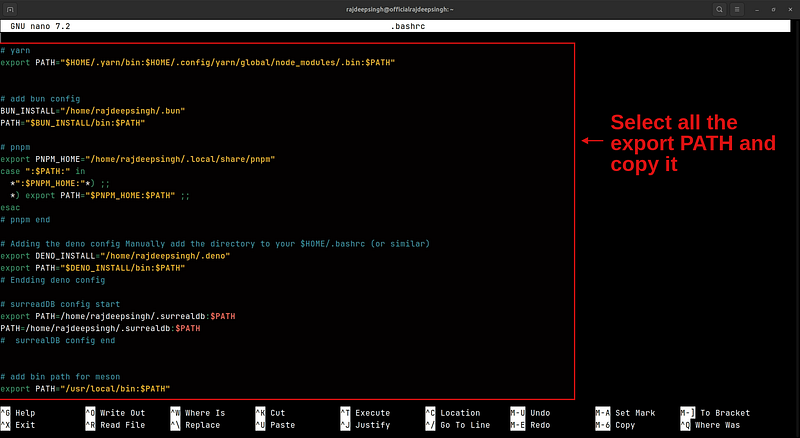
Please select all the PATH and paste them into the .zshenvfile. If the .zshenvfile is not in your folder, create it.
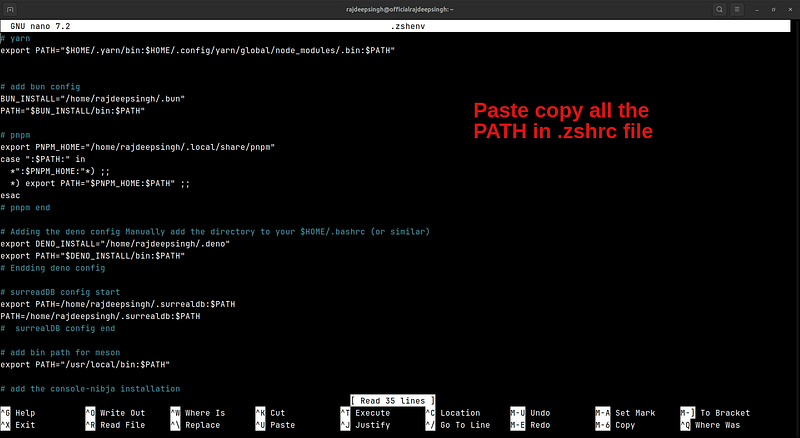
The same method applies to .bash_profile file open any text editor, copy the path, and paste it into .zshenvfile.
Move all aliases to the zsh shell.
You can use the same method for aliases, copy your aliases into bashrc and bash_profile files and then paste them into .zshrc file.
If you have a separate .aliases file in your system. You can easily add an aliases file with the following code in the .zshrc file.
# .zshrc

# paste the aliases file with correct path
source $HOME/.aliases
## Note
Make sure to reopen your terminal on every change in .zshrc and .zshenv files.
Conclusion
Migration bash to the zsh shell is just copy and paste of code, and it is not a hard task. You can easily config all paths in the zsh shell within the mint.
You can share and follow me on Twitter and LinkedIn. I write tons of articles related to frontend development and Linux.
If you are interested in those topics, follow me on Medium, officialrajdeepsingh.dev, join the Linux and frontend web publication, and sign up for my free newsletter.