
Debian
How do you install and set up the zsh shell, my zsh framework, and spaceship prompt theme in Debian?
Latest installation guide (2023) for z shell and configure oh my zsh framework and spaceship prompt theme.
Shell is a command-line interpreter; it provides a command-line user interface for every operating system.
The shell script is a file that contains human-readable text (commands), and text is known as a command.
You can run multiple shell commands with one file and automate the tasks in your system. Like, install x software or update x software in your operating system.
There are many shell command line interpreters like bash, C shell, Emacs, etc. The bash is the most common interpreter.
Check out the full list of available command line interpreters.
Context
· What is Z shell? · How do we check zsh install or not in my system? · How to install Z shell? · Check The Default Shell · Change The Default Shell · How to install the oh my zsh framework? ∘ How to solve the error? ∘ How to install the spaceship-prompt theme in the oh my zsh framework? ∘ Prerequisites ∘ Installation of the spaceship-prompt ∘ Link spaceship-prompt theme with on my zsh framework ∘ Change your default theme with a spaceship-prompt theme ∘ Install Additional plugin ∘ zsh autosuggestions ∘ Zsh syntax highlighting · How do I uninstall Oh my zsh and spaceship-prompt theme? · FAQ ∘ Why can you not install the Oh My Zsh framework and spaceship-prompt theme with the plugin manager? · Conclusion
What is Z shell?
The z shell (zsh shell) is an enhanced version of the Bourne shell, and it gives you more freedom features as compared to bash. For example, You can change the theme, add or remove plugins, Prompts, Custom hooks, etc.
Check out the Z shell feature lists.
How do we check zsh installed or not in my system?
You can check whether or not the zsh shell is already installed on your computer. You can check with the following command.
$ zsh --version
It does not install in your system if it shows an error message in your terminal. Otherwise, it returns the version that is already installed in your system.
rajdeepsingh@officialrajdeepsingh:~$ zsh --version
Command 'zsh' not found, but can be installed with:
sudo apt install zsh
How to install Z shell?
The process of zsh shell(z shell) installation is straightforward, You need to copy the following command and paste it into your terminal.
sudo apt install zsh
The sudo command asks you for the root password; enter the password, and your zsh installation start.
rajdeepsingh@officialrajdeepsingh:~$ sudo apt install zsh
Reading package lists... Done
Building dependency tree... Done
Reading state information... Done
The following additional packages will be installed:
  libpcre3 zsh-common
Suggested packages:
  zsh-doc
The following NEW packages will be installed:
  libpcre3 zsh zsh-common
0 upgraded, 3 newly installed, 0 to remove and 11 not upgraded.
Need to get 5,231 kB of archives.
After this operation, 19.8 MB of additional disk space will be used.
Do you want to continue? [Y/n] y
Get:1 http://in.archive.ubuntu.com/ubuntu lunar/main amd64 libpcre3 amd64 2:8.39-15 [250 kB]
Get:2 http://in.archive.ubuntu.com/ubuntu lunar/main amd64 zsh-common all 5.9-4 [4,171 kB]
Get:3 http://in.archive.ubuntu.com/ubuntu lunar/main amd64 zsh amd64 5.9-4 [809 kB]
Fetched 5,231 kB in 8s (625 kB/s)
Selecting previously unselected package libpcre3:amd64.
(Reading database ... 240437 files and directories currently installed.)
Preparing to unpack .../libpcre3_2%3a8.39-15_amd64.deb ...
Unpacking libpcre3:amd64 (2:8.39-15) ...
Selecting previously unselected package zsh-common.
Preparing to unpack .../zsh-common_5.9-4_all.deb ...
Unpacking zsh-common (5.9-4) ...
Selecting previously unselected package zsh.
Preparing to unpack .../archives/zsh_5.9-4_amd64.deb ...
Unpacking zsh (5.9-4) ...
Setting up zsh-common (5.9-4) ...
Setting up libpcre3:amd64 (2:8.39-15) ...
Setting up zsh (5.9-4) ...
Processing triggers for man-db (2.11.2-1) ...
Processing triggers for debianutils (5.7-0.4) ...
Processing triggers for libc-bin (2.37-0ubuntu2) ...
After the installation process is done, to verify whether the zsh is installed or not, then run the following command in your terminal.
rajdeepsingh@officialrajdeepsingh:~$ zsh --version
zsh 5.9 (x86_64-ubuntu-linux-gnu)
For the first time, you run the zsh command in your terminal, you see a long message by the zsh command. The error should occur because the zsh command can not find .zshrc, .zshenv, .zprofile and .zloginfiles.
To solve this issue, type 0 and hit enter and the error should be gone.
Check The Default Shell
If you want to check which shell you use by default in your system. Most of the time, bash is the default shell interpreter in the Linux world.
echo $SHELLThe following command tells you what is your default shell.
rajdeepsingh@officialrajdeepsingh:~$ echo $SHELL
bash
Change The Default Shell
You can easily change the default shell in your system with achsh command. Chsh (change login shell) command is used to change the user login shell.
$ chsh
You can run the chsh command with any argument; in the end, the chsh command shows the available shells, and in the end, the chsh command asks you to enter the path of the available shell you enter the zsh path in prompts.
rajdeepsingh@officialrajdeepsingh:~$ chsh
Password:
Changing the login shell for rajdeepsingh
Enter the new value, or press ENTER for the default
 Login Shell [/bin/bash]: /bin/zsh
rajdeepsingh@officialrajdeepsingh:~$
After changing the default shell, reboot your system.
sudo reboot now
How to install the oh my zsh framework?
The oh my zsh is a framework based on the zsh shell. It comes with many built-inbuilt plugins and themes. Some plugins are preinstalled in the oh my zsh framework.
You can easily install, remove and config the plugins and theme in the oh my zsh framework.
You can install the Oh my zsh framework in one command.
# Curl
sh -c "$(curl -fsSL https://raw.githubusercontent.com/ohmyzsh/ohmyzsh/master/tools/install.sh)"

# Wget
sh -c "$(wget https://raw.githubusercontent.com/ohmyzsh/ohmyzsh/master/tools/install.sh -O -)"
I choose the curl command for installation. The command looks like this.
officialrajdeepsingh% sh -c "$(curl -fsSL https://raw.githubusercontent.com/ohmyzsh/ohmyzsh/master/tools/install.sh)"

Cloning Oh My Zsh...
remote: Enumerating objects: 1340, done.
remote: Counting objects: 100% (1340/1340), done.
remote: Compressing objects: 100% (1291/1291), done.
remote: Total 1340 (delta 28), reused 1138 (delta 25), pack-reused 0
Receiving objects: 100% (1340/1340), 1.99 MiB | 738.00 KiB/s, done.
Resolving deltas: 100% (28/28), done.
From https://github.com/ohmyzsh/ohmyzsh
 * [new branch]      master     -> origin/master
branch 'master' set up to track 'origin/master'.
Already on 'master'
/home/rajdeepsingh

Looking for an existing zsh config...
Found /home/rajdeepsingh/.zshrc. Backing up to /home/rajdeepsingh/.zshrc.pre-oh-my-zsh
Using the Oh My Zsh template file and adding it to /home/rajdeepsingh/.zshrc.

         __                                     __
  ____  / /_     ____ ___  __  __   ____  _____/ /_
 / __ \/ __ \   / __ `__ \/ / / /  /_  / / ___/ __ \
/ /_/ / / / /  / / / / / / /_/ /    / /_(__  ) / / /
\____/_/ /_/  /_/ /_/ /_/\__, /    /___/____/_/ /_/
                        /____/                       ....is now installed!

Before you scream Oh My Zsh! look over the `.zshrc` file to select plugins, themes, and options.

• Follow us on Twitter: @ohmyzsh
• Join our Discord community: Discord server
• Get stickers, t-shirts, coffee mugs and more: Planet Argon Shop
If you face an error: failed to connect to raw.githubusercontent.com port 443
officialrajdeepsingh% sh -c "$(curl -fsSL https://raw.githubusercontent.com/ohmyzsh/ohmyzsh/master/tools/install.sh)"

curl: (28) Failed to connect to raw.githubusercontent.com port 443 after 129372 ms: Couldn't connect to server
officialrajdeepsingh% ping raw.githubusercontent.com
How to solve the error?
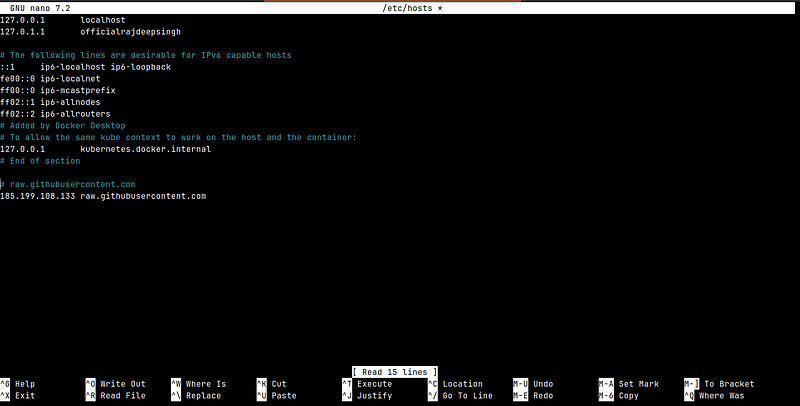
First, open the /etc/hosts file with any text editor like Vim, Nano, VS Code, etc.
sudo nano /etc/hosts
After opening, you paste the following code into the/etc/hosts file.
# raw.githubusercontent.com
185.199.108.133 raw.githubusercontent.com
After pasting the code, look like this.
Your error is gone, and now you can easily install the oh my zsh framework in your system.
How to install the spaceship-prompt theme in the oh my zsh framework?
The spaceship-prompt theme is a minimalistic, powerful, and extremely customizable Zsh prompt.
Prerequisites
- Zsh(v5.2 or recent) must be installed.
- Power line Font or Nerd Font (even better) must be installed. To check if the Font works for you, To test the font, run the following command:
$ echo -e "\xee\x82\xa0"Command Output looks like.
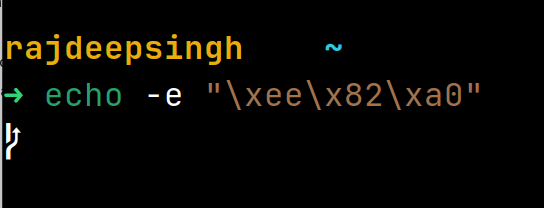
Everything is fine if the command successfully returns the GitHub branch icon.
Otherwise, install one of Power line Font or Nerd Font in your system and check the font preference configuration in your terminal.
Steps
- Installation of the spaceship-prompt
- Link spaceship-prompt theme with on my zsh framework
- Change your default theme with a spaceship-prompt theme
- Install Additional plugin
Installation of the spaceship-prompt
To install the spaceship-prompt theme with oh my zsh framework, then run the following command.
git clone https://github.com/spaceship-prompt/spaceship-prompt.git "$ZSH_CUSTOM/themes/spaceship-prompt" --depth=1Command output looks like this.
➜  ~ git clone https://github.com/spaceship-prompt/spaceship-prompt.git "$ZSH_CUSTOM/themes/spaceship-prompt" --depth=1

Cloning into '/home/rajdeepsingh/.oh-my-zsh/custom/themes/spaceship-prompt'...
remote: Enumerating objects: 402, done.
remote: Counting objects: 100% (402/402), done.
remote: Compressing objects: 100% (307/307), done.
remote: Total 402 (delta 119), reused 191 (delta 82), pack-reused 0
Receiving objects: 100% (402/402), 2.34 MiB | 596.00 KiB/s, done.
Resolving deltas: 100% (119/119), done.
Link spaceship-prompt theme with on my zsh framework
After downloading complete, Link the spaceship prompt with the Oh My Zsh framework.
ln -s "$ZSH_CUSTOM/themes/spaceship-prompt/spaceship.zsh-theme" "$ZSH_CUSTOM/themes/spaceship.zsh-theme"Change your default theme with a spaceship-prompt theme
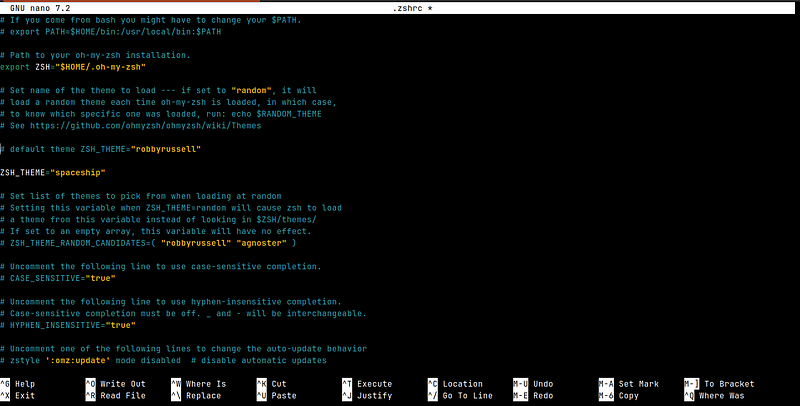
The last setup is to change or config the spaceship prompt theme with your in your .zshrc file.
# .zshrc

ZSH_THEME="spaceship"
You can choose any text editor like Nano, vim, VS Code, etc. I use the Nano text editor.
$ nano .zshrc
Your .zshrc file looks like this.
Install Additional plugin
You need to install an additional plugin in your system to enhance the working experience with the oh my zsh framework.
There are a bunch of plugins available for zsh. Check out the available plugin list.
Popular plugin
zsh autosuggestions
The zsh autosuggestions plugin gives you command suggestions when you start typing commands based on history.
You can install the zsh-autosuggestions plugin with the following command.
git clone https://github.com/zsh-users/zsh-autosuggestions ${ZSH_CUSTOM:-~/.oh-my-zsh/custom}/plugins/zsh-autosuggestionsThe command output looks like this.
rajdeepsingh in ~ …
➜ git clone https://github.com/zsh-users/zsh-autosuggestions ${ZSH_CUSTOM:-~/.oh-my-zsh/custom}/plugins/zsh-autosuggestions
Cloning into '/home/rajdeepsingh/.oh-my-zsh/custom/plugins/zsh-autosuggestions'...
remote: Enumerating objects: 2460, done.
remote: Counting objects: 100% (75/75), done.
remote: Compressing objects: 100% (52/52), done.
remote: Total 2460 (delta 36), reused 50 (delta 21), pack-reused 2385
Receiving objects: 100% (2460/2460), 571.83 KiB | 99.00 KiB/s, done.
Resolving deltas: 100% (1567/1567), done
Zsh syntax highlighting
The ssh-syntax-highlighting plugin high light the command syntax for the shell zsh. Your terminal look like more colour full.
You can install the zsh-syntax-highlighting plugin with the following command.
git clone https://github.com/zsh-users/zsh-syntax-highlighting.git ${ZSH_CUSTOM:-~/.oh-my-zsh/custom}/plugins/zsh-syntax-highlightingCommand output in the terminal looks like this.
➜  ~ git clone https://github.com/zsh-users/zsh-syntax-highlighting.git ${ZSH_CUSTOM:-~/.oh-my-zsh/custom}/plugins/zsh-syntax-highlighting
Cloning into '/home/rajdeepsingh/.oh-my-zsh/custom/plugins/zsh-syntax-highlighting'...
remote: Enumerating objects: 7041, done.
remote: Counting objects: 100% (128/128), done.
remote: Compressing objects: 100% (71/71), done.
remote: Total 7041 (delta 63), reused 84 (delta 51), pack-reused 6913
Receiving objects: 100% (7041/7041), 1.52 MiB | 362.00 KiB/s, done.
Resolving deltas: 100% (4738/4738), done.
How do I uninstall Oh my zsh and spaceship-prompt theme?
To remove the spaceship-prompt theme, you must delete the .oh-my-zsh/custom/themes folder in your system.
sudo rm -R .oh-my-zsh/custom/themesTo remove everything related to the oh my zsh framework, you need to remove the .oh-my-zsh folder in your system.
sudo rm -R .oh-my-zshFAQ
Why can you not install the Oh my zsh framework and spaceship-prompt theme with the plugin manager?
You install the Oh My Zsh framework and spaceship-prompt theme with the zsh plugin manager, and bunches of plugin managers are available on the internet. For example, antigen, antibody, antidote, etc.
Every plugin manager comes with its advantages and disadvantages. But zsh has tons of plugin managers, which creates confusion about which is best in stability and permanence, etc.
To avoid confusion and problems, I installed the Oh My Zsh framework and spaceship-prompt theme without any zsh plugin manager. I never face any issues when I install the zsh plugin theme without any problem.
Going without a plugin manager is an excellent choice if you install a few plugins. If you install multiple plugins in your system, use the plugin manager.
Conclusion
Zsh and oh my zsh framework is a great productive tool for Linux developers or those who work with the command line.
Suppose you use zsh shell without the use of oh my zsh framework. Then zsh is not for you.
If you feel the power of zsh and oh my zsh framework. Then install both software. It is to give you the best user experience in your terminal.
You can share and follow me on Twitter and LinkedIn. I write tons of articles related to frontend development and Linux.
If you are interested in those topics, follow me on Medium, officialrajdeepsingh.dev, join the Linux and frontend web publication, and sign up for my free newsletter.


