
How to Make YouTube Links Show Up As A Thumbnail on Medium with JavaScript
A quick and easy function to ensure all links show up as a thumbnail!

I was recently working on a blog post about various meditations that I’ve come to really like over the last few years when I realized that all of the links I had saved in my Notes app on my phone wouldn’t come up as links in my post.
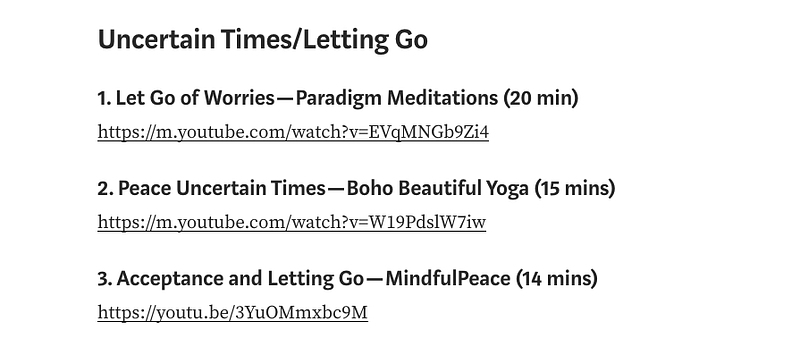
Usually, when I press Enter after a link, if a thumbnail is available it will appear in a few seconds. But for some reason, these links were only showing up as the link itself — no thumbnail formatting.
What I did notice was that if I copy/pasted the link I had in the post, into my browser on my laptop, the link would change. It would look something like https://www.youtube.com/watch?app=desktop&v=EVqMNGb9Zi4. Now, after copy/pasting the new link from the browser into my blog post, the thumbnail would appear almost instantly after clicking Enter.
Rather than have to do this whole copy/paste bit for all of my links (of which I had more than 30), I decided to create a function in my console that would handle the conversion. And now you can use it too!
Below is the function you will be using to convert your links.
const convertLinks = (links) => {
  var finalLinks = ""
  var thumbFormat = "https://www.youtube.com/watch?app=desktop&v="
    links.forEach(link=>{
      var hash = link.split(/v\=/)[1]
      finalLinks += thumbFormat + hash + "\n"
    })
  console.log(finalLinks);
}
Let’s break it down. First, the function will accept an array of strings — these strings will be the URL’s you already have.
Next, we loop over the array of provided links and isolate the video hash (comes after the v=). We can isolate the hash by making use of the split method. Since = is a reserved character, in order to use it in our regex statement we have to add a backslash in front of it.
After that, we construct our new link that will render with the thumbnail in our medium post. We do this by appending the hash to thumbFormat. To make things easier on the user, I added a newline at the end (\n). This way each new link will appear on its own line within the string when we do the last part of the function.
The last part of the function is simply to console.log the result. Let’s see it in action! First, declare a variable that’s an array of links.
var myLinks = [
  "https://m.youtube.com/watch?v=hwtRJEtJbZ0",
  "https://m.youtube.com/watch?v=y6mPFlPV1IE",
  "https://m.youtube.com/watch?v=lBGtFICU3Rg",
  "https://www.youtube.com/watch?app=desktop&v=kC6so_Z5mGg"
]

// the last one is a test to ensure the function
// works with different link formats
Copy/paste the above variable into your console. After you’ve done that, copy paste the convertLinks function in your console. Once you’ve done that, copy paste the below line.
convertLink(myLinks)You should see the below result.
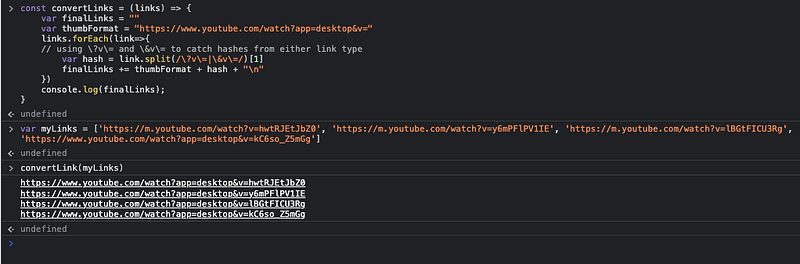
Now, if you copy all of those links and paste them into your Medium post, and click enter after each one, you should see the thumbnail appear in your post!
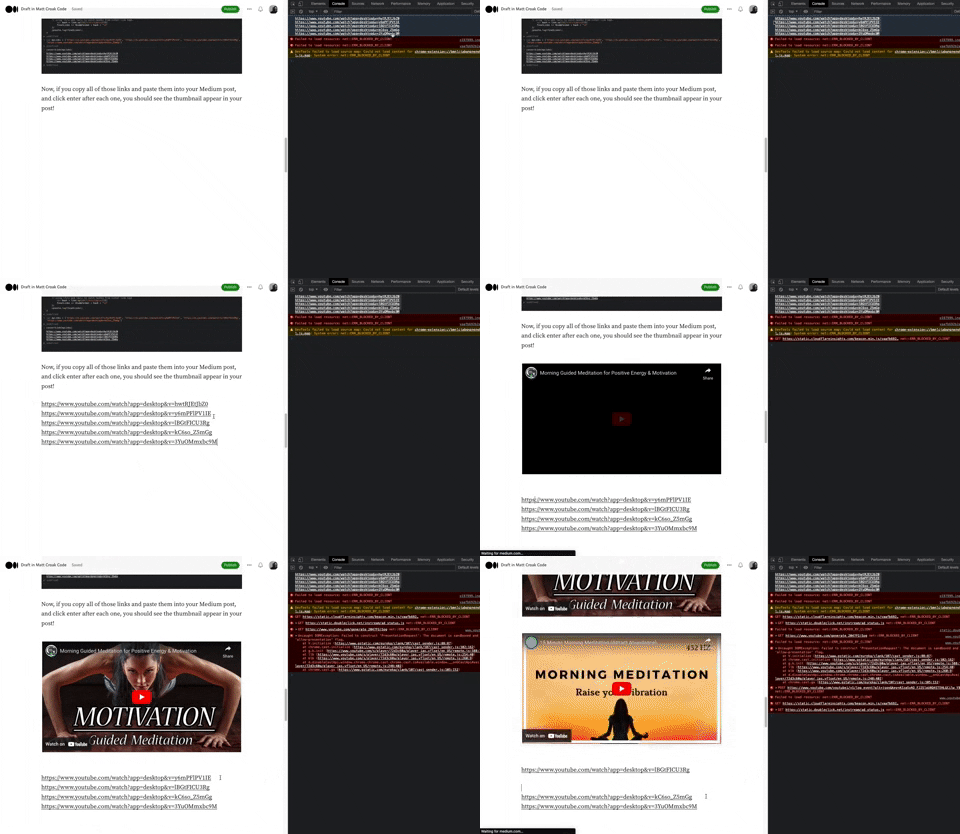
Bonus
There’s one last caveat you might have noticed. Look at the links in the first pic of this post. The last one, doesn’t have a v= in it. It also has a different domain name. See two URLs below for comparison.
// First link in myLinks
"https://m.youtube.com/watch?v=hwtRJEtJbZ0"

// Last link in first picture
"https://youtu.be/3YuOMmxbc9M"
How can we account for a link like the second one in our function? We can either do two separate split statements like the below.
var hash = link.split(/v\=/)[1] ?? link.split(/youtu.be\//)[1]Or, we can actually include two conditions in our original regex. See below.
var hash = link.split(/v\=|youtu.be\//)[1]I like the second one as it’s a bit more concise. Add it to your function.
const convertLinks = (links) => {
  var finalLinks = ""
  var thumbFormat = "https://www.youtube.com/watch?app=desktop&v="
    links.forEach(link=>{
      var hash = link.split(/v\=|youtu.be\//)[1]  // added it here
      finalLinks += thumbFormat + hash + "\n"
    })
  console.log(finalLinks);
}
Now update your myLinks value to include a link with the new formatting.
var myLinks = [
  "https://m.youtube.com/watch?v=hwtRJEtJbZ0",
  "https://m.youtube.com/watch?v=y6mPFlPV1IE",
  "https://m.youtube.com/watch?v=lBGtFICU3Rg",
  "https://www.youtube.com/watch?app=desktop&v=kC6so_Z5mGg",
  "https://youtu.be/3YuOMmxbc9M"
]
Now test your it out in your console!

Viola! Your function now works with a few different kinds of links and you should see nothing but thumbnails now!
Do you know why the original links wouldn’t render the thumbnail? Do you now more about YouTube video URLs? Let me know in the comments!
Upgrade your free Medium membership and receive unlimited, ad-free, stories from thousands of writers on a wide variety of publications. This is an affiliate link and a portion of your membership helps me be rewarded for the content I create.
You can also subscribe via email and get notified whenever I post something new!