
How to Make a Paperback Book
Professional paperback

“I shaved this morning for precisely that reason. I was like, ‘Well, you never know when someone is going to clamp down on your calf and try to suck out the snake poison.” ― John Green
Assuming you have an e-book published at kindle direct publishing. View your e-book. Then choose “Create Paperback.”
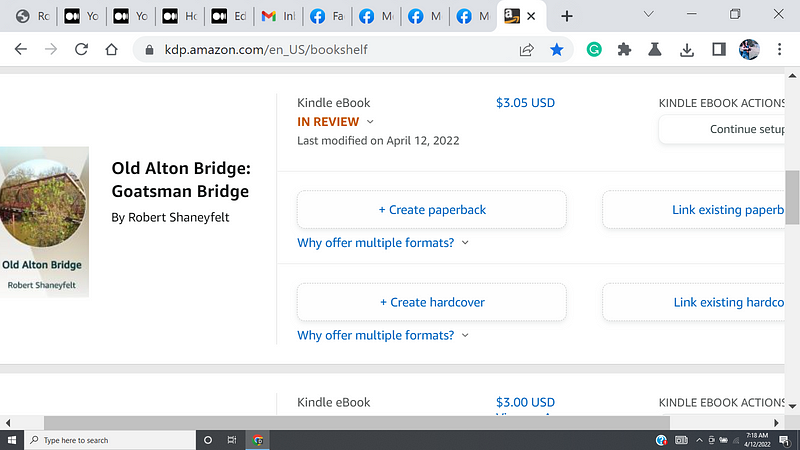
Fill out the prompts at the page you are directed to. When finished choose “Save and Continue.”
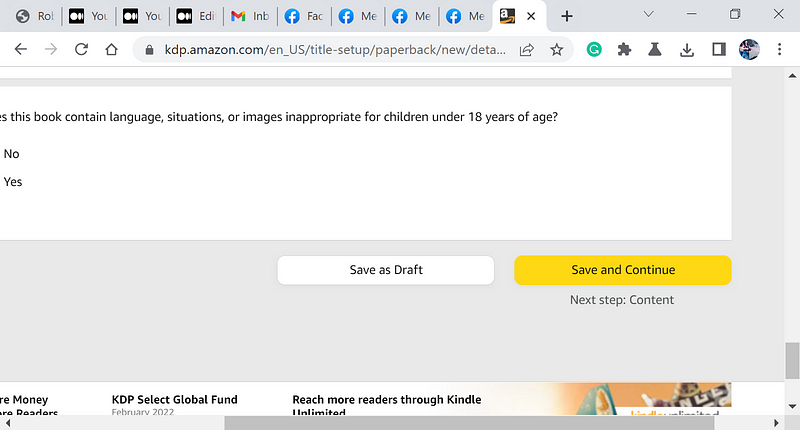
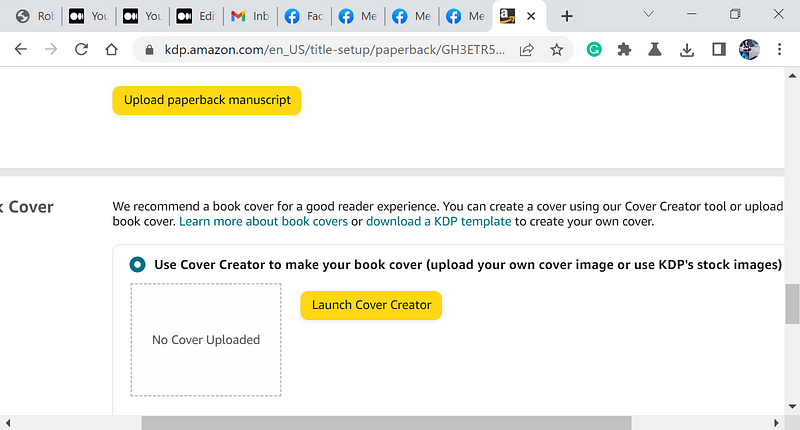
Fill out the prompts for the next page. For the prompt “Upload paperback manuscript”, upload the same .kdf file you used for your e book. (The file generated from kindle create.)
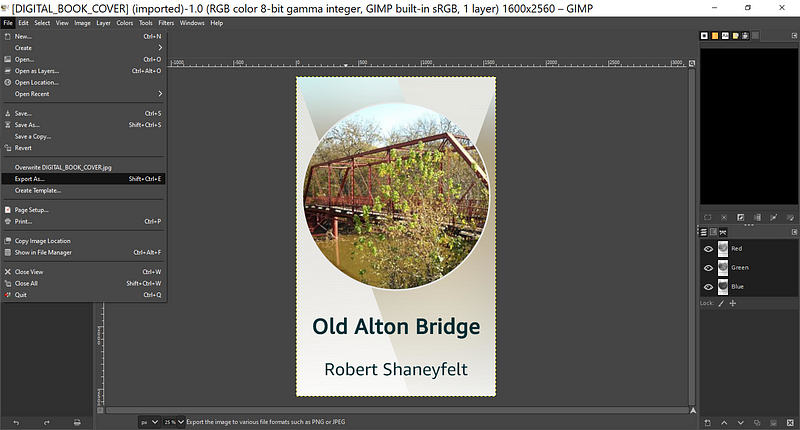
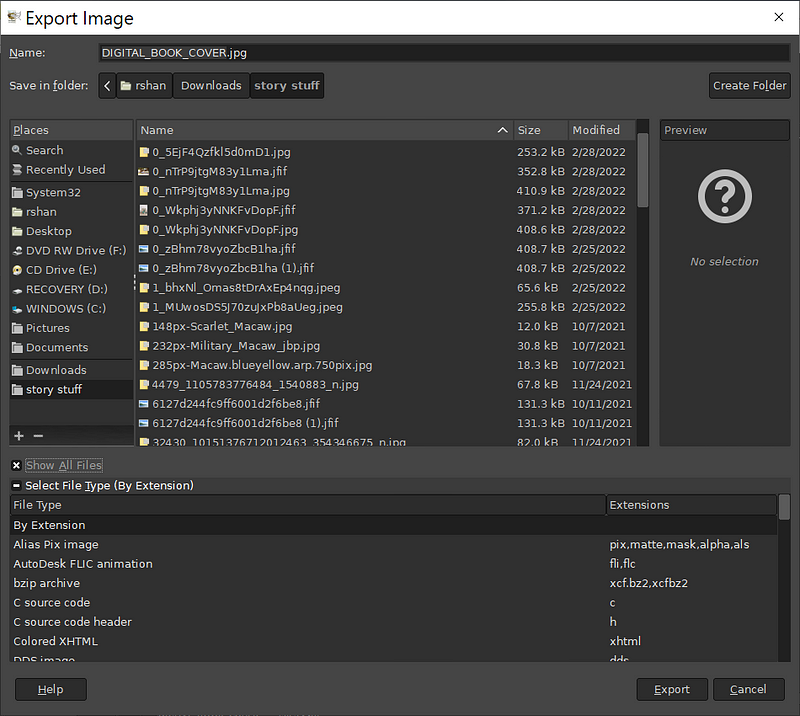
I used an open-source tool called the gimp to convert my front cover JPEG file into a PDF file.
Open your jpeg file in the gimp, then export it as a PDF file.
Then choose to upload your cover file. Select your converted PDF file to upload.
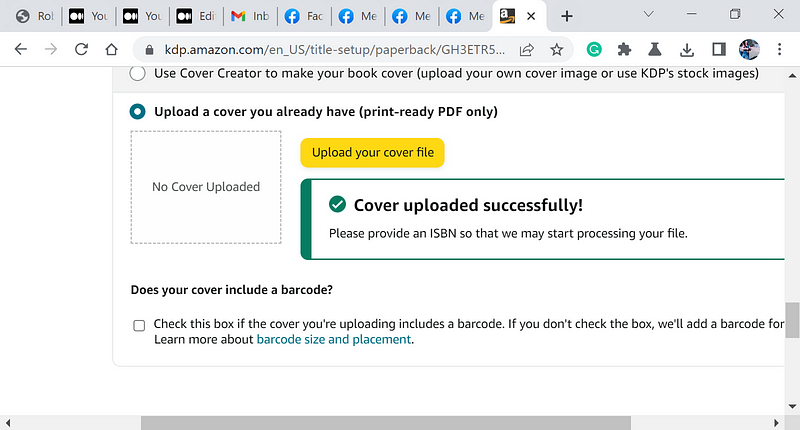
Scroll down to the bottom of the page and choose “Save and continue.” Paperback submission guidelines.
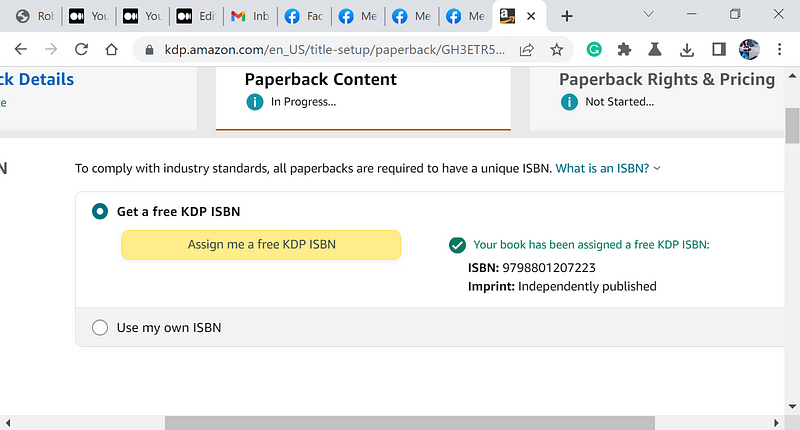
I was doing this from my HP laptop. When I tried to preview I got a message that my display was too small, I decreased the magnification of my browser from 90% to 40% and the error went away. Select save, and you will be presented with the above message.
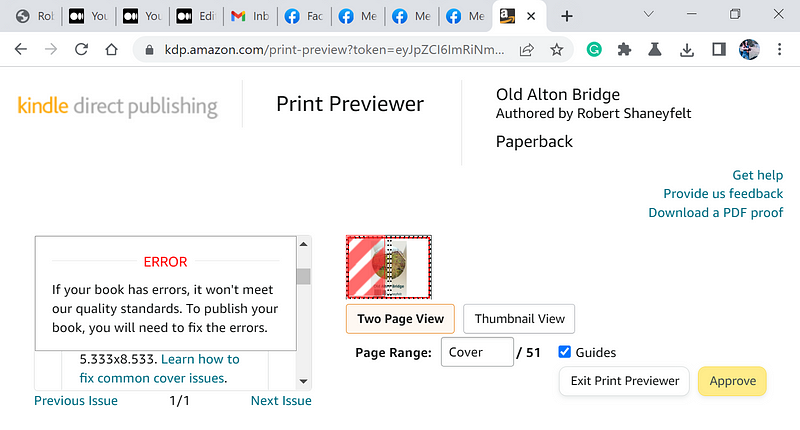
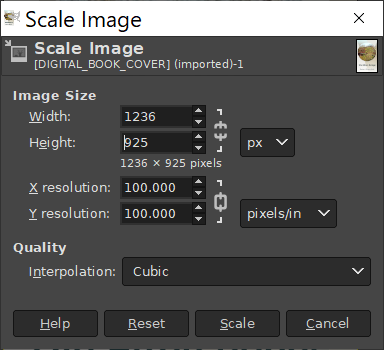
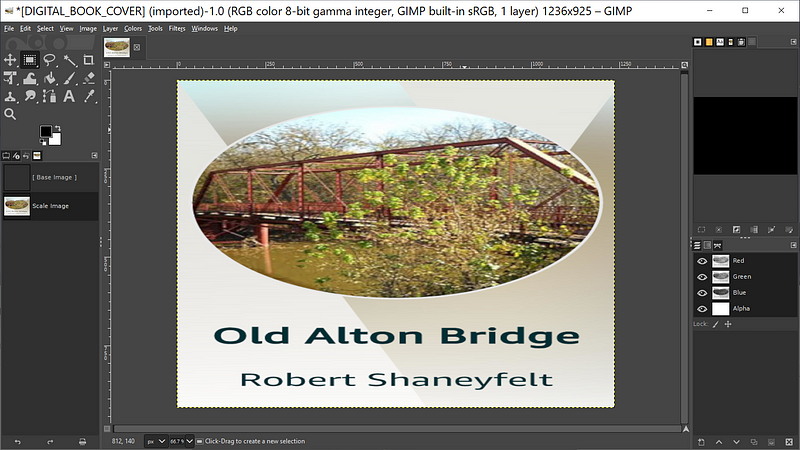
I had cover errors. The error stated that the expected cover size was 12.363 x 9.256, but the submitted file was 5.333 × 8.533. So, I changed my cover size using the gimp graphic manipulation tool. I provided the free download site to gimp earlier.
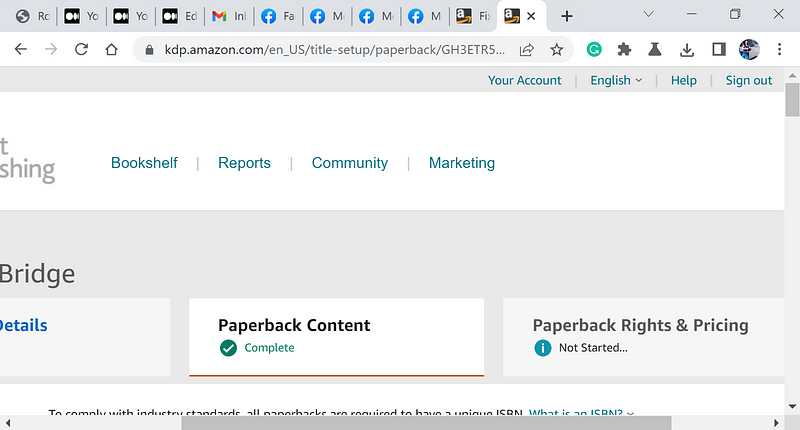
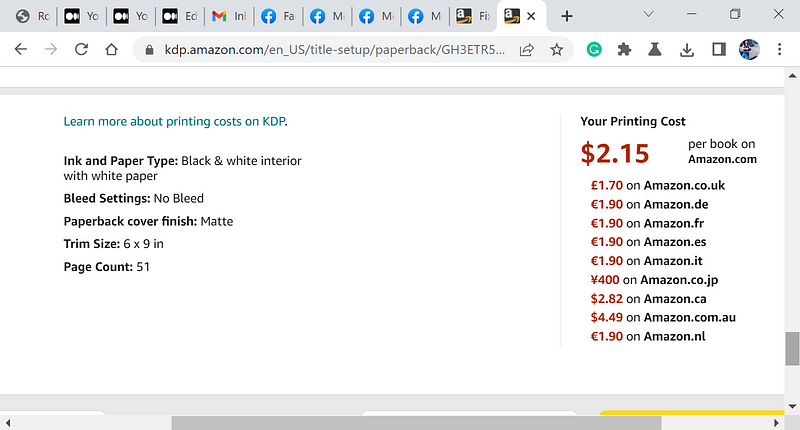
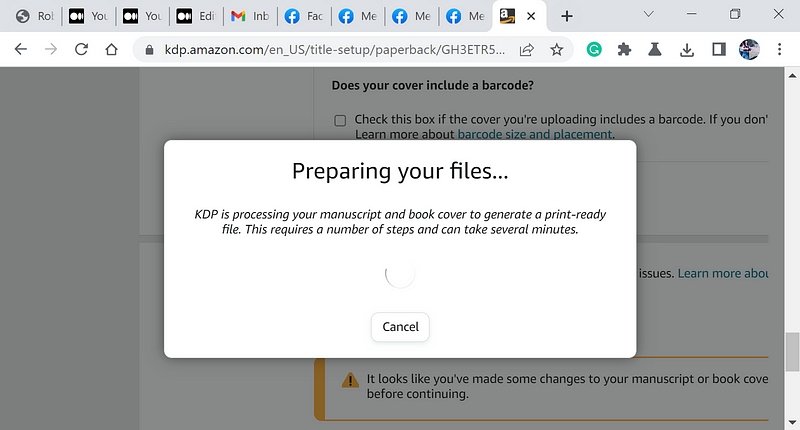
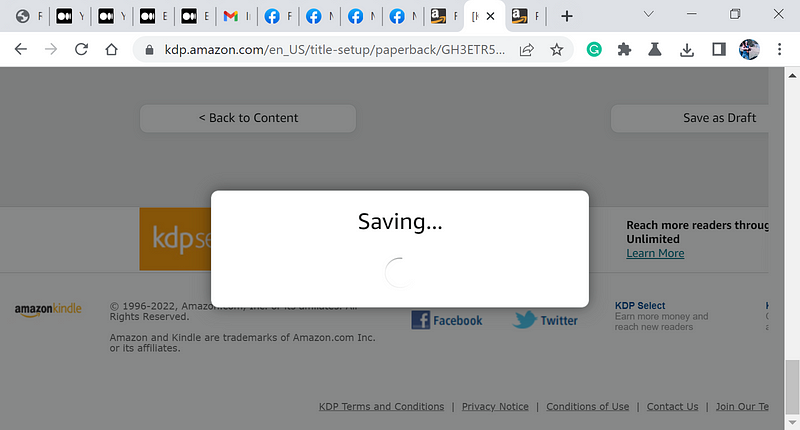
After hitting the “save and continue” bottom at the bottom of the above display, I received the following display for a long time.
2022. All Rights Reserved. Robert Shaneyfelt.


