avatarRobert Shaneyfelt

Free AI web copilot to create summaries, insights and extended knowledge, download it at here

3200

Abstract

igure id="c3ac"><img src="https://cdn-images-1.readmedium.com/v2/resize:fit:800/1*z9XOxtlDynQ1lhsBH8tdjQ.png"><figcaption></figcaption></figure><p id="141e">the copyright page for the e-book is quite simple, you need to answer two questions, the name of the copyright owner and the year of the copyright.</p><figure id="934c"><img src="https://cdn-images-1.readmedium.com/v2/resize:fit:800/1*Q63cp1f4pPqPD7F1BrsOWw.png"><figcaption></figcaption></figure><figure id="865e"><img src="https://cdn-images-1.readmedium.com/v2/resize:fit:800/1*GZtIzUAPiPfDz53oAWiA_A.png"><figcaption></figcaption></figure><p id="52c9">The default text for the forward and the preface are words in Latin. I entered a few of the words from the default forward into Google Translate and verified it was Latin.</p><figure id="fd5b"><img src="https://cdn-images-1.readmedium.com/v2/resize:fit:800/1*MzjCQfqdq7AjoKQikmwEqQ.png"><figcaption></figcaption></figure><p id="2110">Once you have the story content and your front matter the way you like it, go to the File tab and choose to generate.</p><figure id="5698"><img src="https://cdn-images-1.readmedium.com/v2/resize:fit:800/1*nWrIdI4gOtg5SmGsZ79ALw.png"><figcaption></figcaption></figure><p id="7b97">Assuming you have your KDP account set up after you have your e-book file ready to publish go to the following website and click on the plus sign next to Kindle e-book.</p><figure id="4e6b"><img src="https://cdn-images-1.readmedium.com/v2/resize:fit:800/1*MFTlybJbO2_HVUYCRf6C7A.png"><figcaption></figcaption></figure><p id="29cf">You will be taken to the Kindle e-book details page. Fill in details such as the title of your e-book. The primary author and optionally an edition number.</p><figure id="4181"><img src="https://cdn-images-1.readmedium.com/v2/resize:fit:800/1*SlfcDotfOTdCUM7FNY_63A.png"><figcaption>Screenshot by author</figcaption></figure><p id="97eb">Fill in the required information then hit the save and continue button shown in the screenshot below.</p><figure id="d4d7"><img src="https://cdn-images-1.readmedium.com/v2/resize:fit:800/1*Usi3Yc1jwNaDVPQSL9ll_w.png"><figcaption>Screenshot by author</figcaption></figure><p id="01e8">On the next screen, you come to, you will be asked to upload your book front cover image. The minimum dimensions should be I000 pixels in height and 625 pixels in width. It should not exceed 10,000 pixels in height abs width.</p><p id="8f9a">I used the same image that I used with Kindle Vella.</p><p id="be84">Choosing the button “upload manuscript” will initiate a process that allows the uploading of the .kpf file you generated with the tool “Kindle Create”</p><figure id="f860"><img src="https://cdn-images-1.readmedium.com/v2/resize:fit:800/1*k-_9Ru7MJGkBUXvmeTY88Q.png"><figcaption>Screenshot by author</figcaption></figure><p id="5d52">A spell check will be run to let you know if any spelling errors are found, You will be given the option to ignore them. In my case, the Latin words used as a default filler for the forward and the preface were found, which I safely ignored.</p><p id="b04d">If you fix any spelling errors, choose the arrow to go back to content to get back to the content entering page.</p><f

Options

igure id="5e87"><img src="https://cdn-images-1.readmedium.com/v2/resize:fit:800/1*lV44geSoW7SitA1mDAESiA.png"><figcaption>Screenshot by author</figcaption></figure><p id="683d">The next step is to set the price and optionally enroll in the KDP select program.</p><figure id="84ac"><img src="https://cdn-images-1.readmedium.com/v2/resize:fit:800/1*f3NfCExjxO1TdveOnQq3nA.png"><figcaption>Screenshot by author</figcaption></figure><p id="df14">Select the marketplace, select a royalty plan, and set your e-book list prices.</p><p id="1b3e">If you want to partake in the KDP select plan for promotion you should set your list price at $2.99 or more.</p><p id="53cf">Optionally you can choose if you want to allow lending of the book then click the button near the lower right corner labeled “save and publish.”</p><figure id="1a38"><img src="https://cdn-images-1.readmedium.com/v2/resize:fit:800/1*Z0d8Xr6R4rfvYa8LetPOPg.png"><figcaption>Screenshot by author</figcaption></figure><p id="23df">If you desire you can publish your book as a paperback.</p><figure id="ea31"><img src="https://cdn-images-1.readmedium.com/v2/resize:fit:800/1*BQZVbfhU-LIZ0dXnDOLlPA.png"><figcaption>Screenshot by author</figcaption></figure><div id="5273" class="link-block"> <a href="https://br-shaneyfelt.medium.com/subscribe"> <div> <div> <h2>Get an email whenever Robert Shaneyfelt publishes.</h2> <div><h3>Get an email whenever Robert Shaneyfelt publishes. I write both fiction and non-fiction. More poetry to come. By…</h3></div> <div><p>br-shaneyfelt.medium.com</p></div> </div> <div> <div style="background-image: url(https://miro.readmedium.com/v2/resize:fit:320/0*e5aG6D45u-NIR8G9)"></div> </div> </div> </a> </div><div id="49e9" class="link-block"> <a href="https://br-shaneyfelt.medium.com/membership"> <div> <div> <h2>Join Medium with my referral link — Robert Shaneyfelt</h2> <div><h3>As a Medium member, a portion of your membership fee goes to writers you read, and you get full access to every story…</h3></div> <div><p>br-shaneyfelt.medium.com</p></div> </div> <div> <div style="background-image: url(https://miro.readmedium.com/v2/resize:fit:320/0*Ycks6Zp-Pn654boo)"></div> </div> </div> </a> </div><div id="e02f" class="link-block"> <a href="https://readmedium.com/about-me-robert-shaneyfelt-61fc0cd70dd7"> <div> <div> <h2>About Me — Robert Shaneyfelt</h2> <div><h3>Jack of all trades, master of some.</h3></div> <div><p>medium.com</p></div> </div> <div> <div style="background-image: url(https://miro.readmedium.com/v2/resize:fit:320/1*zrnl17Iwn_q3tgCNWxjY0Q.jpeg)"></div> </div> </div> </a> </div><h2 id="f51c">Copyright © 2022, Robert Shaneyfelt All rights reserved</h2></article></body>

How to create E-Books

Using Kindle create
Photo by Aliis Sinisalu on Unsplash

To create an e-book for KDP use the free tool supplied by Amazon called Kindle Creates. Prepare a file containing your book's contents. Store it in either the .doc or the .docx format. If you separate the chapters with the keyword chapter followed by a colon then the title of the chapter such as “Chapter 8:Old Alton Bridge sequel 8, “Kindle Create” will automatically create a navigable table of contents for you that is navigable.
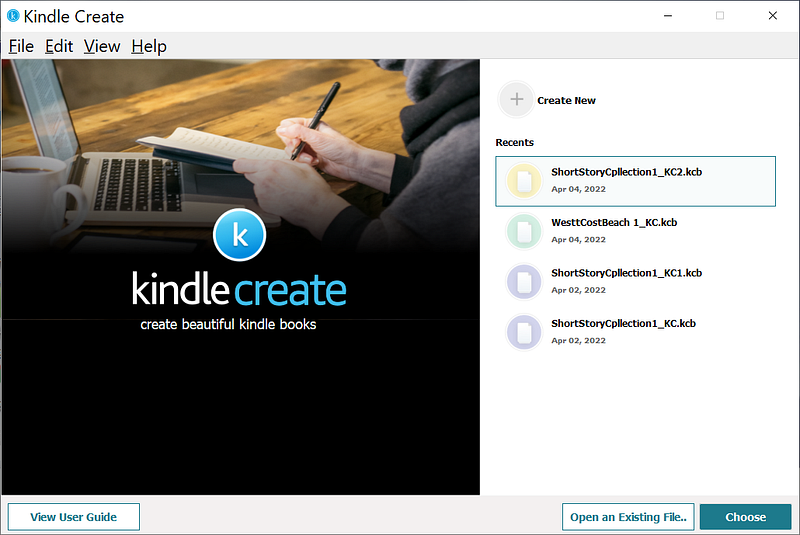
Screenshot by author

After your file is loaded into “Kindle Create” it will take several minutes to be optimized.
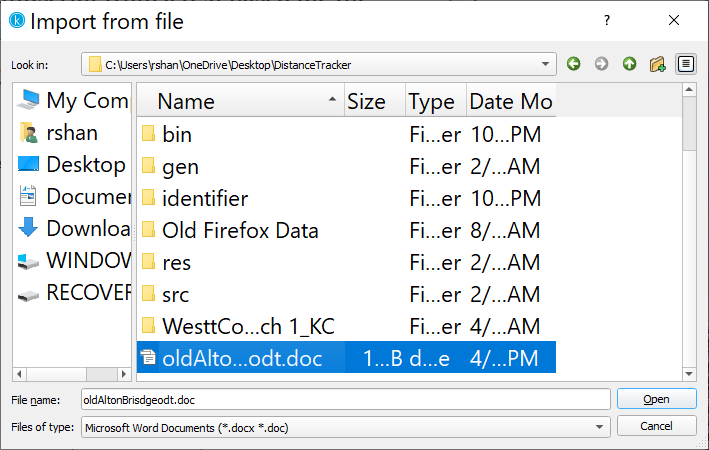
Screenshot by author

After the import is successful you will see a message to that effect on the “Kindle Create” panel.
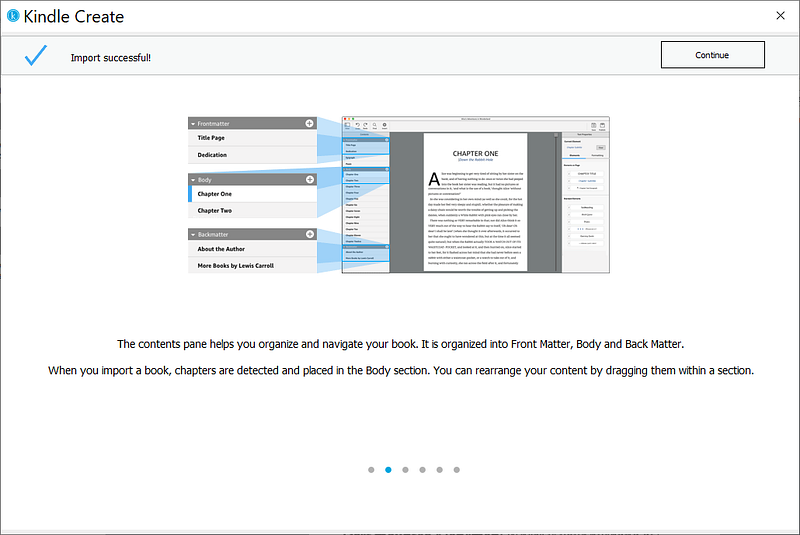
Screenshot by author

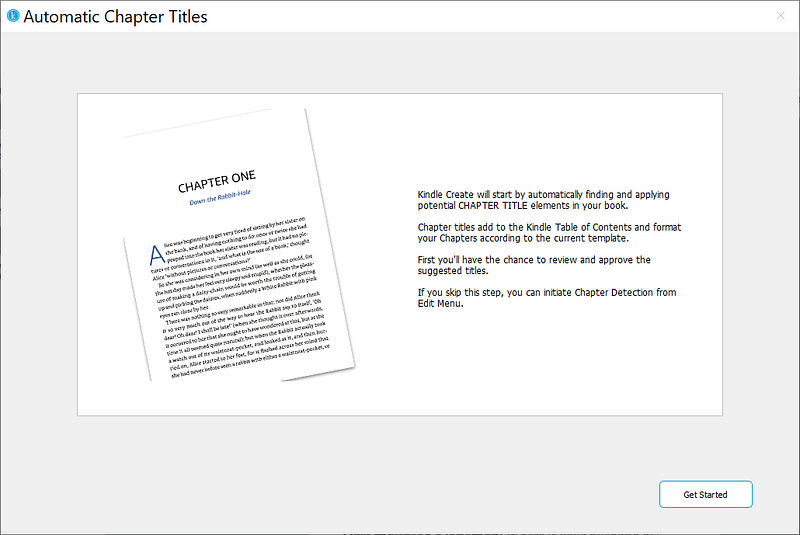
Continue and then close the panels. You will come to a panel with a “get started” button. Click it.
Screenshot by author

If not all your chapters are detected, you can make changes to your chapter heading and do a chapter detection again by choosing chapter detection in the edit tab.

When creating my “Old Alton Bridge” e-book I had problems detecting two of my three sequel chapters. I added extras lines above and below my chapter headings, ran a chapter detection again and my missing chapters were detected.

Once you make changes to your story file, you can save the changes by clicking the save icon near the upper right-hand corner of the” Kindle Create” main display panel, also seen in the image below.
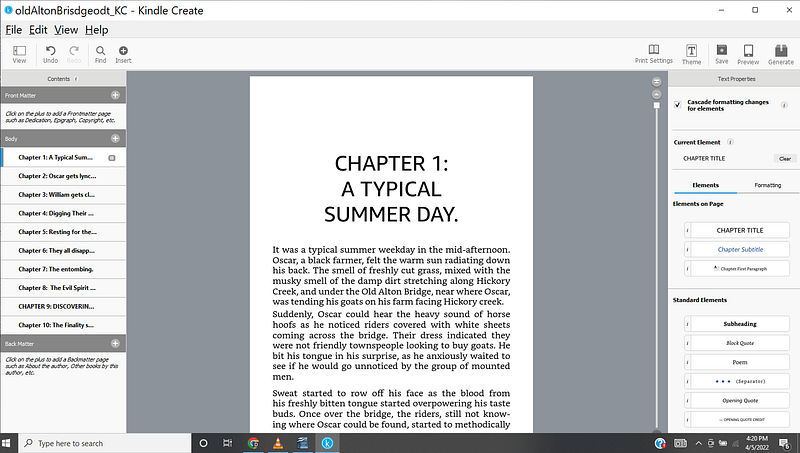
To add front natter such as Copyright, Dedication, Preface, and so on, click on the plus symbol in the front matter label.
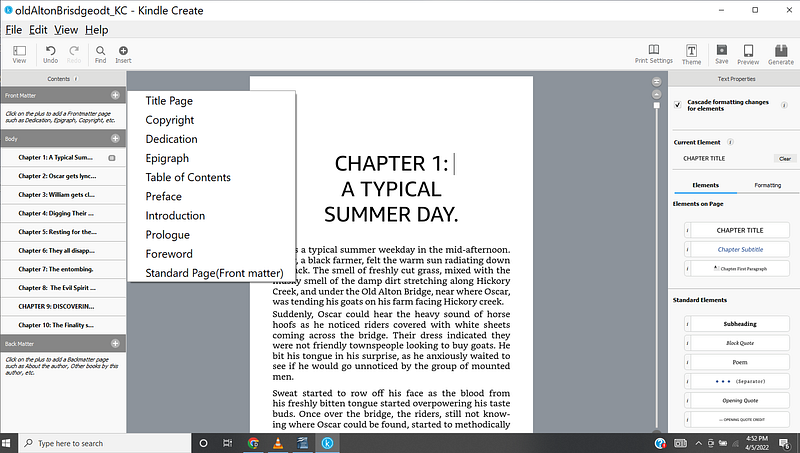
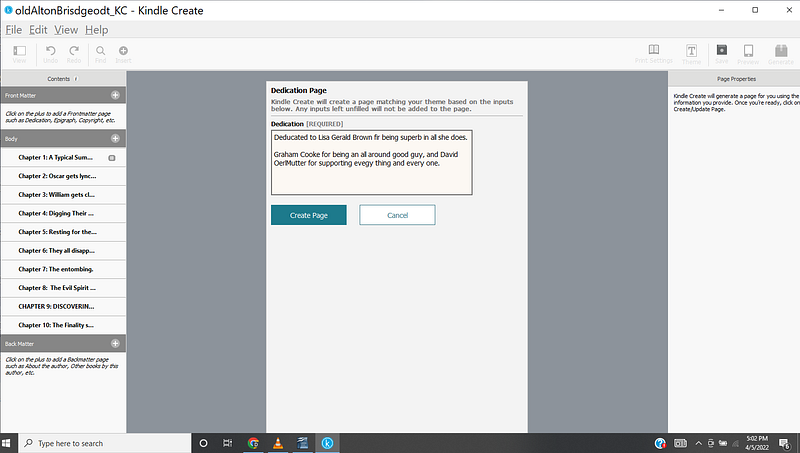
You can add or change the text for each category of front matter. I change the text for a dedication page in the e-book in the screenshot below,
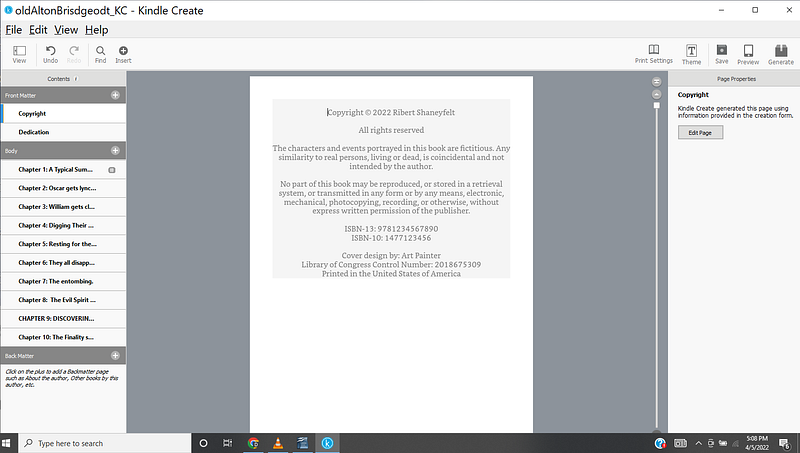
the copyright page for the e-book is quite simple, you need to answer two questions, the name of the copyright owner and the year of the copyright.
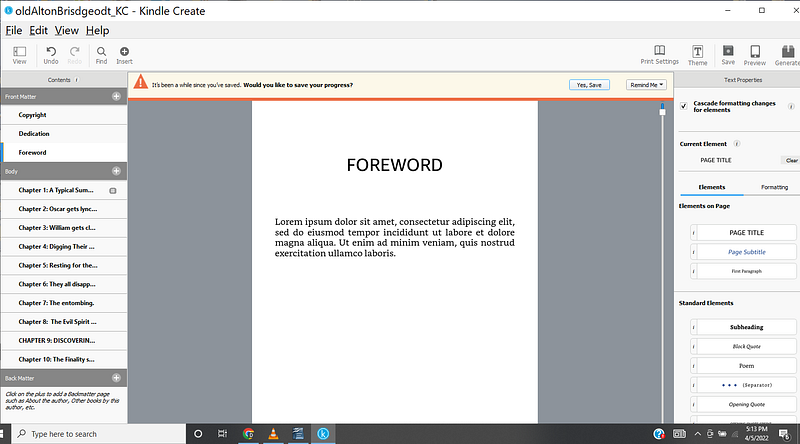
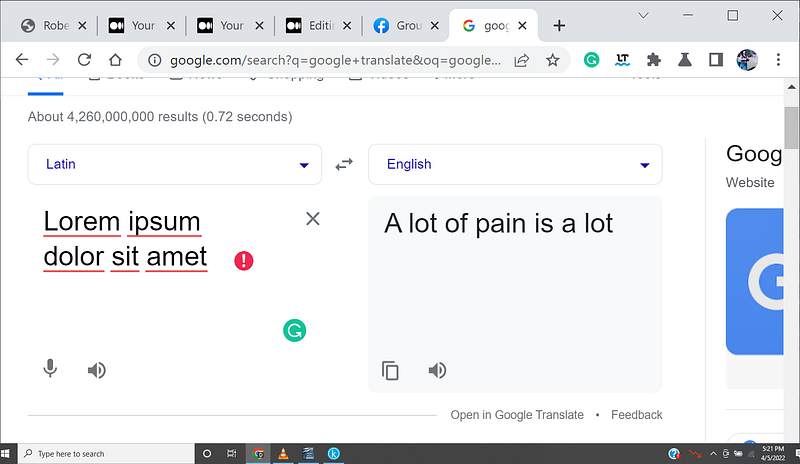
The default text for the forward and the preface are words in Latin. I entered a few of the words from the default forward into Google Translate and verified it was Latin.
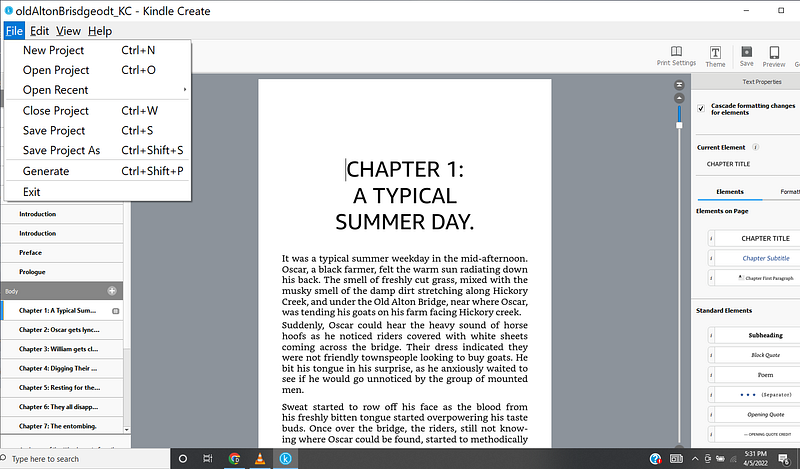
Once you have the story content and your front matter the way you like it, go to the File tab and choose to generate.
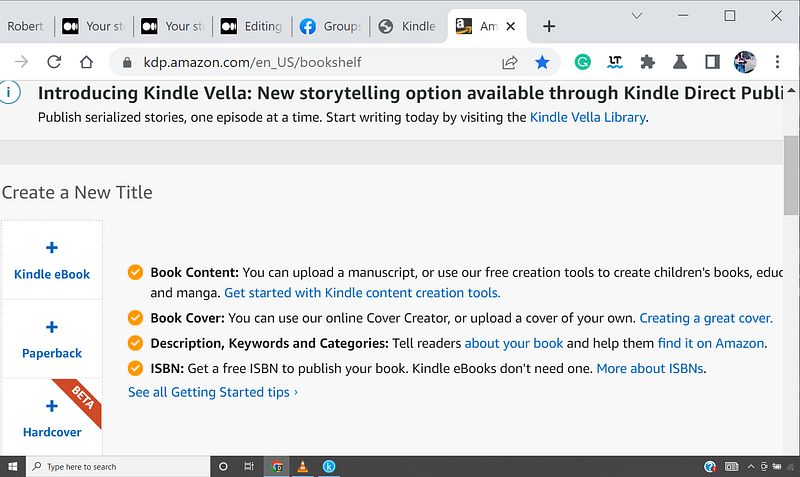
Assuming you have your KDP account set up after you have your e-book file ready to publish go to the following website and click on the plus sign next to Kindle e-book.
You will be taken to the Kindle e-book details page. Fill in details such as the title of your e-book. The primary author and optionally an edition number.
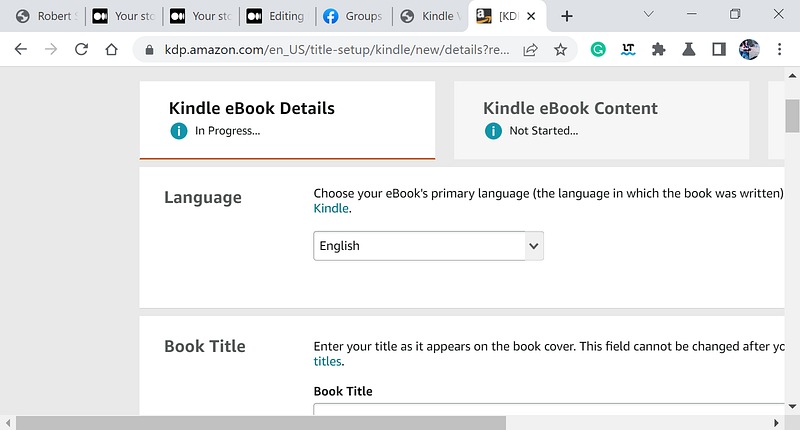
Screenshot by author

Fill in the required information then hit the save and continue button shown in the screenshot below.
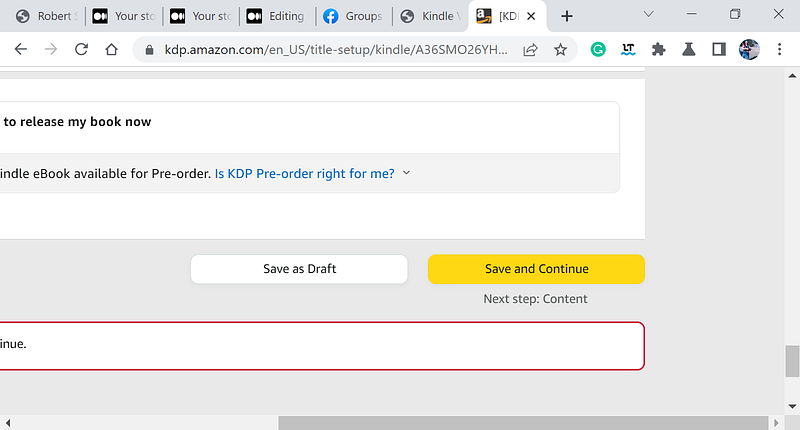
Screenshot by author

On the next screen, you come to, you will be asked to upload your book front cover image. The minimum dimensions should be I000 pixels in height and 625 pixels in width. It should not exceed 10,000 pixels in height abs width.

I used the same image that I used with Kindle Vella.

Choosing the button “upload manuscript” will initiate a process that allows the uploading of the .kpf file you generated with the tool “Kindle Create”
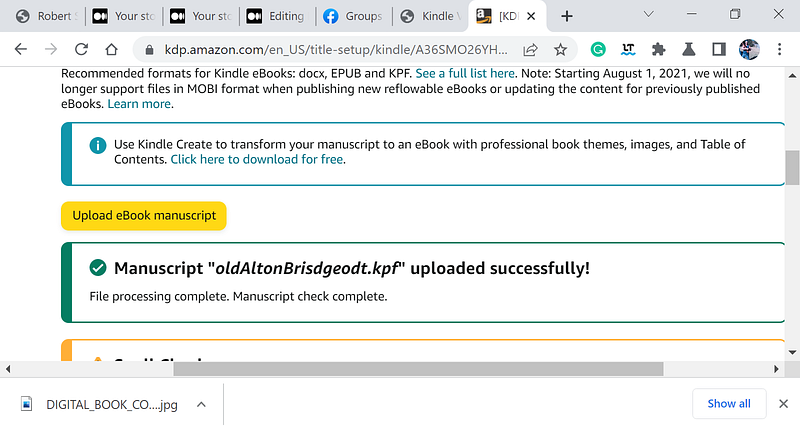
Screenshot by author

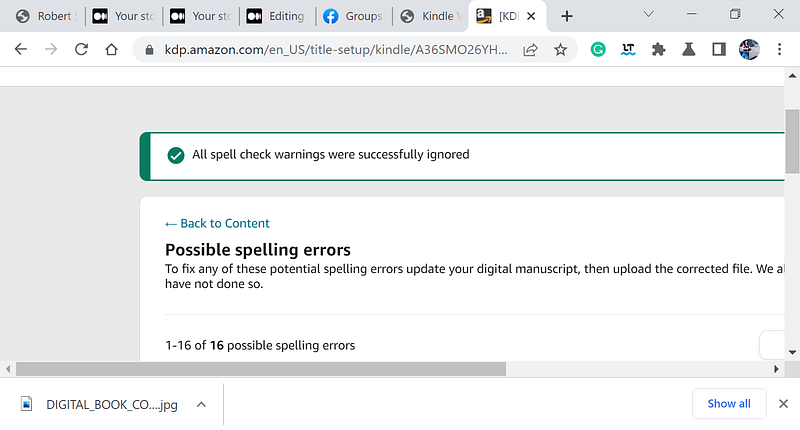
A spell check will be run to let you know if any spelling errors are found, You will be given the option to ignore them. In my case, the Latin words used as a default filler for the forward and the preface were found, which I safely ignored.

If you fix any spelling errors, choose the arrow to go back to content to get back to the content entering page.
Screenshot by author

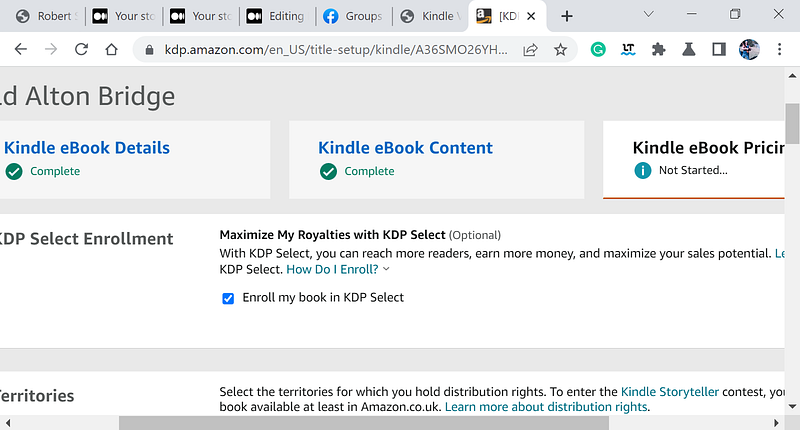
The next step is to set the price and optionally enroll in the KDP select program.
Screenshot by author

Select the marketplace, select a royalty plan, and set your e-book list prices.

If you want to partake in the KDP select plan for promotion you should set your list price at $2.99 or more.

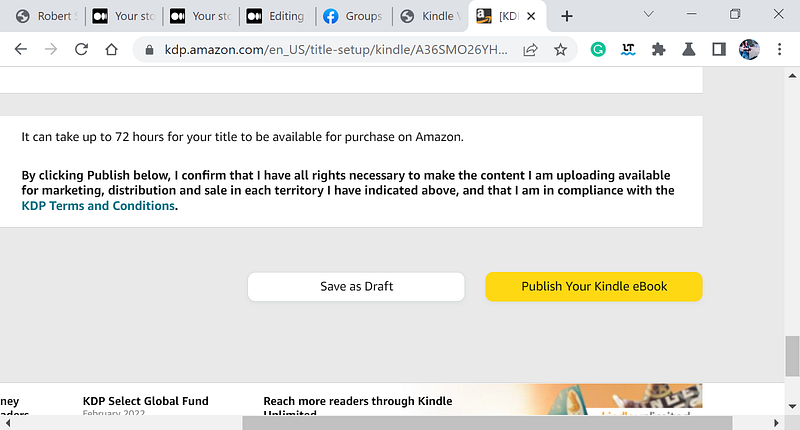
Optionally you can choose if you want to allow lending of the book then click the button near the lower right corner labeled “save and publish.”
Screenshot by author

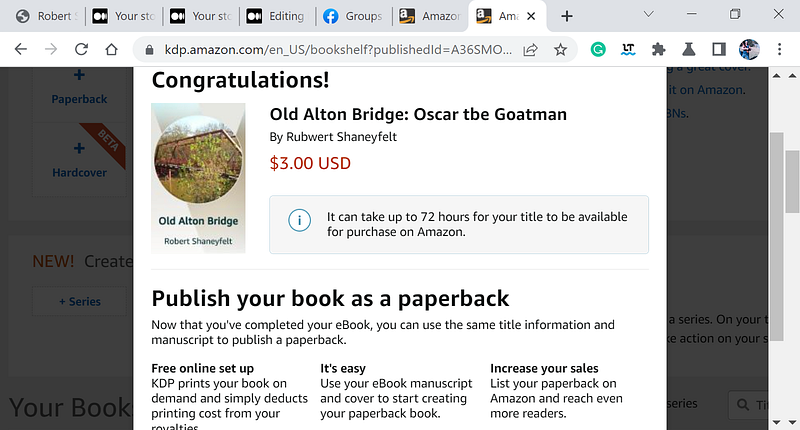
If you desire you can publish your book as a paperback.
Screenshot by author

Copyright © 2022, Robert Shaneyfelt All rights reserved

Illumination
Book Publishing
Writing
Kdp
Ebook Publishing
Recommended from ReadMedium