
How to Get Started With Midjourney AI — Create Astonishing AI Art Now
Beginner-friendly guide to creating art with AI
Intro
In this article, I will show you exactly how you can start using AI to make incredible images. I will show you how you can use a tool called Midjourney AI.
I will also include some cool tips and tricks. This article will cover the basics. Next week I will be publishing a more advanced guide on how to get precisely what you want out of the tool.
What is Midjourney?
It is an AI-powered image generation tool. You provide the tool with a text input (prompt) and the tool generates an image output.
There are other great text-to-image tools that work similarly to Midjourney like DALL-E2 (you need to apply to a waitlist to use DALL-E2) and Stable-Diffusion (Which you can run for free on your computer if you have a powerful graphics processor and some technical know-how).
But Midjourney is beginner friendly, you can try it for free, you don’t need a powerful computer to run it, and it’s not that expensive if you want to use it a lot.
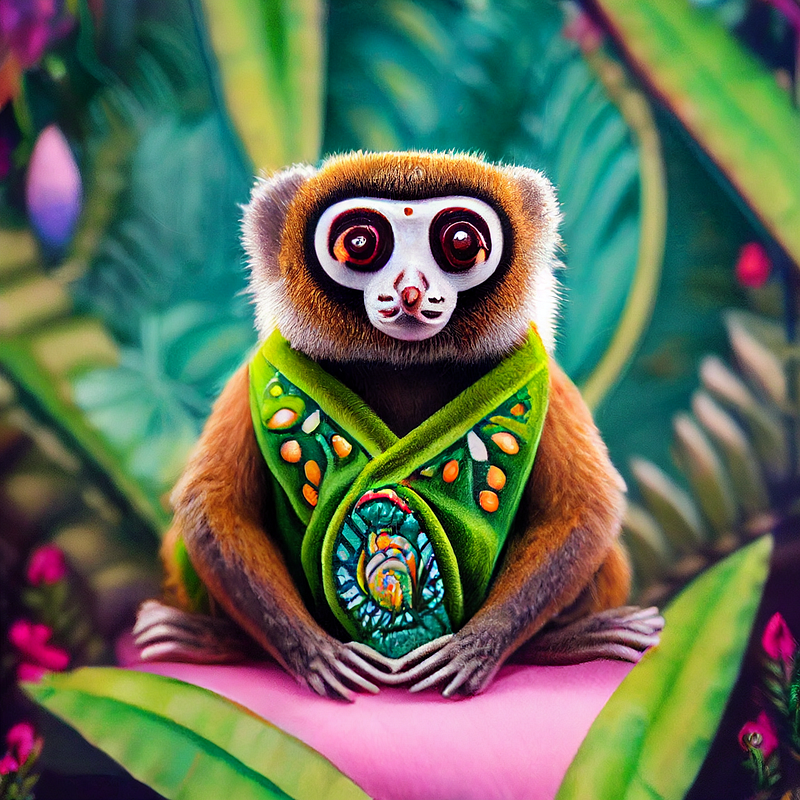
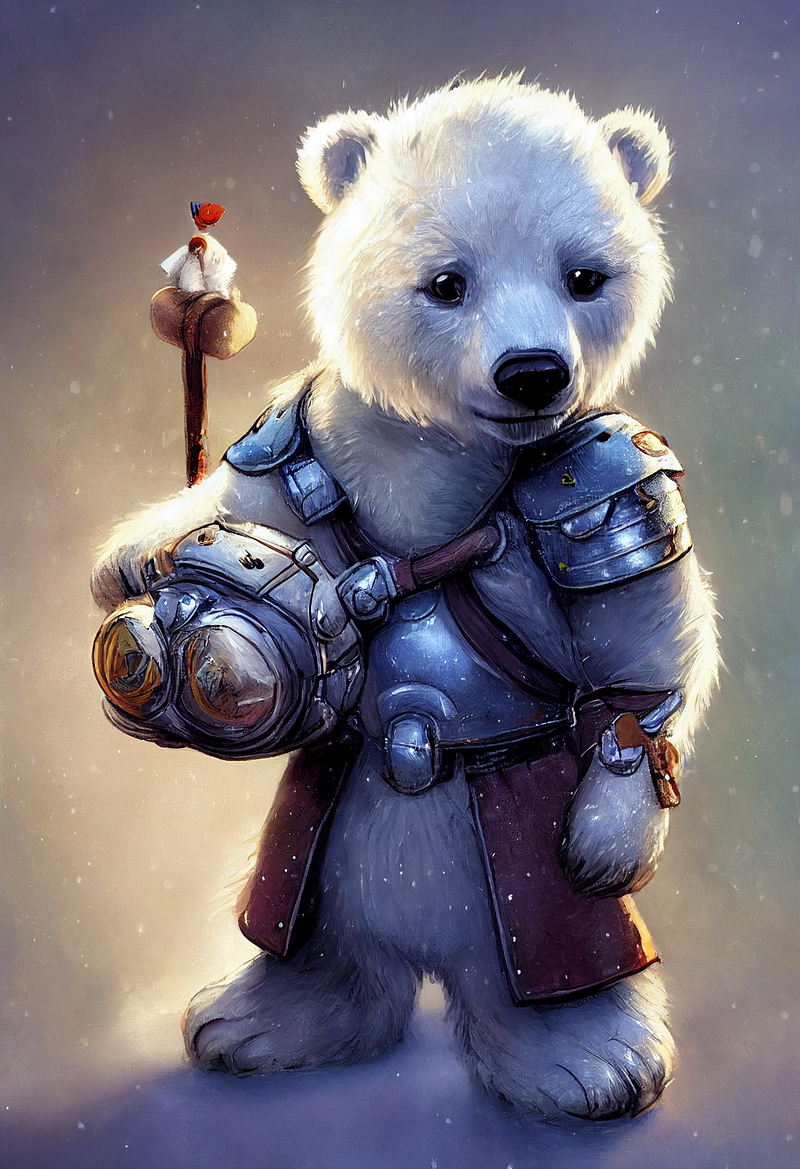
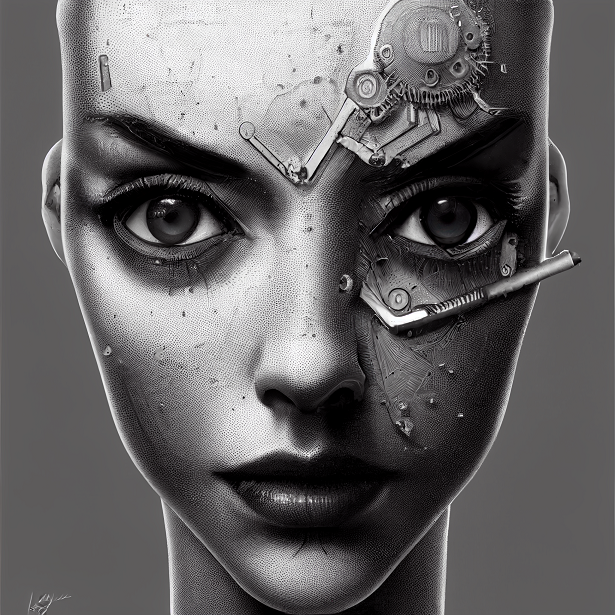
Here are some examples of images I created using Midjourney:
Getting started:
The only software you will need to use Midjourney is Discord. If you don’t know what discord is — it’s basically a messaging app, that offers some flexibility for more advanced use-cases. But you don’t need to worry about that.
I recommend downloading the app on your computer or your phone. I’ve done both so I can easily use Midjourney on the go from my phone. You can get by using Discord directly in your browser. But I recommend downloading the app for a smoother experience.
Once you have the app. Simply sign-up. You can use your Gmail to sign-up quicker or create an account the regular way.
Once you’ve got a discord account you are halfway to creating AI art. Now you need to go to the Midjourney website.
And choose the join beta option:
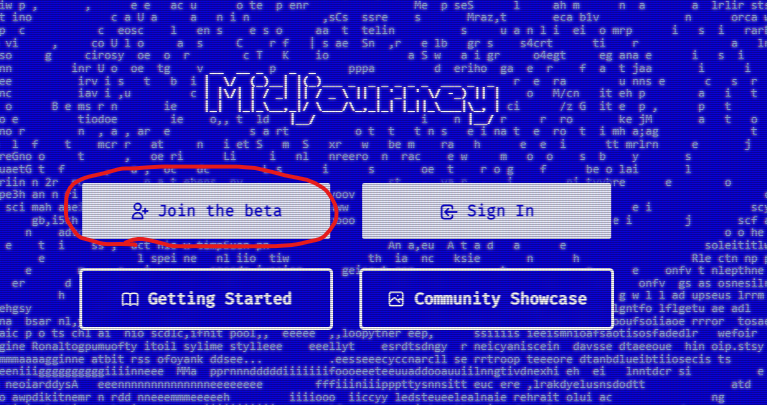
After that, your Discord app should open. And you will see the MidJourney Discord server. If you are just starting you will need to choose one of the “newbies” channels from the menu on the left.
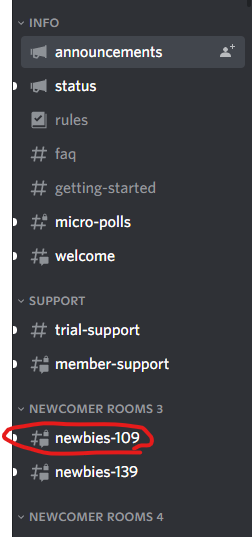
Once you’re in the channel you can start creating images. All you need to do is type /imagine in the chat box. Click on the command that pops up:
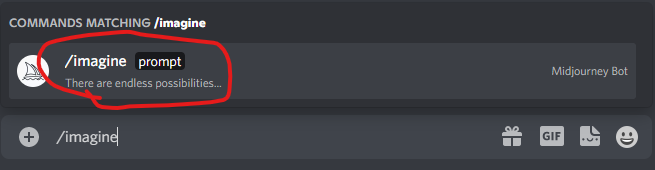
And enter your text prompt. Here’s an example:

And here’s the output from MidJourney:
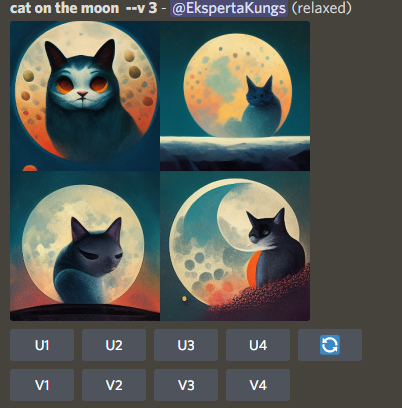
You can see that there are several buttons beneath the images. The buttons with “v” on them let you create variations from one of the images. The numbers point to the images:
Top left = 1
Top right = 2
Bottom left = 3
Bottom right = 4
Let’s create variations for the first image:
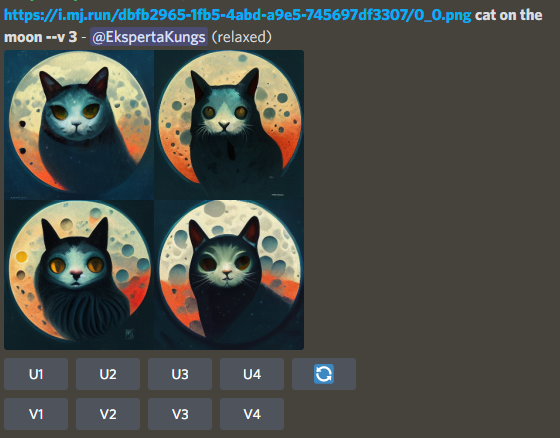
As you can see all of these are quite similar to image one from the first bunch of results.
If you want completely different results from your original prompt you would push the button on the top right.

This button re-rolls your current prompt. If you use this after you have created variations it will create similar results. But for the original prompt, the results will be quite different. Here’s a result of re-rolling the original prompt (a cat on the moon).
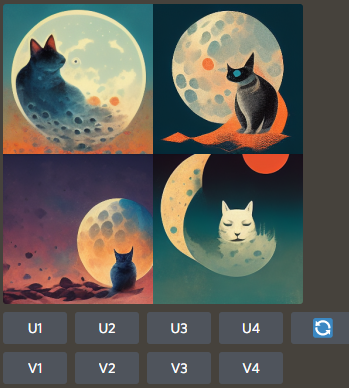
As you can see some of the results are quite different from the ones we got previously. Once you get a version you like. You can upscale it by using the corresponding “u” button.
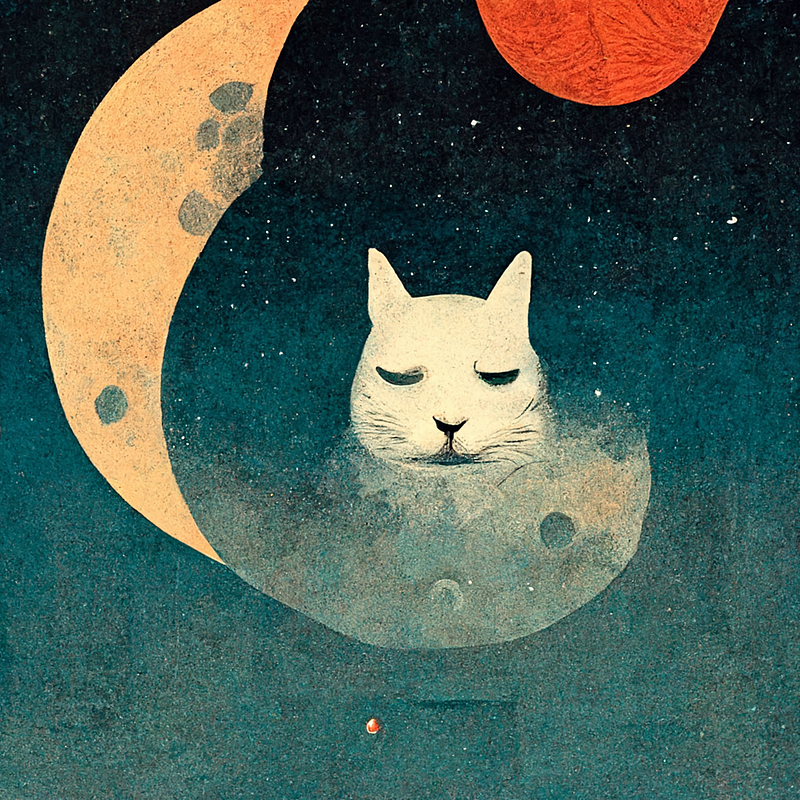
Here’s what Midjourney generated after I pressed “u4”:
Free version
You can generate about 25 images with the free plan. And you can only do so in the newbies channels. As other users constantly use these channels your creations may sometimes be harder to find.
But you can go to Midjourney website and after signing in with your discord account you will be able to see a gallery of all your creations. And you will also be able to download images from there.
However, if you subscribe you can message the Midjourney bot directly.
For 10$ you can get up to 200 generations
And for 30$ you can get an unlimited number of generations
Both of these plans also grant you access to a public gallery of other member creations. You can then see what setting and prompts they have used for their generations.
To subscribe simply write /subscribe into one of Midjourney’s discord channels and you will be taken to a subscription page.
Tips and tricks
- Use test modes.
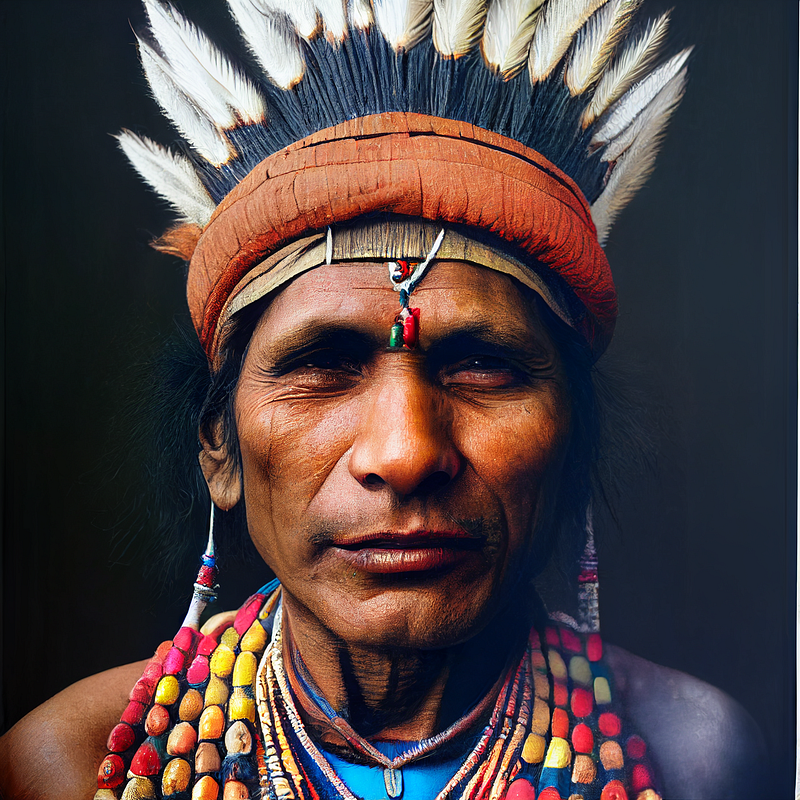
There are currently 2 test modes available. One is for more realistic-looking images and the other is for more art-like images. You can access these modes by typing /settings into one of Midjourneys discord channels:
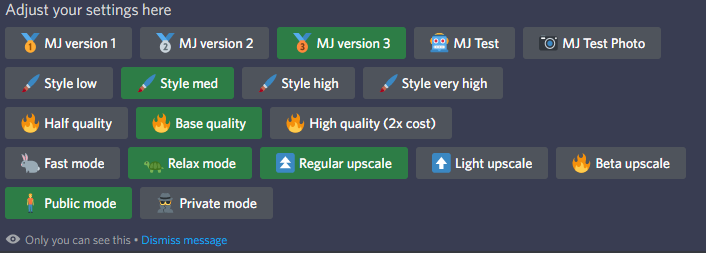
Chose MJ test for artistic images. Or MJ test photo for more photorealistic images.
Or you can add two dashes and test or testp after your prompts. Like this:

Here’s the result:
2. Use Reddit for inspiration
There is a great community of Midjourney users on Reddit. And there is a lot of prompt sharing going on. Check it out.
3. Use the discord app on your phone to generate images on the go.
If you are going to generate images a lot, using the app on your phone is a great way to keep yourself entertained while on your daily commute or waiting in a queue.
4. You can use images in your prompts
You can simply paste an URL to an image into the prompt, and Midjourney will use this image as a reference. You could also paste two URLs or combine an URL with a text prompt. In my experience, this hasn’t been working great in all instances. But it is possible to generate some good images this way.
5. Reference artists
One of the easiest ways to get a style you are going for is by referencing an artist. Here’s a great cheat sheet I found on Reddit.
That’s it for today! I will be following up with a more advanced look into prompt crafting soon! So stay tuned! UPDATED here’s a follow-up:
Feel free to ask questions! :)
If you are interested in MidJourney and its use-cases you might want to check out some articles from the list below:
Stay curious and stay HungryMinded!
Before you go
If you enjoyed reading my work Sign up Here to get all of my future posts directly to your inbox.
Join Medium for just $5 and read an unlimited amount of informative stories from me and thousands of other great writers. You can do that by clicking the link below.


