
How To Embed a Prism Syntax Highlighter in React Apps
Prism is a lightweight and robust JavaScript library that performs syntax highlighting for 297 languages

Introduction
An optical prism is a transparent optical element with flat, polished surfaces that are designed to refract light. A dispersive prism can be used to break white light up into its constituent spectral colors, i.e. colors of the rainbow.
Prism is a lightweight and robust JavaScript library that performs syntax highlighting for 297 languages. The minified and gzipped core is only 2KB, with each language definition adding roughly 300–500 bytes. It supports Edge, IE11, Firefox, Chrome, Safari, Opera, and most mobile browsers.
In a previous article, we have introduced Monaco Editor, a browser-based code editor that supports 78 languages, with syntax highlighting, autocompletion, autocorrection, diffing files, and many more advanced features.
If you only need syntax highlighting, Prism should be the way to go.
Set Up The Working Environment
We are going to embed a Prism Syntax Highlighter into the Create React App. The following command creates a React project:
% yarn create react-app react-prism
% cd react-prism
Install prismjs.
% yarn add prismjsAfter the installation, prismjs becomes part of dependencies in package.json:
"dependencies": {
  "prismjs": "^1.29.0"
}
The work environment is ready.
Embed a Prism Inside React Apps
It takes a few steps to embed a Prism inside React Apps.
Step 1: Include prismjs and prism.css.
import Prism from 'prismjs';
import 'prismjs/themes/prism.css';
Step 2: Wrap the code inside <pre> and <code> tags.
<pre><code class="language-xxxx">{code}</code></pre><pre> is a tag that defines preformatted text, and <code> is a tag that defines a piece of computer code. Prism requires code’s class name defined in the form of lang-xxxx or language-xxxx, where xxxx is the language alias.
Currently, Prism supports 297 languages. Here are some examples:
- Markup:
markup,html,xml,svg,mathml,ssml,atom,rss - CSS:
css - JavaScript :
javascript,js - JSON :
json,webmanifest - Markdown:
markdown,md - TypeScript:
typescript,ts
Step 3: Call Prism.highlightAll() to highlight all syntaxes.
Prism.highlightAll() highlights all syntaxes. It fetches all the elements that have a language-xxxx class, and calls Prism.highlightElement() on each one of them. Prism.highlightElement() highlights the code inside a single element.
Here is the modified src/App.js to highlight one line of code, console.log(‘Hello, World!’);
import { useEffect } from 'react';
import Prism from 'prismjs';
import 'prismjs/themes/prism.css';

function App() {
  useEffect(() => {
    Prism.highlightAll();
  }, []);

  return (
    <pre>
      <code class="language-javascript">console.log('Hello, World!');</code>
    </pre>
  );
}

export default App;
Execute yarn start, and we see the JavaScript code’s syntax highlighting.
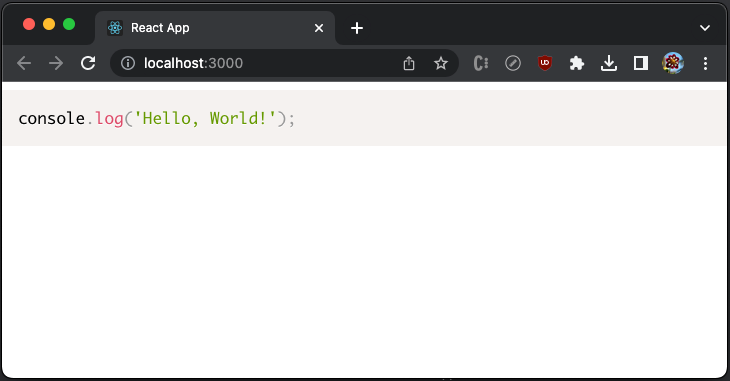
Inspecting the elements in Web browser, we find out how the one line of code is tokenized and applied styles by token classes.
    <pre class="language-javascript" tabindex="0">
      <code class="language-javascript">
        console<span class="token punctuation">.</span>
        <span class="token function">log</span>
        <span class="token punctuation">(</span>
        <span class="token string">'Hello, World!'</span>
        <span class="token punctuation">)</span>
        <span class="token punctuation">;</span>
      </code>
    </pre>
Examples of JavaScript, CSS, HTML, and JSON Files
We present some code examples to demonstrate how syntax highlighting works for JavaScript, CSS, HTML, and JSON files.
Syntax highlighting for src/App.js
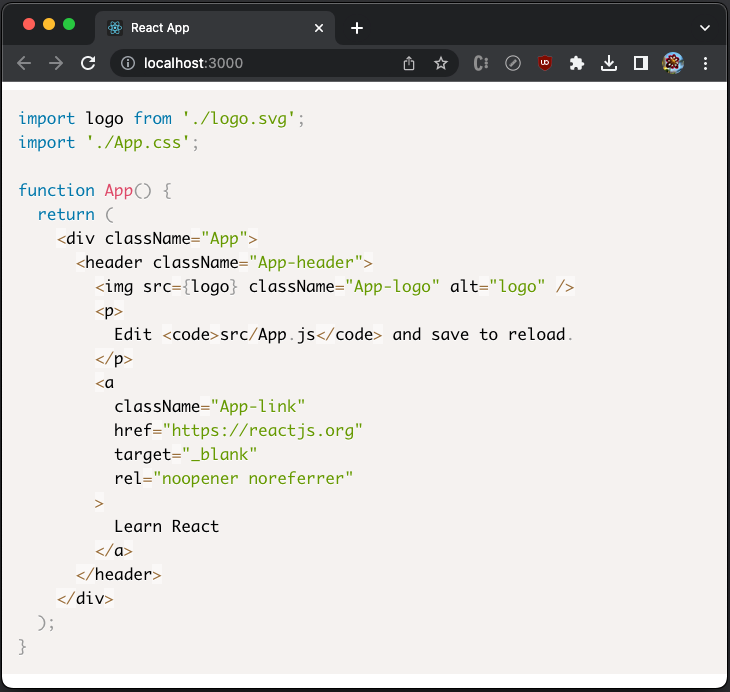
Here is the code that shows syntax highlighting for the Create React App’s src/App.js, where class is set to language-javascript:
import { useEffect } from 'react';
import Prism from 'prismjs';
import 'prismjs/themes/prism.css';

function App() {
  useEffect(() => {
    Prism.highlightAll();
  }, []);

  const code = `import logo from './logo.svg';
import './App.css';

function App() {
  return (
    <div className="App">
      <header className="App-header">
        <img src={logo} className="App-logo" alt="logo" />
        <p>
          Edit <code>src/App.js</code> and save to reload.
        </p>
        <a
          className="App-link"
          href="https://reactjs.org"
          target="_blank"
          rel="noopener noreferrer"
        >
          Learn React
        </a>
      </header>
    </div>
  );
}
`;

  return (
    <pre>
      <code class="language-javascript">{code}</code>
    </pre>
  );
}

export default App;
Execute yarn start, and we see the JavaScript code’s syntax highlighting.
Syntax highlighting for src/index.css
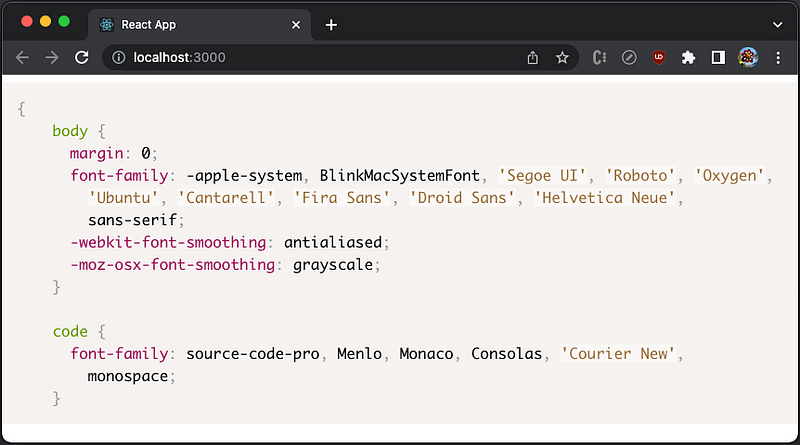
Here is the code that shows syntax highlighting for the Create React App’s src/index.css, where class is set to language-css:
import { useEffect } from 'react';
import Prism from 'prismjs';
import 'prismjs/themes/prism.css';

function App() {
  useEffect(() => {
    Prism.highlightAll();
  }, []);

  const code = `{
    body {
      margin: 0;
      font-family: -apple-system, BlinkMacSystemFont, 'Segoe UI', 'Roboto', 'Oxygen',
        'Ubuntu', 'Cantarell', 'Fira Sans', 'Droid Sans', 'Helvetica Neue',
        sans-serif;
      -webkit-font-smoothing: antialiased;
      -moz-osx-font-smoothing: grayscale;
    }

    code {
      font-family: source-code-pro, Menlo, Monaco, Consolas, 'Courier New',
        monospace;
    }
`;

  return (
    <pre>
      <code class="language-css">{code}</code>
    </pre>
  );
}

export default App;
Execute yarn start, and we see the CSS file’s syntax highlighting.
Syntax highlighting for public/index.html
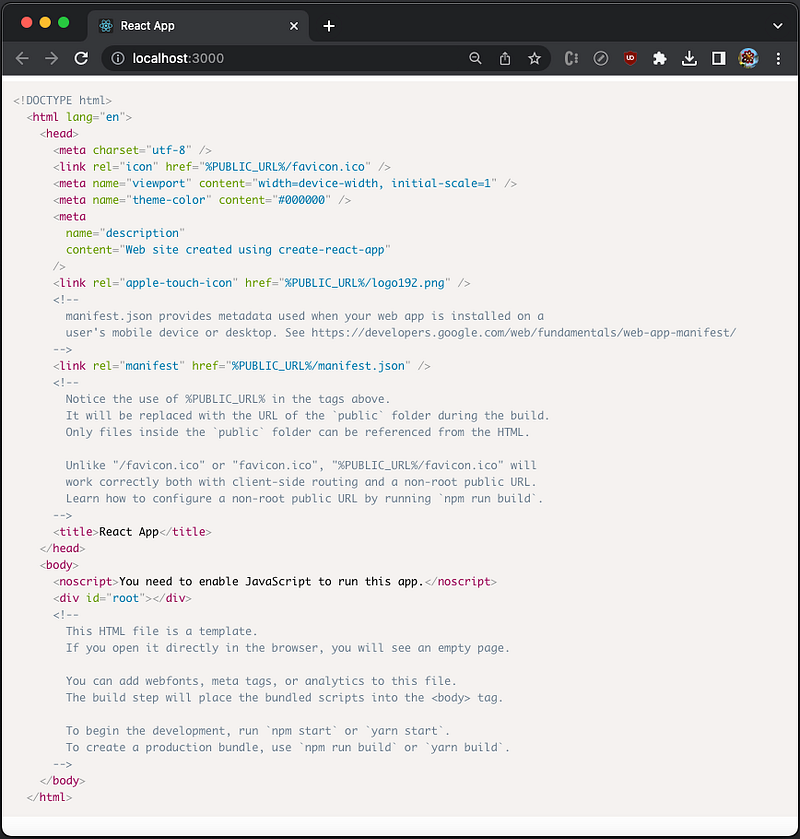
Here is the code that shows syntax highlighting for the Create React App’s public/index.html, where class is set to language-html:
import { useEffect } from 'react';
import Prism from 'prismjs';
import 'prismjs/themes/prism.css';

function App() {
  useEffect(() => {
    Prism.highlightAll();
  }, []);

  const code = `<!DOCTYPE html>
  <html lang="en">
    <head>
      <meta charset="utf-8" />
      <link rel="icon" href="%PUBLIC_URL%/favicon.ico" />
      <meta name="viewport" content="width=device-width, initial-scale=1" />
      <meta name="theme-color" content="#000000" />
      <meta
        name="description"
        content="Web site created using create-react-app"
      />
      <link rel="apple-touch-icon" href="%PUBLIC_URL%/logo192.png" />
      <!--
        manifest.json provides metadata used when your web app is installed on a
        user's mobile device or desktop. See https://developers.google.com/web/fundamentals/web-app-manifest/
      -->
      <link rel="manifest" href="%PUBLIC_URL%/manifest.json" />
      <!--
        Notice the use of %PUBLIC_URL% in the tags above.
        It will be replaced with the URL of the \`public\` folder during the build.
        Only files inside the \`public\` folder can be referenced from the HTML.

        Unlike "/favicon.ico" or "favicon.ico", "%PUBLIC_URL%/favicon.ico" will
        work correctly both with client-side routing and a non-root public URL.
        Learn how to configure a non-root public URL by running \`npm run build\`.
      -->
      <title>React App</title>
    </head>
    <body>
      <noscript>You need to enable JavaScript to run this app.</noscript>
      <div id="root"></div>
      <!--
        This HTML file is a template.
        If you open it directly in the browser, you will see an empty page.

        You can add webfonts, meta tags, or analytics to this file.
        The build step will place the bundled scripts into the <body> tag.

        To begin the development, run \`npm start\` or \`yarn start\`.
        To create a production bundle, use \`npm run build\` or \`yarn build\`.
      -->
    </body>
  </html>
`;

  return (
    <pre>
      <code className="language-html">{code}</code>
    </pre>
  );
}

export default App;
You may have noticed that backticks (`) inside the template literal are escaped as \`.
Execute yarn start, and we see the HTML file’s syntax highlighting.
Syntax highlighting for package.json
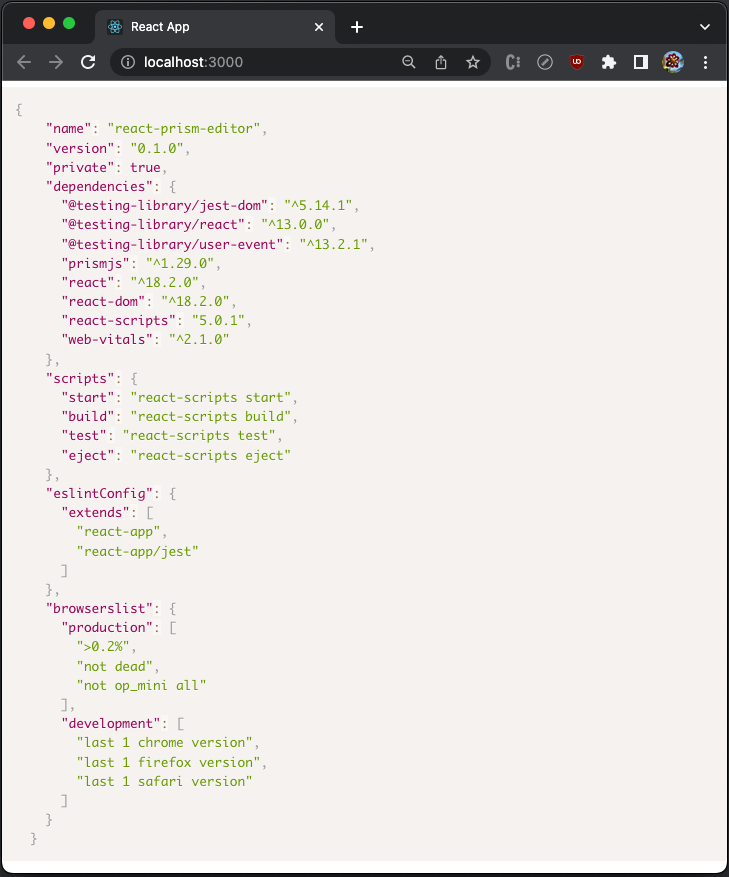
When showing the Create React App’s package.json, we know that class needs to be set to language-json. In addition, 'prismjs/components/prism-json' needs to be imported. The Prism core only includes limited languages to keep the size small. Additional language definitions are located at node_modules/prismjs/components.
Here is the code modified src/App.js:
import { useEffect } from 'react';
import Prism from 'prismjs';
import 'prismjs/themes/prism.css';
import 'prismjs/components/prism-json';

function App() {
  useEffect(() => {
    Prism.highlightAll();
  }, []);

  const code = `{
    "name": "react-prism-editor",
    "version": "0.1.0",
    "private": true,
    "dependencies": {
      "@testing-library/jest-dom": "^5.14.1",
      "@testing-library/react": "^13.0.0",
      "@testing-library/user-event": "^13.2.1",
      "prismjs": "^1.29.0",
      "react": "^18.2.0",
      "react-dom": "^18.2.0",
      "react-scripts": "5.0.1",
      "web-vitals": "^2.1.0"
    },
    "scripts": {
      "start": "react-scripts start",
      "build": "react-scripts build",
      "test": "react-scripts test",
      "eject": "react-scripts eject"
    },
    "eslintConfig": {
      "extends": [
        "react-app",
        "react-app/jest"
      ]
    },
    "browserslist": {
      "production": [
        ">0.2%",
        "not dead",
        "not op_mini all"
      ],
      "development": [
        "last 1 chrome version",
        "last 1 firefox version",
        "last 1 safari version"
      ]
    }
  }
`;

  return (
    <pre>
      <code class="language-json">{code}</code>
    </pre>
  );
}

export default App;
Execute yarn start, and we see the JSON file’s syntax highlighting.
Prism Supports Many Themes
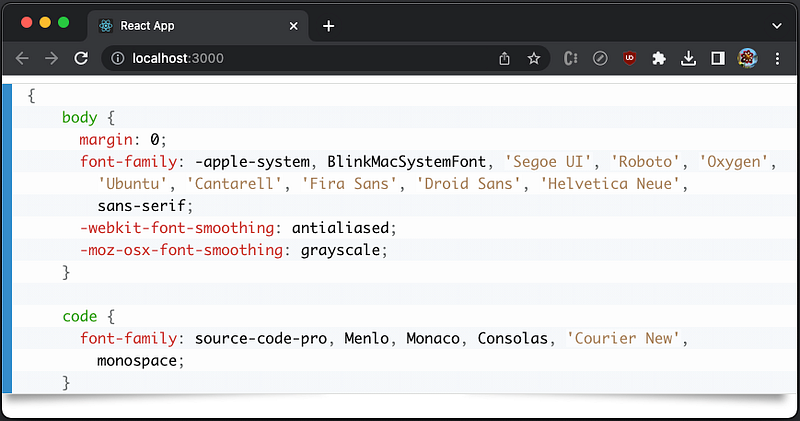
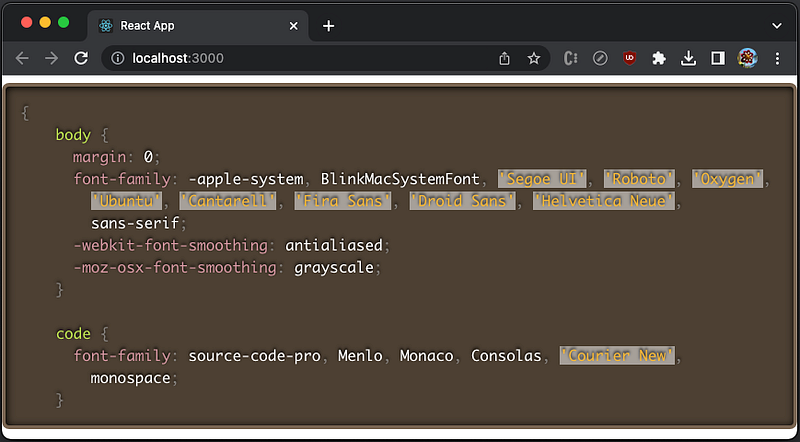
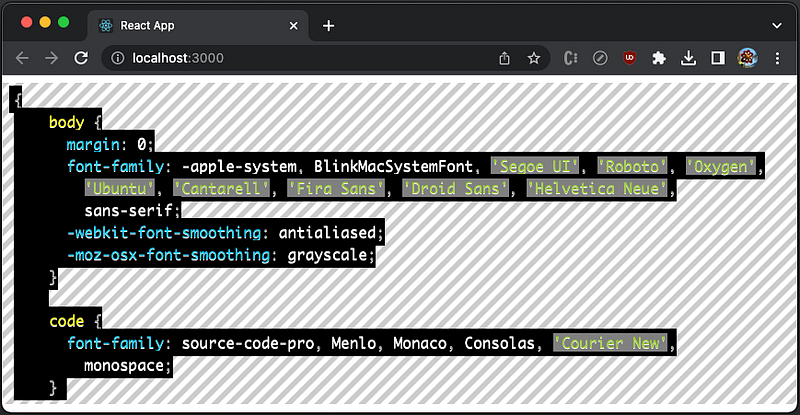
The above examples use the default theme. In addition, Prism provides these themes: Coy, Dark, Funky, Okaidia, SolarizedLight, Tomorrow, and Twilight. Using src/index.css as an example, we can see how these themes look like.
The Coy Theme
Import the Coy theme in src/App.js:
import 'prismjs/themes/prism-coy.css';Execute yarn start, and we see the syntax highlighting in the Coy theme.
The Dark Theme
Import the Dark theme in src/App.js:
import 'prismjs/themes/prism-dark.css';Execute yarn start, and we see the syntax highlighting in the Dark theme.
The Funky Theme
Import the Funky theme in src/App.js:
import 'prismjs/themes/prism-funky.css';Execute yarn start, and we see the syntax highlighting in the Funky theme.
The Okaidia Theme
Import the Okaidia theme in src/App.js:
import 'prismjs/themes/prism-okaidia.css';Execute yarn start, and we see the syntax highlighting in the Okaidia theme.
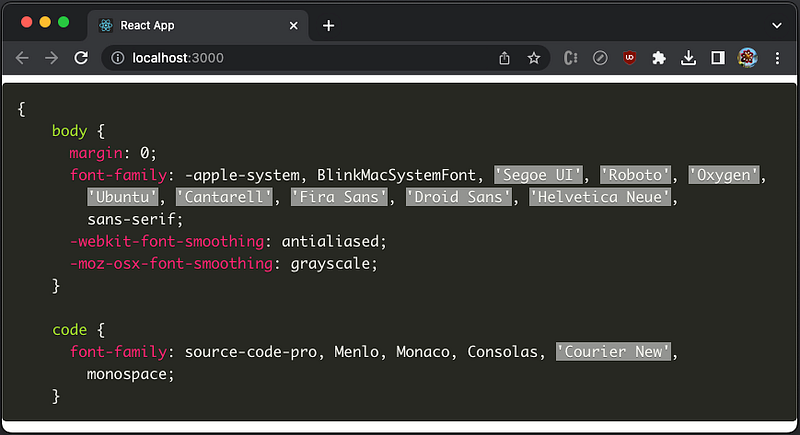
The SolarizedLight Theme
Import the SolarizedLight theme in src/App.js:
import 'prismjs/themes/prism-solarizedlight.css';Execute yarn start, and we see the syntax highlighting in the SolarizedLight theme.
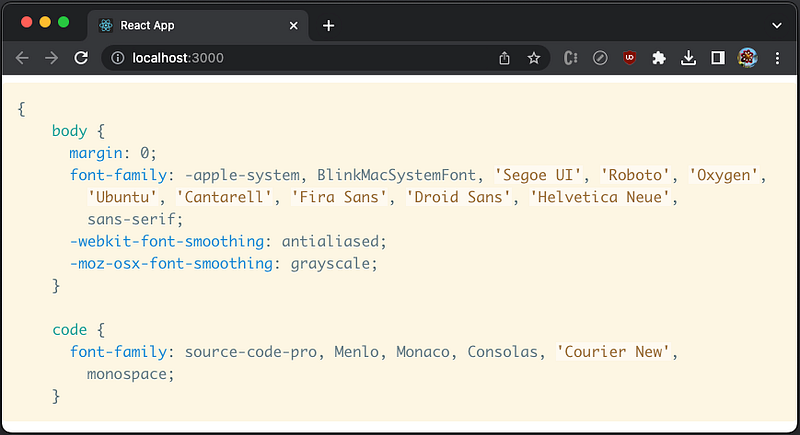
The TomorrowNight Theme
Import the TomorrowNight theme in src/App.js:
import 'prismjs/themes/prism-tomorrow.css';Execute yarn start, and we see the syntax highlighting in the TomorrowNight theme.
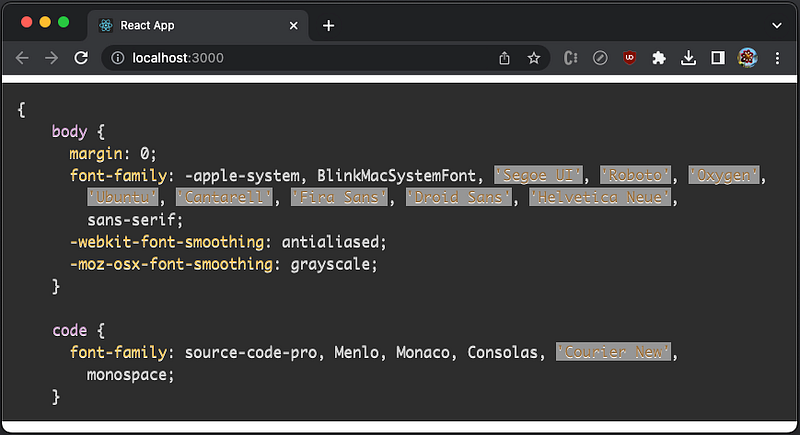
The Twilight Theme
Import the Twilight theme in src/App.js:
import 'prismjs/themes/prism-twilight.css';Execute yarn start, and we see the syntax highlighting in the Twilight theme.
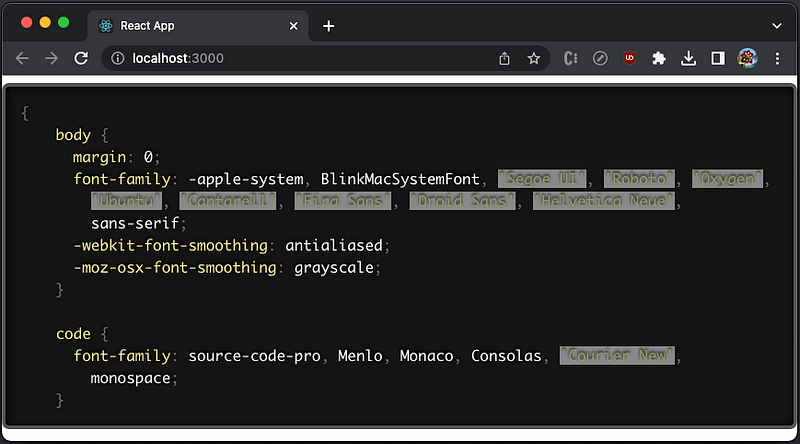
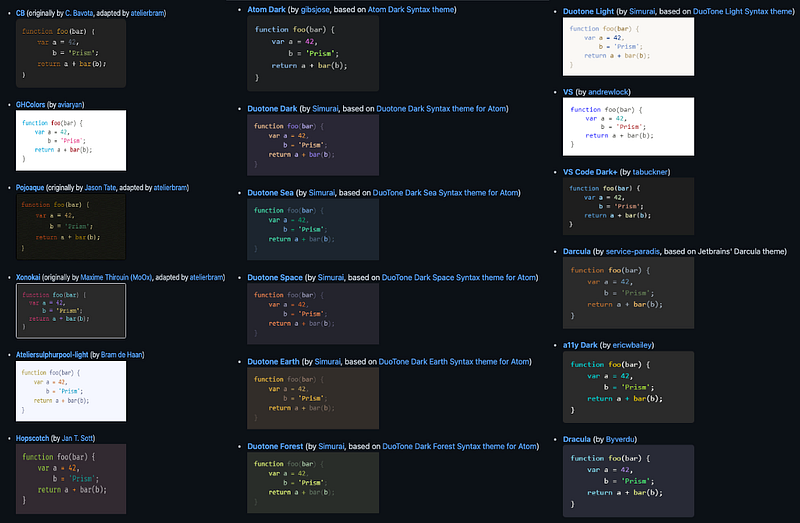
Are these enough themes for your application?
If not, you can get more themes:
How Prism Create a New Language
Prism provides a path to create a new language. You need to clone the repository, add your implementation, and build a new package for use.
We use JSON as an example to see the steps to build a new langauge.
Step 1: Add json into components.json.
Edit components.json to register the language, json, by adding it to the languages object.
{
  "core": {
    "meta": {
     "path": "components/prism-core.js",
     "option": "mandatory"
    },
    "core": "Core"
  },
  "themes": {
    ...
  },
  "languages": {
    "json": {
      "title": "JSON",
      "alias": "webmanifest",
      "aliasTitles": {
      "webmanifest": "Web App Manifest"
    },
    "owner": "CupOfTea696"
  "plugins": {
    ...
  }
}
Step 2: Create a component file.
Create a new file, such as components/prism-json.js, where json is the id of the language. The language id has to be unique and matches the regular expression /^[a-z][a-z\d]*(?:-[a-z][a-z\d]*)*$/.
// https://www.json.org/json-en.html
Prism.languages.json = {
 'property': {
  pattern: /(^|[^\\])"(?:\\.|[^\\"\r\n])*"(?=\s*:)/,
  lookbehind: true,
  greedy: true
 },
 'string': {
  pattern: /(^|[^\\])"(?:\\.|[^\\"\r\n])*"(?!\s*:)/,
  lookbehind: true,
  greedy: true
 },
 'comment': {
  pattern: /\/\/.*|\/\*[\s\S]*?(?:\*\/|$)/,
  greedy: true
 },
 'number': /-?\b\d+(?:\.\d+)?(?:e[+-]?\d+)?\b/i,
 'punctuation': /[{}[\],]/,
 'operator': /:/,
 'boolean': /\b(?:false|true)\b/,
 'null': {
  pattern: /\bnull\b/,
  alias: 'keyword'
 }
};

Prism.languages.webmanifest = Prism.languages.json;
The above object keys are token names, and each token is defined by a regular expression pattern, and whether it should be lookbehind and greedy. Each token can optionally have alias, and inside that defines another object literal.
Step 3: Add test cases for features.
It is recommended to add a test for every major feature of your language. For the example of JSON, test cases should be added to tests/languages/json/, and currently, there are 9 test cases:
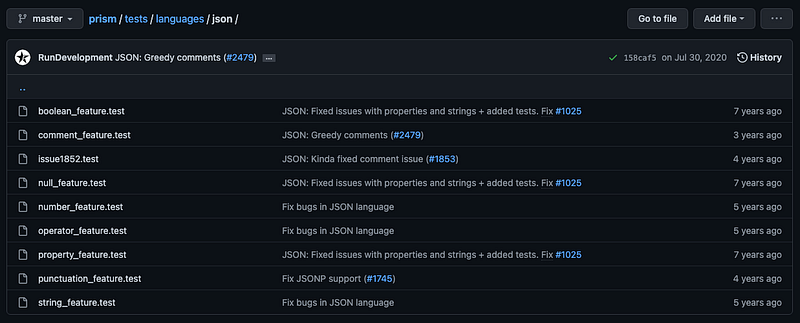
This is the content of tests/languages/json/boolean_feature.test:
true
false

----------------------------------------------------

[
 ["boolean", "true"],
 ["boolean", "false"]
]

----------------------------------------------------

Checks for booleans.
Step 4: Add an example page for the language.
Optionally, an example page can be created. The JSON example page is located at examples/prism-json.html. Here is the content:
<h2>Full example</h2>
<pre><code>{
    "data": {
        "labels": [
            "foo",
            "bar"
        ],
        "series": [
            [ 0, 1, 2, 3 ],
            [ 0, -4, -8, -12 ]
        ]
    },
    // we even support comments
    "error": null,
    "status": "Ok"
}</code></pre>
Conclusion
Prism is a lightweight and robust JavaScript library that performs syntax highlighting for 297 languages. The minified and gzipped core is only 2KB, with each language definition adding roughly 300–500 bytes. It supports Edge, IE11, Firefox, Chrome, Safari, Opera, and most mobile browsers.
We have explained how Prism works using React apps, and presented code examples to demonstrate how syntax highlighting works for JavaScript, CSS, HTML, and JSON files. A CSS file has been showcased with various themes. In the end, we use JSON as an example to describe how Prism creates a new language.
If you only need syntax highlighting, Prism is the best choice.
Thanks for reading.
Thanks Sushmitha Aitha and S Sreeram for implementing Prism features in Domino products.
Want to Connect?

If you are interested, check out my directory of web development articles.
More content at PlainEnglish.io. Sign up for our free weekly newsletter. Join our Discord community and follow us on Twitter, LinkedIn and YouTube.
Learn how to build awareness and adoption for your startup with Circuit.


