

How to create a Pandas Dataframe from an API Endpoint in a Jupyter Notebook
Documentation for creating a Pandas Dataframe from an API
Translating JSON structured data from an API into a Pandas Dataframe is one of the first skills you’ll need to expand your fledging Jupyter/Pandas skillsets. It’s an exciting skill to learn because it opens up a world of new data to explore and analyze. How fun. What are you waiting for? Just do it.

Table of Contents:
- Import Pandas
- Import Requests. Also, what is Requests?
- Make a GET request from an API endpoint
- Extract Data from the Request using the Json() Method
- Explore JSON using the Keys() and Type() Methods
- JSON to Dataframe
Step 1: Import Pandas
This tutorial assumes a little familiarity with Jupyter and Python. If you are just getting started, start with my tutorial here:
If you already have Jupyter, Python, and Pandas installed then don’t go anywhere!
The first package we need to import into our Jupyter Notebook is, you guessed it, Pandas. So let’s go ahead and just do it:
import pandas as pd
Neat. That was easy.
Note: If you get an import error, it’s probably because you haven’t added the package to your environment, or activated your environment. Head over to your Anaconda Navigator and make sure to add the package needed to whatever environment you activate for your Jupyter Notebook work. Apply the update, and don’t forget to restart your terminal before starting up your Jupyter Notebook again!
Step 2: Import Requests
Next, we’ll import a package called “requests”. You can access documentation here if you are curious, or just stay on this blog post. What is requests, you ask?
Requests is an elegant and simple HTTP library for Python, built with ♥.
Looks like we should also define “HTTP”. HTTP = Hyper Text Transfer Protocol, which “is an application-layer protocol for transmitting hypermedia documents, such as HTML. It was designed for communication between web browsers and web servers”
So, requests is a package that is going to help us communicate between our browser and a web server somewhere that is storing data we are interested in. Neat.
import requestsYour notebook should look something like this:
import pandas as pd
import requests
Step 3: Make a GET Request from an API Endpoint
Next, we’ll grab some data from a URL using the requests package. To do this, we’ll need a target URL. It being 2020, I’ve decided to use some COVID19 data for this brief tutorial. You can learn more about this free API here and see all the documentation here.
First, we’ll just set a variable called url to our target url: https://api.covid19api.com/summary
I figure it makes sense to start our exploration with the summary data so that’s the endpoint we’ll target:
url = 'https://api.covid19api.com/summary'Then, we’ll use the requests package to make a GET request from this API endpoint. When using the requests package, convention seems to be to set the request to the variable r like we do below:
r = requests.get(url)Then let’s look at what is stored in the variable r :
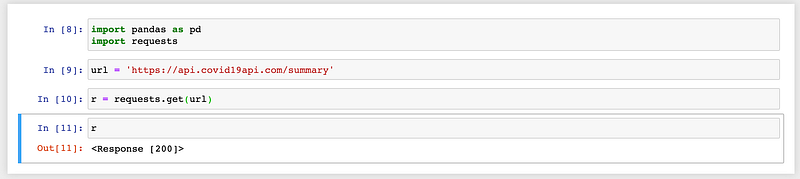
Cool! A status code response. What does <Response [200]> mean? Just that the request has succeeded. This is a great success.

Next, we need to extract some data from this request. Because this request contains more than just the response code shown.
Step 4: Extract Data from the Request using the Json() Method
For this step, we’ll use a handy little method called json() to extract the json-structured data from the request. It’s quite easy, really:
json = r.json()Neat. Let’s look at our result if we just run the json variable in our notebook:
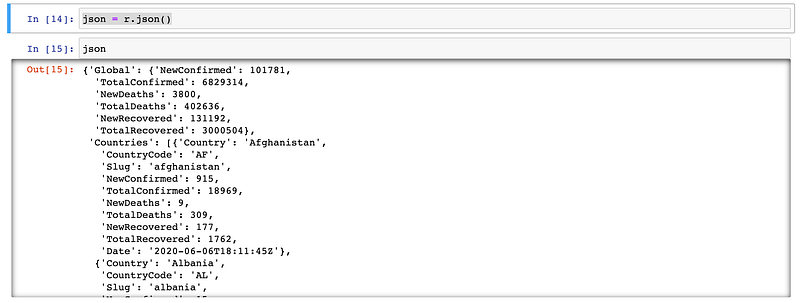
Data! Look at that beautiful data!

We’re really getting somewhere, but we aren’t done yet. Next we’ll do a little pre-work to figure out how to translate this JSON structured data into a dataframe.
Step 5: Exploring our JSON using the Keys() and Type() Methods
First, let’s use another handy little method: keys()
W3schools.com tells that that the keys() method returns a view object. The view object contains the keys of the dictionary, as a list.
json.keys()The results of this method called on our json is going to be important for building our dataframe. We get a list of keys:

We can use each of these keys to explore the JSON, similar to how you would select a column in a Pandas Dataframe:
json['Global']returns:

A pretty boring dataframe this key would make.
json['Countries'] is much more exciting:
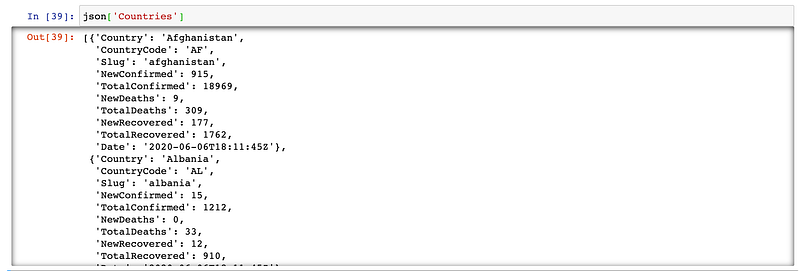
And lastly, json['Date'] just gives us a string of the date and time of the data:

We could also check the types of each of these keys which will help us understand which key holds interesting data worth transforming into a dataframe:
type(json['Global'])type(json['Countries'])type(json['Date'])Results:

json['Global'] is a dict
json['Countries'] is a list
json['Date'] is a string
I wonder what json['Countries'] is a list of?? Because it’s a list, we can simply add an index next to the key, and test what type of data is listed:
type(json['Countries'][0])
type(json['Countries'][0]) is a dict. So we’ve got a list of dicts! This is definitely transformable into a Dataframe. Let’s do this thing!

Step 6: JSON to Dataframe
Now that we have our target key, it’s really simple to transform it into a Dataframe. Let’s just do it:
df = pd.DataFrame(json['Countries'])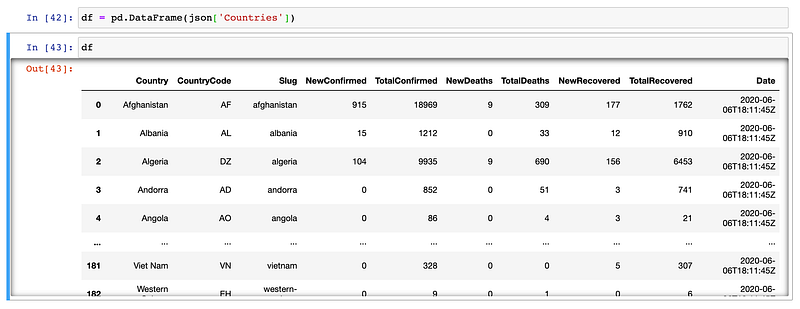
Heck yeah. We did it. Now have fun exploring the web with your new toolset! Maybe you want to plot some of this data? If so head over to my article here that will show you how to build line plots with this data!

That’s it for now, folks! I hope you enjoyed this tutorial and learned something useful. Now go get out there and understand the World a little better through your analysis of data! I’m so proud of you and your new-found skills.
If you enjoyed this tutorial, please give it a “clap” or two, share it with your friends, and go ahead and please give me a follow on Medium and Twitter. Your engagement keeps me motivated to keep creating!!
Till next time…

If you enjoy reading stories like these and want to support me as a writer, consider signing up to become a Medium member. It’s $5 a month, giving you unlimited access to thousands of Python guides and Data science articles. If you sign up using my link, I’ll earn a small commission with no extra cost to you.


