How to Bypass Windows Login Screen
A Step-by-Step Guide
If you are not a member, you can read this article for free here.
Introduction
Have you ever wondered if you are actually secure, despite using a strong password for your Windows login?
If you had and the answer is yes, well, I have some bad news for you. If the answer is no, you are completely right.
In this article, we will discuss and demonstrate through an experiment how can a malicious individual gain access to your computer, without knowing your password, in just a couple of minutes.
Preparation
For the purposes of the experiment, we will need the following:
- Any physical or virtual machine with Windows installed. (Supported Versions: NT/2000/XP /Vista/7/8/10/11)
- A bootable flash drive with Hiren’s BootCD PE x64 iso.
Setting up a strong password
Step 1 Open Windows search, type “password” and click on “Change your password” result.
Step 2 Choose the “Password” option and click the “Change” button.
Step 3 Enter your current password and then enter the new password.
For this experiment, we ’ll use the password shown in the following screenshot:
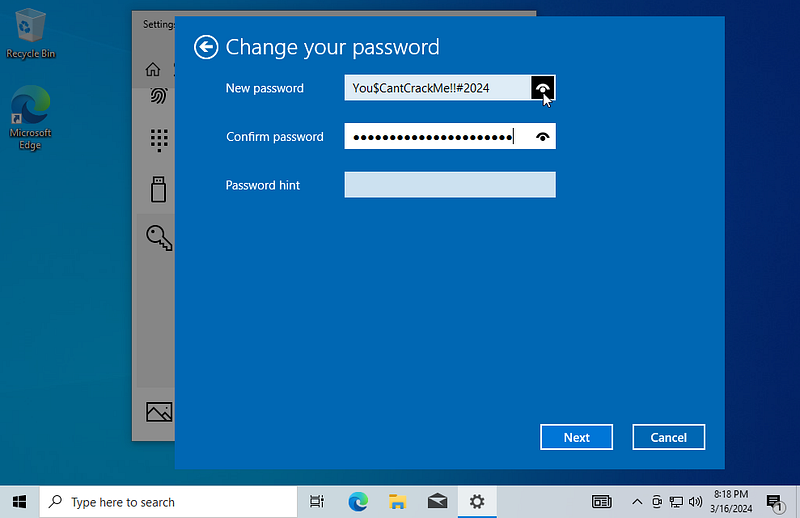
With the new password set, we’re all set to proceed.
Booting Hiren’s BootCD
Insert the bootable USB drive and restart the machine. If you are using a virtual machine, you can attach the iso file to an Optical Drive device.
Then, press the appropriate key to boot from USB (typically F12 on most motherboards).
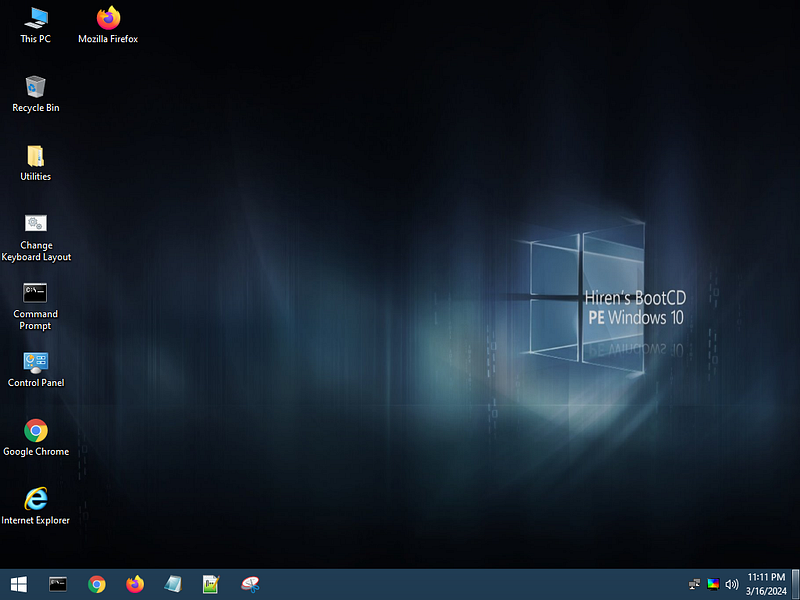
Hiren’s BootCD is now loaded.
Password editing
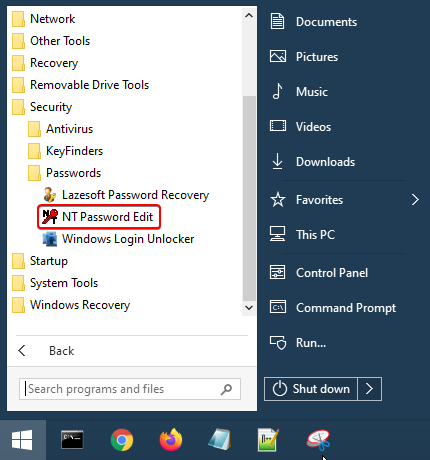
Using a tool called “NT Password Edit,” we’ll edit the Windows login password we previously set.
To find this tool, open the Start Menu, then navigate to Security → Passwords → NT Password Edit.
The program’s UI will open and the path to the SAM file, where the password hashes are stored, will be automatically detected. If not, the default path is “C:\WINDOWS\SYSTEM32\CONFIG\SAM”.
Step 1 Click “Open” and all the accounts will load. In our case, the account’s username is “Alex”.
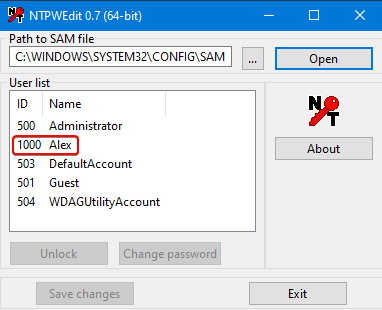
Step 2 Select the username of interest and click the “Change password” button.
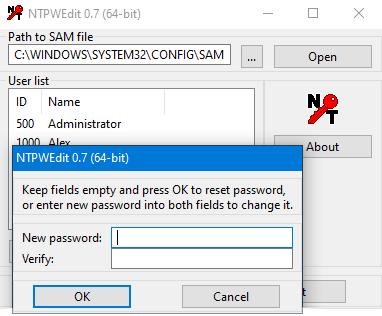
Step 3 Enter the new password, which will overwrite the current one, and click “OK”. Then, click the “Save changes” button.
Step 4 You’re ready!
The password has been changed! All that’s left is to reboot the machine and try logging into Windows with the new password to ensure everything went smoothly.
Logging into Windows
After the reboot, the login screen appears.
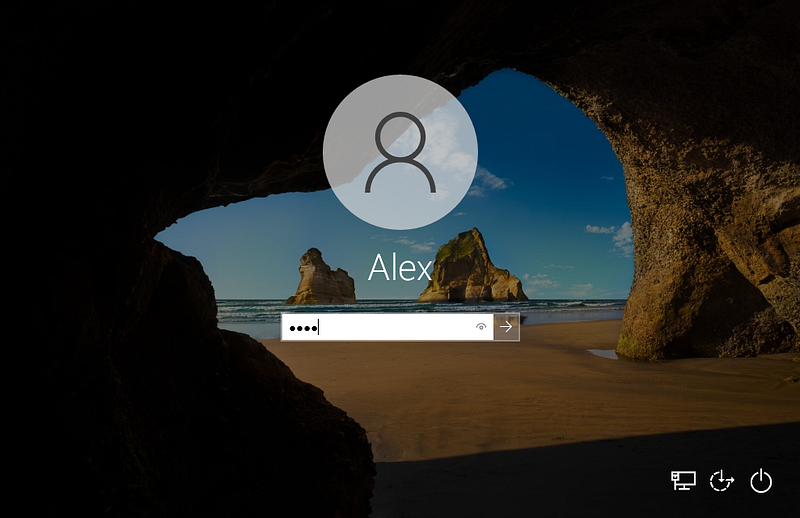
Enter the new password you just created and press Enter.
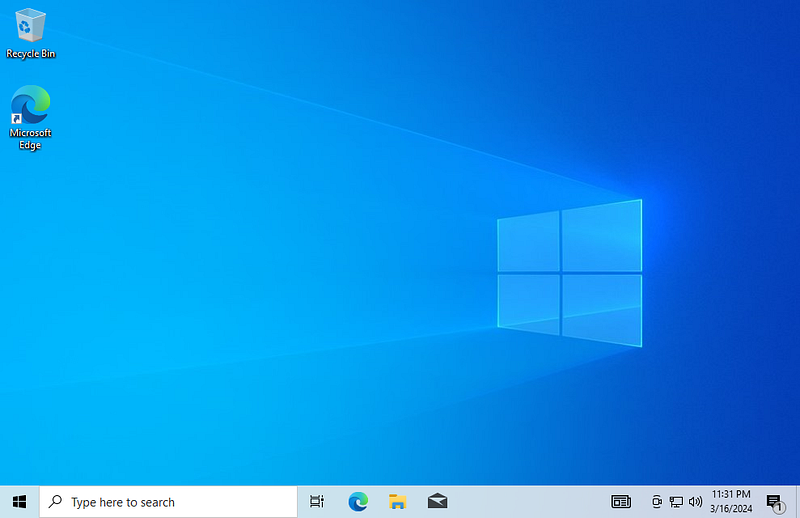
That’s it! The account logs in! We bypassed the Windows password successfully in just a few minutes!

That concludes our experiment in bypassing Windows login screen.
Thank you for reading! I hope you enjoyed this article and gained new insights from it.
If you found it valuable, please consider expressing your appreciation by following me, giving it a round of applause, or even supporting me with a coffee. These small gestures mean a lot to us authors and often serve as the motivation we need to keep writing and creating content!