
NextJs
How to add an image in next.js?
Full details article for next.js image component and image optimization. This article is part of next.js #SeriesPart8.
Next.js introduces image optimization for your website in version 10. For image optimization, next.js provides an image component. After launching the image component, Next.js improves and adds lots of functionality like layout, loader, and onLoadingComplete props to define and improve image loading speed in the browser.

History of the image component

Demo
What is the image component?
The image component is similar to react component. Image components provide additional functionality to the image, with image components helping to define image size(height, width), alt text, placeholder, styling, and other functionality.
Requirement for Next.js to add an image?
One requirement required by nextjs is that you have the latest version of next.js.
If you have an old next.js version (10 or 10+), .you also use an image component with low functionality (props). I recommend you to use, next.js, the latest version.
Why do we need an image component?
Next.js image component provides lots of feature in next.js, but we discuss Six major feature which is more important in next.js. That feature help developer lot of us. We do not write an extra line of code. next.js, by default, provides all functionality.
- Next.js Improve web speed and optimization.
- Next.js Prevent the Cumulative Layout Shift (CLS)
- Add responsive to image support
- Faster Page Loads
- Next.js also support Lazy loading
- Next.js also support Image format
This list tells us the major feature provided by next.js. Next.js also provides features like Remote Images, loader support, priority, placeholder, onLoadingComplete, and configuration.
How to add Image and image optimization in Next.js?
In next.js, there is no need to write an extra line of code in nextjs. Next.js, by default, provides support image and image optimization for your web app.
Firstly import the image component in next.js and define the image path in src props in the image component.
import Image from 'next/image'
import mypic from '../asset/myimage.png'
const MyImage = (props) => {
  return (
    <Image
      src={mypic}
      alt="Picture of the author"
      width="350px"
      height="300px"
    />
  )
Now your image shows in the browser. In the image component, src, width, and height props are required by next.js, and other props are optional in next.js.
Optional props
Next.js image component optional props help to add more functionality to your image.
Layout
Layout props help to responsive your image according to layout or viewport. Layout props also support different value properties.
import Image from 'next/image'
import mypic from '../asset/myimage.png'
const MyImage = (props) => {
  return (
    <Image
      src={mypic}
      alt="Picture of the author"
      width="350px"
      height="300px"
      layout="responsive"
  />
  )
With the layout, next.js provides four values.
- fill
- responsive
- intrinsic
- fixed
import Image from 'next/image'
import mypic from '../asset/myimage.png'
const MyImage = (props) => {
  return (
    <Image
      src={mypic}
      alt="Picture of the author"
      width="350px"
      height="300px"
      layout="fixed" // layout="fill", layout="intrinsic"
  />
  )
loader
Loader is a custom function used to resolve URLs.
Check the full demo on Code Sandbox,
placeholder
placeholder props used to show image loading indicator in Next.js. placeholder is two-value is blur or empty . by default, the value is empty
Blur value shows a blurred image effect in the browser. That means your image is loading.
import Image from 'next/image'
import mypic from '../asset/myimage.png'
const MyImage = (props) => {
  return (
    <Image
      src={mypic}
      alt="Picture of the author"
      width="350px"
      height="300px"
      placeholder="blur" // placeholder="empty"
  />
  )
Add CSS Class
You also add a CSS class in the image component with className props.
import Image from "next/image";
import styles from "../css/card.module.css";
import mypic from '../asset/myimage.png'
export default function IndexPage(props) {return (
<div className={styles.card}> <Image
src={mypic}
className={styles.imagecomonentcard}
width="300px"
height="200px"
/> </div>
);
}Note:
The next.js image component does not support style objects in next.js.
<Image style={{}} // it does not working in image component.
src={myimagepath}
className={styles.imagecomonentcard}
width="300px"
height="200px"/>
Loading
Loading props help load image with lazy load. When you scroll down, nextjs, automatically load the next image. By default, next.js adds lazy load and eager is not good for image optimization.
import Image from 'next/image'
import mypic from '../asset/myimage.png'
const MyImage = (props) => {
  return (
    <Image
      src={mypic}
      alt="Picture of the author"
      width="350px"
      height="300px"
      priority // lazy ,eager
  />
  )
priority and lazy next.js recommend load
Configuration Options
In the configuration option, your overside exiting configuration in next.js according to your choice. After changing the config file, make sure you stop the server and restart it.
Domains
In Nextjs, when you use CDN in a project, API and load assets on different domains or websites. Then you config your domain in the nextjs config file.
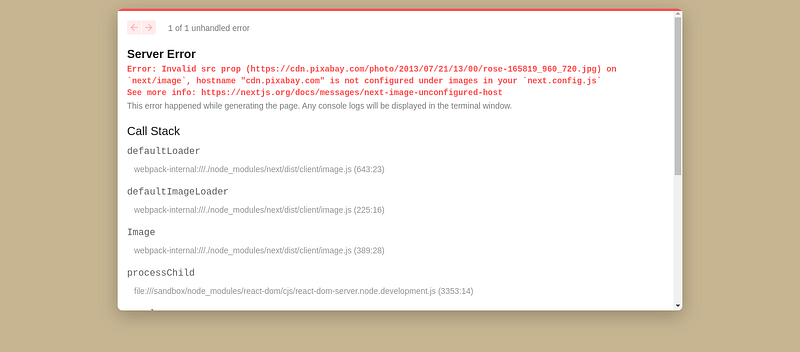
For example, I use an image CDN from pixabay.com to load images. If you do not configure the domain in next.js, next.js shows an error in the browser or console.
import Image from 'next/image'

const MyImage = (props) => {
  return (
    <Image
      src="https://cdn.pixabay.com/photo/2013/07/21/13/00/rose-165819_960_720.jpg"
      alt="Picture of rose"
      width="350px"
      height="300px
  />
  )
When you add the image CDN URL in the image component to the src tag, you do not configure the domain in nextjs, and next.js shows an error in the browser.
How to solve it?
You open next.config.js and add the domain in the images section.
module.exports = {
images: {
   domains: ["cdn.pixabay.com"]
}
};
You add one or more domains in the images section.
module.exports = {
images: {
      domains: ["cdn.pixabay.com", "dog.ceo"]
}
};
Device Sizes
Nextjs config file, you add different device sizes according to your requirement. When you use layout="responsive" or layout="fill" next.js changes image size according to your requirement, which you mention in the nextjs config files.
module.exports = {
  images: {
    deviceSizes: [640, 750, 828, 1080, 1200, 1920, 2048, 3840],
  },
}
Image Sizes
In Nextjs, the config file, you add different image sizes according to your requirement. You mention your imageSize in the next.js config to create srcset in the image tag.
module.exports = {
  images: {
    imageSizes: [16, 32, 48, 64, 96, 128, 256, 384],
  },
}
Formats
Nextjs also support image format. next.js automatically detect image format by header request and convert image into browser-supported formats. By default, image formats look like.
module.exports = {
  images: {
    formats: ['image/webp'],
  },
}
You add a custom image format in nextjs
module.exports = {
  images: {
    formats: ['image/png','image/jpeg'],
  },
}
You check all custom format options to read this article.
https://developer.mozilla.org/en-US/docs/Web/Media/Formats/Image_types
Read the previous post
References
https://nextjs.org/learn/seo/web-performance/cls
https://nextjs.org/docs/basic-features/image-optimization
Demo
Conclusion
Next.js image component improves loading speed as well as web performance. On the website page, the load image size is very large and decreases the website. Some image formats are also not supported by the browser. Next automatic-check browser support and convert the image to a supported format.
In This Post, I cove only the basic properties of the image components. If you go too deep, I suggest checking out Next.js official docs for more updates.
Read More content at Nextjs. Sign up for a free newsletter and join the nextjs community on Medium.


