List Tips
How to Add a Section Divider to a List
I wanted to divide my philosophy stories between Personal and General with Specific Questions in the middle
Why
I’ve been converting my table-of-contents (TOC) categories from Story form to List form, which is much easier to maintain. I was doing great until I hit Philosophy. It had 3 section titles.
Lists has no way to add a section title
So, I invented one
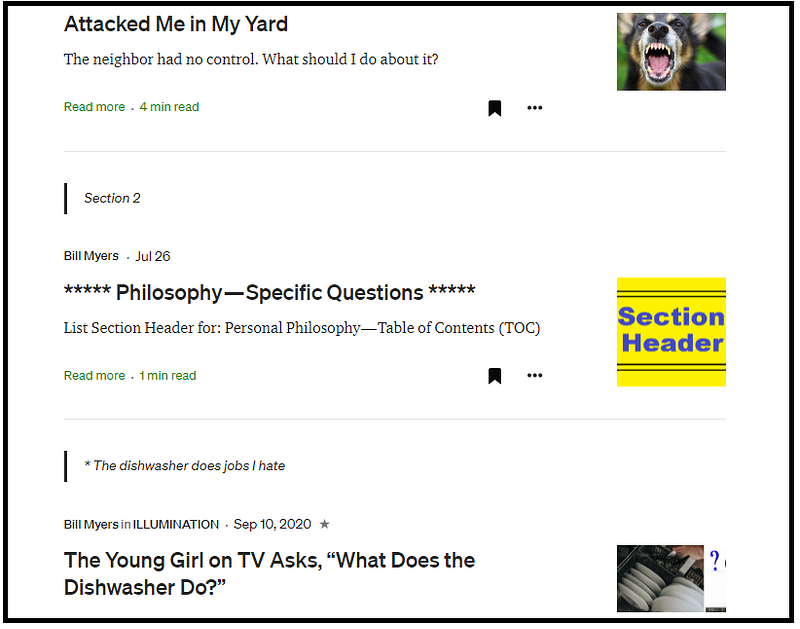
I publish a section title story with a title, sub-title, always the same picture, and nothing else.
I do not submit it to a publication and do not include it in the public listing. That means that it is only visible to a reader if the reader has the URL. Well, the List has the URL, so it appears there.
To remove it from the public listing, go to the divider’s story menu, click the “Manage unlisted setting” selection, and change it to Yes.
The entire story looks like this:

Once I’ve published the story, I open it, click on the List icon at the bottom, and add it to the category list. In this case, “My Philosophy — Table of Contents (TOC).”
Notice that my list name is “My Philosophy” and “Personal Philosophy” is in the divider subtitle. That’s one more thing to check before publishing the Category TOC story.
I had to go back and change my 3 section dividers.
Odd Medium website actions — Program Bug
Sometimes everything works as described here. Others, the List icon did not appear on the divider subtitle. This problem came up the day after this article was published.
When I changed it from unlisted to listed, it appeared. After I added the divider to the list, I changed it back to unlisted and everything worked fine.
This may have been a temporary bug that may never appear again, but if it does, we just have to work through it. Good luck.
What I’ve learned about Lists display bug: 1. Picture & title does not display when adding link to a story 2. Strange text displays in box 3. Not fixed when saved and return 4. Picture –does- display in Links list 5. Worked fine on July 28 6. Problem first appeared on July 29
Current workaround is to use a regular text link.
People click link
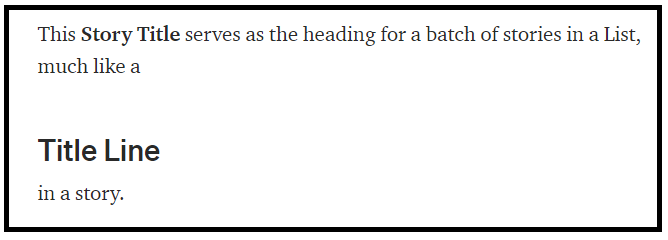
Some readers have clicked the section header, so I added this to every one:
Conclusion
You never know when or why you might want to divide a list, but this provides one method to do so.
References
TOC — Story form
TOC — List form
I decided to create a unique picture for the first section since it appears in the link picture below. Same color scheme, but Section Header in the picture did not convey anything.
Section Header picture
(free to copy and use)