
How I’ve Been Using ChatGPT As a Data Analyst
ChatGPT, plugins, and the code interpreter will help you make your life easier as a data analyst.

Since ChatGPT was released I’ve been using it to make my life easier as a data analyst.
In the beginning, I used ChatGPT to help me with Python, but after OpenAI released the Plugin Store and the Code Interpreter, I used ChatGPT for more than writing or debugging code, but to do some tasks I frequently do as a data analyst such as doing research, collecting data, creating reports and more.
Here’s how I’ve been using ChatGPT as a data analyst.
Using ChatGPT Plugins to do a quick research
When I start a new project, the first thing I do is gather all the information already available about the topic in question. This usually involves searching on Google and reading research papers.
What better way to do all this than with the help of ChatGPT?
There are some ChatGPT plugins that help me when doing research. Here are some I use.
- LinkReader: LinkReader is very useful for internet research. This plugin can help us summarize the content of links, so we can have an overview of a complete article before reading it.
- Ask Your PDF: This is a good option when you have a paper in PDF format. You can upload the PDF and ask it to summarize it for you.
After I have enough information about the topic in question, I collect data to start the analysis. ChatGPT helps me with that too.
Using Code Interpreter and the “Scraper” plugin for Web Scraping
When it comes to collecting data from the internet, ChatGPT comes in handy.
There’s a drawback, though. If you try using GPT-3.5, ChatGPT will tell you that as an AI tool, it can’t perform web scraping, so it’d provide you with a simple template that might help you scrape the target website.
Fortunately, there are some ChatGPT plugins that can do web scraping for us in seconds!
First, there’s Scraper. This ChatGPT plugin let us scrape websites with 1 prompt. Say you want to extract data from a news website. You only have to install the Scraper plugin and use the prompt below.
scrape the headlines, date published and description from the articles listed in this website: [insert link]
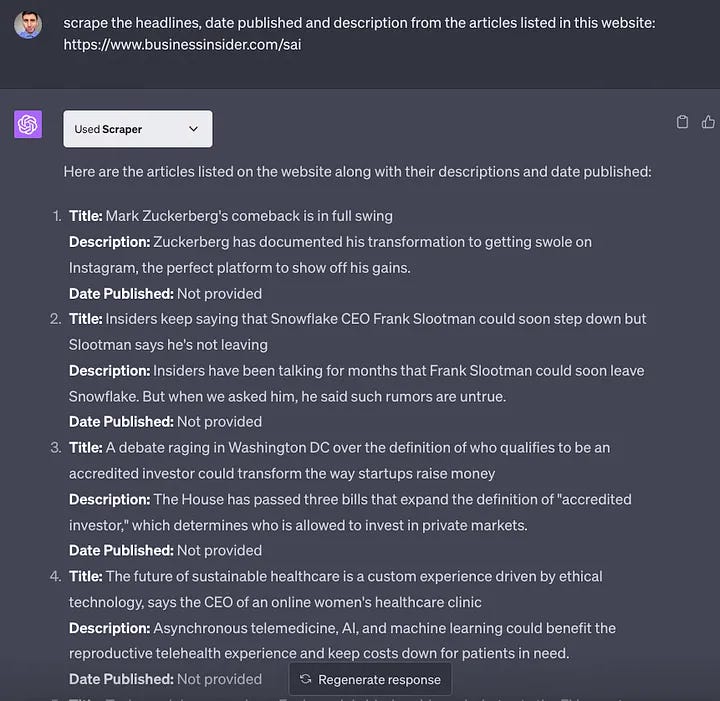
Then you can tell ChatGPT to put the data in a table so that you can easily copy/paste it into a spreadsheet.
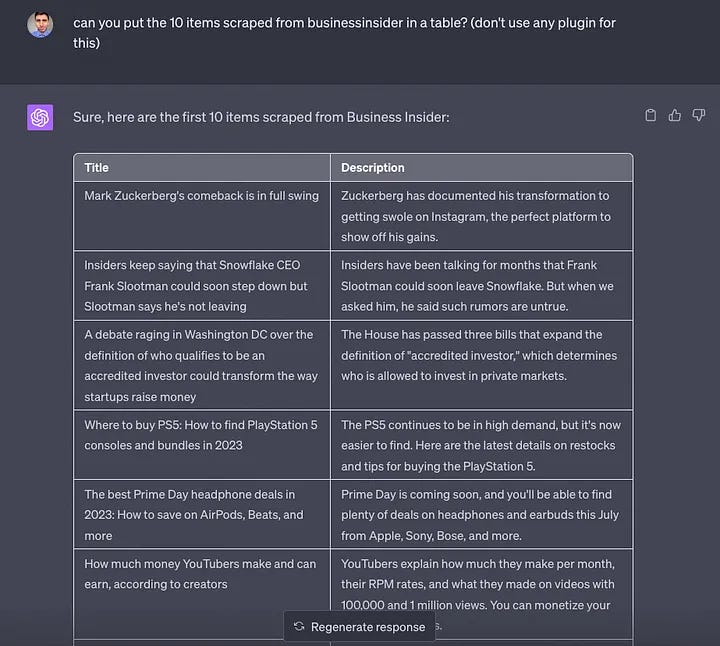
The scraper plugin is cool but has some drawbacks. It doesn’t let you export the data in a CSV file and won’t let you scrape all websites out there because it’s against the ToS of some websites.
In such cases, there’s a very good alternative — ChatGPT code interpreter.
To do web scraping with the code interpreter, you need to follow the steps shown in my tweet below.
The best part of the code interpreter is that it allows you to download all the data in a CSV file! For more info about doing web scraping with ChatGPT code interpreter, check this article I wrote.
Using Code Interpreter to Generate a Report
ChatGPT code interpreter is good at doing stuff with Python code and one of those things it can help us do is doing data analysis!
We only need to upload our dataset (or datasets in a zip file) and either let ChatGPT do a quick analysis for us or specify which type of analysis we want to carry out.
In a previous article, I showed how the code interpreter created a quick report from a population dataset I uploaded.
Analyze the dataset and make charts and graphs to show the major trends in population growth around the world
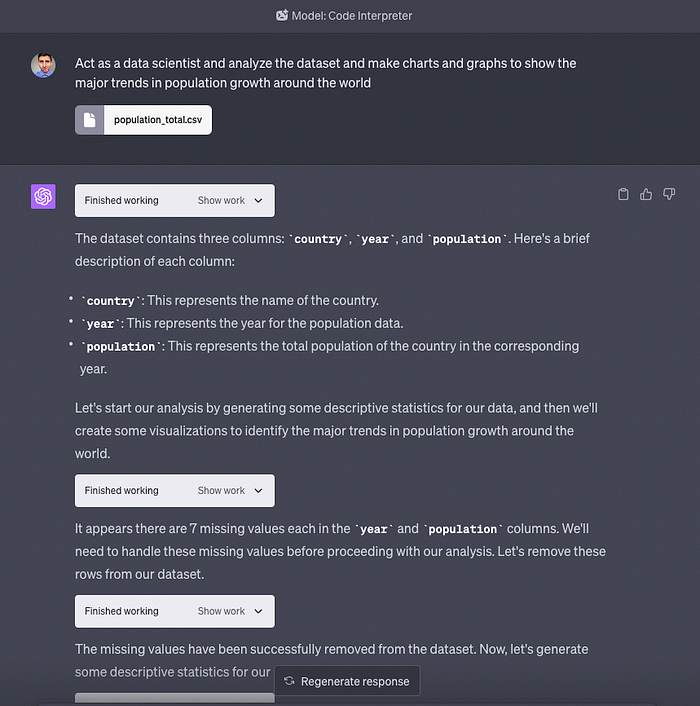
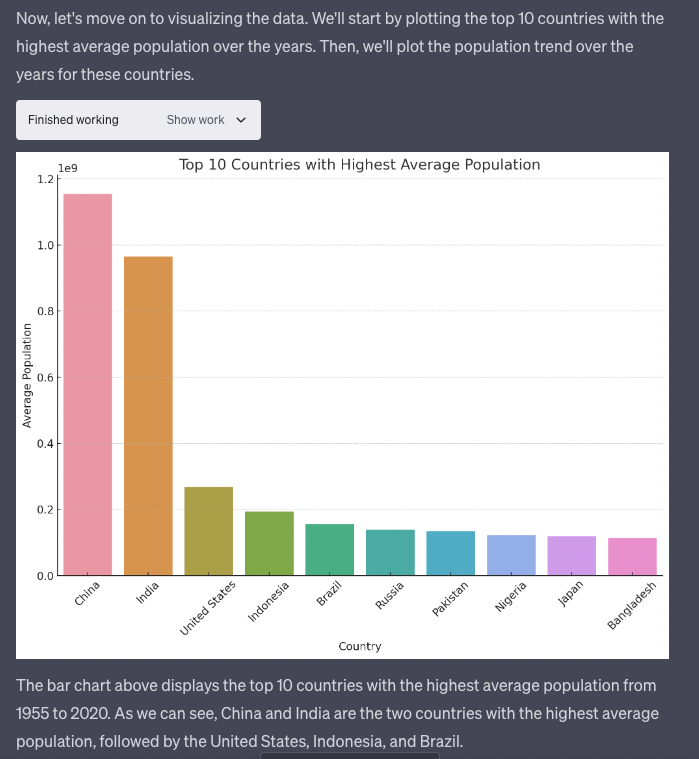
As you can see, first, it gives a quick summary of the dataset and then provides some visualizations (with code included).
Things get more interesting if you add more details to your prompt in order to customize the report you get. I tried this with another dataset in a previous article.
Act as a data scientist and analyze the soccer players from only the countries United States, Canada, England, Brazil, and Argentina.
- Make a barplot to analyze the column “overall” which represents how good a player is at soccer. - Make a histogram and a boxplot to explore the average height of players in such countries - Make a scatterplot to see how the weight of players is distributed. - Finally, make a piechart to see the top 10 most valuable players (value_eur) from the USA.
As you might expect, ChatGPT generated all the visualizations and even let me export the report in PDF format and the code in a .ipynb file. For more details, check out this guide.
Bonus: Connect to spreadsheets using Noteable
In case you have your dataset available online, you can connect to a spreadsheet using the ChatGPT plugin “Noteable.”
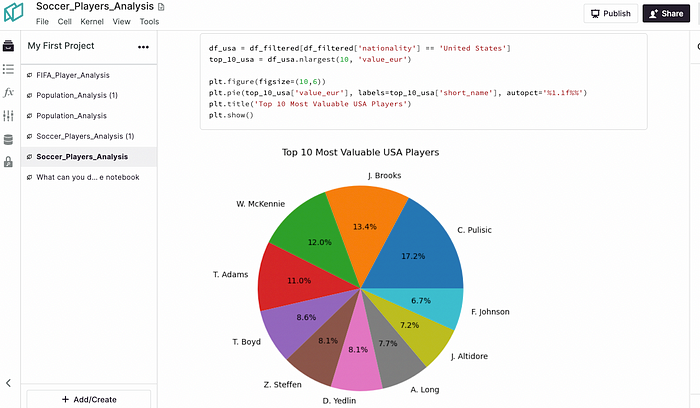
This plugin works similarly to the code interpreter but also allows us to connect to a spreadsheet via a link. On top of that, all the Python code that is generated for the analysis is automatically exported to a Noteable notebook.
For this, you’ll need to have a Noteable account and create a project. The prompt will look like this.
Load this dataset:
Use this as my default project:
Act as a data scientist and analyze the dataset and make charts and graphs to show the major trends in population growth around the world
Noteable seems to be as good as the code interpreter and you automatically have your generated code in a notebook, which is available online within your Noteable account.
That’s it! Let me know how you’ve been using ChatGPT as a data analyst in the comments.
Join my newsletter with 30K+ people to get my free ChatGPT cheat sheet.
If you enjoy reading stories like these and want to support me as a writer, you can do it through Paypal or by getting a Medium subscription (it’s $5 a month, giving you unlimited access to articles like this one … if you use my link, I’ll earn a small commission with no extra cost to you).


