
How I work with Things3 across Mac, iPhone, iPad and Apple Watch
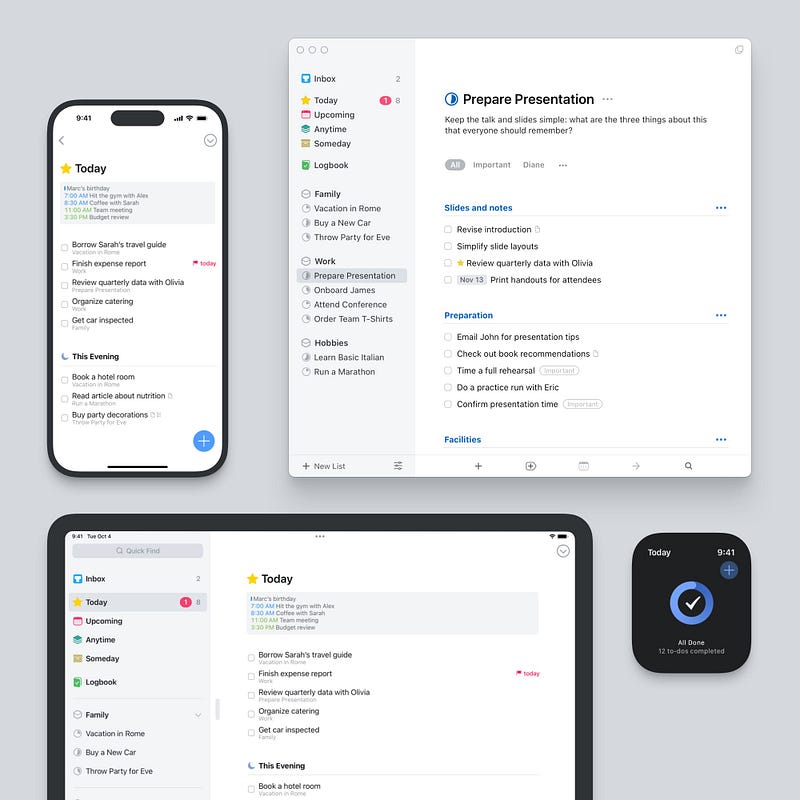
I wrote recently about how I had returned to Things3 following a brief flirtation with Reminders.
That article triggered some general questions about why Reminders didn’t work for me, which then lead to more specific questions around how I’m using Things.
This article is designed to answer that second question: how I have Things3 set up and how I use it on a daily basis to manage my life.
Breaking things down, there are seven main areas.
Data Capture
First up, in true GTD style, if something crops up that is going to take less than two minutes to complete, I don’t put it iThings — I just do it there and then.
However, when I realise that I have a more in-depth task to carry out, I like to be able to capture it immediately, before I forget anything.
I have two main ways of doing this.
If I’m at my desk (perhaps in a work meeting) I have a hotkey shortcut setup (SHIFT+OPTION+N) that I can quickly use to bring up the Inbox overlay. I can quickly type out my task, hit save and forget about it until later on.
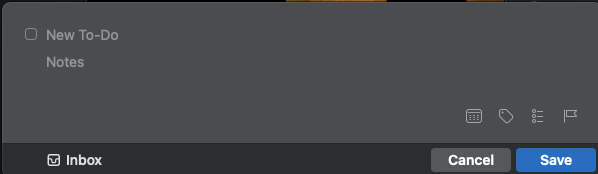
You can set up your own hotkey shortcut, by opening up Things3 on your Mac and clicking on Settings > Quick Entry. You then simply need to input your own key configuration into the “Enable shortcut for Quick Entry” option at the top of the list.
However, the vast majority of my tasks are pushed into Things via Siri.
The first thing to say here is that Things is set up to work with Siri directly, meaning that you can say phrases like:
- In Things, remind me to buy some milk
- Add “Phone Mum” using Things
I don’t find these phrases particularly intuitive though and, to be honest, in the heat of the moment I often forget them.
Luckily, though, Things3 offers a sync with Apple Reminders. That allows me to simply tell Siri to “Remind me to buy some milk” and the task will be put into Reminders from where Things pulls it into my inbox.
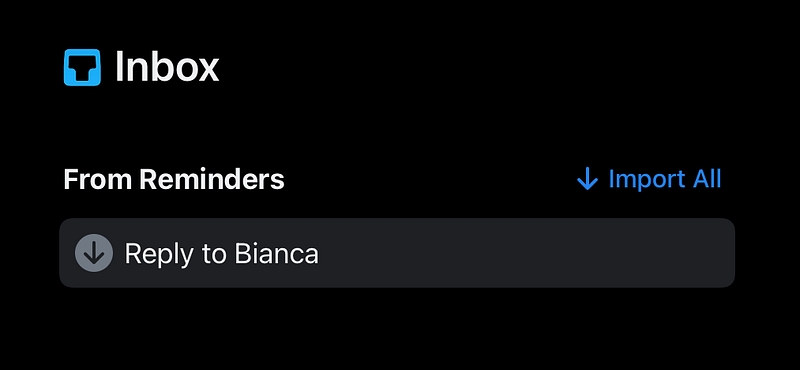
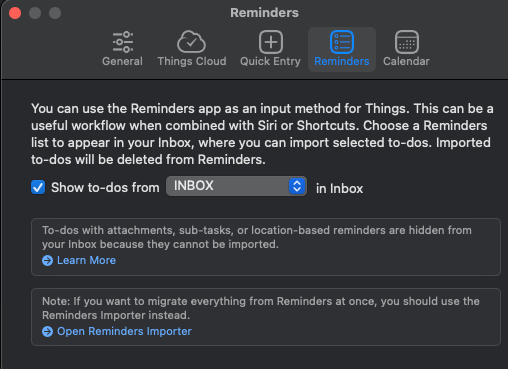
There are a couple of areas that need to be configured for this to happen. First up, you need to select a default list in Reminders for all these tasks to be added to. I have a dedicated list setup in Reminders simply called “INBOX”.
Then, within Things3, go to your settings and select the Reminders tab. The first option there will allow you to “Show to-dos” from a particular list in Reminders. Simply select the checkbox and choose the relevant list from the dropdown menu, as shown in the image below.
Task Management
Once I’ve added a task to my inbox, I then forget about it until the end of the day. Each evening, I spend five minutes working through them categorising tasks by Area (more on that below), tags and (where possible) adding dates to them.
Areas
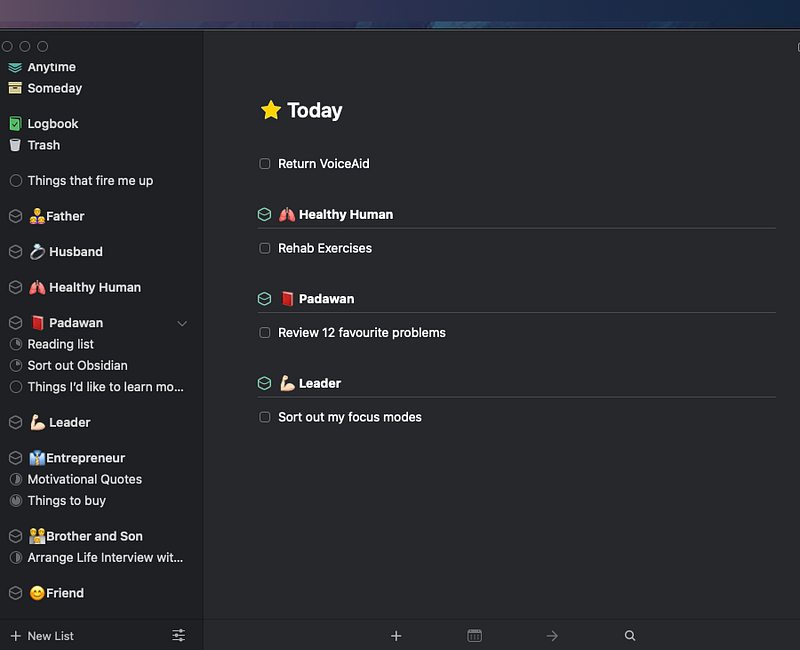
I try to categorise all of my notes/actions/tasks by a series of life roles. Where possible, they remain consistent across all of the apps that I use.
In Things3, that means I have an area for each of my roles, which I plan relevant tasks under.
It’s important to note that, while most tasks will fit under a particular area, some (like “Buy Milk) won’t and so they just remain a task in their own right.
Tags
Now that I’m working from home permanently, I’m using tags a lot less.
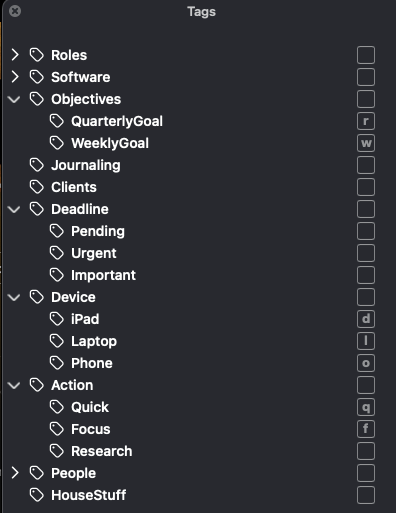
I still have a system that categorises tasks by client, individual and weekly/quarterly goals.
I also have tags for:
- Device (e.g. iPhone, iPad or Laptop)
- The effort needed to complete the task (e.g something quick or something that would need more focus)
That way, if I find myself sitting in the dentist’s waiting room with just my phone, I could easily find a few quick tasks to get done.
Each of the main tags has been assigned a keyboard shortcut too meaning that I can quickly filter my tasks whenever I’m sat down at a keyboard.
Weekly Planning
I can not underestimate how important it is that you sit down once a week with your task manager to try to plan out what you want to achieve over the upcoming week.
For me, this happens on Sunday evening, when I aim to limit myself to five tasks to complete each day.
Firstly, I’ll go through the “Upcoming” section to view the tasks that have dates for the next week attached to them. Where necessary, I’ll prioritise the tasks and add deadlines. Where more than five tasks show up on a single day, I’ll change the date for tasks that are not considered a priority.
While using Things3, I’ve learned that the “Anytime” folder is where tasks with no date go to die. Therefore, when I’m planning my week, I make an effort to go through “Anytime” and pull at least one task into my next week.
Evening Check-in
It’s important to stress that your week is not going to go as you planned.
New priorities will crop up unexpectedly, meetings will move and there will be family requirements among other things. In short, you’re not always going to get your five things done on the day that you had planned — and that’s ok
This is why the evening check-in is important. It only takes five minutes and allows you to:
- Process the day’s tasks that have been collected in your Inbox
- Move anything that didn’t get completed during the day
- Make sure that what you have planned for tomorrow is still feasible.
If stuff hasn’t got done or the next day has suddenly got a lot busier, it’s no big deal. Just re-work your tasks based on what has cropped up and assign new dates to your tasks.
This is why I love the unique way that Things handles Due Dates and Deadlines.
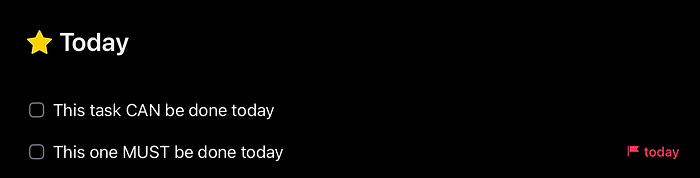
If a Due Date is missed (i.e. you were going to buy some milk today, but never got around to it), then Things doesn’t bash you over the head for it — it just shows up on your “Today” page the next day.
However, you will get bashed over the head if you’ve set a deadline for a particular task to be completed on Wednesday and it still hasn’t been ticked off by Thursday.
You’ll get a red flag next to the task, and you can set Things up to show a nice red counter on the app icon as well.
Daily Use
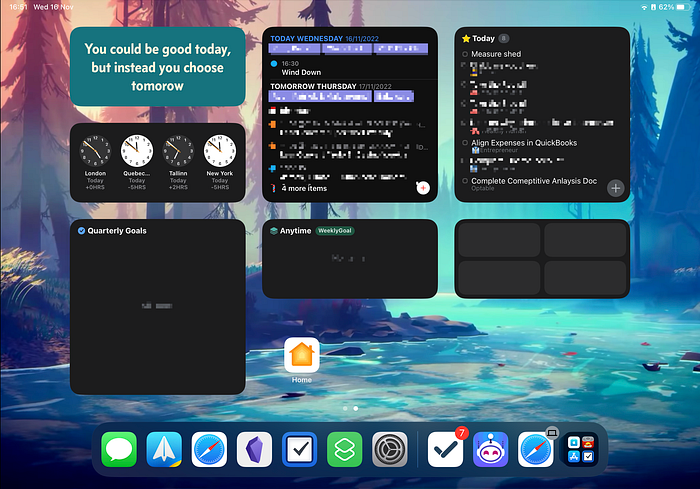
Once I have everything planned out, I use Things’ good selection of widgets to keep me focused on what my daily priorities are.
Those widgets are displayed on my iPad, which I use as a second screen ‘dashboard’ on my desk. As you can see below, the widgets are focused around the “Today” screen and everything that has been tagged as a “Quarterly Goal.”
Before you go
Thank you so much for reading this. If you found this article useful, please think about signing up for Medium to read a ton more content like it. It costs less than a coffee a month and by signing up here, you support my writing at no additional cost to yourself.
If you’re already a Medium member, then feel free to hit those clapping hands. It will help people with similar interests find this article. Hopefully, they’ll find it useful too!


