
How I deployed my Java Springboot App with MYSQL in AWS for free
This tutorial explains how to deploy a Java Springboot app in AWS Free Tier
Previously we created a login system with Java springboot, deployed it in Digital Ocene and created UI in Vue.js too.
Now I am creating a ecommerce app. I wanted to deploy it for free in AWS and explore Devops more. AWS is perfect for that, as most of the popular sites like Netflix, Linkedin, Facebook all use it, as it is best for scaling for billions of people. Let’s get started.
Table of contents
· Creating an EC2 instance · Login in by SSH to EC2 instance · Configure EC2 to run spring application · Set up mysql database in AWS RDS · Next steps · Resources
1. Creating an EC2 instance
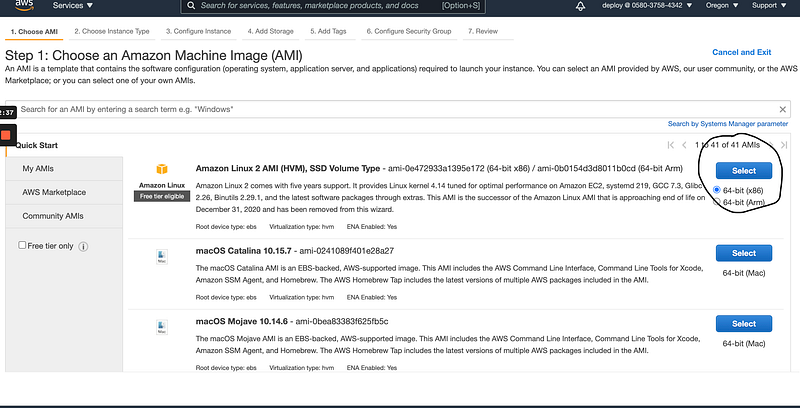
Then we select Amazon Linux 2 AMI (HVM), SSD Volume Type
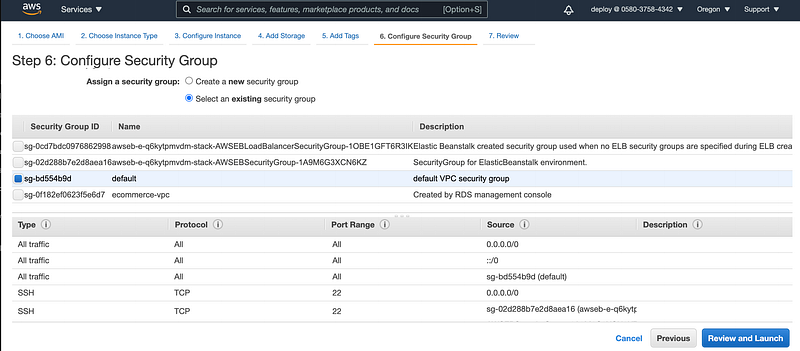
Then we configure the security group.
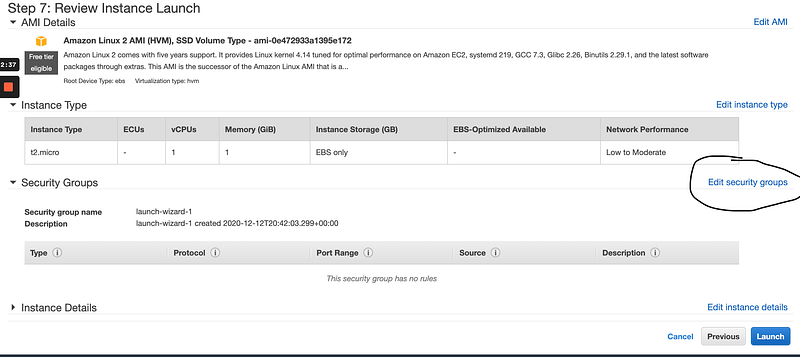
I configured it in a was, it allows all incoming traffic from anywhere. If you want, you can customise the inbound and outbound traffic.
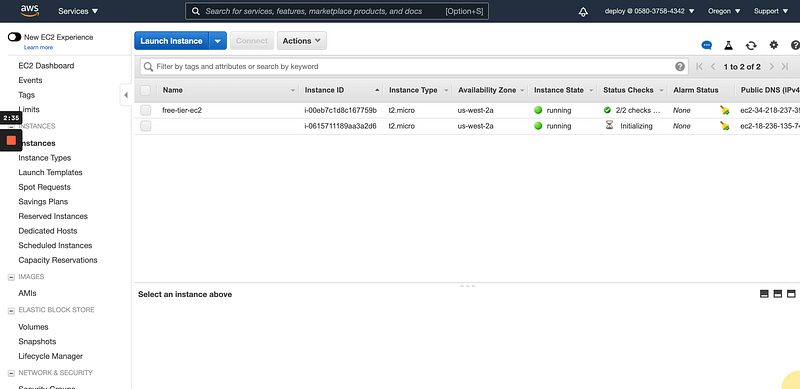
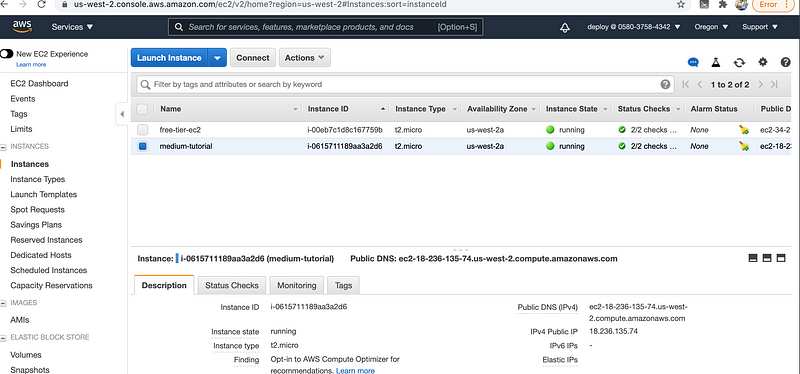
After launching, shortly we will see our new ec2 instance, which I rename as “medium-tutorial” is ready.
2. Login in by SSH to EC2 instance
Click the option “Connect”
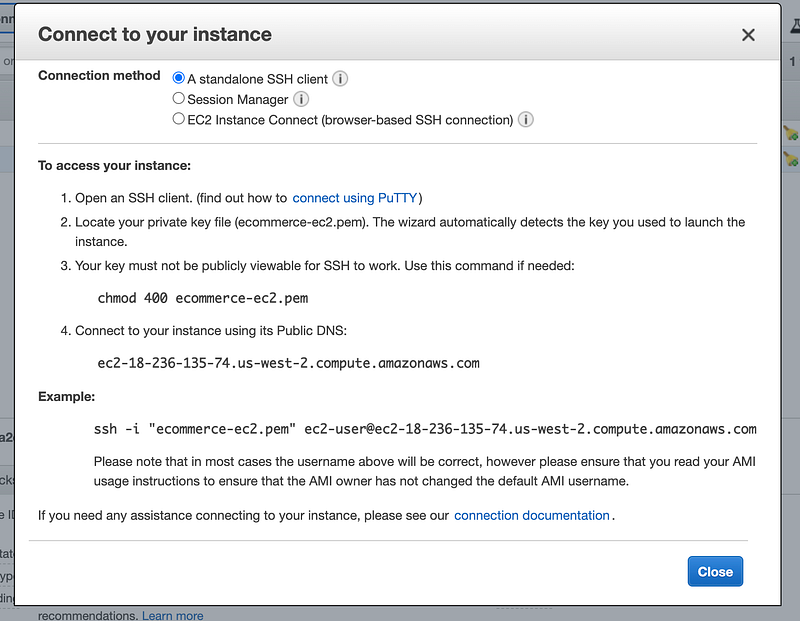
I chose an already existing key pair, you can create a new key pair and login to the instance. The fun starts here.
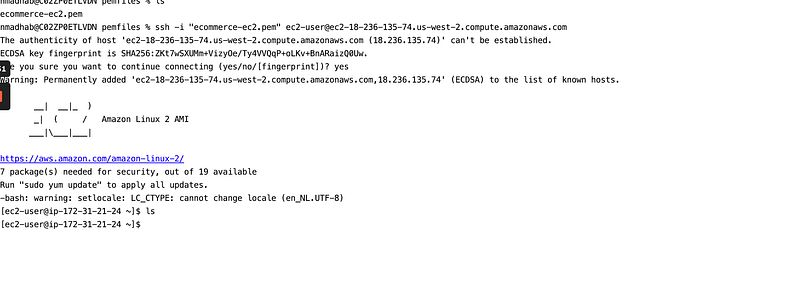
I open the folder where I stored my per file and follow the ssh command and login to ec2 instance.
3. Configure ec2 to run spring application.
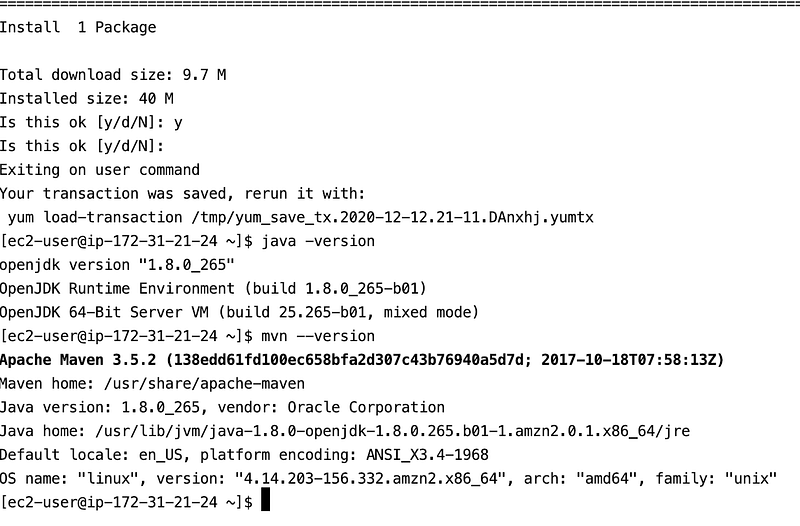
The newly ec2 instance is like a newly purchased linux machine, which we need to configure to run java and springboot. Lucky for our readers, I did all the grunt work to run Java and springboot. You have to configure yourself, if you want to run say Node.js.
As you can see after running all the commands we can see java and mvn working fine
4. Set up mysql database in AWS RDS
I configured my springboot application to connect to amazon RDS, because I want my application as well as my database in cloud.
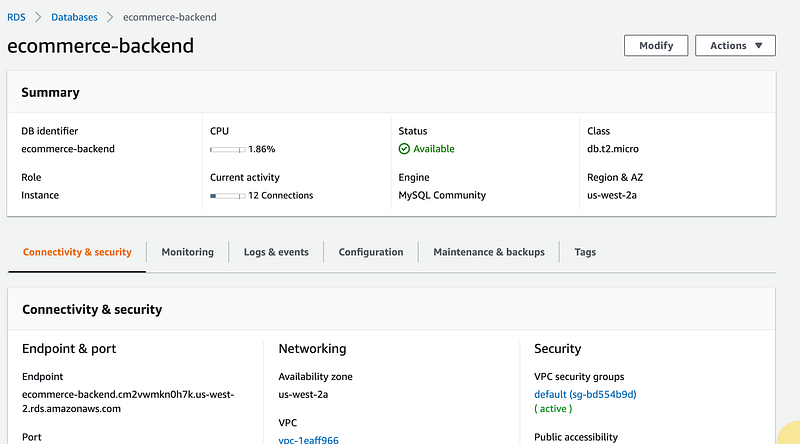
I can run my application in local and use Amazon RDS. Make sure to give public access to while creating mysql or you will get connection error when you start the application. Comment below if you want a tutorial on it.
5. Deploy the spring application in cloud EC2
Clone the branch in git and switch to right branch.
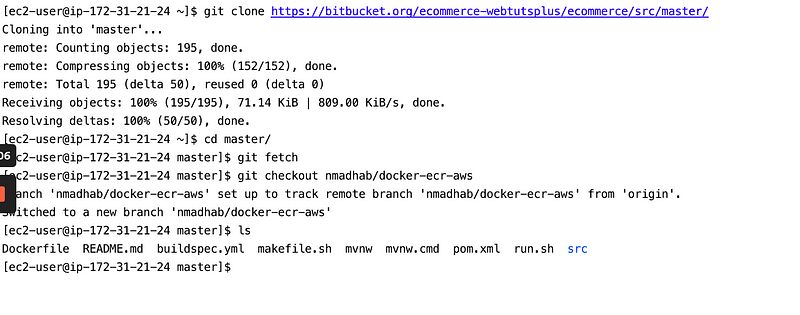
now at root directory where pom.xml exits run
mvn package
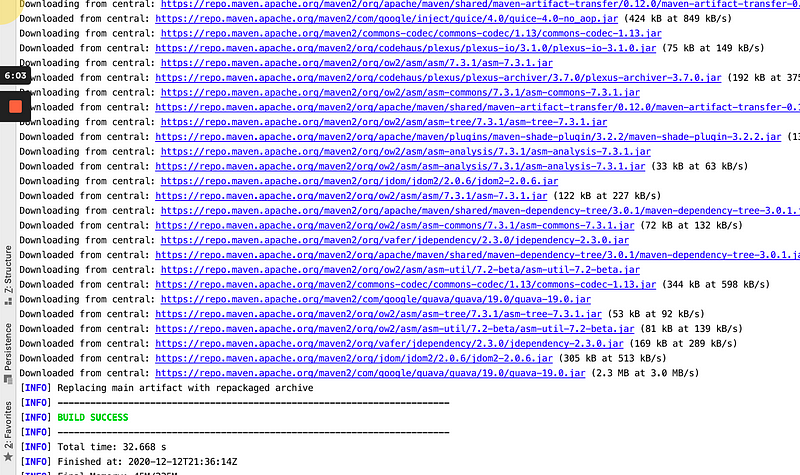
It should be success.
So, .war file has been created. you can check it in target folder. Now run (replace with your own generated .war file)
java -jar target/ecommerce-backend-0.0.1-SNAPSHOT.war
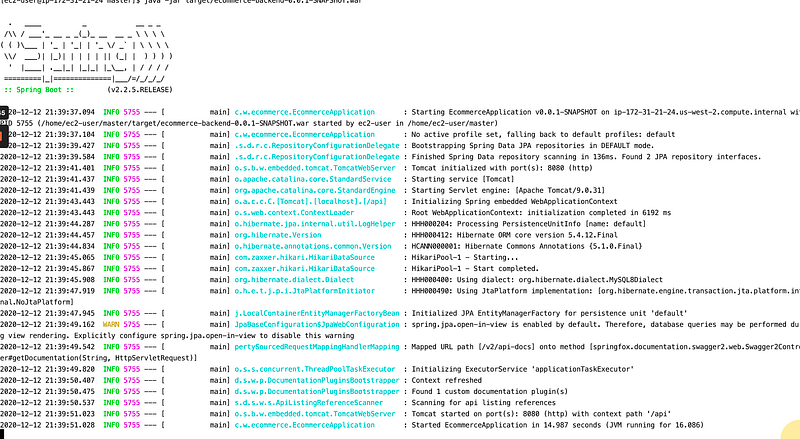
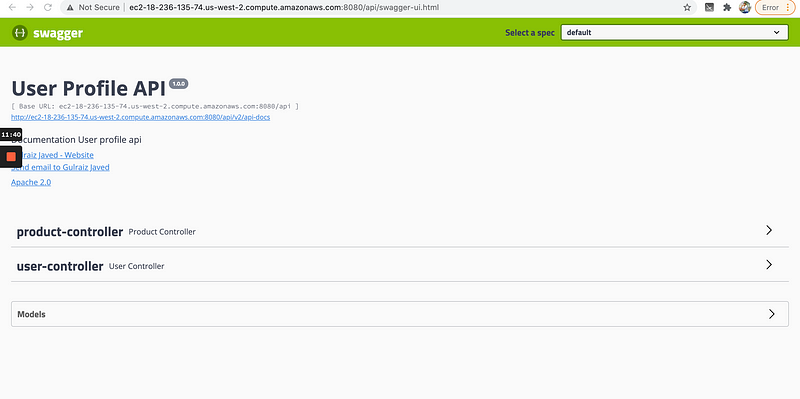
Go to the public dns name of the EC2 and run your application with correct port and part.
Next step
Great your app is running in aws. But there is one problem, what happens when you want to change your code and redeploy ? Well this tutorial is not for production codebase, which you can learn here
but I will give you my script to make it easy redeploying. Run
sh run.sh
With one command, you can redeploy your application again and your new code is live again. Works perfectly when you want to try out AWS, without going through the complexity of buildspec.yaml files. Also you can deploy multiple applications in same ec2 instance in different ports !


