Google Analytics with Ensighten TMS
How to setup google analytics tracking with Ensighten TMS

In a previous post I explained what was a data layer and a tag management system. One of the use case for it is the integration google analytics. Ensighten is an entreprise level tag management system. In this post, I will walk through what is required to setup google analytics without your website using that Ensighten as a tag management system.
Data Layer
In order to setup google analytics with Ensighten it is necessary to have a datalayer setup on your website. Unlike most other tag management system ensighten doesn’t need the data contained in the data layer to be present in a specific javascript object, but can source data from any javascript object available within your page.
The different data points being provided do however need to conform to the requirements provided by Google for integration of the different into google analytics enhanced ecommerce.
Data Definition
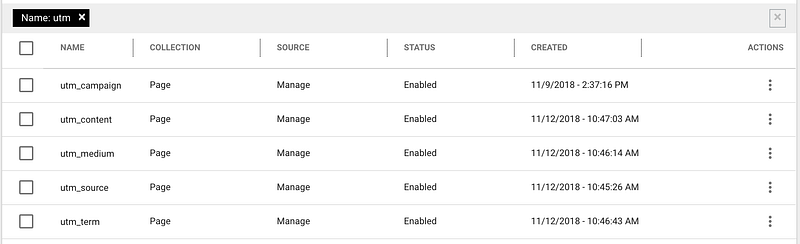
The data tab within ensighten, list all the different data definitions being setup for the different “space” you have access to. They represent all the mappings of the data available in one’s browser to a “canonical” data structure that can be re-used for integrations with multiple tags.
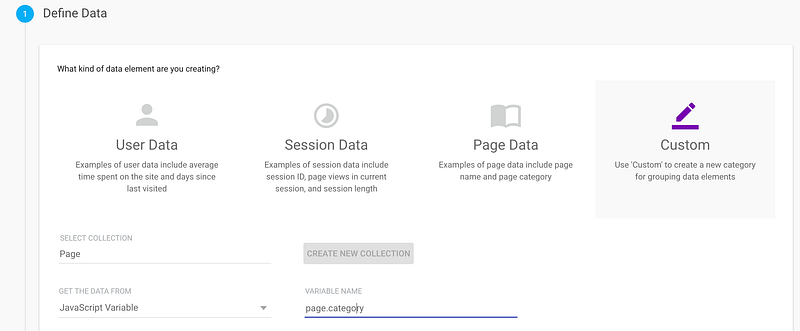
With Ensighten four different kind of dataset can be defined, they usually relate to a degree of persistence of the information being stored, instance, page, session or user.
The Data can be sourced from first party cookies, query parameters, metadata tags, javascript objects or through custom javascript functions.
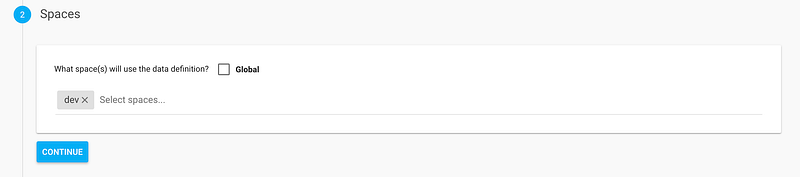
The scope of the datasets are limited to the concept of Space within Ensighten, it is from there that all the different variables within the space will be loaded in a custom Bootstrap.js
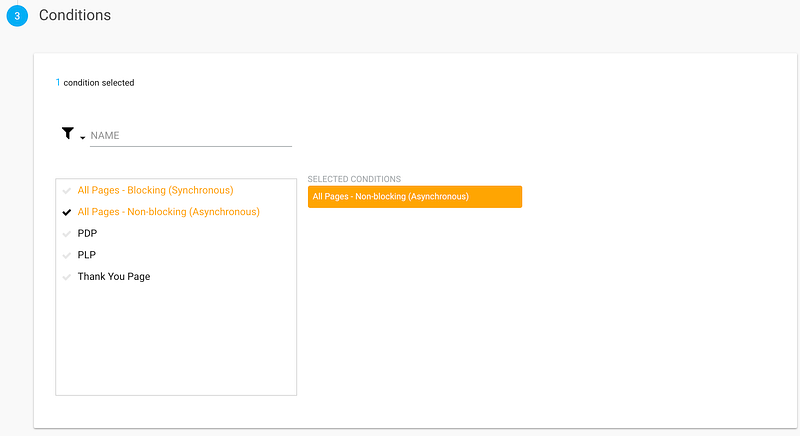
The data definitions are also associated to specific conditions, this is meant so that specific tags do not trigger upon the variables being present on a given page.
Conditions
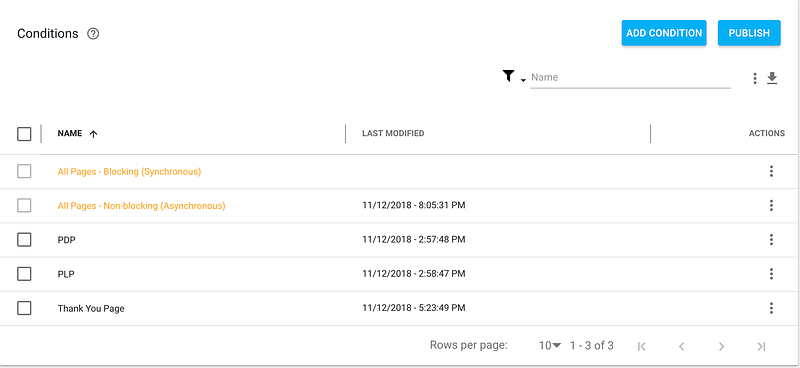
The conditions in the last step of setting up a data definition can be setup in the eponymous tab of Ensighten.
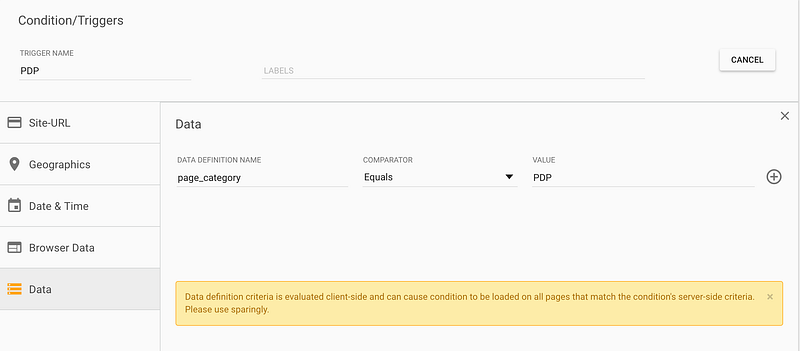
Ensighten offers different ways to setup these different conditions , from site-url be it based on parameters, matching keywords or through regex. Though Geographical lookup based on countries, through the setup of data and time conditions, browser data such as user-agents and ip-range of through the leverage of data definitions as shown in the image above.
Events
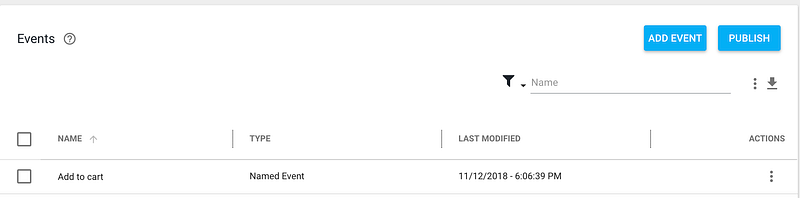
Beside data definitions, it is also possible to handle passing data of a more dynamic nature through events. Events can be used for instance toimplement the different actions of google analytics enhanced ecommerce such add to carts, product clicks and promotion clicks.
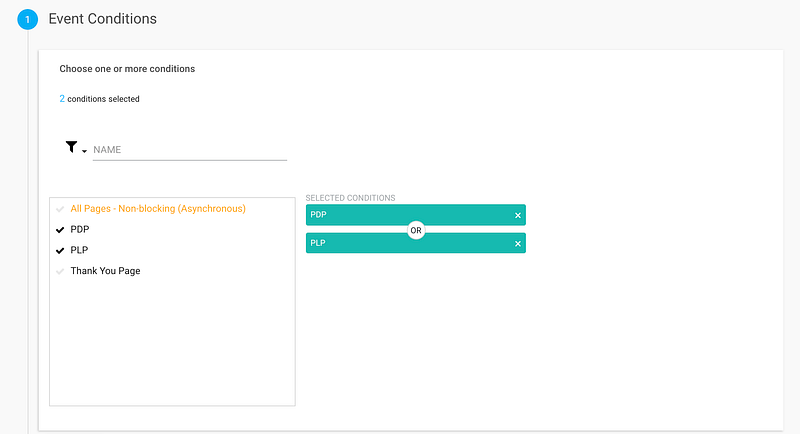
Like data definitions, events are also scoped by conditions. These determine when a specific event can trigger and fire tags already associated with it.

Ensighten offers three different ways to define an event, page-action which acts as a JQuery event Listener and fires event based on interactions with certain elements on the page, value change which triggers the event when a data definition object changes value and a named event which represent a javascript call made when the specific event is triggered. The last is often preferred when the development team is able to directly embedded the javascript call onto their codebase.
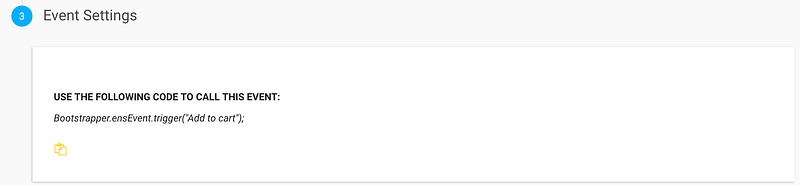
When setting up named event it is possible to trigger the specific action using the Bootstrapper.ensEvent.trigger functions. This function takes two parameters one is the name of the event and the other is an object containing all the information you can to pass to the different tags.
Google Analytics Tag
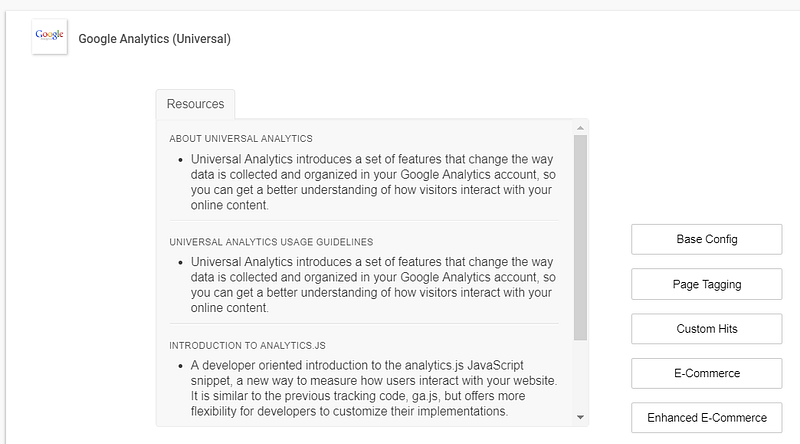
Implementation of the google analytics tag, can be added from the app tab on ensighten. Using the Google analytics universal tag it is possible to initially add a base config that will tie your Tag to a given Google analytics implementation and allow for the collection of page views to providing a deeper level of integration on the platform.
Universal Google Analytics Tag
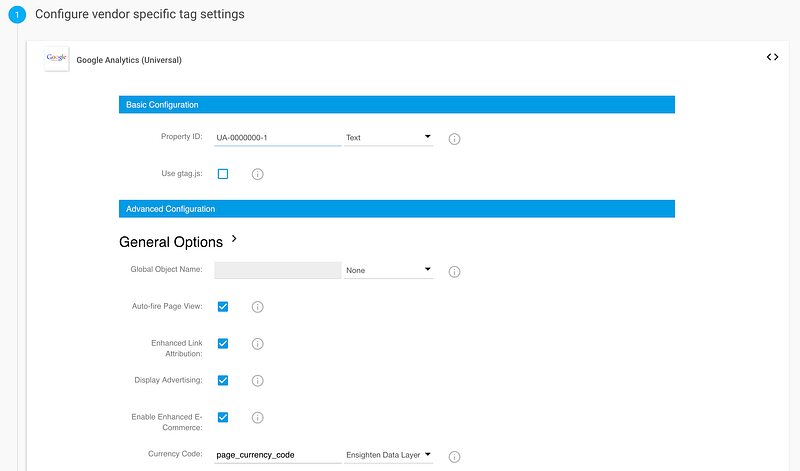
Setting up basic Google Analytics tracking within Google Analytics is quite straight forward, it only requires to provide the Property ID as setup in your account and click a few boxes of your choosing.
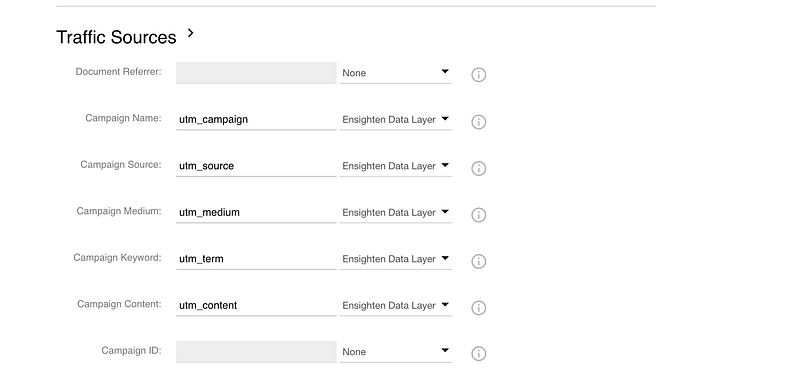
One of the most important point to define in the basic setup of google analytics is the identification traffic sources through utm parameters. These need to be setup within the data definition on page interaction using their respective query parameters setup.
Enhanced E-commerce
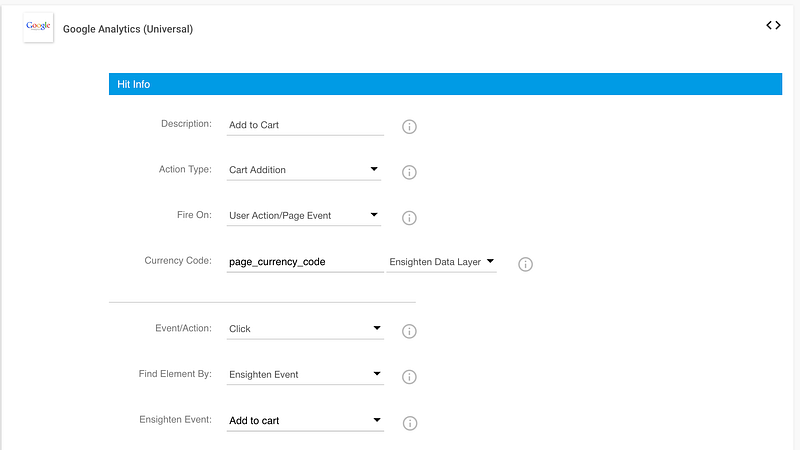
The enhanced ecommerce tag can be setup to pass different types of actions to google analytics. The tag supports both triggers on events and page views and supports all enhanced e-commerce events from impressions to purchase/refunds.s
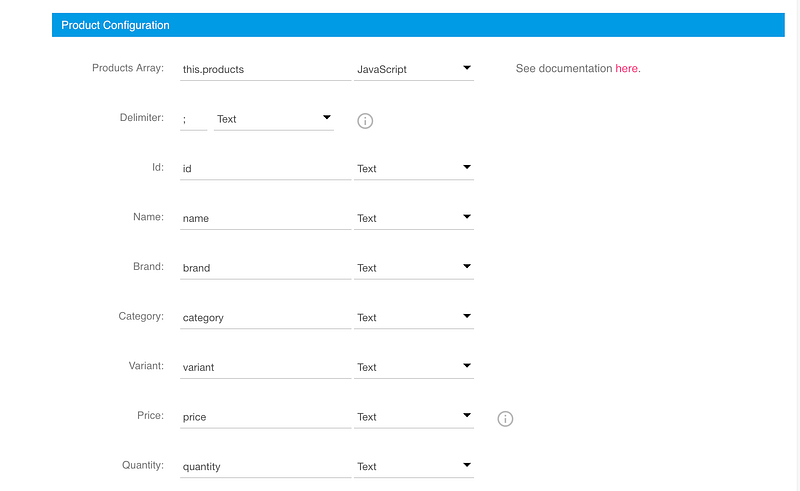
Ensighten supports both direct javascript call or pull from a data definition to setup the product or impressions array. In the case of events, it is important to consider them using javascript variable using the prefix “this.”.
The above example shows an implementation of an add to cart event, adding a single product to the basket. It makes use of named events implementation of Ensighten.
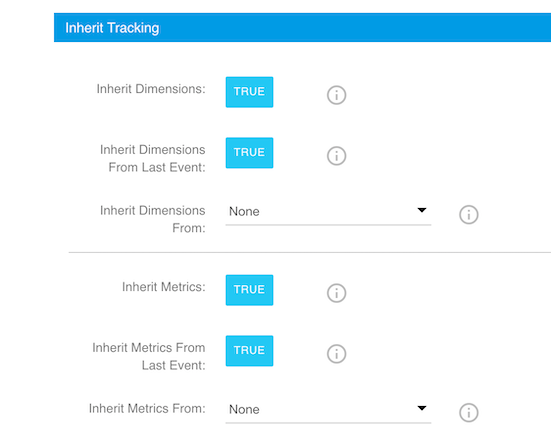
One of the last configuration settings to perform when enhanced e-commerce tags with ensighten is to define the metrics and dimension inheritance. I usually set up up to inherit what was defined during the previous call to ga.
QA Using GA Debugger

The Google analytics debugger for chrome is available on the chrome web store. Once it is turned on, It allows to see within the javascript console of a chrome browser the different events being set and sent through google analytics.

Above is an example log of some of the actions generated by the addToCart function previously posted.
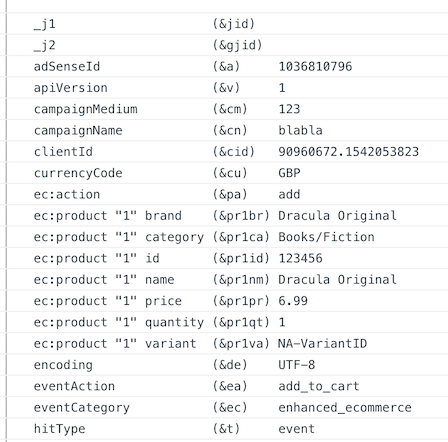
Toggling some of the send action provides the full scope of information that is being sent to google analytics with a given events, including the parameters specified within the measurement protocol.
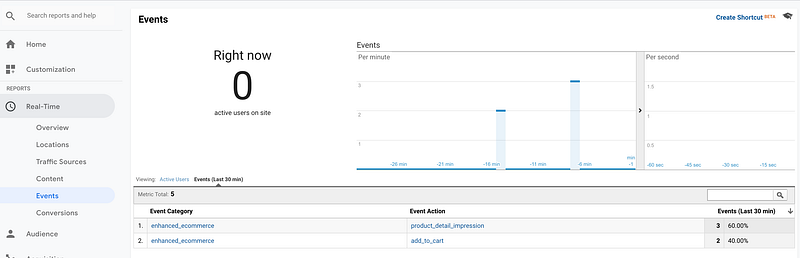
Using google analytics real-time reports it is possible to see how these different events end up being interpreted by google analytics.
More from me on Hacking Analytics:


