
Getting Started with the HTML5 Canvas — Part 6
Transformations

HTML5 Canvas transformation methods change (or transform) the canvas in different ways. In this article, we’ll look at the three main methods you will use to change the canvas: Translate, Rotate, and Scale. We’ll also look at an easy way to reset the transformations.
Change the Starting Position of the Canvas
The translate() method of the canvas context gives you the ability to change where the location of the top-left corner of the canvas. The translate() method takes two parameters:
translate(x-position, y-position)
The values passed to the method can be positive numbers, which would move the canvas down and to the right. You can also pass in negative numbers, which would move the canvas up and to the left. If you do not want to change the x-position or y-position value, set it to zero.
To show you how the translate() method works, I’ve taken our code from part 5 of this series and have added a translate() method. I have also added a red rectangle around the canvas so that you can see how each of the transformation methods affects the canvas.
Here is our code with the translate() method:
Here’s a description of the code I added to do the transformation:
- Line 26 — context. translate(50, 50); — Moves the canvas down 50 pixels and right 50 pixels.
This is the code that I added to show the outline of the canvas:
- Line 149 — context.beginPath(); — Starts a new object on the canvas.
- Line 150 — context.strokeStyle = “red”; — Set the stroke color to red.
- Line 151 — context.rect(0, 0, 400, 400); — Draw a rectangle starting at x-position 0, y-position 0 and make the rectangle 400 pixels wide by 400 pixels high.
- Line 152 — context.stroke(); — Draw the rectangle on the canvas.
Here’s what the image looks like after adding the rectangle and issuing the translate command:
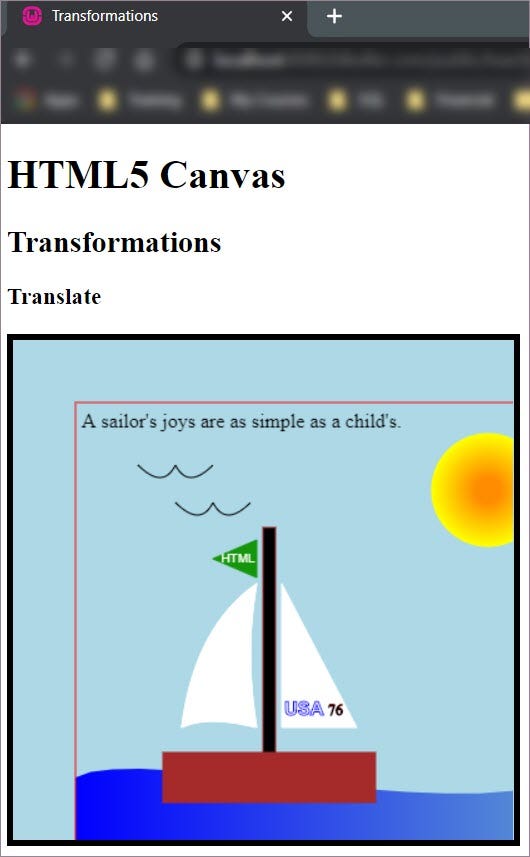
The red rectangle clearly shows how the entire canvas moved due to the translate() method. If you were to move the translate() method further down within the drawing commands, only the objects drawn after the translate() method would move down and to the right. The objects before the translate() method would stay in their original place. Give it a try on your own to get a better understanding of how the translate() method affects the drawing.
Reset Transformations
To transform only a portion of your drawing, you will need to place your transformation methods before the objects you want to transform. Then place the resetTransform() method after them. The resetTransform() method resets the translate() method as well as the rotate() and scale() methods, which we’ll look at later in this article.
(Note: The resetTransform() method does not work in all browsers. See the Mozilla Developer Network page for details on the browsers that support this method.)
To demonstrate the resetTransform() method, we look at what happens when it partially resets our translate() method and what happens when it completely resets the translate() method. The placement of the resetTransform() method determines which parts of the page are reset.
Here’s our code which partially resets the translate() transformation:
Here is the code I added to reset the transformation:
- Line 56 — context.resetTransform(); — Resets any transformation values back to their default for objects drawn on the canvas after the resetTransform() method.
Here’s how our image looks after resetting the transformation:
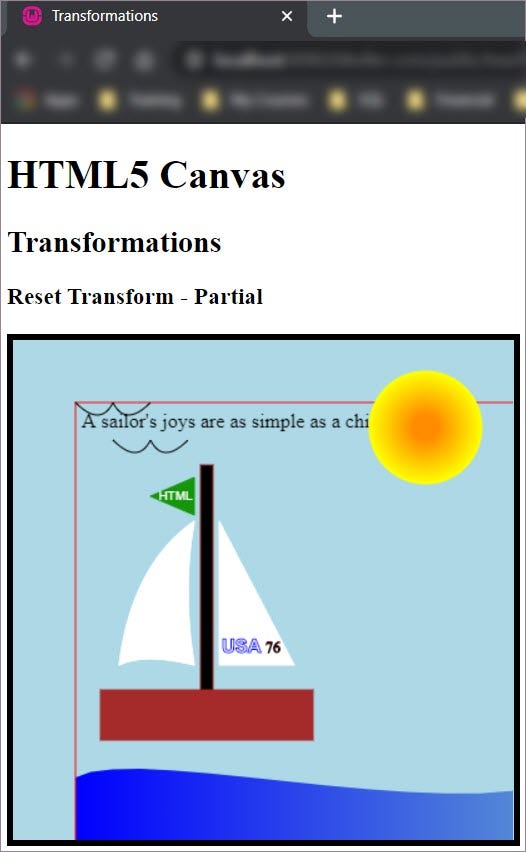
Because we placed the resetTransform() method after we draw the water, only the quote and the water are impacted by the translate() command. The remainder of the objects on the canvas are placed in their original positions.
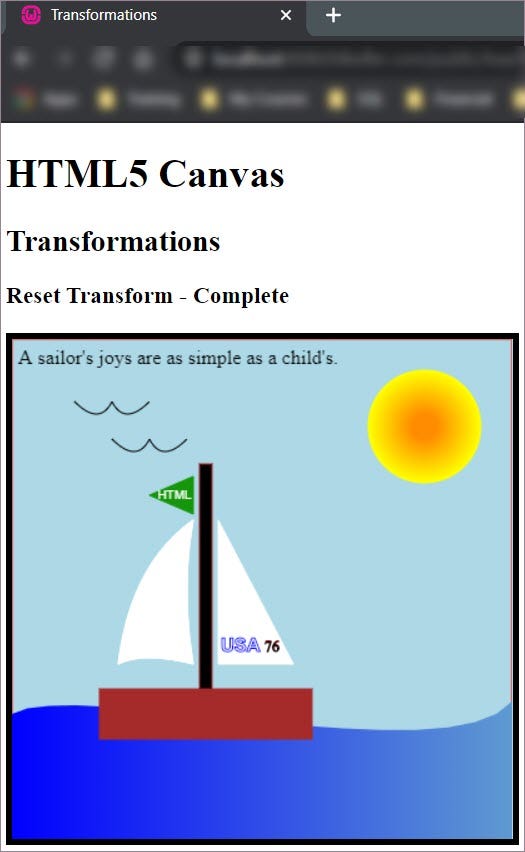
If we move the resetTransform() method to just below the translate() method, all the objects will be back in their original places. Having a resetTransform() command right after a translate() command is not practical, but I wanted to include this example so that you can see how moving the reset impacts the image.
Here is the updated code:
In the updated code, the resetTransform() method has been moved from line 56 to line 29.
Here’s how the updated drawing looks:
Rotate the Canvas
You can rotate all or part of the canvas with the rotate() method. Only the objects after the rotate() method and before a resetTransform() method will be rotated.
When the canvas is rotated, the center it is rotated from is the current top-left of the canvas. The center point was not what I expected when I first started working with the rotate() method, so it takes a little getting used to.
To use the rotate() method, you need to supply the method with the number of radians you want to rotate the canvas. We usually think of rotation in degrees. To convert a degree value to radians, you can use the following calculation:
{degrees} * PI / 180
To write this within our JavaScript, we would write the following to rotate the canvas 20°:
20 * Math.PI / 180
Let’s try this out on our image. Here’s the updated code:
Here are the lines of code I added and what each one does:
- Line 26 — var degreesToRotate = 20 * Math.PI / 180; — Creates a variable to hold the radians value to use in our rotate() method.
- Line 116 — context.rotate(degreesToRotate); — Rotates the remainder of our canvas (the mast, sun, and birds) using the value we set to degreesToRotate.
Here’s how the updated image looks:
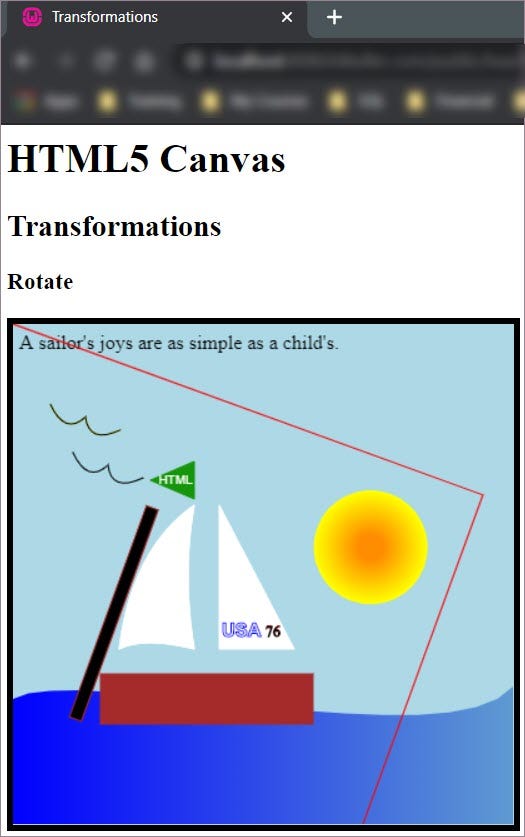
The red outline around the rotated parts of the canvas helps to show how the rotate() method is working.
Change the Scale of the Canvas
One final transformation we’ll look at is the scale() transformation. The scale() method changes the size of the canvas. The method takes two values:
- x-position scale
- y-position scale
Using positive numbers as values of the method will increase the size of the canvas, negative numbers will decrease it. The range of values you can use to specify the scale is between -1 and 1 and can be decimal numbers. Setting a value to 1 keeps the scale at 100%.
In our sample code, we’ll change the scale of part of our drawing to 50% of the current canvas size. Here’s the code to accomplish this:
This is the code I added and what it does:
- Line 121 — context.scale(0.5, 0.5); — Changes the size of the canvas drawn after the scale command to 50% of its original width and height.
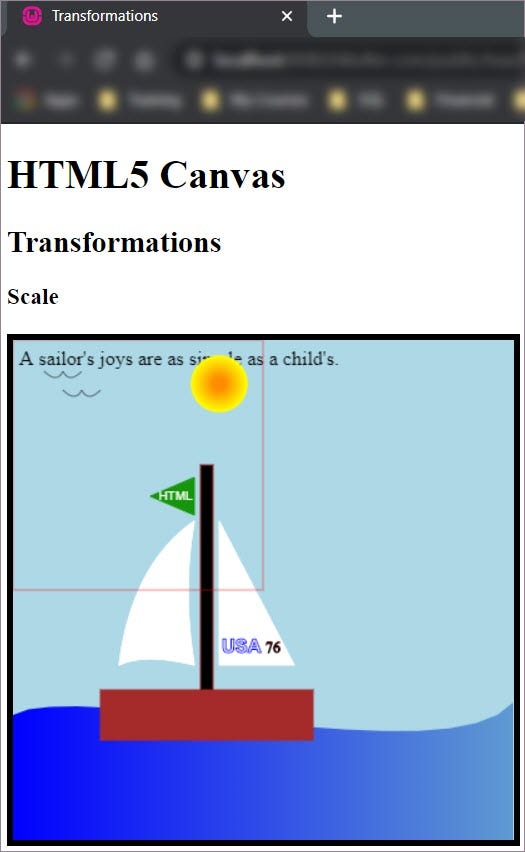
As you can see from the image, the sun and the birds, which come after the scale() method, are smaller than the rest of the drawing. The red outline shows how the scale() impacted the image.
Conclusion
So now you know how to transform all or parts of your canvas. Next week the fun really starts. We will create some simple animations.


