avatarNitin Sharma

Free AI web copilot to create summaries, insights and extended knowledge, download it at here

3658

Abstract

igcaption>Source: Node.js</figcaption></figure><p id="b266">You can see mainly two versions Latest version and the Long-Term Support(LTS) version. The latest version means it is new, and many developers haven’t used it. Most developers use Long-Term Support since it is stable with approximately no errors.</p><p id="0d88">It depends on your choice. I prefer to use the LTS version.</p><p id="c520">It is an easy process to download and install.</p><p id="e7f2">Once you installed Node.js, it means that you also installed NPM(Node Package Manager).</p><p id="1678">Once you installed it, you can check it from a command prompt. Open your command prompt and type</p><div id="2fff"><pre><span class="hljs-keyword">node</span> <span class="hljs-title">--version</span></pre></div><figure id="78e0"><img src="https://cdn-images-1.readmedium.com/v2/resize:fit:800/1*FdF4eq1zaQdthBTapzlvyA.png"><figcaption>Source: Author</figcaption></figure><p id="417b">Want to play with it? Open your command prompt again, and type node and then enter, and type</p><div id="10f1"><pre><span class="hljs-built_in">console</span>.<span class="hljs-built_in">log</span>(“Hello Everyone”); </pre></div><figure id="d7f8"><img src="https://cdn-images-1.readmedium.com/v2/resize:fit:800/1*_BtkLuEGbPzMt6qoe_zfvA.png"><figcaption>Source: Author</figcaption></figure><h1 id="2ad4">Installing React Native</h1><p id="f332">Once you installed Node.js, you also have installed NPM (Node Package manager). NPM is simply a package with Node. So you don’t have to download it.</p><p id="6b61">Now get started with React Native. Open your command prompt and install React Native globally through the given command</p><div id="04c7"><pre><span class="hljs-built_in">npm</span> install -g create-react-<span class="hljs-keyword">native</span>-app</pre></div><p id="aa98">This command will install the React Native package globally(-g) using NPM. You can install it to any directory based on your choice.</p><p id="569c">To know more about it, you can also visit <a href="https://reactnative.dev/docs/environment-setup">React Native setting up the development environment</a>.</p><p id="3936">It is a simple, facebook tutorial to create a react-native app.</p><p id="dc7c">After you installed this, you can write code in VS Code or any code editor according to your wish.</p><h1 id="373b">Starting with Expo</h1><p id="867e">React Native can be run through <a href="https://reactnative.dev/docs/environment-setup">React Native CLI or using Expo</a>.</p><p id="0232">Nitin, What we choose? Expo, my friend. It’s</p><p id="c9bc">1. Simple to install.</p><p id="1a82">2. Developer friendly.</p><p id="8ed3">3. Fast.</p><p id="3c74">4. Run it on your mobile</p><p id="0564">Also, Android Studio/XCode is not needed.</p><p id="03ea">So if your PC laptop is not capable enough, then also you can run it through Expo.</p><p id="63a3">To know more about it, you can visit <a href="https://docs.expo.io/">Expo</a>.</p><p id="5ed5"><b>How to install it?</b></p><p id="a25a">Open your command prompt and type</p><div id="1928"><pre>npm install — <span class="hljs-keyword">global</span> expo-<span class="hljs-keyword">cli</span></pre></div><p id="06cd">This command will install expo-cli globally.</p><p id="4d72"><b>Now install the Expo app on your mobile.</b></p><p id="c393">Open App Store or Play Store and download Expo.</p><p id="0b87">That’s it.</p><h1 id="bc37">Simple Hello World App</h1><p id="4dfc">Open your code editor. I will be going <a href="https://readmedium.com/why-visual-studio-makes-you-a-coding-expert-a-complete-guide-723e64e84ad5">to use Visual Studio Code</a>.</p><p id="b12b">I

Options

am going to create a folder on the Desktop with the name React Native.</p><p id="3c4e">And open it inside Visual Studio. Open your command prompt and go to React Native folder, and type</p><div id="59ff"><pre><span class="hljs-keyword">code</span> .</pre></div><figure id="3a3a"><img src="https://cdn-images-1.readmedium.com/v2/resize:fit:800/1*dEsKdZqfCj1tUBAPV5LAfg.png"><figcaption>Source: Author</figcaption></figure><p id="c1d3">And press enter then Visual Studio Code will be going to open.</p><p id="eb1d">Now, we will be using the inbuilt command prompt present in VS Code.</p><p id="6bc0">Type control + backtick, and the terminal will pop up inside VS Code.</p><div id="094e"><pre><span class="hljs-attribute">ctrl</span> + </pre></div><p id="79f6">Now create your first React Native App using the following commands.</p><div id="bea9"><pre>expo <span class="hljs-keyword">init</span> HelloWorld</pre></div><p id="bd8b">It will create a HelloWorld app inside React native folder. Press enter and then type</p><div id="52f1"><pre><span class="hljs-built_in">cd</span> HelloWorld</pre></div><p id="49f4">cd means change directory or changes your folder.</p><p id="3cfa">Press enter and type</p><div id="d028"><pre>expo <span class="hljs-literal">start</span></pre></div><p id="d805">It will be going to start your app.</p><p id="3885">That’s it.</p><p id="3206">Now you will be going to see the HelloWorld folder as shown below.</p><figure id="203f"><img src="https://cdn-images-1.readmedium.com/v2/resize:fit:800/1*l7rsGx7OhNdPLPGCiJwk5A.png"><figcaption>Source: Author</figcaption></figure><p id="0e3a">Here you will mainly work in App.js</p><p id="b093">Open App.js in VS Code and you will see like this</p><figure id="253e"><img src="https://cdn-images-1.readmedium.com/v2/resize:fit:800/1*_FpcSajAp3ORUa76ul__jg.png"><figcaption>Source: Author</figcaption></figure><p id="93af">Cool enough! Here we can understand it since we are Web Developers (Not all of us but many of you).</p><p id="8400">You can see</p><div id="02d1"><pre>&lt;<span class="hljs-type">Text</span>&gt;<span class="hljs-keyword">Open</span> up App.js <span class="hljs-keyword">to</span> <span class="hljs-keyword">start</span> working <span class="hljs-keyword">on</span> your app!&lt;/<span class="hljs-type">Text</span>&gt;</pre></div><p id="b568">Change it as shown below.</p><div id="988b"><pre>&lt;<span class="hljs-built_in">Text</span>&gt;Hello World!&lt;/<span class="hljs-built_in">Text</span>&gt;</pre></div><p id="7be3">Open your in-built terminal in VS Code through:</p><div id="c6d6"><pre>ctrl+</pre></div><p id="5dca">And run your program by typing:</p><div id="40d9"><pre><span class="hljs-built_in">npm</span> start</pre></div><p id="c928">You can also type expo start instead of npm start.</p><p id="592d">Lastly, you will be going to see a similar screen.</p><figure id="afbb"><img src="https://cdn-images-1.readmedium.com/v2/resize:fit:800/1*Si9oIdfty6XRNxlFjxxPGg.png"><figcaption>Source: Author</figcaption></figure><p id="a92e">Scan the QR Code present at the bottom-left corner in your Expo app.</p><p id="c4ba">I hope you enjoy this post and learn something from it. That’s my intention!</p><p id="e232">You can learn more about React Native through <a href="https://reactnative.dev/">React Native official website</a>.</p><p id="2131"><b><i>If you like my work and want to support it, you can <a href="https://www.buymeacoffee.com/nitinfab">buy me a cup of coffee!</a></i></b></p><blockquote id="0eb6"><p>This story was originally published at <a href="https://shitus.com/introduction-to-react-native/">Shitus.</a></p></blockquote></article></body>

Getting Started with React Native for Beginners

Learn everything you want to know about React Native.

Photo by Sydney Rae on Unsplash

Building a mobile app is not at all easy, yes nothing is easy. If you want to become an App developer, a big salute to you. Learning a Language, typing code, finding an error, testing it, is not at all easy. Other than that variety of devices in the world makes it more difficult to run apps on every device.

Android and iOS are the two most popular platforms right now. For iOS, we have to write in Swift and Android in Java. Thanks to React Native and Flutter, we can write a single code and run it on Android and iOS.

Today we will talk about React Native developed by the Facebook team with a well-liked library called React.

So, What is React Native?

React Native is an application development framework that uses web technologies to build applications. It will be an advantage for you if you are a Web Developer and starting a path in App Development. Once again, you don’t have to write code in Swift for iOS and Java for Android apps. React Native is here to help us.

Most trending apps use React Native like Facebook, Airbnb, Discord, Instagram, Bloomberg, Wix, and even Skype.

Getting Started with React Native

It was easy for me to get started with React Native, and I will try to help you to understand it. I told you if you are a Web developer, it will be much easier for you. For React Native, you require Node.js and Node Package Manager (NPM) installed with Code Editor and Expo.

That’s it? Yes.

If you don’t understand anything, don’t worry, I am here to help you.

Installing Node.js

Here I am using Windows operating system.

If you previously installed Node.js, you can skip this part and proceed further.

Ryan Dahl created Node.js and presented it at the European JS Conference in 2009. Node.js is an open-source and cross-platform JavaScript runtime environment. It is a popular tool for almost any kind of project. Node.js runs the V8 JavaScript engine, the core of Google Chrome, outside of the browser.

It allows Node.js to be very performant.

You don’t have to learn more about Node and NPM right now, and it not a post about Node and NPM.

So now, let us download it.

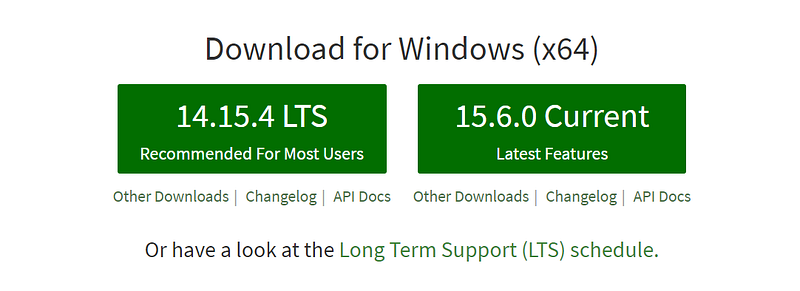
Visit Node.js and follow the below procedure.
Source: Node.js

You can see mainly two versions Latest version and the Long-Term Support(LTS) version. The latest version means it is new, and many developers haven’t used it. Most developers use Long-Term Support since it is stable with approximately no errors.

It depends on your choice. I prefer to use the LTS version.

It is an easy process to download and install.

Once you installed Node.js, it means that you also installed NPM(Node Package Manager).

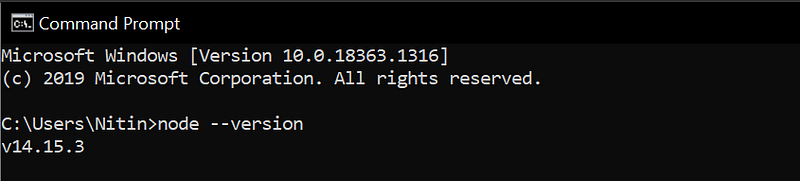
Once you installed it, you can check it from a command prompt. Open your command prompt and type

node --version
Source: Author

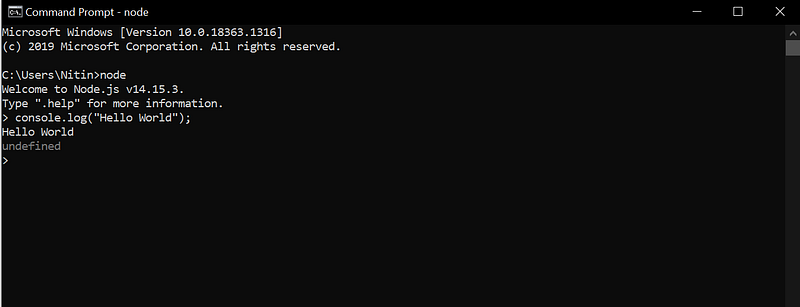
Want to play with it? Open your command prompt again, and type node and then enter, and type

console.log(“Hello Everyone”); 
Source: Author

Installing React Native

Once you installed Node.js, you also have installed NPM (Node Package manager). NPM is simply a package with Node. So you don’t have to download it.

Now get started with React Native. Open your command prompt and install React Native globally through the given command

npm install -g create-react-native-app

This command will install the React Native package globally(-g) using NPM. You can install it to any directory based on your choice.

To know more about it, you can also visit React Native setting up the development environment.

It is a simple, facebook tutorial to create a react-native app.

After you installed this, you can write code in VS Code or any code editor according to your wish.

Starting with Expo

React Native can be run through React Native CLI or using Expo.

Nitin, What we choose? Expo, my friend. It’s

1. Simple to install.

2. Developer friendly.

3. Fast.

4. Run it on your mobile

Also, Android Studio/XCode is not needed.

So if your PC laptop is not capable enough, then also you can run it through Expo.

To know more about it, you can visit Expo.

How to install it?

Open your command prompt and type

npm install — global expo-cli

This command will install expo-cli globally.

Now install the Expo app on your mobile.

Open App Store or Play Store and download Expo.

That’s it.

Simple Hello World App

Open your code editor. I will be going to use Visual Studio Code.

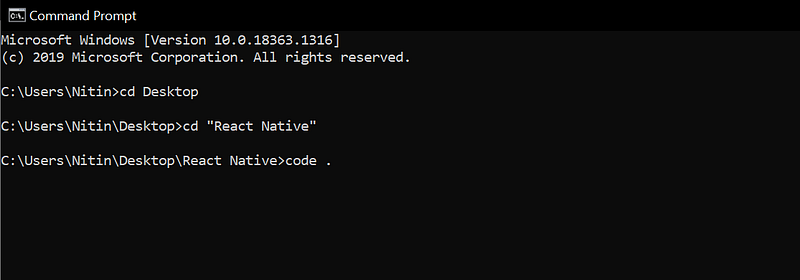
I am going to create a folder on the Desktop with the name React Native.

And open it inside Visual Studio. Open your command prompt and go to React Native folder, and type

code .
Source: Author

And press enter then Visual Studio Code will be going to open.

Now, we will be using the inbuilt command prompt present in VS Code.

Type control + backtick, and the terminal will pop up inside VS Code.

ctrl + `

Now create your first React Native App using the following commands.

expo init HelloWorld

It will create a HelloWorld app inside React native folder. Press enter and then type

cd HelloWorld

cd means change directory or changes your folder.

Press enter and type

expo start

It will be going to start your app.

That’s it.

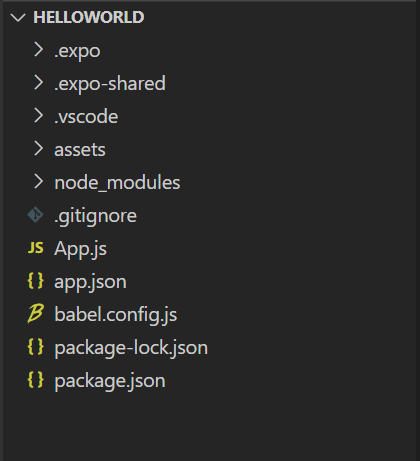
Now you will be going to see the HelloWorld folder as shown below.
Source: Author

Here you will mainly work in App.js

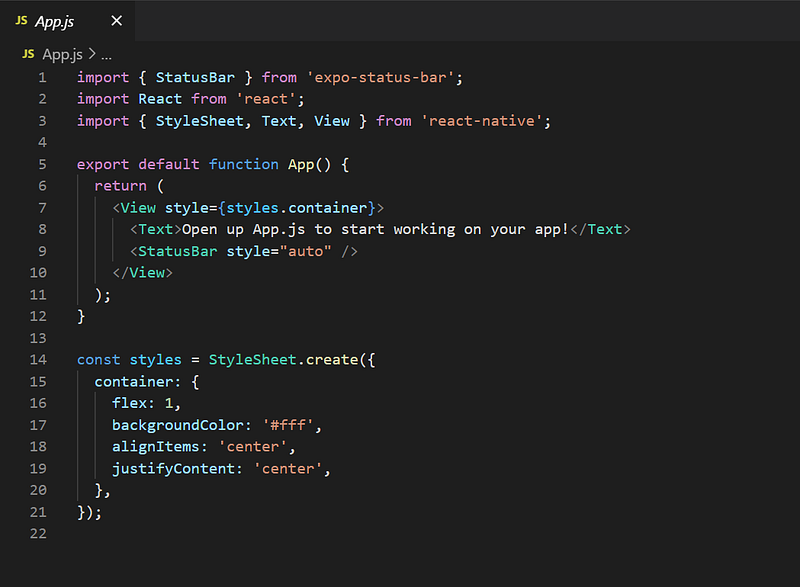
Open App.js in VS Code and you will see like this
Source: Author

Cool enough! Here we can understand it since we are Web Developers (Not all of us but many of you).

You can see

<Text>Open up App.js to start working on your app!</Text>

Change it as shown below.

<Text>Hello World!</Text>

Open your in-built terminal in VS Code through:

ctrl+`

And run your program by typing:

npm start

You can also type expo start instead of npm start.

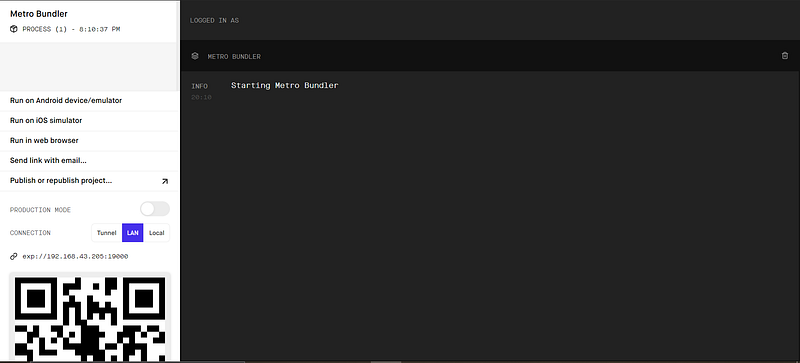
Lastly, you will be going to see a similar screen.
Source: Author

Scan the QR Code present at the bottom-left corner in your Expo app.

I hope you enjoy this post and learn something from it. That’s my intention!

You can learn more about React Native through React Native official website.

If you like my work and want to support it, you can buy me a cup of coffee!

This story was originally published at Shitus.

React Native
JavaScript
Web Development
Tech
React
Recommended from ReadMedium