
Why Visual Studio Makes You a Coding Expert? A Complete Guide.
A basic guide for becoming an expert as well as numerous sources to learn.

What you’re going to learn here? Probably everything that you need to learn to start using Visual Studio Code. Introduction, Downloading, Shortcuts, Videos, Themes, Plugins, etc. Well, here we are going to learn all the ins and out of Visual Studio Code.
Many of you want to save your time so I have written a post that you can refer to to get a basic to advanced knowledge of Visual Studio Code. It will definitely save your time and makes you more productive.
Last but not least even if you don’t understand something you can even watch a video presentation below in this post by Freecodecamp.
Introduction of Visual Studio Code
Visual Studio Code is the most popular and most powerful editor out there right now.
Visual Studio Code is the realm for Web Development. It is an integrated development environment developed by Microsoft, it’s not like Eclipse or IntelliJ for java or C#, C++, it is much more than that. It is more of a lightweight text editor so you can compare it with Atom or Brackets, etc.
The really cool thing about VS code is that it’s cross-platform which means it runs on mac, windows, and even Linux.
Get Started with VS Code.
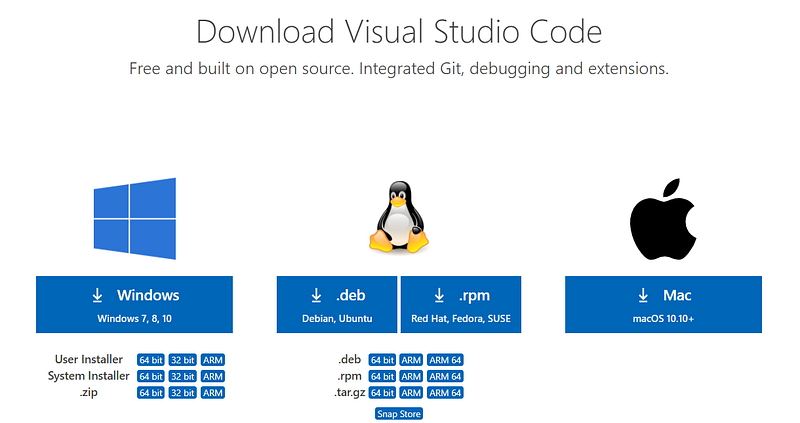
Now you know it’s a cross-platform source code editor. Download it through Visual Studio Download based on your operating system. It's even auto-detect the type of operating system you have currently. It runs on your desktop and comes with built-in support for JavaScript, TypeScript, Node.js, and has a rich ecosystem of extensions for other languages such as Python, Java, C++, and many others as well.
Here you can run HTML, CSS, JavaScript, Node.js, Express.js, install tons of npm(Node Package Manager) packages, C++, Python, Java, and many more.
Even you can run Flutter in VS Code. Yes for Emulator, you need Android Studio. As well as you need some extensions present in VS Code to run a specific language.
React.js, Vue.js, Angular, and many more can also be run easily in the VS Code.
It also supports Git and Github to distribute your code directly to open source. Well, it also consists of a built-in Command Prompt so you don’t have to need to open Windows or Mac command prompt in a new tab.
To get started with VS Code, download it, do some easy stuff to install it, and open it. You will get to see 2 tabs, the Welcome screen, and Release Notes. Welcome Screen provides you a basic introduction for getting started.
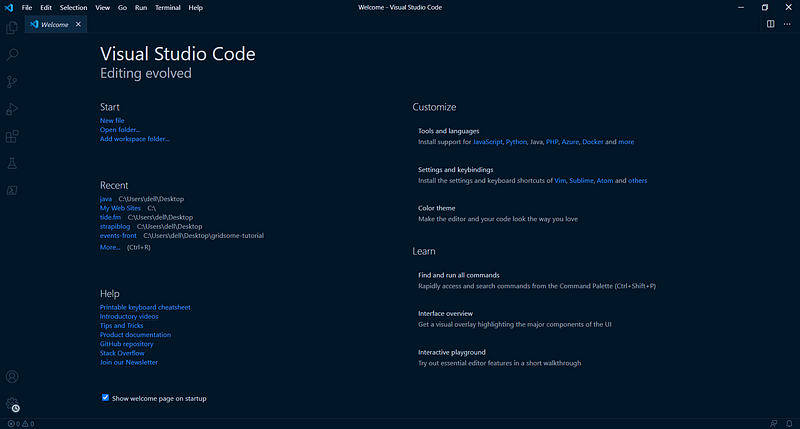
You can get Keyboard shortcuts from here, Introductory videos, Tips, and Tricks, Product Documentation, Github Repository, Stack Overflow, Join our Newsletter, and even more. Take a look at the welcome screen and also at the release notes.
Release notes will update you about the latest features, updates from the Visual Studio Code team.
You can also customize Install support for JavaScript, Java, PHP, Azure, Docker, etc. View Settings and keybindings, Change Color theme.
If you don’t know about Azure, Docker, or even PHP no need to worry about it.
Now probably the most important thing that you are going to do is opening a folder in VS Code. If you don’t have a folder to create a website or run programming languages, you can create it at any location and open it in VS Code.
After opening, you will be going to see,
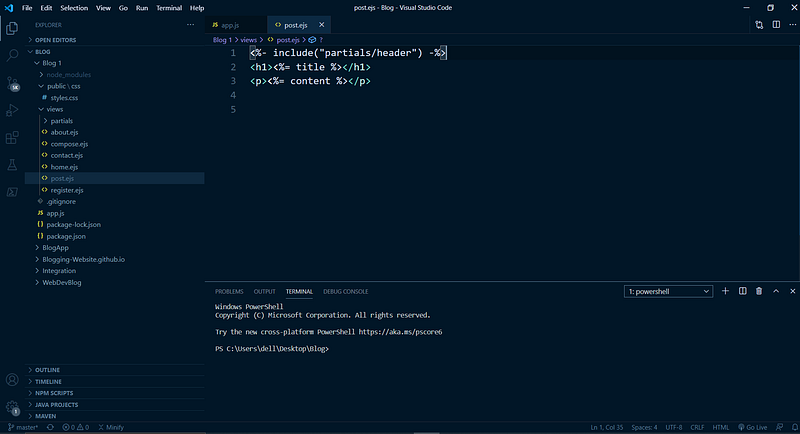
The files present in it. I have opened a folder named Blog1 to create a Blog Website. On the left sidebar, you can see the number of files.
Significant Shortcuts to reduce your time in the Visual Studio Code.
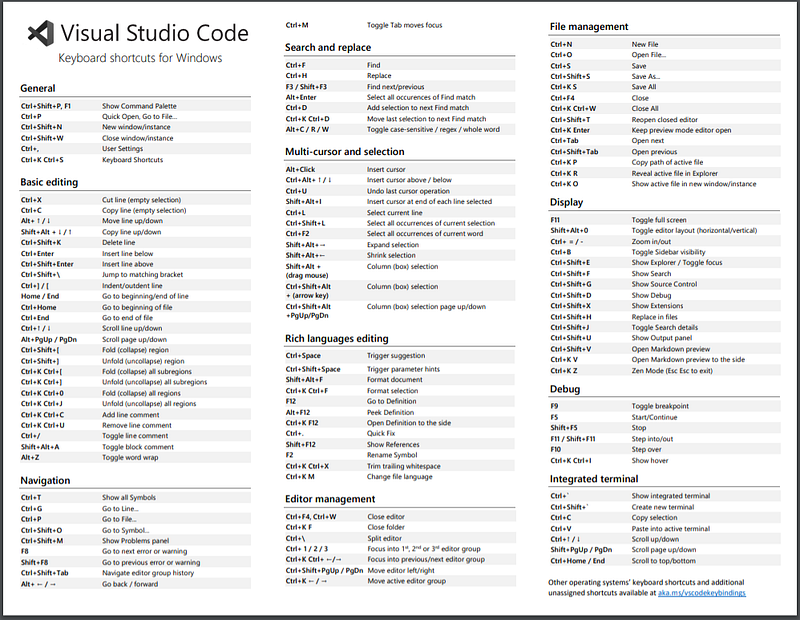
- Allow us to Toggle Sidebar
In Windows press “Ctrl+B” or Mac press “Cmd+B” to toggle the sidebar. As a developer, it became important to open the sidebar when we want to shuffle files and close the sidebar when we want to write code which can be easily done through shortcuts.
2. Go to specific tabs in Sidebar
a) Ctrl+Shift+E for Windows or Cmd+Shift+E for Mac to go directly to explorer.
b) Ctrl+Shift+F for Windows or Cmd+Shift+F for Mac to go directly to search.
c) Ctrl+Shift+G for Windows or Ctrl+Shift+G for Mac to go directly to search control.
d) Ctrl+Shift+D for Windows or Cmd+Shift+D for Mac to go directly to Run and Debug mode.
3. Command Palette
Use Ctrl+Shift+P for Windows or Cmd+Shift+P for Mac to open Command Palette and search init. Any command that you want to run inside the command palette.
For example, open the command palette using Ctrl+Shift+P or Cmd+Shift+P. Now search for zen mode. Zen mode will get rid of everything, unwanted factor while writing code i.e. border, sidebar. Most people love this mode to concentrate on code. No distraction just concentrate on codes.
Close the Zen mode by just running the same code i.e. Ctrl+Shift+P.
There is another feature as well known as Minimap. Press Ctrl+Shift+P or Cmd+Shift+P and search for Minimap which displays a map in the tops right of VS Code. Minimap allows us to scroll a bigger file easily.
4. Search a word and replace it.
You can search a word directly by Ctrl+F or Cmd+F and search the word.
Even replace the word just press Ctrl+F or Cmd+F and type the word you want to replace. Just before the search box, you can see a greater than “>” symbol, click it and you will see another box with a placeholder replace and type the word you want to replace.
5. Open a file
Press Ctrl+P or Cmd+P and type the file name where you want to work and press enter. It will switch the given file with the typed file. If a folder consists of several files.
6. Emmet for HTML and CSS
Open an empty HTML file and click “#” and enter you will get a complete HTML boilerplate which probably you have to write otherwise. Learn more about it from Emmet.
7. Autocompletion
Visual Studio Code enables us to write code and provide autocomplete words for it. You will observe that after typing the prefix of some code you will get a list of all possible methods and properties associated with it.
Grid-Based System in VS Code
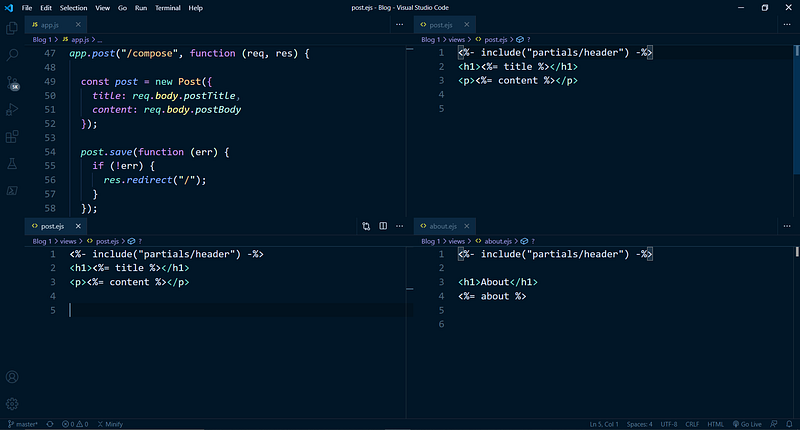
VS Code comes with great features where you can select several files and work on them at the same time by displaying them as shown above. Here we have chosen app.js, post.ejs (2times), about.ejs to visualize it in grid form. Don’t worry about the .ejs extension present here. It is basically Embedded JavaScript templating which you need for Web Development.
Just select files and drag at the specified screen, VS Code does the further process.
You can also view files in columns as well as rows just by dragging the selected files.
Settings
You can open the setting just by clicking “Ctrl+,” (Control + Comma) or (Cmd+,).
Change fonts, appearance, screencast mode, features, breadcrumbs, and many more based on your preference.
Search, properties like font size in settings, and change it.
Learn by Watching Video
Want to learn by watching videos then you can try a free video by Freecodecamp. A complete Visual Studio Code Crash Course created by James Q Quick. I really like it and grasp everything from it.
Change Themes for Visual Studio Code.
Get a look at the below post to change themes in VS Code.
10 Extremely Helpful Visual Studio Code Plugins for Programmers
Conclusion:
Learn and practice Visual Studio features, its shortcut to save time. The more you know the keyboard shortcut, working the more you will be productive.
Thanks for reading and learning it.


