
Games in Flutter — Flame & Box2D Final

Welcome to the last part of creating a game with Flutter and Flame. This article is the last one in a series — please find below the other parts. In this final part we will add game states to the game and combine the self drawn part with “normal” material widgets.
Code for the complete game
Game states
Most games out in the wild will have some states, the most common ones are:
- Playing
- In menu/paused
- Won/Lost a level
MazeBall does use some of the above states — it’s a simple game. States help you to group code by its concern and will increase code reuse. Thinking about what a state has to do for us, the following jobs are the obvious ones:
- Draw elements inside the state
- Update elements inside the state
- Get activated/deactivated
Besides the above tasks, each state will have a collection of elements that belong only to this state. This will capsule all things you need into one place, nevertheless elements can be used by multiple states.
Let’s talk code
To achieve the described setup, we introduce a new abstract class which each state has to use as a base.
Abstract classes are like templates: you can not directly create objects from them but you can use them to generalize your code.
To manage the transition between states and ensure that we have a central point that handles all views, let us add a view manager. Like most managers this class doesn’t do that much (no pun intended), it just delegates work to the actual states.
Okay, actually the manager allows our game to simply don’t care about what state is active right now. The game class just uses the manager to make sure we get the right things on the screen. You most likely spotted the enumeration inside the abstract BaseView class. We use this to define what kind of view we want to use. Using the method changeView offered by our ViewManager class we can switch the views — this method also notifies the previous view that it will be replaced and can optionally provide a user defined message to the view.
As an example, let’s have a look at the playing game state, you soon will notice that this was more or less the content of our old game.dart file.
The above code makes use of our Ball and Wall class to render the following screen:
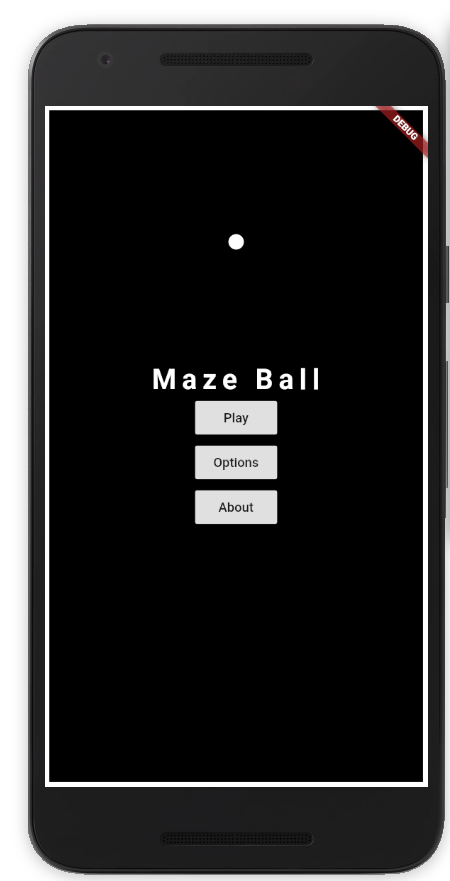
Besides that this state can render the mentioned elements, you can already play around with the ball inside the main menu — reusing code is great :)
“Do one thing and do it right.”
It’s all about widgets
One big productivity boost of Flutter (from my point of view) is that everything is a widget, even our complete MazeBallGame object is a widget! Like shown in the screenshot, together with our game states we can generate a screen with our game running in a special state as the background of the main menu. The main menu itself makes use of the great material controls from Flutter. Have a look at the screen code below, you will see that it is actually super simple to include the game along other “normal” widgets.
Looking at the build method, we can simply put widgets on top of each other by using a Stack widget. We use our game widget as the background and add the text and buttons on top of it. Using a StatefulWidget allows us to initialize the game inside the initState method, the MazeBallGame constructor accepts the view to start in by default — it’s the playing view.

Settings
If you click on the options button inside the main menu, you can configure the complexity of the maze. The cool part is that it will render you a maze based on your configuration as a background as soon as you change something.
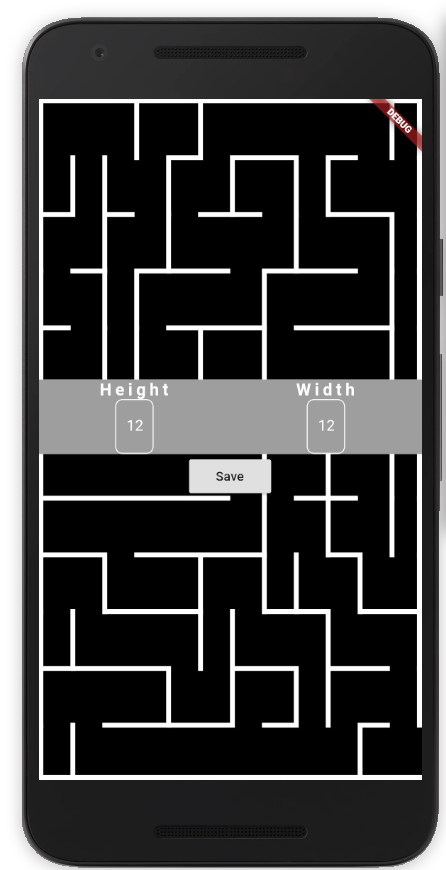
This screen again was made possible thanks to the game states reusing the MazeBuilder class in a separated view. I will skip the code here as it is following the same approach as the main menu. What I want to point out is the way we save the configuration — we could have written it on our own but I like to follow one of my favorite sentences:
“Do not reinvent the wheel.”
Thanks to the simple-to-use shared_preferences package we just write and read the size out of this using the following code:
The settings are stored as a key value pair — the getInt method will return the stored value or null. Using the ?? operator we can ensure we will get back our default value of 8 if you never ever saved a configuration.
Final statement

Getting to this point here involved some challenges, I mentioned that I’m not a game developer… Looking back I can just recommend trying it on your own, the development process was fun! I had zero “strange” issues or other quirks with the tools or Flutter. Debugging the game and the support by either reading the source code of Flame or checking other repositories online was great. I’m hyped by Flutter and its possibilities so jump on the hype train and enjoy the ride — there is a lot that keeps this train running!

What’s next ?
I will stick to Flutter and Dart as I do have some additional projects in mind. I’m in the lucky position that we also run Flutter projects in my main job. Stay tuned… PS: Feel free to extend and modify MazeBall — there are many things you could add and change, just have fun with the code :)


