avatarZhimin Zhan

Free AI web copilot to create summaries, insights and extended knowledge, download it at here

6402

Abstract

mes in, using this in TestWise is fun! They don’t need to code classes or functions, TestWise does these for them.</p><h2 id="f90d">Demonstration (video)</h2> <figure id="5c07"> <div> <div> <img class="ratio" src="http://placehold.it/16x9"> <iframe class="" src="https://cdn.embedly.com/widgets/media.html?src=https%3A%2F%2Fwww.youtube.com%2Fembed%2FlmuqCruKbFY%3Ffeature%3Doembed&amp;display_name=YouTube&amp;url=https%3A%2F%2Fwww.youtube.com%2Fwatch%3Fv%3DlmuqCruKbFY&amp;image=https%3A%2F%2Fi.ytimg.com%2Fvi%2FlmuqCruKbFY%2Fhqdefault.jpg&amp;key=a19fcc184b9711e1b4764040d3dc5c07&amp;type=text%2Fhtml&amp;schema=youtube" allowfullscreen="" frameborder="0" height="480" width="854"> </div> </div> </figure></iframe></div></div></figure><h2 id="410b">Motivation</h2><p id="11b8"><i>You have long logically grouped test steps</i></p><p id="36d1">Extract test operations on a web page into a function in a new or existing Page Class.</p><h2 id="7091">Sample Test Case (before)</h2><p id="d197">Below are several linear test steps in a test case. I purposely choose some long ones<i> (to make it look complex)</i>.</p><div id="7b65"><pre>it <span class="hljs-string">"User can select one way trip"</span> <span class="hljs-keyword">do</span> driver.find_element(<span class="hljs-symbol">:xpath</span>, <span class="hljs-string">"//input[@value='oneway']"</span>).click <span class="hljs-title class_">Selenium::WebDriver::Support::Select</span>.new(driver.find_element(<span class="hljs-symbol">:name</span>, <span class="hljs-string">"fromPort"</span>)).select_by(<span class="hljs-symbol">:text</span>, <span class="hljs-string">"Sydney"</span>) <span class="hljs-title class_">Selenium::WebDriver::Support::Select</span>.new(driver.find_element(<span class="hljs-symbol">:name</span>, <span class="hljs-string">"toPort"</span>)).select_by(<span class="hljs-symbol">:text</span>, <span class="hljs-string">"New York"</span>) driver.find_element(<span class="hljs-symbol">:xpath</span>, <span class="hljs-string">"//input[@value='Continue']"</span>).click expect(page_text).to <span class="hljs-keyword">include</span>(<span class="hljs-string">"Sydney to New York"</span>) <span class="hljs-keyword">end</span></pre></div><p id="a997"><b>Issues with the above test case</b></p><ul><li>Not easy to understand</li><li>Hard to maintain</li></ul><h2 id="eae0">Sample Test Case (after refactoring)</h2><div id="982a"><pre> it <span class="hljs-string">"User can select one way trip"</span> <span class="hljs-keyword">do</span> flight_page = <span class="hljs-title class_">FlightPage</span>.new(driver) flight_page.select_oneway_trip flight_page.select_from_city(<span class="hljs-string">"Sydney"</span>) flight_page.enter_to_city(<span class="hljs-string">"New York"</span>) flight_page.click_continue expect(page_text).to <span class="hljs-keyword">include</span>(<span class="hljs-string">"Sydney to New York"</span>) <span class="hljs-keyword">end</span></pre></div><p id="9dce">It is a lot better, isn’t it?</p><h2 id="ed36">Mechanics</h2><ol><li>Identify operations on a web page</li><li>Select the first operation on the page</li><li>Create a Page Class file, giving a meaningful name</li><li>Create a function in the page class with the selected operation</li><li>Replace the original test step with a reference to the page class’ operation</li><li>Rerun all tests</li></ol><h2 id="99de">Refactoring in TestWise</h2><ol><li>Select the test steps in the test script file</li><li>Invoke the refactoring</li><li>Enter new or Select existing Page name</li><li>Enter a function name</li><li>Adjust parameters if necessary (<i>TestWise will analyze the test steps and pre-determine the parameters</i>)</li><li>Preview the new function</li><li>Apply the refactoring</li></ol><h2 id="d8e5">Expected Result</h2><ul><li>A new function with the supplied name is inserted in the new/existing Page Class</li><li>The test steps in the test case are replaced with a call to the new Page’s function</li></ul><h2 id="0199">Test Data</h2><p id="6f78">The same test project that helps you do refactoring exercises quickly:</p><div id="383f"><pre><span class="hljs-meta prompt_">> </span><span class="language-bash"><span class="hljs-built_in">cd</span> my-working-dir</span> <span class="hljs-meta prompt_">> </span><span class="language-bash">git <span class="hljs-built_in">clone</span> https://github.com/testwisely/agiletravel-ui-tests</span></pre></div><p id="9992">The test project is at <code>my-working-dir/agiletravel-ui-tests/pre-refactoring</code> .</p><h2 id="f3b7">“Extract to Page Function” refactoring in steps</h2><p id="1974">Open the test project, and click the file <code>flight_spec.rb</code> to open it in the editor.</p><p id="e773">1. Select the first user operation step, “click the oneway radio button”.</p><p id="531e">2. Select the menu “<b>Refactor</b>” → “<b>Extract to Page Function …</b></p><figure id="d3f2"><img src="https://cdn-images-1.readmedium.com/v2/resize:fit:800/0*NWmO8h2V-ZV9koCf.png"><figcaption></figcaption></figure><p id="98f7">3. In the new “<b>Extract to Page Function</b>” dialog,</p><p id="1496">a. type “<code>FlightPage</code>” in “Page Name” b. type “<code>click_oneway_trip</code>” in “Function Name”</p><figure id="37b5"><img src="https://cdn-images-1.readmedium.com/v2/resize:fit:800/0*Jv8kaOsevw6D42kk.png"><figcaption></figcaption></figure><p id="02e7">c. Click the “<b>Refactor</b>” button.</p><p id="8424">Done, the first operation. The test fragment is changed (by TestWise) to this:</p><figure id="94cc"><img src="https://cdn-images-1.readmedium.com/v2/resize:fit:800/0*c-4DpJXqMmyJNZU1.png"><figcaption></figcaption></figure><p id="d0ad">It is pretty easy and quick in TestWise, isn’t it?</p><h2 id="0ce9">How did it work?</h2><p id="afe6">While it is quick, TestWise has done the following:</p><ol><li>Create a new page file, <b>flight_page.rb</b> under the <b>pages</b> folder. This defines FlightPage, you can refer to it as Page Object (strictly, Page Class).</li><li>A new function <code>click_oneway_trip</code> is inserted into the <b>flight_page.rb</b>.</li><li>Change the original test step line (in the test script file: <b>flight_spec.rb</b>) to use the newly created Page Object.</li>

Options

</ol><p id="0d8a">There are two inputs the automated tester (YOU) needs to decide. Firstly, make sure to get the format right.</p><ul><li><b>Page Name</b> It must conform to the format of “CamelCasePage”, i.e., the first character of the word is upper case, and its name ends with “Page”.</li><li><b>Function Name </b>It must conform to the format of “low_case_underscore”, i.e. all in low cases to use `_` to join the wolds.</li></ul><p id="5089">In terms of choices of words. It actually quite easy, just based on what is on the page. Below are several page functions in two Page Classes (in a typical online shopping app).</p><ul><li>ShoppingCartPage - <code>update_quantity</code> - <code>click_check_out_now</code></li><li>PaymentPage - <code>enter_credit_card_number</code> - <code>enter_card_card_expiry_month_year</code> - <code>enter_csc</code> - <code>click_confirm_payment</code></li></ul><h2 id="f877">Continue “Extract to Page Function …” Refactoring</h2><p id="4b51">After the first step is done, continue the same refactoring to the remaining steps on that page.</p><p id="e599"><b>Extract the “Select departure city step”</b></p><p id="c465">Invoke the “Extract to Page Function” refactoring again. TestWise already moved the caret to the next line after the previous refactoring. Just invoke the refactoring. During my one-day Selenium training, that’s when I introduced performing refactoring using keyboard shortcuts.</p><ul><li>Invoke the Extract Page Function refactoring, <code>Ctrl+Alt+G</code> on Windows</li><li>Type a function name, followed by an <code>Enter</code> key

This time, <b>FlightPage</b> already exists, and TestWise will prefill it (by guessing, can be updated). You just need to enter the function name.</li></ul><figure id="0e17"><img src="https://cdn-images-1.readmedium.com/v2/resize:fit:800/0*X2n4iDl6MH8TWmXy.png"><figcaption></figcaption></figure><ul><li>Press the <code>Enter</code> key to confirm refactoring.</li></ul><p id="aad5">Then, the next step, …, until all the steps are extracted!</p><h2 id="418c">Sample Page Class (after)</h2><p id="83f9">You might wonder where did the selenium steps go? In the <code>pages/flight_page.rb</code>.</p><div id="3f02"><pre><span class="hljs-keyword">require</span> <span class="hljs-title class_">File</span>.join(<span class="hljs-title class_">File</span>.dirname(<span class="hljs-variable constant_">FILE</span>), <span class="hljs-string">"abstract_page.rb"</span>)

<span class="hljs-keyword">class</span> <span class="hljs-title class_">FlightPage</span> < <span class="hljs-title class_ inherited__">AbstractPage</span>

<span class="hljs-keyword">def</span> <span class="hljs-title function_">initialize</span>(<span class="hljs-params">driver</span>) <span class="hljs-variable language_">super</span>(driver, <span class="hljs-string">""</span>) <span class="hljs-comment"># <= TEXT UNIQUE TO THIS PAGE</span> <span class="hljs-keyword">end</span>

<span class="hljs-keyword">def</span> <span class="hljs-title function_">select_oneway_trip</span> driver.find_element(<span class="hljs-symbol">:xpath</span>, <span class="hljs-string">"//input[@value='oneway']"</span>).click <span class="hljs-keyword">end</span>

<span class="hljs-keyword">def</span> <span class="hljs-title function_">select_from_city</span>(<span class="hljs-params">from_port</span>) <span class="hljs-title class_">Selenium::WebDriver::Support::Select</span>.new(driver.find_element(<span class="hljs-symbol">:name</span>, <span class="hljs-string">"fromPort"</span>)).select_by(<span class="hljs-symbol">:text</span>, from_port) <span class="hljs-keyword">end</span>

<span class="hljs-keyword">def</span> <span class="hljs-title function_">enter_to_city</span>(<span class="hljs-params">to_port</span>) <span class="hljs-title class_">Selenium::WebDriver::Support::Select</span>.new(driver.find_element(<span class="hljs-symbol">:name</span>, <span class="hljs-string">"toPort"</span>)).select_by(<span class="hljs-symbol">:text</span>, to_port) <span class="hljs-keyword">end</span>

<span class="hljs-keyword">def</span> <span class="hljs-title function_">click_continue</span> driver.find_element(<span class="hljs-symbol">:xpath</span>, <span class="hljs-string">"//input[@value='Continue']"</span>).click <span class="hljs-keyword">end</span> <span class="hljs-keyword">end</span></pre></div><h2 id="8b82">Benefits</h2><ul><li>DRY (Don’t Repeat Yourself)</li><li>Concise</li><li>Reusable</li><li>Easy to maintain</li><li>DSL, easy to read</li><li>Autocomplete via tool support</li></ul><figure id="9c21"><img src="https://cdn-images-1.readmedium.com/v2/resize:fit:800/1*Hax_iVFA5F5HSUEIlKdlLQ.png"><figcaption></figcaption></figure><h2 id="aa38">Exercises</h2><ul><li>Refactor a new <b>FlightPage</b> for test steps in <code>flight_spec.rb</code></li><li>Refactor to an existing page. Do it in two steps

  1. Refactor a new <b>PassengerPage</b> for one test step in <code>passenger_spec.rb</code>
  2. Rerun the test (<i>standard refactoring procedure</i>), close TestWise
  3. Refactor the remaining steps to the existing <b>PassengerPage</b>. <i>(hint: select a page class in the dropdown)</i></li><li>Try the “<b>Refactor and Continue</b>” button</li><li>Using keyboard shortcuts.</li></ul><h2 id="826a">Related Refactorings</h2><ul><li><a href="https://zhiminzhan.medium.com/functional-test-refactoring-extract-function-5572554c0677">Extract Function</a> (similar, but different, page function provides the context)</li><li>Introduce Page Object</li></ul><p id="d133"><b>Related reading:</b></p><ul><li>My eBooks:
  • <a href="https://leanpub.com/practical-web-test-automation">Practical Web Test Automation with Selenium WebDriver</a>
  • <a href="https://leanpub.com/practical-co">Practical Continuous Testing: make Agile/DevOps real</a></li><li><a href="https://agileway.substack.com/p/18-refactoring-extract-to-page-object">An “Extract to Page Function” case study</a></li><li><a href="https://zhiminzhan.medium.com/test-creation-only-account-for-10-of-web-test-automation-efforts-1ac1fc453e44">Test Creation Only Account for ~10% of Web Test Automation Efforts</a></li><li><a href="https://readmedium.com/is-your-test-automation-on-track-maintenance-is-the-key-267ddb94b525">Is Your Test Automation on Track? Maintenance is the key</a></li></ul></article></body>

Functional Test Refactoring: Extract Page Function

Extract selected test steps to a Page Class (of Page Object Model pattern) as a function. Many testers are aware of Page Object Model, but often don’t do it because time-consuming and error-prone. This refactoring helps! I have been using it many times every working day since 2006.
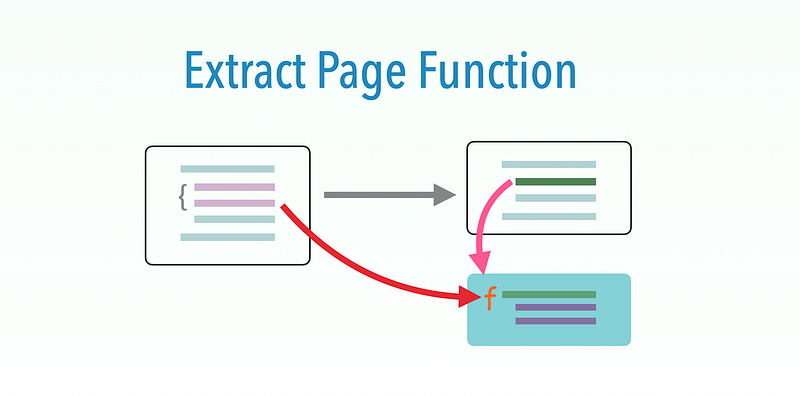
This is one of the 6 Functional Test Refactorings (see the introduction here):

I have been using “Extract Page Function” refactorings many times daily when working on automated test scripts, since 2006. A quick and reliable practice transform raw test automation steps into a more readable and maintainable version in Page Object Model design.

In my opinion, “Attach test execution to the existing browser” and this “Extract to Page Function” refactoring are the top 2 reasons and practices for my high productivity (10X+ compared to other senior QA engineers) in developing/maintaining high-quality automated end-to-end (via UI) test scripts.

Table of Contents: Introduction of Page Object ModelsKnowledge Point: Page Object Model makes Automated Test Scripts easier to read and maintainDemonstration (video)MotivationSample Test Case (before)Sample Test Case (after refactoring)MechanicsRefactoring in TestWiseExpected ResultTest Data“Extract to Page Function” refactoring in stepsHow did it work?Continue “Extract to Page Function …” RefactoringSample Page Class (after)BenefitsExercisesRelated Refactorings

Introduction of Page Object Models

Page Object Models (POM) is the most well-known design pattern in test automation. Selenium documentation lists POM as the first best practice.

“Page Object is a Design Pattern that has become popular in test automation for enhancing test maintenance and reducing code duplication”. [Selenium Doc]

The POM pattern is not new, it existed a few decades ago, i.e., it has been battle-field tested.

One veteran tester in Canberra messaged me in 2009,

“Just finished reading your book (Practical Web Test Automation) and I like it. I am writing to let you know that I have used the page object pattern in 80s. Glad to see you include in the Maintainable Automated Test Design and the support in TestWise”.

The “Object” in POM comes from Object-Oriented Design. Testers without a programming background, don’t worry, the OO knowledge required for test automation is minor. Check out the 10-Minute Guide to Object-Oriented Programming for Automated Testers.

Knowledge Point: Page Object Model makes Automated Test Scripts easier to read and maintain

Let me illustrate it with an example. What do you think of the test script below:
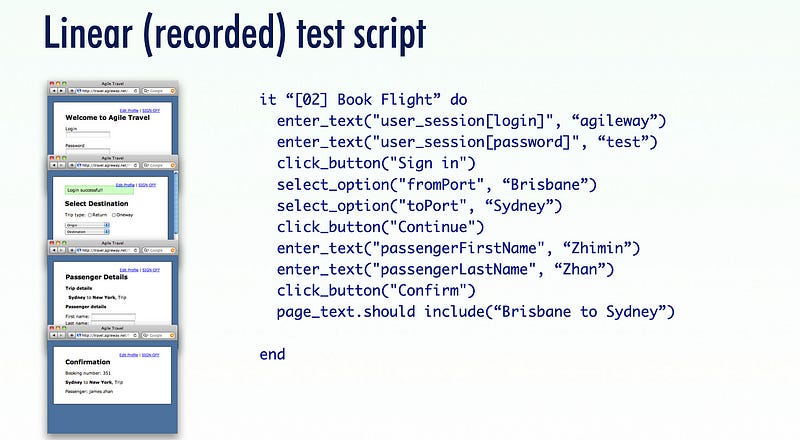
It is not too bad, some may think. But it is no good, from a maintenance perspective. Suppose, you have 100 test scripts like the above, and the user name textbox’s name is changed from `fromPort` to `fromCity` (on the flight page), what will happen? Will you do a global search and replace in 100 test script files, it’s not good, isn’t it?

Now hold that thought. Have a quick look at the design below.
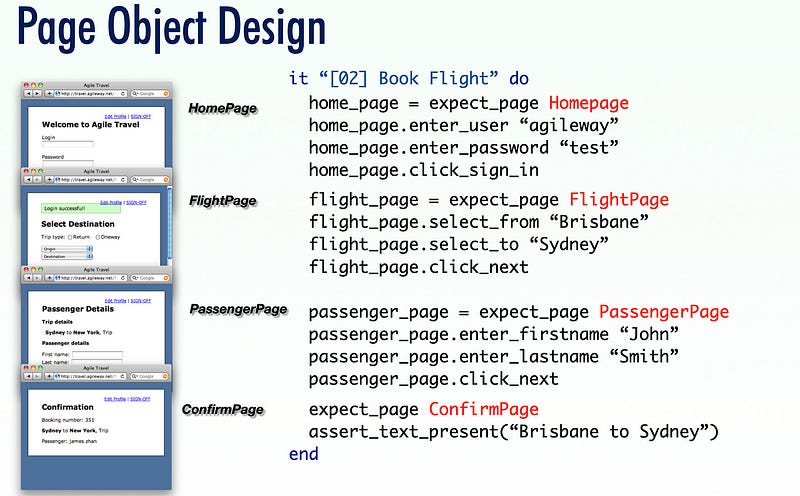
I break the test steps into four sections, each section corresponding to the user operations on a web page:

  • Home page - enter a user name - enter password - click the sign in button
  • Flight page - Select from city - Select the destination city - Click the next button
  • Passenger page - Enter the passenger’s first name - Enter the passenger’s last name - Click the next button
  • Confirmation page - Assertion

This design is clearly better. During my training, some manual testers might worry that some level of coding will be involved with implementing this. Yes, there is a bit of coding, but you rarely need to code it, and this often turned out to be the most satisfying part of the training for them. How? That’s what “Extract to Page Function” refactoring comes in, using this in TestWise is fun! They don’t need to code classes or functions, TestWise does these for them.

Demonstration (video)

Motivation

You have long logically grouped test steps

Extract test operations on a web page into a function in a new or existing Page Class.

Sample Test Case (before)

Below are several linear test steps in a test case. I purposely choose some long ones (to make it look complex).

it "User can select one way trip" do
  driver.find_element(:xpath, "//input[@value='oneway']").click
  Selenium::WebDriver::Support::Select.new(driver.find_element(:name, "fromPort")).select_by(:text, "Sydney")
  Selenium::WebDriver::Support::Select.new(driver.find_element(:name, "toPort")).select_by(:text, "New York")
  driver.find_element(:xpath, "//input[@value='Continue']").click
  expect(page_text).to include("Sydney to New York")
end

Issues with the above test case

  • Not easy to understand
  • Hard to maintain

Sample Test Case (after refactoring)

  it "User can select one way trip" do
    flight_page = FlightPage.new(driver)
    flight_page.select_oneway_trip
    flight_page.select_from_city("Sydney")
    flight_page.enter_to_city("New York")
    flight_page.click_continue
    expect(page_text).to include("Sydney to New York")
  end

It is a lot better, isn’t it?

Mechanics

  1. Identify operations on a web page
  2. Select the first operation on the page
  3. Create a Page Class file, giving a meaningful name
  4. Create a function in the page class with the selected operation
  5. Replace the original test step with a reference to the page class’ operation
  6. Rerun all tests

Refactoring in TestWise

  1. Select the test steps in the test script file
  2. Invoke the refactoring
  3. Enter new or Select existing Page name
  4. Enter a function name
  5. Adjust parameters if necessary (TestWise will analyze the test steps and pre-determine the parameters)
  6. Preview the new function
  7. Apply the refactoring

Expected Result

  • A new function with the supplied name is inserted in the new/existing Page Class
  • The test steps in the test case are replaced with a call to the new Page’s function

Test Data

The same test project that helps you do refactoring exercises quickly:

> cd my-working-dir
> git clone https://github.com/testwisely/agiletravel-ui-tests

The test project is at my-working-dir/agiletravel-ui-tests/pre-refactoring .

“Extract to Page Function” refactoring in steps

Open the test project, and click the file flight_spec.rb to open it in the editor.

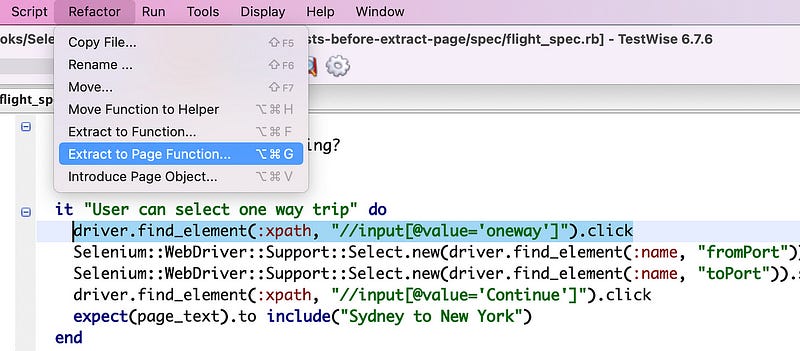
1. Select the first user operation step, “click the oneway radio button”.

2. Select the menu “Refactor” → “Extract to Page Function …

3. In the new “Extract to Page Function” dialog,

a. type “FlightPage” in “Page Name” b. type “click_oneway_trip” in “Function Name”
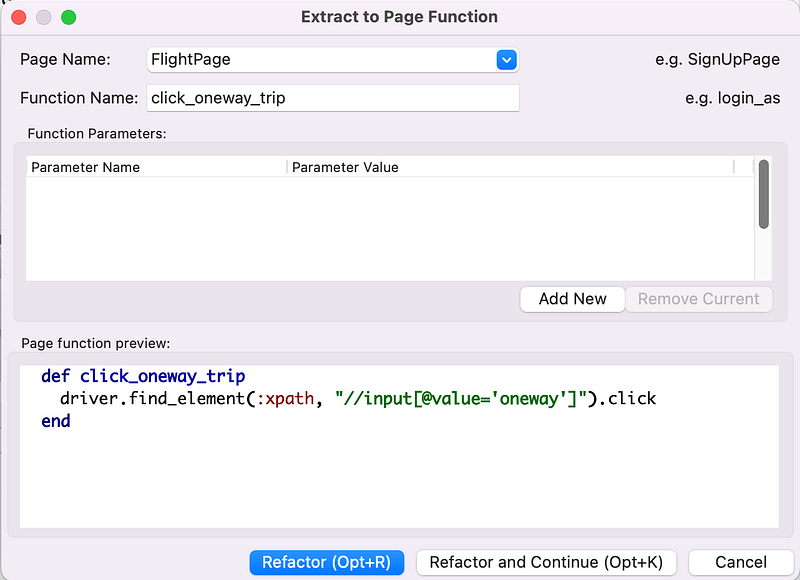
c. Click the “Refactor” button.

Done, the first operation. The test fragment is changed (by TestWise) to this:

It is pretty easy and quick in TestWise, isn’t it?

How did it work?

While it is quick, TestWise has done the following:

  1. Create a new page file, `flight_page.rb` under the `pages` folder. This defines `FlightPage`, you can refer to it as Page Object (strictly, Page Class).
  2. A new function `click_oneway_trip` is inserted into the `flight_page.rb`.
  3. Change the original test step line (in the test script file: `flight_spec.rb`) to use the newly created Page Object.

There are two inputs the automated tester (YOU) needs to decide. Firstly, make sure to get the format right.

  • Page Name It must conform to the format of “CamelCasePage”, i.e., the first character of the word is upper case, and its name ends with “Page”.
  • Function Name It must conform to the format of “low_case_underscore”, i.e. all in low cases to use `_` to join the wolds.

In terms of choices of words. It actually quite easy, just based on what is on the page. Below are several page functions in two Page Classes (in a typical online shopping app).

  • ShoppingCartPage - update_quantity - click_check_out_now
  • PaymentPage - enter_credit_card_number - enter_card_card_expiry_month_year - enter_csc - click_confirm_payment

Continue “Extract to Page Function …” Refactoring

After the first step is done, continue the same refactoring to the remaining steps on that page.

Extract the “Select departure city step”

Invoke the “Extract to Page Function” refactoring again. TestWise already moved the caret to the next line after the previous refactoring. Just invoke the refactoring. During my one-day Selenium training, that’s when I introduced performing refactoring using keyboard shortcuts.

  • Invoke the Extract Page Function refactoring, Ctrl+Alt+G on Windows
  • Type a function name, followed by an Enter key This time, FlightPage already exists, and TestWise will prefill it (by guessing, can be updated). You just need to enter the function name.
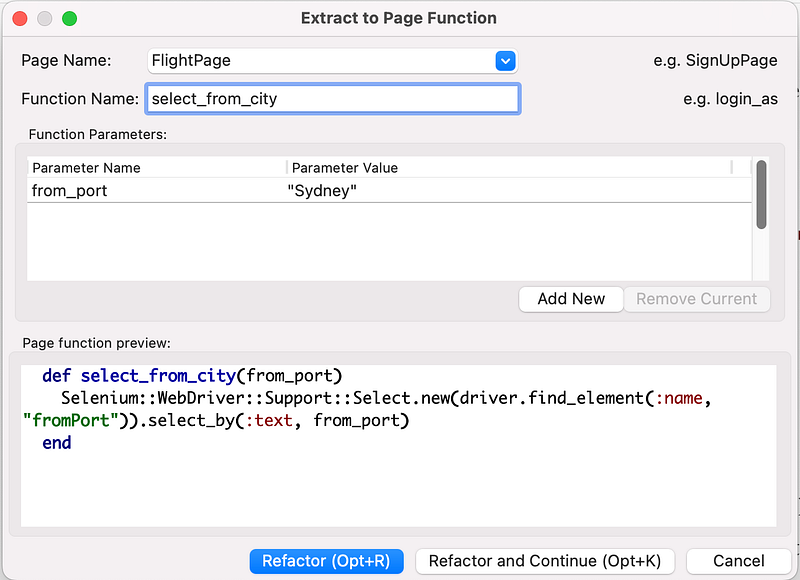
  • Press the Enter key to confirm refactoring.

Then, the next step, …, until all the steps are extracted!

Sample Page Class (after)

You might wonder where did the selenium steps go? In the `pages/flight_page.rb`.

require File.join(File.dirname(__FILE__), "abstract_page.rb")

class FlightPage < AbstractPage

  def initialize(driver)
    super(driver, "") # <= TEXT UNIQUE TO THIS PAGE
  end

  def select_oneway_trip
    driver.find_element(:xpath, "//input[@value='oneway']").click
  end

  def select_from_city(from_port)
    Selenium::WebDriver::Support::Select.new(driver.find_element(:name, "fromPort")).select_by(:text, from_port)
  end

  def enter_to_city(to_port)
    Selenium::WebDriver::Support::Select.new(driver.find_element(:name, "toPort")).select_by(:text, to_port)
  end

  def click_continue
    driver.find_element(:xpath, "//input[@value='Continue']").click
  end
end

Benefits

  • DRY (Don’t Repeat Yourself)
  • Concise
  • Reusable
  • Easy to maintain
  • DSL, easy to read
  • Autocomplete via tool support

Exercises

  • Refactor a new FlightPage for test steps in flight_spec.rb
  • Refactor to an existing page. Do it in two steps 1. Refactor a new PassengerPage for one test step in passenger_spec.rb 2. Rerun the test (standard refactoring procedure), close TestWise 3. Refactor the remaining steps to the existing PassengerPage. (hint: select a page class in the dropdown)
  • Try the “Refactor and Continue” button
  • Using keyboard shortcuts.

Related Refactorings

  • Extract Function (similar, but different, page function provides the context)
  • Introduce Page Object

Related reading:

Selenium
Selenium Webdriver
Page Object Model
Test Automation
Automated Testing
Recommended from ReadMedium