
Fluent Search — Extendable and Fast Desktop Search Engine
Search for running apps, browser tabs, in-app content, files, and more.
Let’s face it, Windows Search is not that good and is very, very slow. That’s why I’ve been using Everything to search stuff on my computer.
These days, I’ve found Fluent Search. Fluent Search is a desktop search engine, similar to Google but for the desktop. It runs in the background and can be launched by pressing Ctrl + Alt or double-clicking the tray icon. Using Fluent Search, you can instantly search for various resources available on your computer and access them.

After you type the search term, Fluent Search will list all results. You can navigate the results with up and down arrows, switch focus to the right sidebar with the right arrow key, and go back with the left arrow key.
Each of the search results has actions that you can perform based on the file type. For example, for an application, you can launch it, launch it as administrator, kill the process, open folder or uninstall it. After each action, you have a keyboard shortcut that allows you to execute the action quickly and without the need to use the mouse. You can also preview some file types, like documents and images.
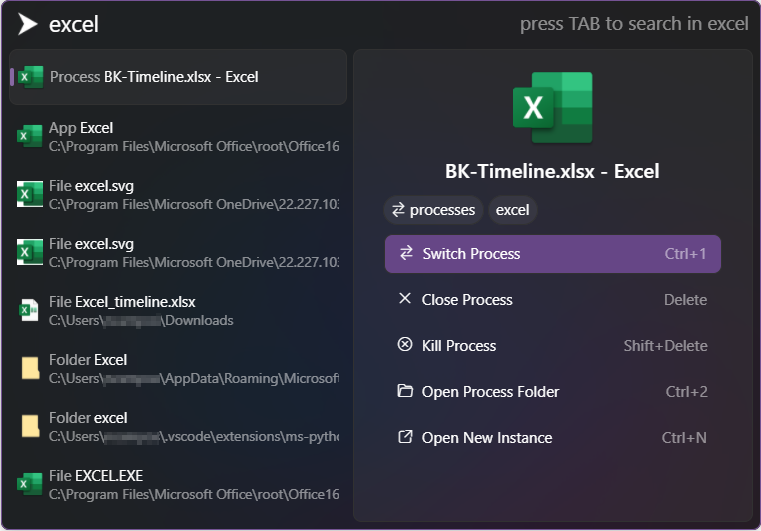
Other than searching for files, Fluent Search can also find installed applications, content inside files, and running processes and services. In addition, Fluent Search can find in-app elements such as tabs, buttons, and hyperlinks inside processes for immediate access.
Fluent Search is very fast because it indexes the files and folders in the background, like the application Everything.
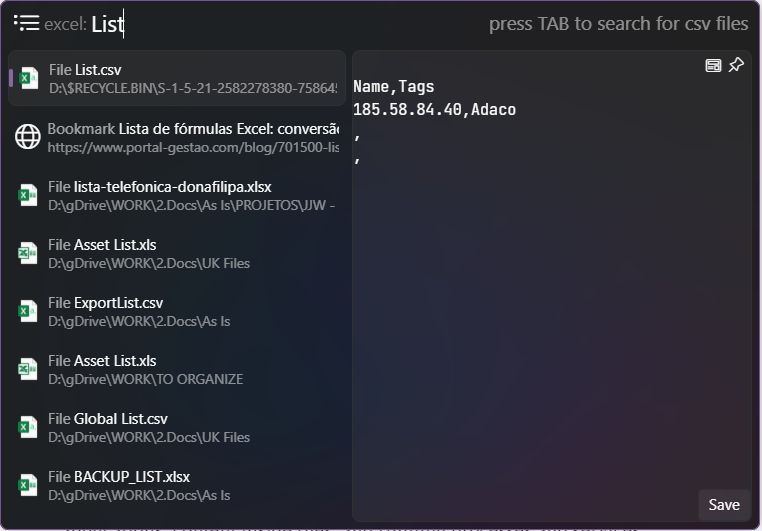
You can also use tags to filter search results. Just enter the tag and hit Tab. See the example below. I entered excel, hit Tab , and entered List. This will list excel files with Listin the name.
To do a web search, just type googleor bing, hit Taband enter the search term. It will display the results, but if you press enterit will open a new tab on your default browser with the search results. You can add other search engines in the settings.
Fluent Search handles app queries very well, detecting the applications to use and listing them at the top of the result list. For example, you can run commands in PowerShell or CMD directly.

Ctrl+Mtriggers a screen search, which maps all clickable areas on the screen to Vim-like keyboard shortcuts to help you perform tasks quicker and without the need to use the mouse.

Fluent Search analyzes your usage to prioritize your favorite results, and place them at the top of the list. If you'd rather not, you can turn the option off in the settings.
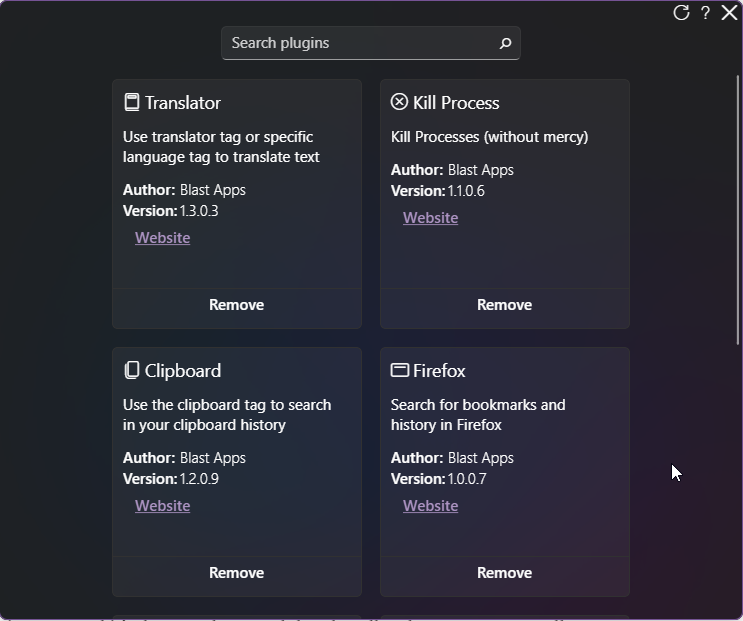
Fluent Search also has plugins to extend its functionality. For now, it has only eight add-ons, like the Calculator, To Do (integrates with Microsoft To Do), Kill Process, Clipboard or Translate.
Fluent Search is much more than a search application; it’s also a powerful application launcher, or application manager, as you can start and close apps, or uninstall them. I’m ditching, for now, the Flow Launcher/Everything duo in favor of Fluent Search.
Check out other applications that I love and use daily:
or My Obsidian Setup Series:
Click here to be notified every time I publish a new story 😉.
If you’re not a Medium member yet and wish to support me or get access to all my stories, click here.


