
Free Tools that make me more productive on Windows
To be productive can be harder than it should, especially when there are so many distractions around you 24/7. It is important to use the right tool for the specific task you’re dealing with and to automate your tasks as much as possible.
I love (and I’m addicted to) discovering new software. Even when I’m happy with a specific app, I’m always looking for new alternatives, so I do a lot of search and try.
In this article, I’ll be listing Free Apps that I’m using now that help me with my daily tasks.
Obsidian
Obsidian is a note-taking app based on plain text Markdown files stored in a local folder, giving your notes the security and longevity, they deserve.
This is where I keep all my notes and it’s also my task management system. This way I can link my tasks to my daily notes and my PKM (Personal knowledge management) notes. My second brain.
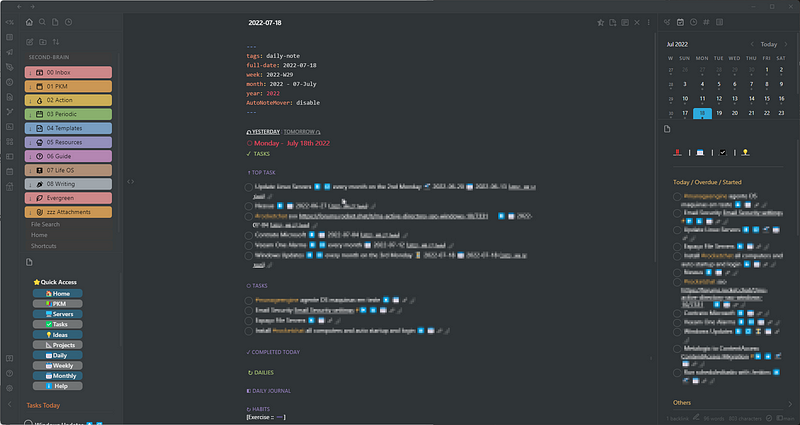
I fell in love with Obsidian when I first tried it. Very simple, but very powerful, and very configurable through the plugins.
Here are some features that I like about Obsidian:
Uses plain text files with a markdown format Can do Task lists and query tasks from other notes File linking and embedding Can use tags or nested folders (I use both) for organizing A huge assortment of plugins and themes. Also allows the use of custom CSS Customizable hotkeys Fast and reliable syncing across all my devices
Notepad++
I use Notepad++ mostly for temporary captions or notes, and to format text, search and replace using regex, etc. The autosave feature and the ability to recover files are also important.
Bonus Trick: If you make a symbolic link of the notepad++ AppData folder to a cloud syncing app, (in my case Google Drive) you can have the opened files synced across multiple computers. 😀
ShareX
ShareX is a free app that allows me to capture or record any area of my screen and share or annotate it easily. Usually, when I need to capture the screen, I need to identify something on the image. So, I have the PrintScreen button configured to take the screenshot and then open the image editor so I can annotate.
Notable features from ShareX include:
Being able to identify borders on screens to allow easy captures Customizable keyboard shortcuts Scrolling capture Web page capture Image annotation Adding watermarks to images
Windows Terminal
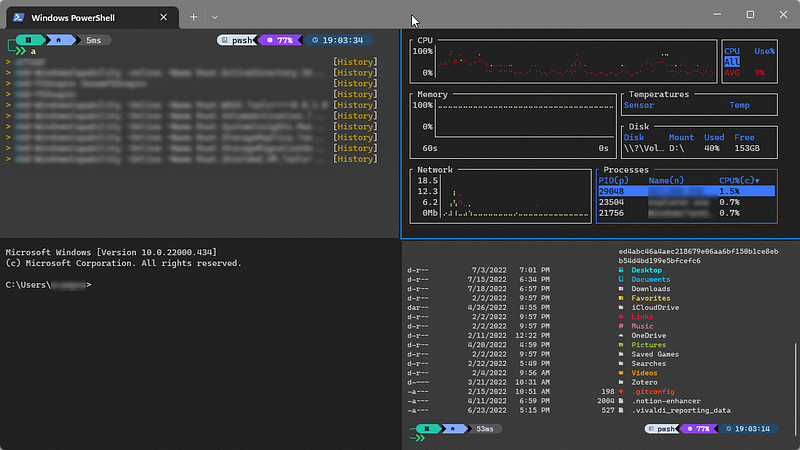
Windows terminal is a terminal application which includes unique features not found on Command Prompt or PowerShell console. My favourite features are the tabbed interface, which allows me to have multiple instances open, like SSH sessions to other machines, copy+paste from and to windows terminal works better than on Command Prompt or PowerShell consoles, custom themes and styles can be created, key shortcuts to open new tabs or panes.
Espanso
Espanso is a text expander. This app allows me to use shortcuts instead of typing long words and sentences. It lets you utilize short codes or keywords to quickly write a piece of text.
For example: - when I type :date, Espanso will quickly replace it with today’s date in the format I configured - :nn will be replaced by my full name - @@ will be replaced by my email address - :apt will be replaced by sudo apt update && sudo apt upgrade, which is very handy when I SSH to my remote Linux machines
I also have code snippets for the programming languages I usually use, and templates for email messages.
Features:
Supports text expansions when using a shell to help you keep things faster Execute custom scripts with the help of Espanso’s keywords Supports adding emojis Save code snippets and re-use them with Espanso System-wide integration Application-specific configuration option Cross-platform support
Dropit
DropIt is like my personal assistant that helps me organize my files. It monitors the configured folders, and when a file goes to that folder, depending on the name, directory, size, dates, properties, content or regular expressions, Dropit will move it to the correct folder and appends today’s date. You can use any of the following actions to perform: Move, Copy, Compress, Extract, Rename, Delete, Split, Join, Encrypt, Decrypt, Open With, Print, Upload, Send by Mail, Create Gallery, Create List, Create Playlist, Create Shortcut, Copy to Clipboard, Change Properties and Ignore
Quicklook
QuickLook enables a very quick preview of file contents by pressing the Spacebar. This is the same as Quick Look feature that comes built in on Mac OS.
Flowlauncher
This is a quick file search and app launcher for Windows. Just press the configured shortcut (default is ALT+SPACE) and you can write the name of the app you want to run or the file you’re looking for.
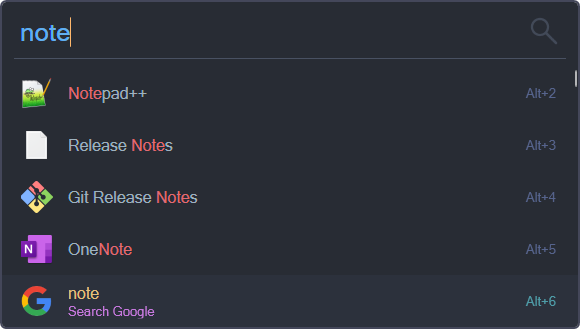
You can also:
Search on the web and open webpages Search on Wikipedia Browse your bookmarks Run system commands like shutdown, lock, settings, etc. Do mathematical calculations and copy the result to the clipboard Run batch and PowerShell commands as Administrator or a different user Search for Windows & Control Panel settings Control Spotify View clipboard history Colour picker and many other integrations using the plugins.

mRemoteNG
mRemoteNG is an open source, multi-protocol, tabbed remote connections manager allowing you to view all your connections in a simple but powerful interface.
I use this to manage my remote desktop connections to Windows servers and SSH connections to Linux servers. But mRemoteNG is more than just this. IMO where this app excels is in the ability to add remote tools. So, I can select a server and use the server’s name or Ip address:
execute ping execute traceroute run WinSCP to the server FTP to the server open a browser with the server’s name VNC viewer to the server Nmap the server run PowerShell to the server open VMware client console to VMware servers open hp ILO console to hp servers open services MMC and manage services open computer manager to the server Command Prompt (using SysInternals PSEXEC) Files Opened (using SysInternals PSFiLE) Logged-on users (using SysInternals psloggedon.exe) Netstat (Listening ports) (using Sysinternals PSEXEC and netstat) Nslookup server Processes List (PowerShell)
The possibilities are endless. These are just the external tools I use.
***
Those are my suggestions to help you become more efficient and productive using a Windows computer. All are great tools that help me with specific workflows.
Thanks so much for reading. If you have any questions, or if you need my help configuring any of these apps, please do let me know in the comments box. I’m also planning on writing individual articles on each of these apps.


