avatarJennifer Bland

Free AI web copilot to create summaries, insights and extended knowledge, download it at here

5534

Abstract

ime.datetime.now()), <span class="hljs-string">'price'</span>: price, <span class="hljs-string">'item'</span>: item, <span class="hljs-string">'discount'</span>: discount }</pre></div><p id="7bae">In our case, the output is:</p><div id="477f"><pre>{ 'date': '<span class="hljs-number">2018-05-13</span> 13:37:21.<span class="hljs-number">414342</span>', 'price': '169.99', 'item': 'Dyson AM08 Bladeless Pedestal Fan | White/Silver | Refurbished', 'discount': '399.99 | 57% off' }</pre></div><h1 id="8e42">Step 2: Saving to S3</h1><p id="f971">To save our result to S3, we use <a href="https://boto3.readthedocs.io/en/latest/index.html">Boto 3</a>, the AWS SDK for Python. First we get a reference to S3. Then we create an <code>object</code> with given <code>bucket</code> and <code>file_name</code>(the bucket was created beforehand though this can be done programmatically). Finally, we convert our data to <code>json</code> and write our <code>data</code> into the object.</p><div id="acf2"><pre><span class="hljs-keyword">import</span> boto3 <span class="hljs-keyword">import</span> json</pre></div><div id="34fd"><pre>def <span class="hljs-built_in">save_file_to_s3</span>(bucket, file_name, data): s3 = boto3.<span class="hljs-built_in">resource</span>(<span class="hljs-string">'s3'</span>) obj = s3.<span class="hljs-built_in">Object</span>(bucket, file_name) obj.<span class="hljs-built_in">put</span>(Body=json.<span class="hljs-built_in">dumps</span>(data))</pre></div><p id="1bfc">We will package this utility function in the handler file where we house the actual function Lambda will call. More on this in the following steps.</p><p id="5919">Incidentally, if saving tabular data as in our example, we might choose a database instead of S3. We illustrate S3 here as it is also a good choice for documents, we are also frequently scraped items.</p><h1 id="dd59">Step 3: The Handler Function</h1><p id="6f6c">A Lambda function needs a <a href="https://docs.aws.amazon.com/lambda/latest/dg/python-programming-model-handler-types.html">handler function</a>, which is the function Lambda will execute when it gets called. We will put the handler function, along with our Python dependencies, in a sub-directory called <code>ebay_deal_scraper</code>. This will allow us to separate the files which will be part of the Lambda package, and ancillary project files such as the Serverless config file discussed in later steps.</p><p id="2abf">We name our handler function <code>scrape</code> and give it the signature required by Lambda. We don’t use the <code>event</code> or <code>context</code> parameters, but if you needed to pass data into your Lambda function, they are what you would use.</p><div id="2ee8"><pre><span class="hljs-title">def</span> scrape(event, context): <span class="hljs-class"><span class="hljs-keyword">data</span> = deal_scrape()</span> file_name = f<span class="hljs-string">"deals-{data['date']}"</span> save_file_to_s3('ebay_daily_deals', file_name, <span class="hljs-class"><span class="hljs-keyword">data</span>)</span></pre></div><p id="c7da">Our handler calls our <code>deal_scrape()</code> function, then writes the returned data to S3 under a file name based on the date.</p><h1 id="6b1f">Step 4: Packaging our Function</h1><p id="8815">Our custom code is ready to go, but Lambda also requires you include your dependencies in the package you upload to AWS. In our case this means <code>pip installing</code> our Python packages locally. In the <code>ebay_deal_scrapper</code> directory, we run:</p><div id="bc42"><pre>pip3 <span class="hljs-keyword">install </span>requests <span class="hljs-keyword">bs4 </span>-t .</pre></div><p id="2ef0">(if you have any problems, see this <a href="https://stackoverflow.com/questions/24257803/distutilsoptionerror-must-supply-either-home-or-prefix-exec-prefix-not-both">Stack Overflow issue</a>)</p><p id="8621">This will install the <code>requests</code> and <code>beatiful soup</code> packages in our directory. Lamdba has<code>boto3</code> pre-installed, so you don’t need to include it.</p><p id="bea3">Incidentally, including dependencies can be quite hairy if you require platform-dependent C/C++ libraries like <a href="https://www.boost.org/">Boost</a>, and may require you to use Docker to bundle everything together under the Amazon Linux OS that Lambda requires. But that’s the topic of another blog post.</p><p id="8188">When you have dependencies, you probably want to use a zip file to package everything up. We give ours the generic name of <code>package.zip</code>:</p><div id="f3ce"><pre><span class="hljs-built_in">zip</span> -r package.<span class="hljs-built_in">zip</span> *</pre></div><h1 id="b305">Step 5: Deploying to Lambda</h1><p id="6f52">We will use the Serverless framework to deploy to AWS. Serverless offers a set of command line tools which make it very easy to deploy to the major serverless cloud providers including AWS. You can install it using <code>npm</code>:</p><p id="8fc7"><code>npm install -g serverless</code></p><p id="110d">You specify Serverless deployment instructions in a file called <code>serverless.yml</code>. If you want to generate a boilerplate file, you can run:</p><div id="4295"><pre>serverless <span class="hljs-built_in">create</span> <span class="hljs-comment">--template aws-python</span></pre></div><p id="d62a">This will also create a boilerplate<code>handler.py</code> file, but all we need there is the function which we specify i

Options

n the <code>serverless.yml</code> config file under the <code>functions</code> section.</p><div id="7831"><pre><span class="hljs-symbol">service:</span> ebay-deal-scraper <span class="hljs-symbol"> provider:</span> <span class="hljs-symbol"> name:</span> aws <span class="hljs-symbol"> runtime:</span> python3<span class="hljs-number">.6</span> <span class="hljs-symbol"> package:</span> <span class="hljs-symbol"> artifact:</span> ebay_deal_scraper/package.zip <span class="hljs-symbol"> functions:</span> <span class="hljs-symbol"> ebay_scrape:</span> <span class="hljs-symbol"> handler:</span> handler.scrape</pre></div><p id="8b75">The <code>provider</code> section tells Serverless we’re deploying to AWS and that we’re using <code>python 3.6</code>.</p><p id="5fec">The <code>package</code> section is where we specify the zip file we created in the last step.</p><p id="5313">We are ready to deploy!</p><p id="273c">From the top directory of your project run:</p><div id="d1ed"><pre><span class="hljs-attribute">serverless deploy</span></pre></div><p id="c024">If you have multiple AWS profiles (such as work and personal), you can specify a profile:</p><div id="981f"><pre>serverless <span class="hljs-keyword">deploy</span> <span class="hljs-params">--aws-profile</span> profile_i_want_to_use</pre></div><p id="eed1">If all goes well, you should get the following output:</p><div id="4f5e"><pre>➜ ebay<span class="hljs-params">-deals</span><span class="hljs-params">-scrape</span> git:(master) ✗ sd -<span class="hljs-params">-aws</span><span class="hljs-params">-profile</span> michael Serverless: Packaging service<span class="hljs-params">...</span> Serverless: Uploading CloudFormation file <span class="hljs-keyword">to</span> S3<span class="hljs-params">...</span> Serverless: Uploading artifacts<span class="hljs-params">...</span> Serverless: Validating template<span class="hljs-params">...</span> Serverless: Updating <span class="hljs-built_in">Stack</span><span class="hljs-params">...</span> Serverless: Checking <span class="hljs-built_in">Stack</span> update progress<span class="hljs-params">...</span> <span class="hljs-params">...</span><span class="hljs-params">...</span><span class="hljs-params">...</span> Serverless: <span class="hljs-built_in">Stack</span> update finished<span class="hljs-params">...</span> Service Information service: ebay<span class="hljs-params">-deal</span><span class="hljs-params">-scraper</span> stage: dev region: us<span class="hljs-params">-east</span><span class="hljs-number">-1</span> <span class="hljs-built_in">stack</span>: ebay<span class="hljs-params">-deal</span><span class="hljs-params">-scraper</span><span class="hljs-params">-dev</span> api keys: <span class="hljs-literal">None</span> endpoints: <span class="hljs-literal">None</span> functions: ebay_scrape: ebay<span class="hljs-params">-deal</span><span class="hljs-params">-scraper</span><span class="hljs-params">-dev</span><span class="hljs-params">-ebay_scrape</span> Serverless: Removing old service versions<span class="hljs-params">...</span></pre></div><p id="d320">You can now try to invoke your function with:</p><div id="b911"><pre>serverless<span class="hljs-built_in"> invoke </span>-f ebay_scrape <span class="hljs-comment"># --aws_profile profile_name </span></pre></div><p id="4385">This will result in an AccessDenied error. To fix this, you need to add permission to your Lambda function’s role (this gets created together with the function).</p><h1 id="da14">Step 6: Giving Lambda S3 Privileges</h1><p id="b13d">Go to the Roles page in the IAM section of the AWS dashboard. Find the role for your Lambda function, in our case <code>ebay-deal-scraper-dev-us-east-1-lambdaRole</code> and add a policy which allows it to access S3. <code>AmazonS3FullAccess</code> will work for our demo, though in production you may want to create a new policy which is more restrictive.</p><p id="e0d1">Once your function is deployed you should also be able to view and test it from the AWS console.</p><figure id="dc68"><img src="https://cdn-images-1.readmedium.com/v2/resize:fit:800/1*A1uCWEB2Hb-YS7lMEiXCww.png"><figcaption></figcaption></figure><h1 id="6080">Step 7: Scheduling the Lambda Function Using CloudWatch</h1><p id="8cd3">Final step! Go to the CloudWatch Management Page and click the<code>Rules</code> tab. Under Event Source, select <code>Schedule</code> and fill in a cron expression. We set ours to run every day at 6PM GMT, or afternoon in US Eastern Time. Next, in the <code>Targets</code> section, choose <code>Lambda function</code> in the select and then your Lambda function from the list in the <code>Function</code> select. You’re done!</p><figure id="1595"><img src="https://cdn-images-1.readmedium.com/v2/resize:fit:800/1*amgaVqAlsAl0pQdYaAP_PA.png"><figcaption></figcaption></figure><p id="eb37">That’s the whirlwind tour of scraping the serverless way. I hope this gives a taste of the technologies involved, though each of them could be the subject of many, many blog posts.</p><p id="f860">As far as scraping goes, with the rise of big data/machine learning, data acquisition is becoming more and more important. And if, for instance, you wanted to do something like feed your machine learning model with data to <a href="https://www.dataquest.io/blog/machine-learning-tutorial/">make price predictions for AirBnB</a>, scraping might be your only option. The serverless architecture exemplified here offers an efficient way to do this.</p></article></body>

How to build an SPA using Vue.js, Vuex, Vuetify, and Firebase: using Vue Router

Part 2: learn how to use Vue Router with your SPA
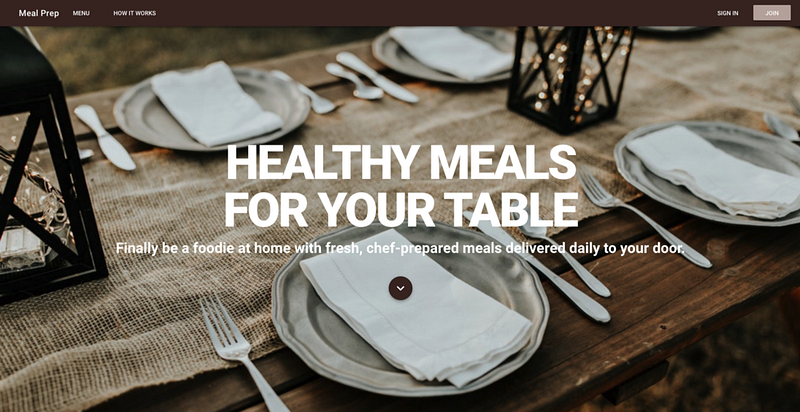
Meal Prep application

Learn how to create a meal delivery website using Vue.js, Vuex, Vue Router, and Firebase.

This is part two of my four-part series on building a Vue application. Here is a list of all the parts:

Part 1: Installing Vue and Building an SPA using Vuetify and Vue Router

Part 2: Using Vue Router

Part 3: Using Vuex and accessing API

Part 4: Using Firebase for Authentication

Recap

In the first part of this series, we created our Vue application using the Vue CLI. Also, we added Vuetify to the app. I am using Vuetify for styling the app. I will also take advantage of the many UI components that it offers.

After getting everything installed, we styled the home page of our application.

Using Vue Router

Vue router provides the navigation for our application. When you click on the SIGN IN button, it will redirect you to the page to login. When you click the MENU button, it will redirect you to the page that shows the available meal plans.

The router.js file contains the configuration for routing. Open that file. In that file, you will see two routes. One that displays the Home.vue component when you hit ‘/’ route. The other displays the about.vue component when you hit the route ‘about’.

We will need to create routes for every page in our application. Our application will need the following routes:

  • /
  • /menu
  • /sign-in
  • /join

When we used the Vue CLI to create out the app, we selected to install Vue Router. By default, this created routes for ‘/’ which is home and ‘/about’ for the about page. In part 4 we will use the about page to show all the recipes the user has ordered.

We need to add three new routes to the routes array. After adding these new routes, this is what our router.js file looks like:

import Vue from 'vue';
import Router from 'vue-router';
import Home from './views/Home.vue';
Vue.use(Router);
export default new Router({
    mode: 'history',
    base: process.env.BASE_URL,
    routes: [
        {
            path: '/',
            name: 'home',
            component: Home
        },
        {
            path: '/about',
            name: 'about',
            component: () => import('./views/About.vue')
        },
        {
            path: '/menu',
            name: 'menu',
            component: () => import('./views/Menu.vue')
        },
        {
            path: '/sign-in',
            name: 'signin',
            component: () => import('./views/Signin.vue')
        },
        {
            path: '/join',
            name: 'join',
            component: () => import('./views/Join.vue')
        }
    ]
});

View vs Components

In our first lesson, we created several new Vue components. I placed these components inside the components folder. For these three new components, we will not create them inside the components folder. Instead, we will put them inside the views folder. The reason is that anything that is hit using a URL like /menu belongs in the views folder. Everything else should be in the components folder.

Creating new Views

We need to create new views for each of the three new routes. In the views folder create the following three files:

  • Menu.vue
  • Signin.vue
  • Join.vue

Inside each of the files add a with a . Inside the layout have an

tag with the name of the page.

Here is the Menu.vue file:

<template>
    <v-container fluid>
        <v-layout>
            <h1>Menu Page</h1>
        </v-layout>
    </v-container>
</template>
<script>
export default {
    name: 'Menu'
};
</script>
<style scoped>
</style>

Here is the signin.vue file:

<template>
    <v-container fluid>
        <v-layout>
            <h1>Signin Page</h1>
        </v-layout>
    </v-container>
</template>
<script>
export default {
    name: 'Signin'
};
</script>
<style scoped>
</style>

Here is the Join.vue file:

<template>
    <v-container fluid>
        <v-layout>
            <h1>Join Page</h1>
        </v-layout>
    </v-container>
</template>
<script>
export default {
    name: 'Join'
};
</script>
<style scoped>
</style>

Making the Menu Items Clickable

In our menu we have four items that a user can click. They are:

  • Menu
  • Profile
  • Sign In
  • Join

We want to configure each of these so that when a user clicks on them it will take them to the appropriate page. Open up the AppNavigation.vue file. In the <v-toolbar> section find the <v-btn> for the Menu. All we need to do is add to="/menu". We will do this for all four entries, but make sure we specify the correct route that we defined in the router.js file.

We don’t have a menu option to return to the home page. We can fix this by making the app name redirect to the home page. But the title is not a button, so adding to="/menu" will not work. Vue Router provides the option to surround a link with <router-link to=”/”>. We will do this for our app title.

Here is what my AppNavigation looks like now:

<template>
    <span>
        <v-navigation-drawer app v-model="drawer" class="brown lighten-2" dark disable-resize-watcher>
            <v-list>
                <template v-for="(item, index) in items">
                    <v-list-tile :key="index">
                        <v-list-tile-content>
                            {{item.title}}
                        </v-list-tile-content>
                    </v-list-tile>
                    <v-divider :key="`divider-${index}`"></v-divider>
                </template>
            </v-list>
        </v-navigation-drawer>
        <v-toolbar app color="brown darken-4" dark>
            <v-toolbar-side-icon class="hidden-md-and-up" @click="drawer = !drawer"></v-toolbar-side-icon>
            <v-spacer class="hidden-md-and-up"></v-spacer>
            <router-link to="/">
                <v-toolbar-title to="/">{{appTitle}}</v-toolbar-title>
            </router-link>
            <v-btn flat class="hidden-sm-and-down" to="/menu">Menu</v-btn>
            <v-spacer class="hidden-sm-and-down"></v-spacer>
            <v-btn flat class="hidden-sm-and-down" to="/sign-in">SIGN IN</v-btn>
            <v-btn color="brown lighten-3" class="hidden-sm-and-down" to="/join">JOIN</v-btn>
        </v-toolbar>
    </span>
</template>
<script>
export default {
    name: 'AppNavigation',
    data() {
        return {
            appTitle: 'Meal Prep',
            drawer: false,
            items: [
                { title: 'Menu' },
                { title: 'Profile' }, 
                { title: 'Sign In' },
                { title: 'Join' }
            ]
        };
    }
};
</script>
<style scoped>
</style>

When we do this, we have a slight problem with our app title in the menu. It has changed from being white text to being blue text with an underline. This is the default styling for an anchor tag. We can overcome this by adding the following style:

a {
    color: white;
    text-decoration: none;
}

Now we are back to where we were. If you click on all the items on the menu, they will redirect you to the appropriate page. We only have a slight problem with the About.vue file. This file displays the contents differently. So that we have consistency, update the About.vue file to be this:

<template>
    <v-container fluid>
        <v-layout>
            <h1>About Page</h1>
        </v-layout>
    </v-container>
</template>
<script>
export default {
    name: 'About'
};
</script>
<style scoped>
</style>

Get the Code

Even though this is a 4-part series, you can get the finished code in my GitHub account. Please help me out and star the repo when you get the code.

Summary

In this part of this series, you have learned:

  • how Vue Router works
  • how to load new routes
  • how to setup menu to load each page

What’s Next

In the next part of this series, we will cover using Firebase for Authentication. Vuex allows you to provide “state” within your application. We will be signing up for access to a recipe API. From that API we will be getting recipes to display to users for our menu page.

If you enjoyed this article please clap for it. If you think somebody else would benefit from this article please share it with them.

If you have any questions or find anything wrong with the code, please leave a comment. If there are other topics you would like for me to write about, please leave a comment.

More Articles

Here are some other articles I have written that you might want to read.

Follow Me On Twitter!

Vue
Vuejs
Software Development
Technology
Programming
Recommended from ReadMedium