
How To Create a Dash Application With Dark Mode
Dark mode is becoming more and more popular, and many applications and operating systems now offer a dark mode option. In this article, you will learn how to add easily dark mode to your Dash application with Dash Mantine Components.
In the following picture, you can see what the dark mode setting looks like in the Dash application. To keep it short and sweet, we will be looking at the app.layout and callback for switching to dark mode.
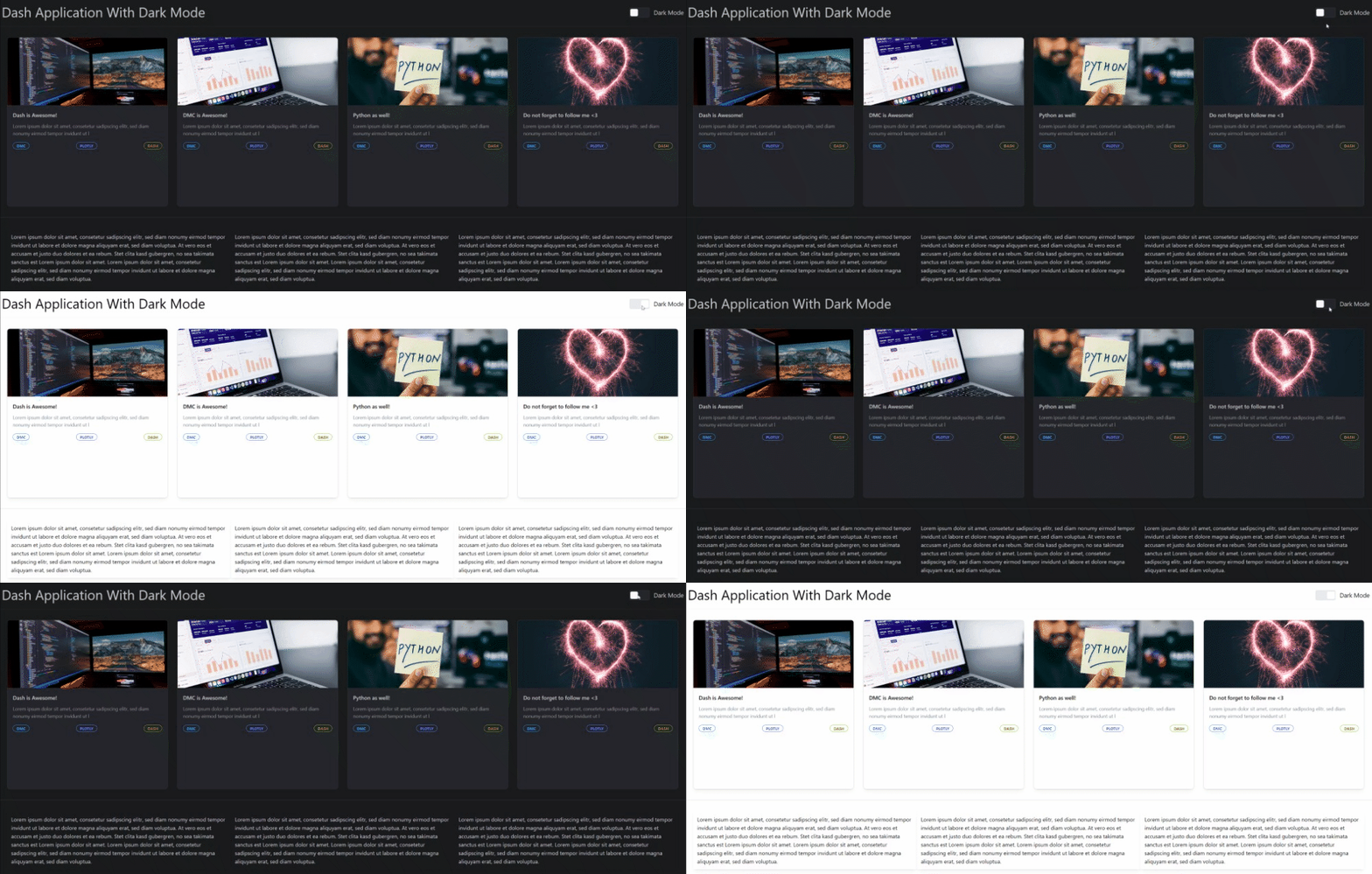
The Code Can Be Found on GitHub
The complete code is available on GitHub. If you want to reproduce it, you need to install all dependencies that are listed in the requirements file.
If you want to know how to add skeleton loading to your Dash app, then feel free to check out my latest article: Upgrade Your Dash Application With Skeleton Loading + Code.
Layout
To apply a dark color theme, you have to wrap your application in MantineProvider and specify the colorScheme.
app.layout = dmc.MantineProvider(
 id="app-theme",
    theme={
  "colorScheme": "white",
    },
    inherit=True,
    withGlobalStyles=True,
    withNormalizeCSS=True,
    children=["Your Layout"]
)
the dmc.MantineProvider component enables us to apply a theme to the entire application. It is mandatory to set an id for the MantineProvider component as well as the theme argument. The current layout will have a white color scheme and will apply global CSS styles and normalization to the app. The complete user interface of your application needs to be in the children argument. Take your time and have a look at the sample layout here.
Callback
The following code set up a callback function for the toggle switch in the header of our application. The first argument theme is required to be able to update the theme dictionary. It contains the whole theme dictionary, which we defined in the app.layout. It would be also possible to return the whole dictionary. However, the code becomes long if you set multiple theme properties. Therefore, retrieving the theme and updating it is the better way. Depending on if the switch is toggled, we return the updated dictionary with the colorScheme dark, or white.
@app.callback(
    Output('app-theme', 'theme'),
    Input('app-theme', 'theme'),
    Input("switch-theme", "checked"),
    prevent_intial_call=True)
def switch_theme(theme, checked):
    if not checked:
        theme.update({'colorScheme': 'dark'})
    else:
        theme.update({'colorScheme': 'white'})
    return theme
Thanks for reading! Before you go, consider subscribing to my content and get all my articles in your inbox. You can subscribe here! You can also sign up for my newsletter to get extra free content delivered right to your inbox.


