
How To Create a Dash Application With Skeleton Loading + Code
Adding an indicator — so something is happening in the background of your application — is a must-have. There are several options like showing a loading spinner or displaying the progress in percentages. In this tutorial, I will show you how you can add skeleton loading to your dash application.
What Is a Skeleton?
Skeleton loading is a smooth way to inform the user that something is happening. It displays a simplified version of the user interface, it is often represented as a wireframe or an outline of the layout, before the real content is loaded. The Dash documentation contains skeleton loading as well. You can check it by opening the following link:
Dash Mantine Components (DMC)
Dash Mantine Components are a great alternative to Dash Bootstrap Components. It offers a collection of more than 70 high-level reusable UI components for building interactive dashboards. One of their features is the skeleton. You can check all DMC components here:
The Code Can Be Found on GitHub
The complete code can be found on GitHub. If you want to reproduce it, you need to install all dependencies that are listed in the requirements file. in the following sections, I am going to show you two examples. The first one covers a dash data table and the second simple cards.
Add Skeleton Loading to a Dash Datatable
First, we need to define the layout that includes the skeleton. One example to do that is shown in the next code snippet:
  html.Div(
      [
          dmc.Skeleton(
              visible=False,
              children=html.Div(id="skeleton-datatable-container"),
              mb=10,
          ),
          dmc.Button("Click Me!", id="datatable-skeleton-button"),
      ],
      style={"padding": "32px"}
  )
We will return the children through a callback. As an output, we have to use the skeleton-datatable-container to trigger the loading state. The following code shows the callback. We start by fetching the data, creating a pandas data frame out of it, using the data frame for a dash data table, and finally returning it. I added the sleep to show the skeleton longer.
@callback(
    Output("skeleton-datatable-container", "children"),
    Input("datatable-skeleton-button", "n_clicks")
)
def create_table(n_clicks):
    url = "https://raw.githubusercontent.com/cs109/2014_data/master/countries.csv"
    df = pd.read_csv(url)
    table = dash_table.DataTable(
        id="table",
        data=df.to_dict('records'),
        columns=[{"name": col, "id": col} for col in df.columns],
        page_size=10,
        style_table={'overflowX': 'auto'},
        style_cell={
            'minWidth': '60px', 'width': '60px', 'maxWidth': '60px',
            'overflow': 'hidden',
            'textOverflow': 'ellipsis',
        }
    )
    sleep(3)
    return table
You can ignore the style_table and style_cell. Both are not required. I added them only to style the dash data table itself. And this is how the skeleton loading looks for the dash data table:

Add Skeleton Loading to Customized Cards
It is possible to define the layout of the skeleton with the height and width props. You can even create a circle. That might be interesting for showing a loading avatar or profile picture. The following Code snippet shows the layout of four cards:
html.Div(
    [
        dmc.Skeleton(
            visible=False,
            height=500,
            width=475,
            children=html.Div(id="skeleton-card-1-container"),
        ),
        dmc.Skeleton(
            visible=False,
            height=500,
            width=475,
            children=html.Div(id="skeleton-card-2-container"),
        ),
        dmc.Skeleton(
            visible=False,
            height=500,
            width=475,
            children=html.Div(id="skeleton-card-3-container"),
        ),
        dmc.Skeleton(
            visible=False,
            height=500,
            width=475,
            children=html.Div(id="skeleton-card-4-container"),
        ),
    ],
    style={"padding": "32px", "display": "flex", "justifyContent": "space-between"}
)
The structure is similar to the dash data table skeleton. Except this time, we defined the height and width of the skeleton. I used the height and width to display the exact layout of the cards. You can find the function to create the cards here:
The callback is simple. There are in total four outputs and one input. The button is the input and is responsible for firing the callback. The four outputs are due to the four skeletons defined in the layout.
@callback(
    Output("skeleton-card-1-container", "children"),
    Output("skeleton-card-2-container", "children"),
    Output("skeleton-card-3-container", "children"),
    Output("skeleton-card-4-container", "children"),
    Input("card-skeleton-button", "n_clicks")
)
def create_table(n_clicks):
    card_1 = create_card(
        image_src="https://images.unsplash.com/photo-1534972195531-d756b9bfa9f2?ixlib=rb-4.0.3&ixid=MnwxMjA3fDB8MHxwaG90by1wYWdlfHx8fGVufDB8fHx8&auto=format&fit=crop&w=2670&q=80",
        title="Dash is Awesome!",
        text="Lorem ipsum dolor sit amet, consetetur sadipscing elitr, sed diam nonumy eirmod tempor invidunt ut l"
    )

    card_2 = create_card(
        image_src="https://images.unsplash.com/photo-1608222351212-18fe0ec7b13b?ixlib=rb-4.0.3&ixid=MnwxMjA3fDB8MHxwaG90by1wYWdlfHx8fGVufDB8fHx8&auto=format&fit=crop&w=1548&q=80",
        title="DMC is Awesome!",
        text="Lorem ipsum dolor sit amet, consetetur sadipscing elitr, sed diam nonumy eirmod tempor invidunt ut l"
    )

    card_3 = create_card(
        image_src="https://images.unsplash.com/photo-1526379095098-d400fd0bf935?ixlib=rb-4.0.3&ixid=MnwxMjA3fDB8MHxwaG90by1wYWdlfHx8fGVufDB8fHx8&auto=format&fit=crop&w=2064&q=80",
        title="Python as well!",
        text="Lorem ipsum dolor sit amet, consetetur sadipscing elitr, sed diam nonumy eirmod tempor invidunt ut l"
    )

    card_4 = create_card(
        image_src="https://images.unsplash.com/photo-1515871204537-49a5fe66a31f?ixlib=rb-4.0.3&ixid=MnwxMjA3fDB8MHxwaG90by1wYWdlfHx8fGVufDB8fHx8&auto=format&fit=crop&w=1564&q=80",
        title="Do not forget to follow me <3",
        text="Lorem ipsum dolor sit amet, consetetur sadipscing elitr, sed diam nonumy eirmod tempor invidunt ut l"
    )
    sleep(3)

    return card_1, card_2, card_3, card_4
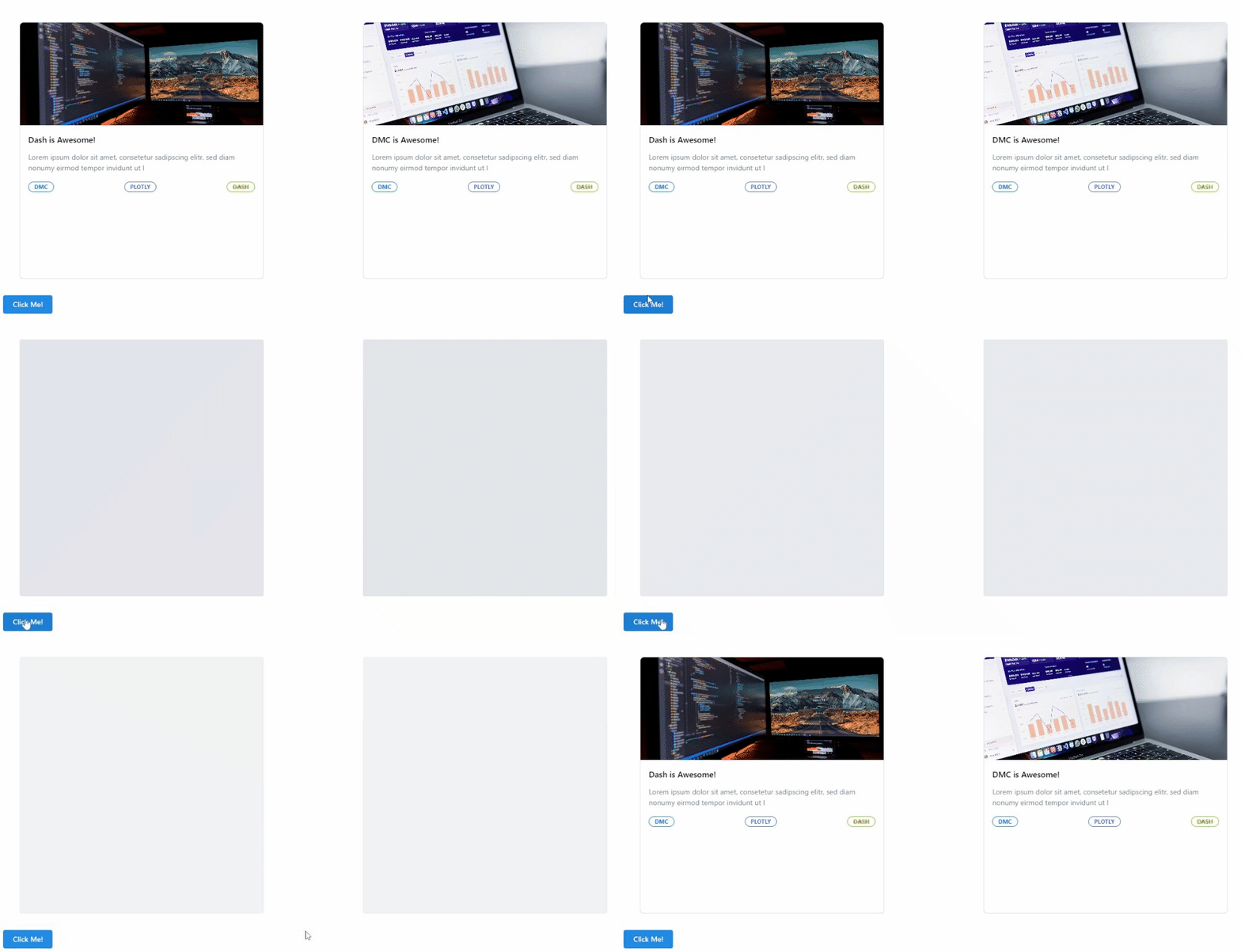
Each card is generated from the create_cards function from the cards.py file. The following gif shows the skeleton for two of four cards:
I got inspired by many websites and found after some research that the Dash Mantine Components package offers this functionality. Feel free to dig deeper into this awesome package. Here are some resources I used for this tutorial:
Thanks for reading! Before you go, consider subscribing to my content and get all my articles in your inbox. You can subscribe here! You can also sign up for my newsletter to get extra free content delivered right to your inbox.


