
Expandable UITableViewCell in Swift 5 (Simple Way)
We will see how to create expandable tableview cells without using sections.
Use UIStackView!!!
Let’s first create our cell (we will call it ExpandableFaqTableViewCell)
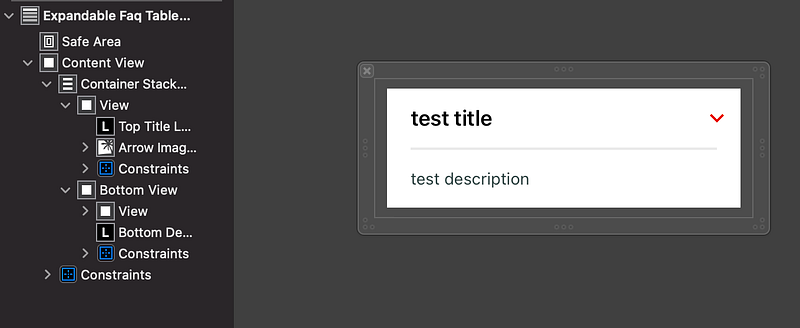
This is how the xib should look like. Now let’s put an UIStackView inside the ContentView and add the necessary constraints.
We want to separate the expanded area so we will add two views in our UIStackView. The first view will contain only an UILabel (which is our title) and a simple image that will change to up or down based on the state of the cell. The second view will contain an UIView (a simple line) and an UILabel which is the description (it can with multiple lines).
Now let’s name the second view as bottomView (Note that inside the bottom view you can add whatever you want, not only a UILabel. Use constraints in all of the views.
Now let’s see how the swift file should be like.
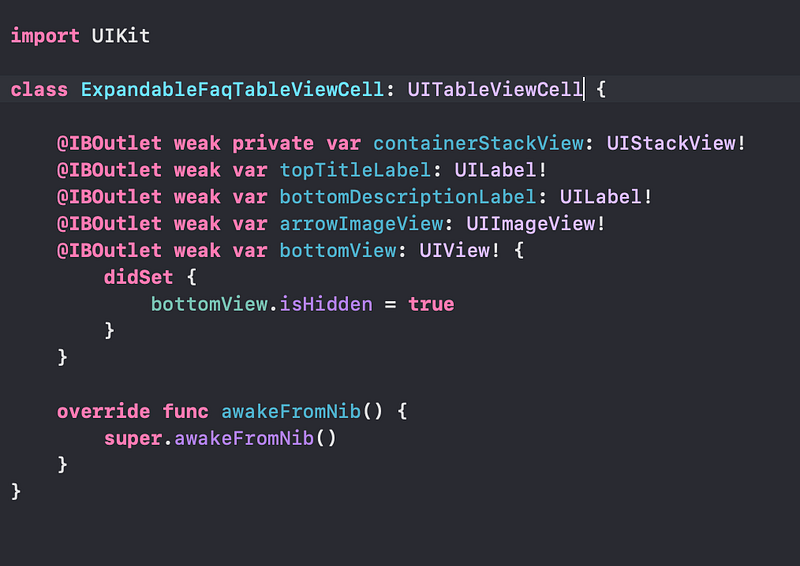
We connect all the IBOutlets and as you notice we should add a didSet to the bottomView. That’s mean that when the bottomView is been set it will be hide. You can avoid that step and set the property of hidden directly on your xib file. We finished with the configuration of our UITableViewCell.
Now let’s see our UIViewController (we will call it SupportDetailsViewController)
We will start with the basic configurations of the UIViewController
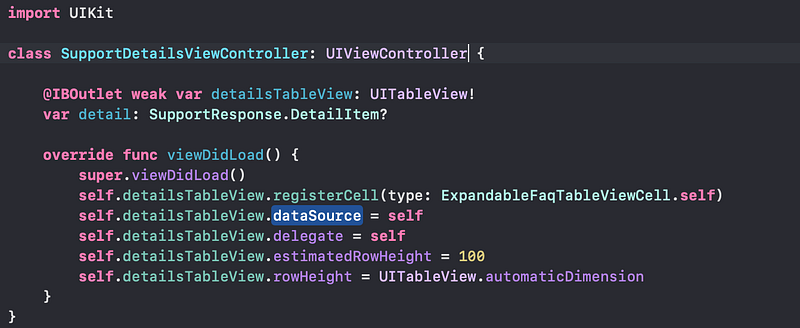
detailsTableView will be our UITableView. We need to register our cell and set the dataSource and delegate of UITableViewDelegate and UITableViewDatasource. For convenience we will just add an estimatedRowHeight at 100 and automaticDimension of rowHeight so the height will be equals the content of the cell.
Next step is to add the extensions of SupportDetailsViewController with UITableViewDelegate and UITableViewDatasource
Let’s see the UITableViewDelegate first:

We need to implement only the didSelectRowAt method and do it as simple as we can. In this example we have our array of models that we will use to keep the state of the expandable cell. So at the tap of the cell we will invert the isHidden value on our model (from true to false and viceversa) and the trick here is to just call the reloadRows function
tableView.reloadRows(at: [indexPath], with: UITableView.RowAnimation.automatic)
Now we will see the trick to expand the cell. Let’s implement the methods of UITableViewDataSource
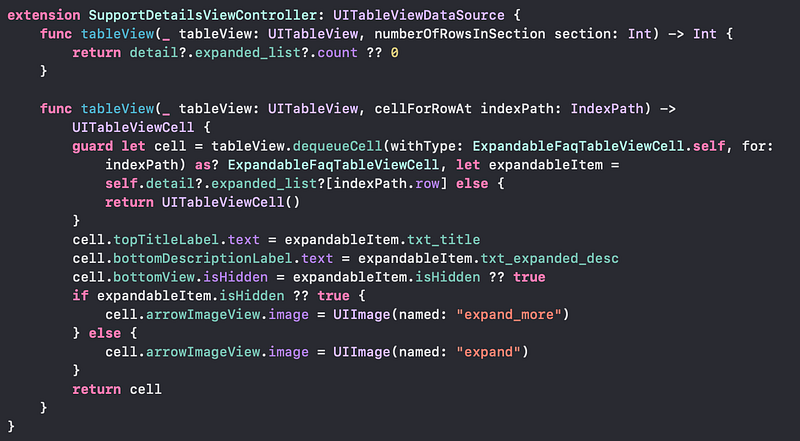
The numberOfRowsInSection will just count our array
Let’s focus on the cellForRowAt function. After configuring the cell with the title and the description we need to configure the bottomView in order to be hidden when the cell is tapped. We simply set the isHidden property of the bottomView with our value in the array. If you need also to change the icon (up or down) you can set the image based on the isHidden property.
And the results :
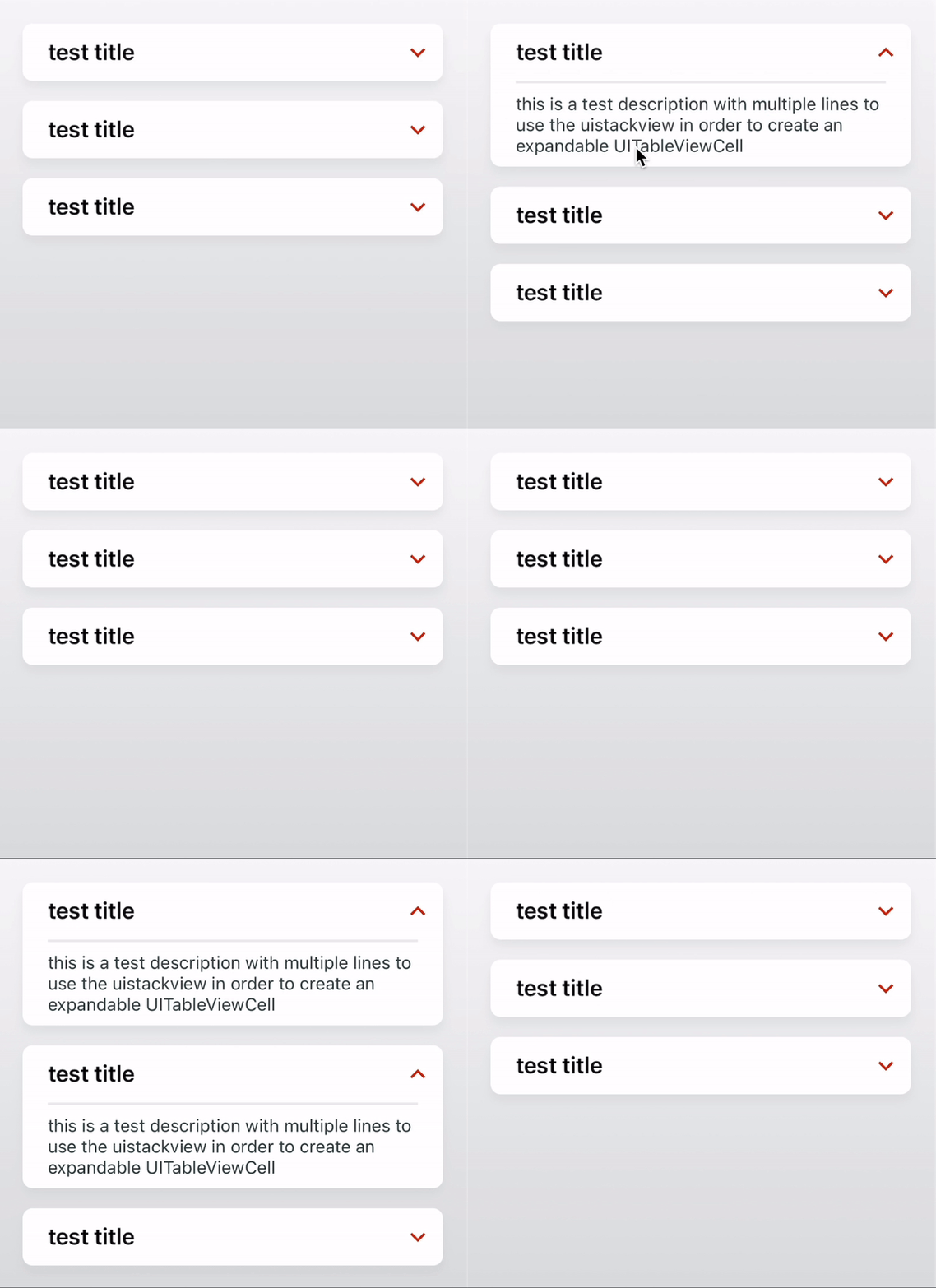
If you want to add the round corners and shadow in your cells you can read my post (as you see it works perfectly also for expandable cells): https://readmedium.com/round-corners-and-shadow-in-uitableviewcell-swift-5-8eb903bf38a1
Please support us by becoming a Medium member
More content at blog.devgenius.io.


